# Work with templates
You create and edit Coder templates as
[Terraform](https://developer.hashicorp.com/terraform/intro) configuration files
(`.tf`) and any supporting files, like a README or configuration files for other
services.
## Who creates templates? [#who-creates-templates]
The [Template Admin](/beta-docs/@main/admin/users/groups-roles/#roles) role (and
above) can create templates. End users, like developers, create workspaces from
them. Templates can also be [managed with git](/beta-docs/@main/admin/templates/managing-templates/change-management/), allowing
any developer to propose changes to a template.
You can give different users and groups access to templates with
[role-based access control](/beta-docs/@main/admin/templates/template-permissions/).
## Create templates [#create-templates]
The [template builder](/beta-docs/@main/admin/templates/creating-templates/#template-builder) is the
recommended way to create templates. It guides you through selecting a base
infrastructure template, adding modules (IDEs, tools, integrations), and
configuring template settings without writing Terraform.
Starter templates for common cloud providers (AWS, Azure) and orchestrators
(Kubernetes, Docker) are available as base templates within the builder. You can
modify the generated template to use your own images, VPC, cloud credentials,
and so on. Coder supports all Terraform resources and properties.
If you prefer to use Coder on the
[command line](/beta-docs/@main/reference/cli/), use `coder templates init` to
pull a starter template, then `coder templates push` to upload it.
Coder starter templates are also available on our
[GitHub repo](https://github.com/coder/coder/blob/main/examples/templates).
## Community Templates [#community-templates]
As well as Coder's starter templates, you can see a list of community templates
by our users [here](https://github.com/coder/coder/blob/main/examples/templates/community-templates.md).
## Edit templates [#edit-templates]
Our templates are meant to be modified for your use cases. You can edit any
template's files directly in the Coder dashboard.
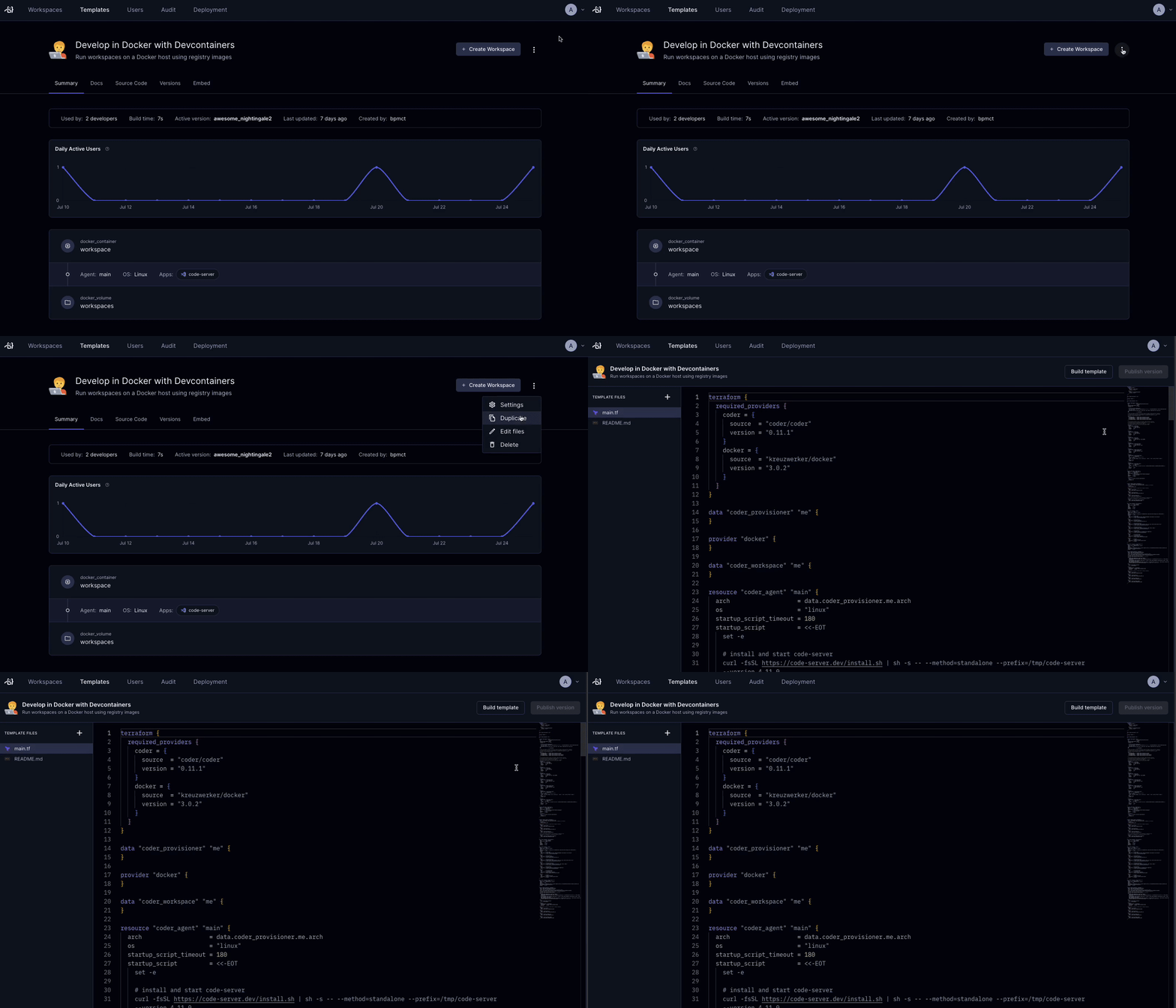
If you'd prefer to use the CLI, use `coder templates pull`, edit the template
files, then `coder templates push`.
Even if you are a Terraform expert, we suggest reading our
[guided tour of a template](/beta-docs/@main/tutorials/template-from-scratch/).
## Update templates [#update-templates]
Coder tracks a template's versions, keeping all developer workspaces up-to-date.
When you publish a new version, developers are notified to get the latest
infrastructure, software, or security patches. Learn more about
[change management](/beta-docs/@main/admin/templates/managing-templates/change-management/).

### Template update policies [#template-update-policies]
Template update policies are a Premium feature.
[Learn more](https://coder.com/pricing#compare-plans).
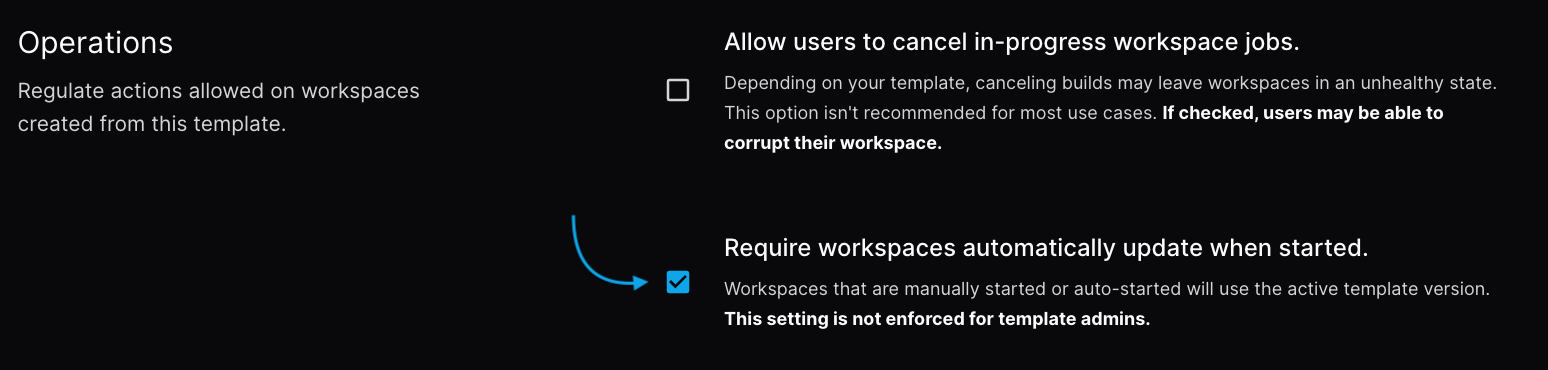
Licensed template admins may want workspaces to always remain on the latest
version of their parent template. To do so, enable **Template Update Policies**
in the template's general settings. All non-admin users of the template will be
forced to update their workspaces before starting them once the setting is
applied. Workspaces which leverage autostart or start-on-connect will be
automatically updated on the next startup.
## Refresh template data [#refresh-template-data]
Coder reads Terraform `data` sources once, when it imports a template version.
Every workspace built from that version reuses those stored results.
Refreshing imports the active version's source files again and publishes the
result as the new active version. Use it to pick up changes to a `data` source,
or to give an older version the metadata that
[Dynamic Parameters](/beta-docs/@main/admin/templates/extending-templates/dynamic-parameters/) needs.
To refresh a template's data:
1. Navigate to the template, then select **Settings** > **Parameters**.
2. Select **Refresh template data**, then confirm.
The **Template data** section on that page shows which version is active and
when Coder last imported it.
New workspaces use the refreshed version as soon as the import finishes.
Workspaces that are already running stay on their current version until you
update them.
Refreshing a template's data requires permission to update the template, which
the [Template Admin](/beta-docs/@main/admin/users/groups-roles/#roles) role and above have.
## Workspace renaming [#workspace-renaming]
Workspace renaming is disabled by default on every template. Enable it per
template, once you have confirmed that a rename won't destroy anything.
Terraform exposes the workspace name as `data.coder_workspace.me.name`. If a
template uses that value in an attribute Terraform can't change in place,
renaming the workspace makes Terraform destroy the resource and create a new one
on the next build. When that resource is the home volume, the developer loses
their data.
Other uses of the name are harmless. A Kubernetes label or an environment
variable changes without replacing anything. Coder can't tell the two cases
apart, so the decision stays with the template admin.
### Check whether your template is safe to rename [#check-whether-your-template-is-safe-to-rename]
Search the template for uses of the workspace name:
```sh
grep -rn 'coder_workspace\.[a-z_]*\.name' .
```
For each result, ask whether Terraform would replace the resource if that value
changed. Attributes such as a volume name, a disk name, or an instance name
usually force replacement. Labels, tags, and environment variables usually
don't.
If a resource would be replaced, reference an immutable identifier instead, such
as `data.coder_workspace.me.id`. Refer to
[Resource persistence](/beta-docs/@main/admin/templates/extending-templates/resource-persistence/) for the
full set of practices.
### Enable renaming for a template [#enable-renaming-for-a-template]
1. Go to the template, then select **Settings**.
2. On the **General** page, under **Operations**, select **Allow users to rename
their workspaces**.
3. Select **Save**.
Developers can then rename a workspace from the workspace's **Settings** page,
or with `coder rename`.
While the setting is off, the workspace name field is disabled and the API
rejects renames.
The deployment-wide `CODER_ALLOW_WORKSPACE_RENAMES` option is deprecated.
While it is set, renaming is enabled for every template in the deployment,
and the per-template setting can't turn it off. Unset it, then enable
renaming on the templates that need it.
## Delete templates [#delete-templates]
You can delete a template using both the coder CLI and UI. Only
[template admins and owners](/beta-docs/@main/admin/users/groups-roles/#roles) can delete a
template, and the template must not have any running workspaces associated to
it.
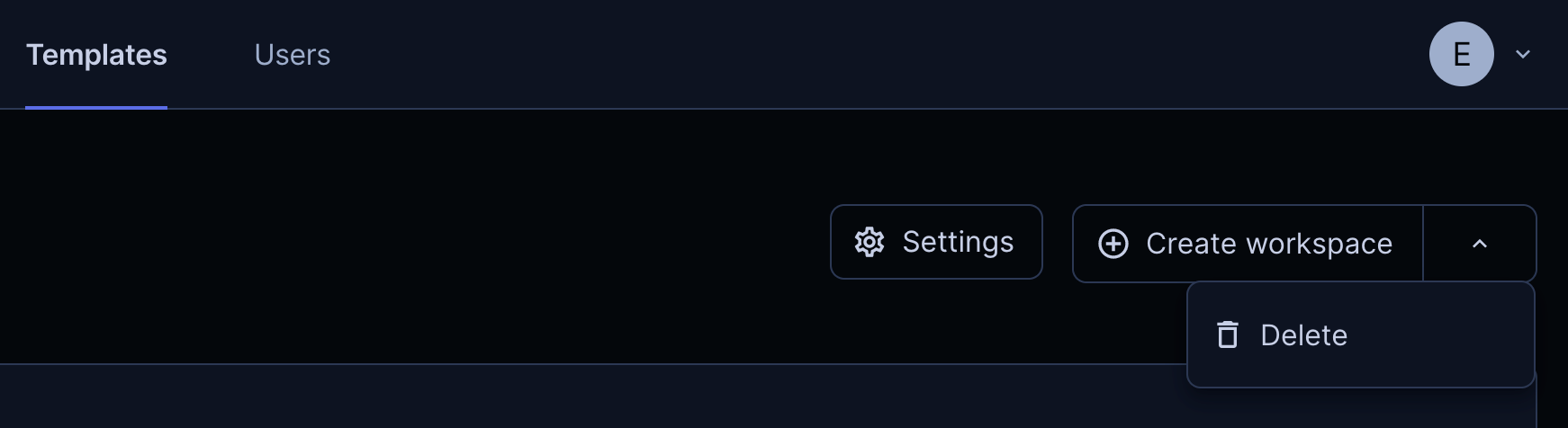
In the UI, navigate to the template you want to delete, and select the dropdown
in the right-hand corner of the page to delete the template.
Using the CLI, login to Coder and run the following command to delete a
template:
```sh
coder templates delete
```
## Next steps [#next-steps]
* [Image management](/beta-docs/@main/admin/templates/managing-templates/image-management/)
* [Dev Containers integration](/beta-docs/@main/admin/integrations/devcontainers/integration/)
(recommended)
* [Envbuilder](/beta-docs/@main/admin/integrations/devcontainers/envbuilder/)
(alternative for environments without Docker)
* [Change management](/beta-docs/@main/admin/templates/managing-templates/change-management/)