# Access your workspace
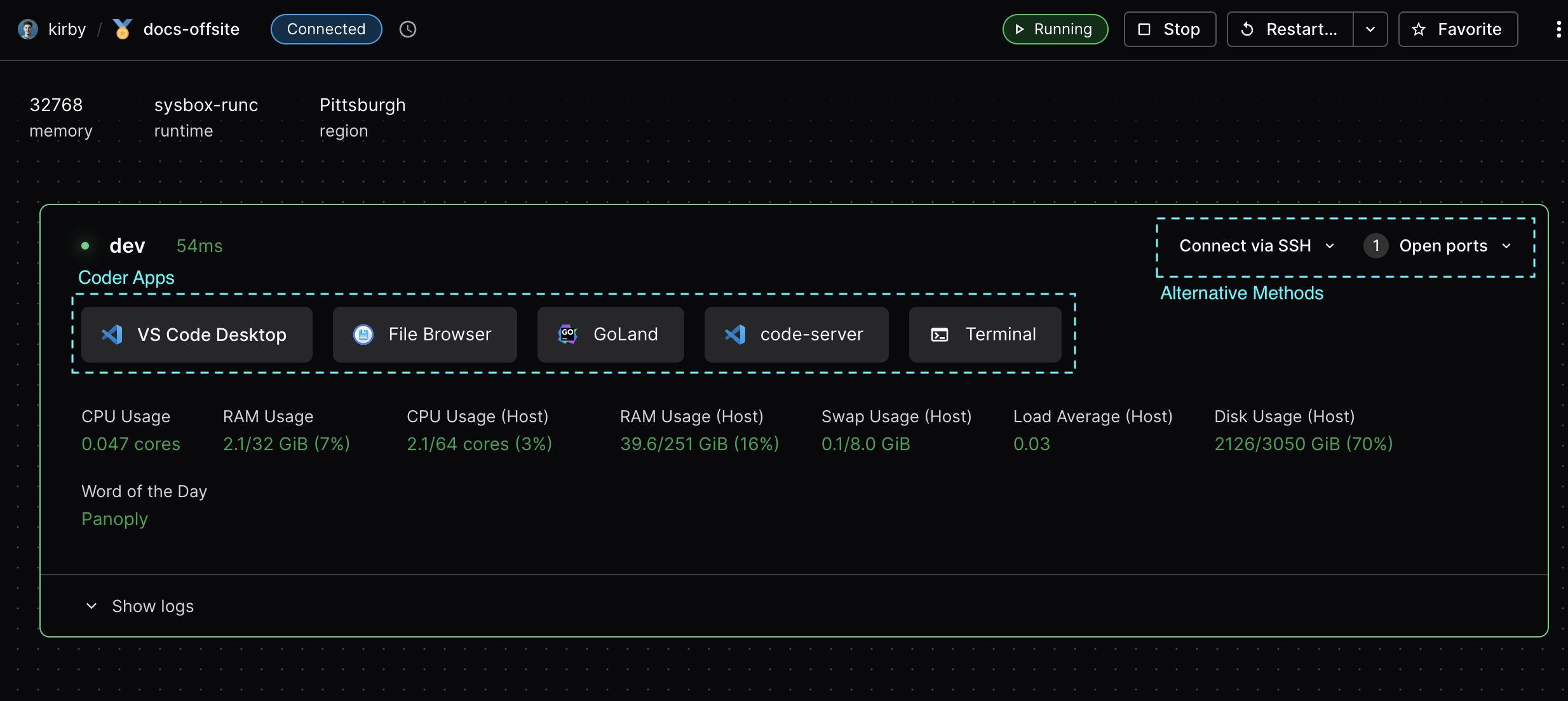
There are many ways to connect to your workspace, the options are only limited by the template configuration.
Deployment operators can learn more about different types of workspace connections and performance in our [networking docs](/beta-docs/@main/install/plan/).
You can see the primary methods of connecting to your workspace in the workspace dashboard.
## Web Terminal [#web-terminal]
The Web Terminal is a browser-based terminal that provides instant access to your workspace's shell environment.
It uses [xterm.js](https://xtermjs.org/) and WebSocket technology for a responsive terminal experience with features like persistent sessions, Unicode support, and clickable URLs.
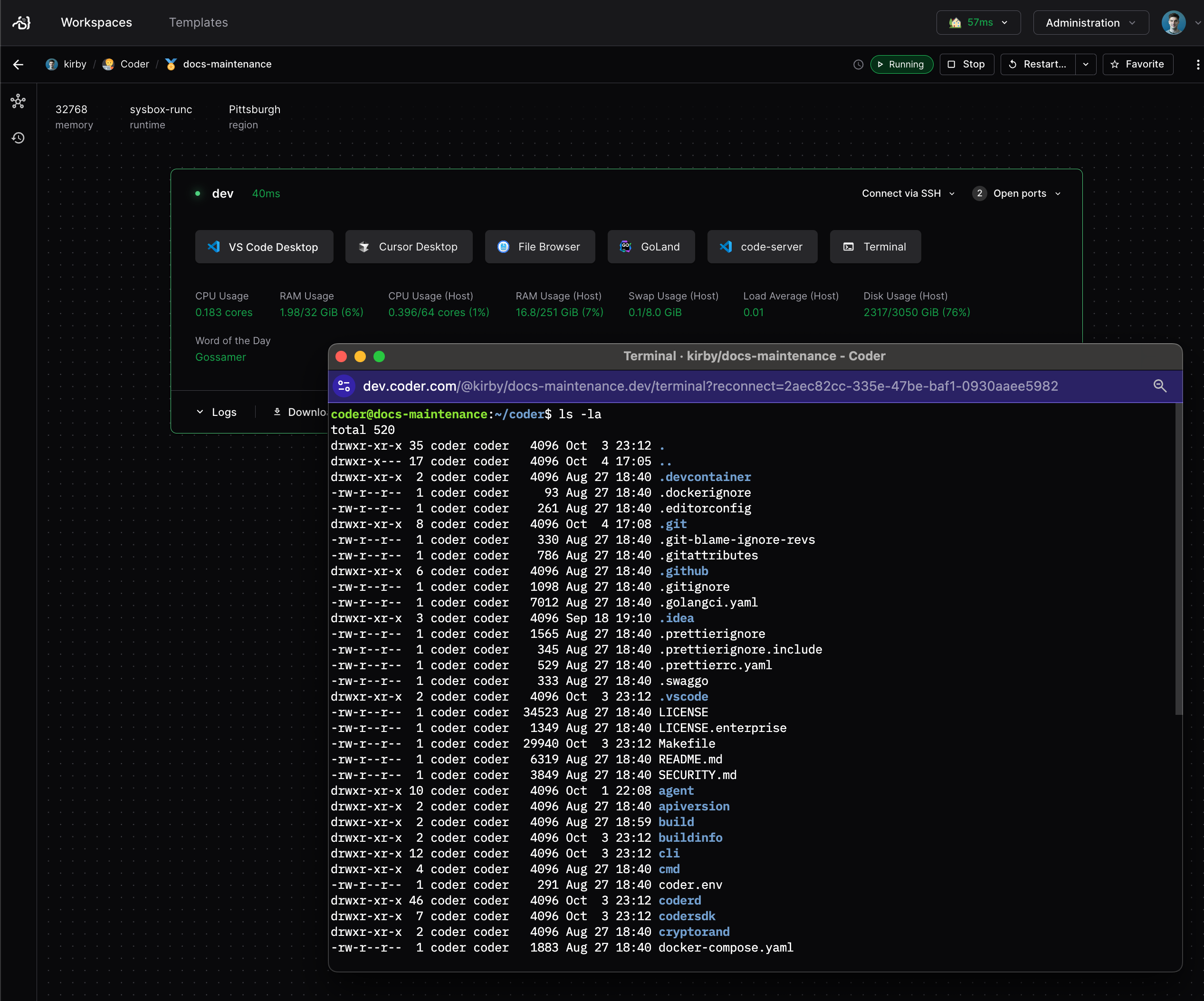
Read the complete [Web Terminal documentation](/beta-docs/@main/user-guides/workspace-access/web-terminal/) for customization options, keyboard shortcuts, and troubleshooting guides.
## SSH [#ssh]
### Through the CLI [#through-the-cli]
Coder will use the optimal path for an SSH connection (determined by your deployment's [networking configuration](/beta-docs/@main/install/plan/)) when using the CLI:
```console
coder ssh my-workspace
```
Or, you can configure plain SSH on your client below.
The `coder ssh` command does not have full parity with the standard SSH command.
For users who need the full functionality of SSH, use the configuration method below.
### Run remote commands with quoting [#run-remote-commands-with-quoting]
Arguments after `--` are joined with spaces into a single command string before being sent to the workspace agent (per [RFC 4254 §6.5](https://www.rfc-editor.org/rfc/rfc4254#section-6.5), which defines the SSH exec request as a single string).
Your local shell consumes outer quotes before the CLI ever sees the arguments, so inner quoting is not preserved on the wire.
This means a common pattern from interactive shells does not behave as you might expect:
```console
# Surprising: prints an empty line, NOT "ready"
coder ssh my-workspace -- bash -c 'echo ready'
```
The local shell strips the single-quotes, the CLI receives the argv `[bash, -c, echo, ready]`, and the remote agent runs `bash -c echo ready`; `echo` gets no arguments and `ready` is bound to `$0`.
The same caveat applies to plain `ssh user@host -- bash -c '...'`; this is SSH protocol semantics, not a `coder ssh` limitation.
For commands that need preserved quoting, use one of these patterns:
**Heredoc via stdin** (recommended for multi-line scripts):
```console
coder ssh my-workspace -- bash <<'EOF'
echo ready
EOF
```
**A single-argument script payload**:
```console
coder ssh my-workspace -- /path/to/script.sh
```
**Exit-code-only probe** (when you only need to know if the command succeeded):
```console
coder ssh my-workspace -- true && echo "agent is reachable"
```
### Configure SSH [#configure-ssh]
Coder generates [SSH key pairs](/beta-docs/@main/admin/security/secrets/#ssh-keys) for each user to simplify the setup process.
1. Use your terminal to authenticate the CLI with Coder web UI and your workspaces:
```sh
coder login
```
2. Access Coder via SSH:
```sh
coder config-ssh
```
3. Run `coder config-ssh --dry-run` if you'd like to see the changes that will be before you proceed:
```sh
coder config-ssh --dry-run
```
4. Confirm that you want to continue by typing **yes** and pressing enter.
If successful, you'll see the following message:
```console
You should now be able to ssh into your workspace.
For example, try running:
$ ssh coder.
```
Your workspace is now accessible via `ssh coder.` (for example, `ssh coder.myEnv` if your workspace is named `myEnv`).
If you use a third-party SSH client that discovers hosts by parsing `~/.ssh/config` (such as the VS Code Remote-SSH sidebar or scripts that enumerate known hosts), run `coder config-ssh --no-wildcard` instead.
This generates an individual `Host` entry per workspace rather than a single wildcard block, making your workspaces visible to those tools.
## Visual Studio Code [#visual-studio-code]
You can develop in your Coder workspace remotely with [VS Code](https://code.visualstudio.com/download).
We support connecting with the desktop client and VS Code in the browser with [code-server](#code-server).

Read more details on [using VS Code in your workspace](/beta-docs/@main/user-guides/workspace-access/vscode/).
## Cursor [#cursor]
[Cursor](https://cursor.sh/) is an IDE built on VS Code with enhanced AI capabilities.
Cursor connects using the Coder extension.
Read more about [using Cursor with your workspace](/beta-docs/@main/user-guides/workspace-access/cursor/).
## Devin Desktop [#devin-desktop]
[Devin Desktop](/beta-docs/@main/user-guides/workspace-access/devin-desktop/) (formerly Windsurf, formerly Codeium) is Cognition's AI-powered code editor designed for AI-assisted development.
Devin Desktop connects using the Coder extension.
## Antigravity [#antigravity]
[Antigravity](https://antigravity.google/) is Google's desktop IDE.
Antigravity connects using the Coder extension.
Read more about [using Antigravity with your workspace](/beta-docs/@main/user-guides/workspace-access/antigravity/).
## Claude Desktop [#claude-desktop]
[Claude Desktop](https://claude.com/download) is Anthropic's desktop app for Claude.
Once the Coder CLI is installed and logged in, your running workspaces appear in Claude Desktop.
Read more about [using Claude Desktop with your workspace](/beta-docs/@main/user-guides/workspace-access/claude-desktop/).
## JetBrains IDEs [#jetbrains-ides]
We support JetBrains IDEs using [Gateway](https://www.jetbrains.com/remote-development/gateway/).
The following IDEs are supported for remote development:
* IntelliJ IDEA
* CLion
* GoLand
* PyCharm
* Rider
* RubyMine
* WebStorm
Read our [docs on JetBrains](/beta-docs/@main/user-guides/workspace-access/jetbrains/) for more information on connecting your JetBrains IDEs.
## code-server [#code-server]
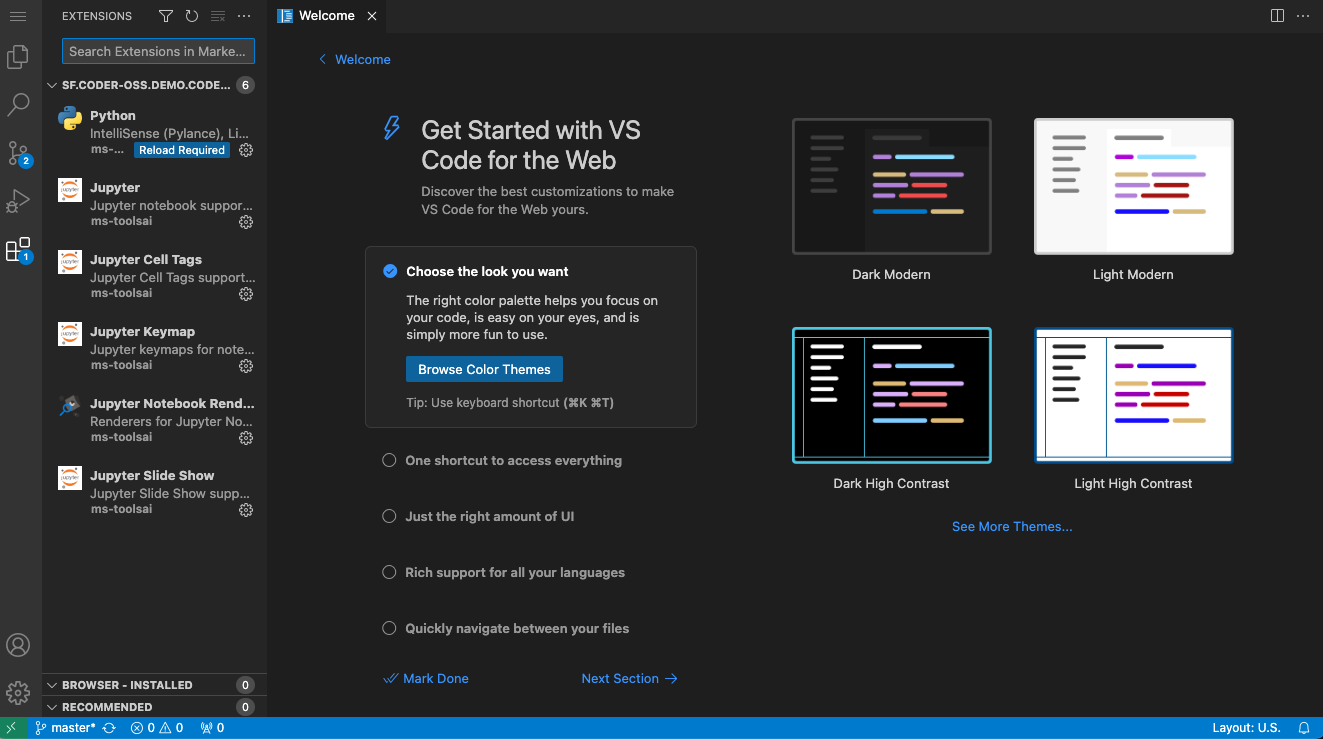
[code-server](https://github.com/coder/code-server) is our supported method of running VS Code in the web browser.
Learn more about [what makes code-server different from VS Code web](/beta-docs/@main/user-guides/workspace-access/code-server/) or visit the [documentation for code-server](https://coder.com/docs/code-server).
## Other Web IDEs [#other-web-ides]
We support a variety of other browser IDEs and tools to interact with your workspace.
Each of these can be configured by your template admin using our [Web IDE guides](/beta-docs/@main/admin/templates/extending-templates/web-ides/).
Supported IDEs:
* VS Code Web
* JupyterLab
* RStudio
* Airflow
* File Browser
Our [Module Registry](https://registry.coder.com/modules) also hosts a variety of tools for extending the capability of your workspace.
If you have a request for a new IDE or tool, please file an issue in our [Modules repo](https://github.com/coder/registry/issues).
## Coder Desktop [#coder-desktop]
[Coder Desktop](/beta-docs/@main/user-guides/desktop/) is a native application that provides seamless access to your workspaces via a VPN tunnel.
With Coder Desktop, you get:
* **Automatic port forwarding**:
All workspace ports are available at `workspace-name.coder:PORT` with no manual setup
* **SSH access**:
Connect with `ssh workspace-name.coder` using any SSH client
* **File sync**:
Bidirectional file synchronization between local and remote directories
Coder Desktop is the recommended way to access workspace services for developers who want a seamless, native experience.
## Ports and Port forwarding [#ports-and-port-forwarding]
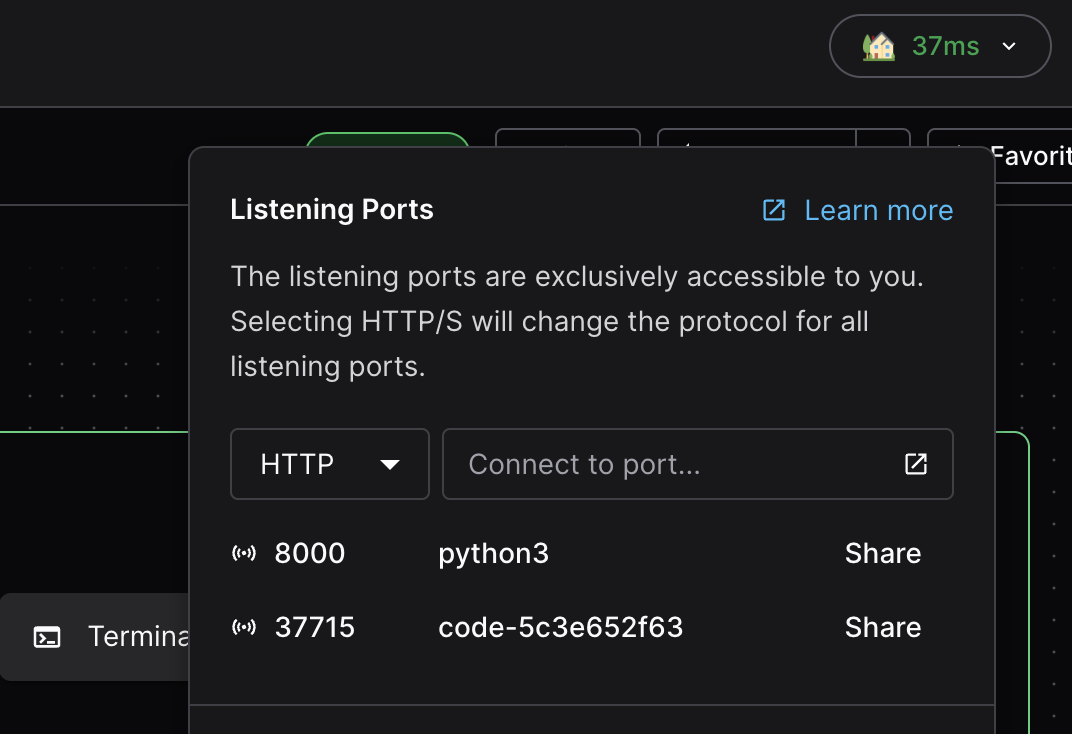
You can manage listening ports on your workspace page through the listening ports window in the dashboard.
These ports are often used to run internal services or preview environments.
For automatic access to all ports without manual configuration, use [Coder Desktop](/beta-docs/@main/user-guides/desktop/).
You can also [share ports](/beta-docs/@main/user-guides/workspace-access/port-forwarding/#share-ports) with other users, or [port-forward](/beta-docs/@main/user-guides/workspace-access/port-forwarding/#the-coder-port-forward-command) through the CLI with `coder port-forward`.
Read more in the [docs on workspace ports](/beta-docs/@main/user-guides/workspace-access/port-forwarding/).
## Remote Desktops [#remote-desktops]
Coder also supports connecting with an RDP solution, see our [RDP guide](/beta-docs/@main/user-guides/workspace-access/remote-desktops/) for details.