## Create the proxy [#create-the-proxy]
Create the workspace proxy and make sure to save the returned authentication
token for said proxy. This is the token the workspace proxy will use to
authenticate back to primary coderd.
```sh
$ coder wsproxy create --name=newyork --display-name="USA East" --icon="/emojis/2194.png"
Workspace Proxy "newyork" created successfully. Save this token, it will not be shown again.
Token: 2fb6500b-bb47-4783-a0db-dedde895b865:05271b4ef9432bac14c02b3c56b5a2d7f05453718a1f85ba7e772c0a096c7175
```
To verify it was created.
```sh
$ coder wsproxy ls
NAME URL STATUS STATUS
newyork unregistered
```
## Deploy the proxy [#deploy-the-proxy]
Deploying the workspace proxy will also register the proxy with coderd and make
the workspace proxy usable. If the proxy deployment is successful,
`coder wsproxy ls` will show an `ok` status code:
```sh
$ coder wsproxy ls
NAME URL STATUS STATUS
primary https://dev.coder.com ok
brazil-saopaulo https://brazil.example.com ok
europe-frankfurt https://europe.example.com ok
sydney https://sydney.example.com ok
```
Other Status codes:
* `unregistered` : The workspace proxy was created, and not yet deployed
* `unreachable` : The workspace proxy was registered, but is not responding.
Likely the proxy went offline.
* `unhealthy` : The workspace proxy is reachable, but has some issue that is
preventing the proxy from being used. `coder wsproxy ls` should show the error
message.
* `ok` : The workspace proxy is healthy and working properly!
### Configuration [#configuration]
Workspace proxy configuration overlaps with a subset of the coderd
configuration. To see the full list of configuration options:
`coder wsproxy server --help`
```sh
# Proxy specific configuration. These are REQUIRED
# Example: https://coderd.example.com
CODER_PRIMARY_ACCESS_URL="https://
"
CODER_PROXY_SESSION_TOKEN=""
# Runtime variables for "coder start".
CODER_HTTP_ADDRESS=0.0.0.0:80
CODER_TLS_ADDRESS=0.0.0.0:443
# Example: https://east.coderd.example.com
CODER_ACCESS_URL="https://"
# Example: *.east.coderd.example.com
CODER_WILDCARD_ACCESS_URL="*."
CODER_TLS_ENABLE=true
CODER_TLS_CLIENT_AUTH=none
CODER_TLS_CERT_FILE=""
CODER_TLS_KEY_FILE=""
# Additional configuration options are available.
```
### Running on Kubernetes [#running-on-kubernetes]
Make a `values-wsproxy.yaml` with the workspace proxy configuration.
Notice the `workspaceProxy` configuration which is `false` by default in the
Coder Helm chart:
```yaml
coder:
env:
- name: CODER_PRIMARY_ACCESS_URL
value: "https://"
- name: CODER_PROXY_SESSION_TOKEN
value: ""
# Example: https://east.coderd.example.com
- name: CODER_ACCESS_URL
value: "https://"
# Example: *.east.coderd.example.com
- name: CODER_WILDCARD_ACCESS_URL
value: "*."
tls:
secretNames:
- kubernetes-wsproxy-secret
# enable workspace proxy
workspaceProxy: true
```
Using Helm, install the workspace proxy chart
```sh
helm install coder coder-v2/coder --namespace -f ./values-wsproxy.yaml
```
Test that the workspace proxy is reachable with `curl -vvv`. If for some reason,
the Coder dashboard still shows the workspace proxy is `UNHEALTHY`, scale down
and up the deployment's replicas.
### Running on a VM [#running-on-a-vm]
```sh
# Set configuration options via environment variables, a config file, or cmd flags
coder wsproxy server
```
### Running as a system service [#running-as-a-system-service]
If you've installed Coder via a [system package](/beta-docs/install/), you
can configure the workspace proxy by settings in
`/etc/coder.d/coder-workspace-proxy.env`
To run workspace proxy as a system service on the host:
```sh
# Use systemd to start workspace proxy now and on reboot
sudo systemctl enable --now coder-workspace-proxy
# View the logs to ensure a successful start
journalctl -u coder-workspace-proxy.service -b
```
To restart workspace proxy after applying system changes:
```sh
sudo systemctl restart coder-workspace-proxy
```
### Running in Docker [#running-in-docker]
Modify the default entrypoint to run a workspace proxy server instead of a
regular Coder server.
#### Docker Compose [#docker-compose]
Change the provided
[`compose.yml`](https://github.com/coder/coder/blob/release/2.37/compose.yaml)
file to include a custom entrypoint:
```diff
image: ghcr.io/coder/coder:${CODER_VERSION:-latest}
+ entrypoint: /opt/coder wsproxy server
```
#### Docker run [#docker-run]
```sh
docker run --rm -it --entrypoint /opt/coder ghcr.io/coder/coder:latest wsproxy server
```
#### Custom Dockerfile [#custom-dockerfile]
```dockerfile
FROM ghcr.io/coder/coder:latest
ENTRYPOINT ["/opt/coder", "wsproxy", "server"]
```
### Selecting a proxy [#selecting-a-proxy]
Users can select a workspace proxy at the top-right of the browser-based Coder
dashboard. Workspace proxy preferences are cached by the web browser. If a proxy
goes offline, the session will fall back to the primary proxy. This could take
up to 60 seconds.
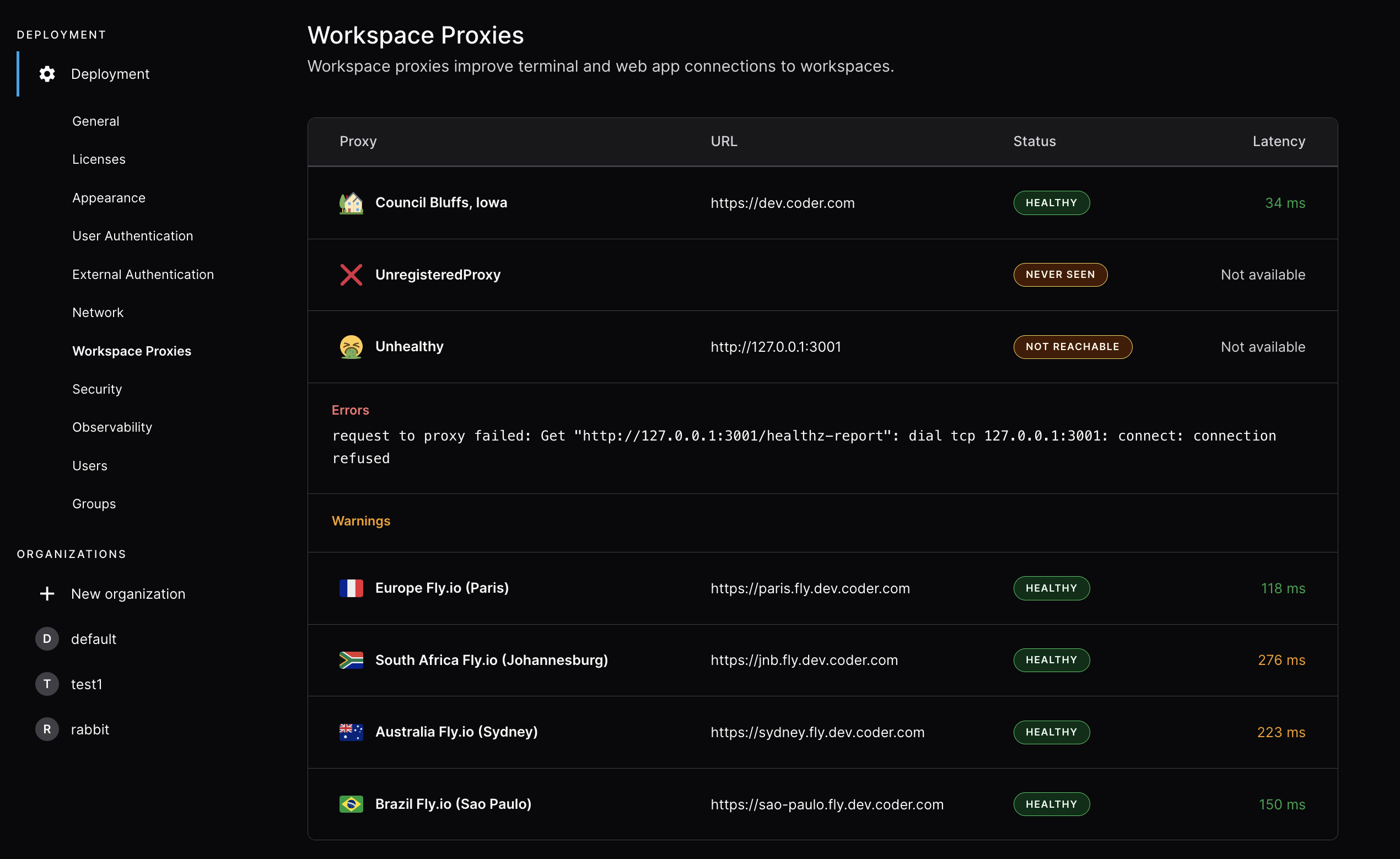
## Multiple workspace proxies [#multiple-workspace-proxies]
When multiple workspace proxies are deployed:
* The browser measures latency to each available proxy independently.
* Users can select their preferred proxy from the dashboard.
* The system can automatically select the lowest-latency proxy.
* The dashboard latency indicator shows latency to the currently selected proxy.
## Observability [#observability]
Coder workspace proxy exports metrics via the HTTP endpoint, which can be
enabled using either the environment variable `CODER_PROMETHEUS_ENABLE` or the
flag `--prometheus-enable`.
The Prometheus endpoint address is `http://localhost:2112/` by default. You can
use either the environment variable `CODER_PROMETHEUS_ADDRESS` or the flag
`--prometheus-address