# IdP sync
IdP sync is a Premium feature.
[Learn more](https://coder.com/pricing#compare-plans).
IdP (Identity provider) sync allows you to use OpenID Connect (OIDC) to synchronize Coder groups, roles, and organizations based on claims from your IdP.
## Prerequisites
### Confirm that OIDC provider sends claims
To confirm that your OIDC provider is sending claims, log in with OIDC and visit the following URL with an `Owner` account:
```txt
https://[coder.example.com]/api/v2/debug/[your-username]/debug-link
```
You should see a field in either `id_token_claims`, `user_info_claims` or both followed by a list of the user's OIDC groups in the response.
This is the [claim](https://openid.net/specs/openid-connect-core-1_0.html#Claims) sent by the OIDC provider.
Depending on the OIDC provider, this claim might be called something else.
Common names include `groups`, `memberOf`, and `roles`.
See the [troubleshooting section](#troubleshooting-grouproleorganization-sync) for help troubleshooting common issues.
## Group Sync
If your OpenID Connect provider supports group claims, you can configure Coder to synchronize groups in your auth provider to groups within Coder.
To enable group sync, make sure that the `groups` claim is being sent by your OpenID provider.
You might need to request an additional [scope](/docs/@main/reference/cli/server/#--oidc-scopes) or additional configuration on the OpenID provider side.
If group sync is enabled, the user's groups will be controlled by the OIDC provider.
This means manual group additions/removals will be overwritten on the next user login.
For deployments with multiple [organizations](/docs/@main/admin/users/organizations/), configure group sync for each organization.
1. Fetch the corresponding group IDs using the following endpoint:
```txt
https://[coder.example.com]/api/v2/groups
```
2. As an Owner or Organization Admin, go to **Admin settings**, select **Organizations**, then **IdP Sync**:
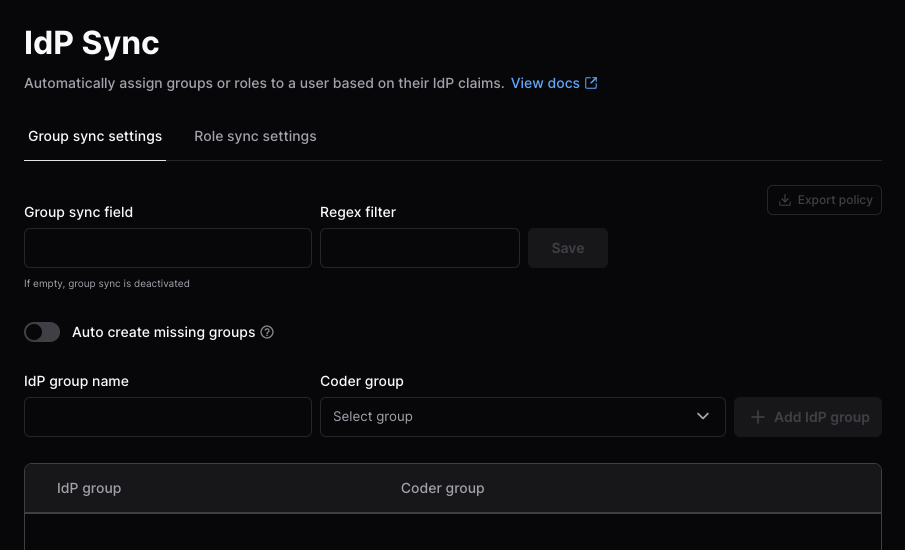
3. Enter the **Group sync field** and an optional **Regex filter**, then select **Save**.
4. Select **Auto create missing groups** to automatically create groups returned by the OIDC provider if they do not exist in Coder.
5. Enter the **IdP group name** and **Coder group**, then **Add IdP group**.
1. Confirm you have the [Coder CLI](/docs/@main/install/) installed and are logged in as an Owner or Organization Admin.
2. To fetch the current group sync settings for an organization, run the following:
```sh
coder organizations settings show group-sync \
--org \
> group-sync.json
```
The default for an organization looks like this:
```json
{
"field": "",
"mapping": null,
"regex_filter": null,
"auto_create_missing_groups": false
}
```
Below is an example that uses the `groups` claim and maps all groups prefixed by `coder-` into Coder:
```json
{
"field": "groups",
"mapping": null,
"regex_filter": "^coder-.*$",
"auto_create_missing_groups": true
}
```
You must specify Coder group IDs instead of group names.
You can find the ID for a corresponding group by visiting `https://coder.example.com/api/v2/groups`.
Here is another example which maps `coder-admins` from the identity provider to two groups in Coder and `coder-users` from the identity provider to another group:
```json
{
"field": "groups",
"mapping": {
"coder-admins": [
"2ba2a4ff-ddfb-4493-b7cd-1aec2fa4c830",
"93371154-150f-4b12-b5f0-261bb1326bb4"
],
"coder-users": ["2f4bde93-0179-4815-ba50-b757fb3d43dd"]
},
"regex_filter": null,
"auto_create_missing_groups": false
}
```
To set these group sync settings, use the following command:
```sh
coder organizations settings set group-sync \
--org \
< group-sync.json
```
Visit the Coder UI to confirm these changes:
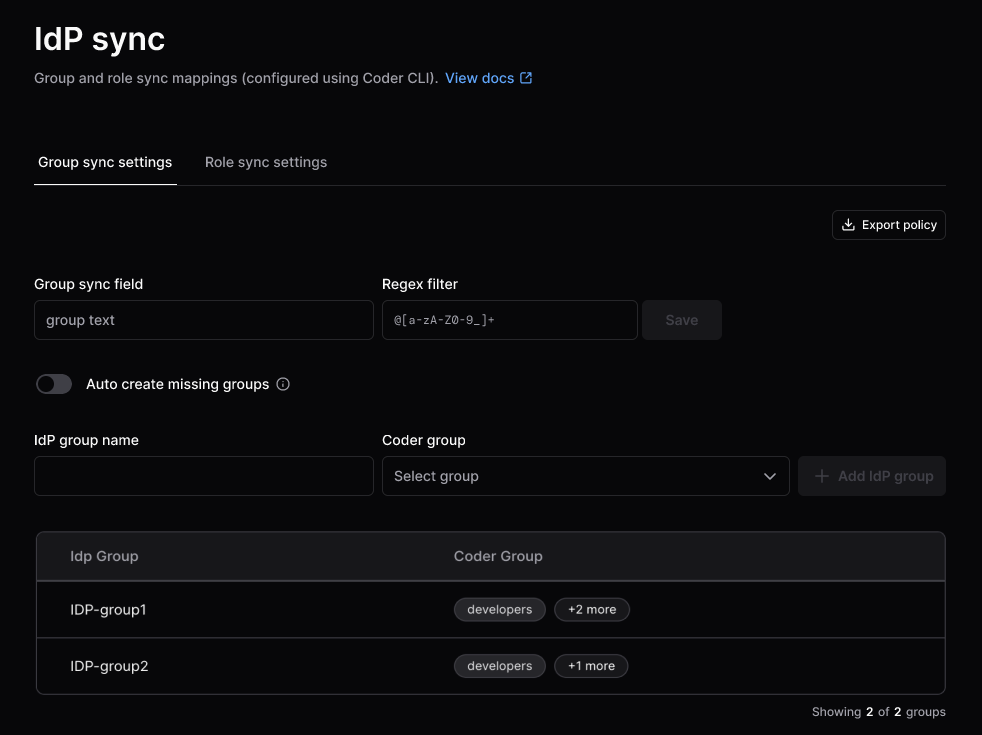
Use server flags only with Coder deployments with a single organization.
You can use the dashboard to configure group sync instead.
1. Configure the control plane to read groups from the claim name with the [OIDC group field](/docs/@main/reference/cli/server/#--oidc-group-field) server flag:
* Environment variable:
```sh
CODER_OIDC_GROUP_FIELD=groups
```
* As a flag:
```sh
--oidc-group-field groups
```
2. On login, Coder adds users to groups with matching names and removes them from groups they no longer belong to.
3. Configure the mapping between OIDC and Coder groups.
If an OIDC provider only returns group IDs or you want to have different group names in Coder than in your OIDC provider, map between the two with the [OIDC group mapping](/docs/@main/reference/cli/server/#--oidc-group-mapping) server flag:
* Environment variable:
```sh
CODER_OIDC_GROUP_MAPPING='{"myOIDCGroupID": "myCoderGroupName"}'
```
* As a flag:
```sh
--oidc-group-mapping '{"myOIDCGroupID": "myCoderGroupName"}'
```
Below is an example mapping in the Coder Helm chart:
```yaml
coder:
env:
- name: CODER_OIDC_GROUP_MAPPING
value: >
{"myOIDCGroupID": "myCoderGroupName"}
```
From this example, users that belong to the `myOIDCGroupID` group in your OIDC provider will be added to the `myCoderGroupName` group in Coder.
### Group allowlist
You can limit which groups from your identity provider can log in to Coder with [CODER\_OIDC\_ALLOWED\_GROUPS](/docs/@main/reference/cli/server/#--oidc-allowed-groups).
Users who are not in a matching group will see the following error:
 ## Role Sync
If your OpenID Connect provider supports roles claims, you can configure Coder to synchronize roles in your auth provider to roles within Coder.
For deployments with multiple [organizations](/docs/@main/admin/users/organizations/), configure role sync at the organization level.
1. As an Owner or Organization Admin, go to **Admin settings**, select **Organizations**, then **IdP Sync**.
2. Select the **Role sync settings** tab:
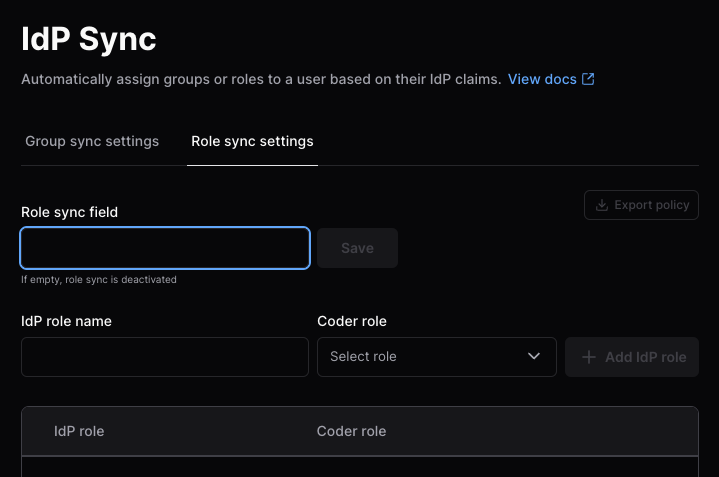
3. Enter the **Role sync field**, then select **Save**.
4. Enter the **IdP role name** and **Coder role**, then **Add IdP role**.
To add a new custom role, select **Roles** from the sidebar, then **Create custom role**.
Visit the [groups and roles documentation](/docs/@main/admin/users/groups-roles/) for more information.
1. Confirm you have the [Coder CLI](/docs/@main/install/) installed and are logged in as an Owner or Organization Admin.
2. To fetch the current role sync settings for an organization, run the following:
```sh
coder organizations settings show role-sync \
--org \
> role-sync.json
```
The default for an organization looks like this:
```json
{
"field": "",
"mapping": null
}
```
Below is an example that uses the `roles` claim and maps `coder-admins` from the IdP as an `Organization Admin` and also maps to a custom `provisioner-admin` role:
```json
{
"field": "roles",
"mapping": {
"coder-admins": ["organization-admin"],
"infra-admins": ["provisioner-admin"]
}
}
```
Be sure to use the `name` field for each role, not the display name.
Use `coder organization roles show --org=` to see roles for your organization.
To set these role sync settings, use the following command:
```sh
coder organizations settings set role-sync \
--org \
< role-sync.json
```
Visit the Coder UI to confirm these changes:
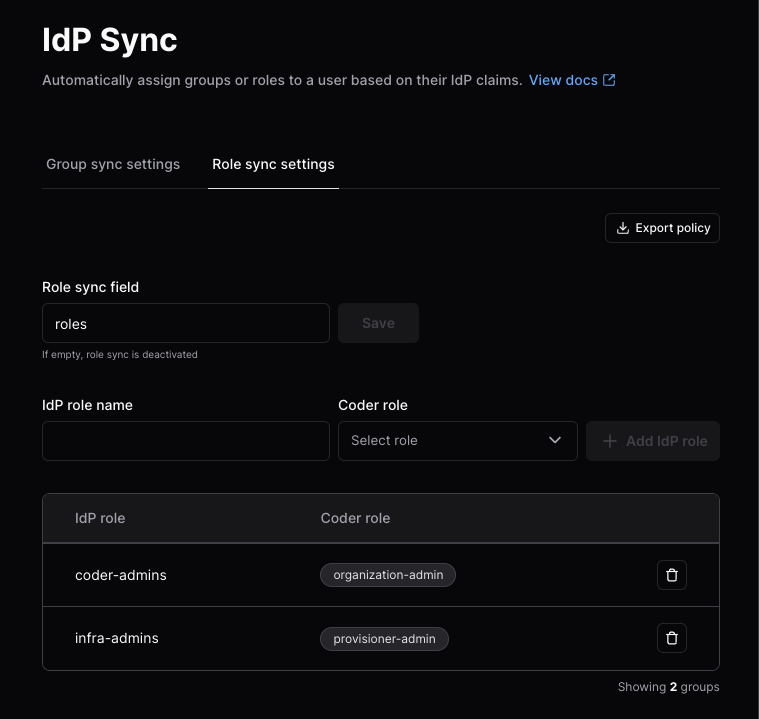
Use server flags only with Coder deployments with a single organization.
You can use the dashboard to configure role sync instead.
1. Configure the control plane to read groups from the claim name with the [OIDC role field](/docs/@main/reference/cli/server/#--oidc-user-role-field) server flag:
2. Set the following in your control plane [configuration](/docs/@main/admin/setup/).
```ini
# Depending on your identity provider configuration, you may need to explicitly request a "roles" scope
CODER_OIDC_SCOPES=openid,profile,email,offline_access,roles
# The following fields are required for role sync:
CODER_OIDC_USER_ROLE_FIELD=roles
CODER_OIDC_USER_ROLE_MAPPING='{"TemplateAuthor":["template-admin","user-admin"]}'
```
One role from your identity provider can be mapped to many roles in Coder.
The example above maps to two roles in Coder.
## Organization Sync
If your OpenID Connect provider supports groups/role claims, you can configure Coder to synchronize claims in your auth provider to organizations within Coder.
Viewing and editing the organization settings requires deployment admin permissions (UserAdmin or Owner).
Organization sync works across all organizations.
On user login, the sync will add and remove the user from organizations based on their IdP claims.
After the sync, the user's state should match that of the IdP.
You can initiate an organization sync through the Coder dashboard or CLI:
1. Fetch the corresponding organization IDs using the following endpoint:
```txt
https://[coder.example.com]/api/v2/organizations
```
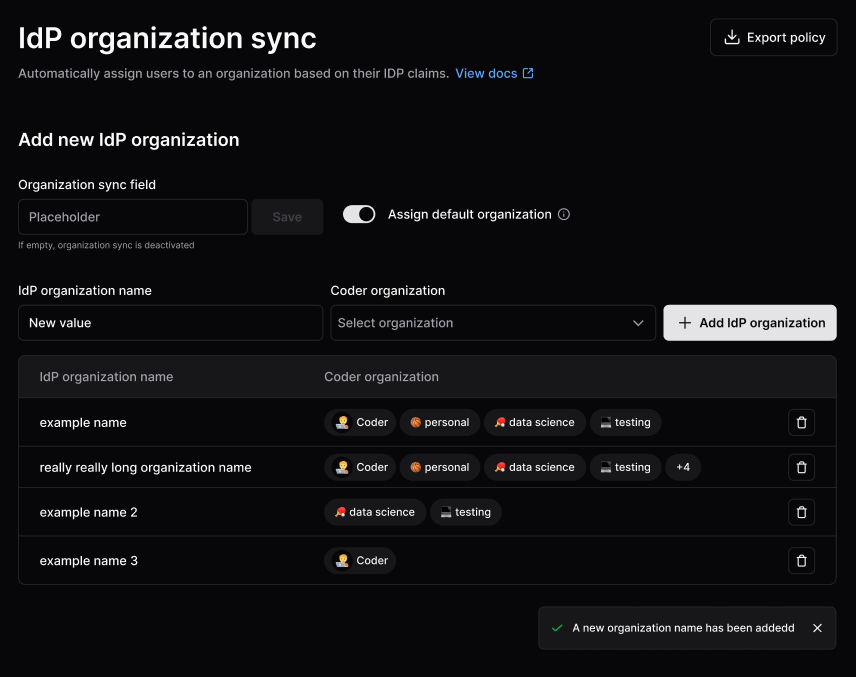
2. As an Owner or site-wide User Admin, go to **Admin settings** > **Deployment** and select **IdP organization sync**.
3. In the **Organization sync field** text box, enter the organization claim, then select **Save**.
Users are automatically added to the default organization.
Do not disable **Assign Default Organization**.
If you disable the default organization, the system will remove users who are already assigned to it.
4. Enter an IdP organization name and Coder organization(s), then select **Add IdP organization**:
Use the Coder CLI to show and adjust the settings.
These deployment-wide settings are stored in the database.
After you change the settings, a user's memberships will update when they log out and log back in.
1. Show the current settings:
```console
coder organization settings show org-sync
{
"field": "organizations",
"mapping": {
"product": ["868e9b76-dc6e-46ab-be74-a891e9bd784b", "cbdcf774-9412-4118-8cd9-b3f502c84dfb"]
},
"organization_assign_default": true
}
```
2. Update with the JSON payload.
In this example, `settings.json` contains the payload:
```console
coder organization settings set org-sync < settings.json
{
"field": "organizations",
"mapping": {
"product": [
"868e5b23-dc6e-46ab-be74-a891e9bd784b",
"cbdcf774-4123-4118-8cd9-b3f502c84dfb"
],
"sales": [
"d79144d9-b30a-555a-9af8-7dac83b2q4ec"
]
},
"organization_assign_default": true
}
```
Analyzing the JSON payload:
| Field | Explanation |
| :---------------------------- | :-------------------------------------------------------------------------------------------------------------------------------------------------------------------------------------------------------------------------------------------------------------------------------------------------------------- |
| field | If this field is the empty string `""`, then org-sync is disabled.
Org memberships must be manually configured through the UI or API. |
| mapping | Mapping takes a claim from the IdP, and associates it with 1 or more organizations by universally unique identifier (UUID).
No validation is done, so you can put UUID's of orgs that do not exist (a noop). The UI picker will allow selecting orgs from a drop down, and convert it to a UUID for you. |
| organization\_assign\_default | This setting exists for maintaining backwards compatibility with single org deployments, either through their upgrade, or in perpetuity.
If this is set to 'true', all users will always be assigned to the default organization regardless of the mappings and their IdP claims. |
## Troubleshooting group/role/organization sync
Some common issues when enabling group, role, or organization sync.
### General guidelines
If you are running into issues with a sync:
1. View your `coderd` logs and enable [verbose mode](/docs/@main/reference/cli/#-v---verbose).
2. To reduce noise, you can filter for only logs related to group/role sync:
```sh
CODER_LOG_FILTER=".*userauth.*|.*idp-sync.*"
```
3. Restart the control plane after changing these configuration values.
4. Attempt to log in, preferably with a user who has the `Owner` role.
The following debug and warning messages show how Coder processed the OIDC claims and group sync for a login.
* `got oidc claims` (debug): Logged when Coder reads claims from a source.
The `source` field is `id_token` or `userinfo`, and `claim_fields` lists the claim names that were present.
* `failed to parse claims for groups` (debug): Logged when Coder cannot parse the group claims.
* `user not assigned to expected number of groups` and `user not removed from expected number of groups` (debug): Logged when the number of group changes differs from the expected number.
* `group sync settings name groups that were not synced` (warning): Logged when group sync settings refer to groups that Coder did not sync.
The `CODER_LOG_FILTER` setting applies only to debug messages, so this warning appears even when the filter is set.
To view your own claims, run `coder users oidc-claims` with the Coder CLI.
To view the full claims for another user, an Owner can visit this endpoint on their Coder deployment after logging in:
```sh
https://[coder.example.com]/api/v2/debug/[username]/debug-link
```
### User not being assigned / Group does not exist
If you want Coder to create groups that do not exist, you can set the following environment variable.
If you enable this, your OIDC provider might be sending over many unnecessary groups.
Use filtering options on the OIDC provider to limit the groups sent over to prevent creating excess groups.
```ini
# as an environment variable
CODER_OIDC_GROUP_AUTO_CREATE=true
```
```sh
# as a flag
--oidc-group-auto-create=true
```
A basic regex filtering option on the Coder side is available.
This is applied **after** the group mapping (`CODER_OIDC_GROUP_MAPPING`), meaning if the group is remapped, the remapped value is tested in the regex.
This is useful if you want to filter out groups that do not match a certain pattern.
For example, if you want to only allow groups that start with `my-group-` to be created, you can set the following environment variable.
```ini
# as an environment variable
CODER_OIDC_GROUP_REGEX_FILTER="^my-group-.*$"
```
```sh
# as a flag
--oidc-group-regex-filter="^my-group-.*$"
```
### Invalid Scope
If you see an error like the following, you might have an invalid scope.
```console
The application '' asked for scope 'groups' that doesn't exist on the resource...
```
This can happen because the identity provider has a different name for the scope.
For example, Azure Active Directory (AD) uses `GroupMember.Read.All` instead of `groups`.
You can find the correct scope name in the IdP's documentation.
Some IdPs allow configuring the name of this scope.
The solution is to update the value of `CODER_OIDC_SCOPES` to the correct value for the identity provider.
### No `group` claim in the `got oidc claims` log
Steps to troubleshoot.
1. Make sure the user is a part of a group in the IdP.
If the user has 0 groups, no `groups` claim will be sent.
2. Check if another claim appears to be the correct claim with a different name.
A common name is `memberOf` instead of `groups`.
If this is present, update `CODER_OIDC_GROUP_FIELD=memberOf`.
3. Make sure the number of groups being sent is under the limit of the IdP.
Some IdPs will return an error, while others will just omit the `groups` claim.
A common solution is to create a filter on the identity provider that returns less than the limit for your IdP.
* [Azure AD limit is 200, and omits groups if exceeded.](https://learn.microsoft.com/en-us/azure/active-directory/hybrid/connect/how-to-connect-fed-group-claims#options-for-applications-to-consume-group-information)
* [Okta limit is 100, and returns an error if exceeded.](https://developer.okta.com/docs/reference/api/oidc/#scope-dependent-claims-not-always-returned)
## Provider-Specific Guides
Tested on Active Directory Federation Services (ADFS) 4.0, Windows Server 2019
1. In your Federation Server, create a new application group for Coder.
Follow the steps as described in the \[Windows Server documentation] ([https://learn.microsoft.com/en-us/windows-server/identity/ad-fs/development/msal/adfs-msal-web-app-web-api#app-registration-in-ad-fs](https://learn.microsoft.com/en-us/windows-server/identity/ad-fs/development/msal/adfs-msal-web-app-web-api#app-registration-in-ad-fs)).
* **Server Application**:
Note the Client ID.
* **Configure Application Credentials**:
Note the Client Secret.
* **Configure Web API**:
Set the Client ID as the relying party identifier.
* **Application Permissions**:
Allow access to the claims `openid`, `email`, `profile`, and `allatclaims`.
2. Visit your ADFS server's `/.well-known/openid-configuration` URL and note the value for `issuer`.
This will look something like `https://adfs.corp/adfs/.well-known/openid-configuration`.
3. In Coder's configuration file (or Helm values as appropriate), set the following environment variables or their corresponding CLI arguments:
* `CODER_OIDC_ISSUER_URL`: `issuer` value from the previous step.
* `CODER_OIDC_CLIENT_ID`: Client ID from step 1.
* `CODER_OIDC_CLIENT_SECRET`: Client Secret from step 1.
* `CODER_OIDC_AUTH_URL_PARAMS`: set to
```json
{"resource":"$CLIENT_ID"}
```
Where `$CLIENT_ID` is the Client ID from step 1. Consult the Microsoft [Active Directory Federation Services (AD FS) OpenID Connect/OAuth flows and Application Scenarios documentation](https://learn.microsoft.com/en-us/windows-server/identity/ad-fs/overview/ad-fs-openid-connect-oauth-flows-scenarios#:~:text=scope%E2%80%AFopenid.-,resource,-optional) for more information.
This is required for the upstream OIDC provider to return the requested claims.
* `CODER_OIDC_IGNORE_USERINFO`: Set to `true`.
4. Configure [Issuance Transform Rules](https://learn.microsoft.com/en-us/windows-server/identity/ad-fs/operations/create-a-rule-to-send-ldap-attributes-as-claims) on your Federation Server to send the following claims:
* `preferred_username`: You can use, for example, "Display Name" as required.
* `email`: You can use, for example, the Lightweight Directory Access Protocol (LDAP) attribute "E-Mail-Addresses" as required.
* `email_verified`: Create a custom claim rule:
```json
=> issue(Type = "email_verified", Value = "true")
```
* (Optional) If using Group Sync, send the required groups in the configured groups claim field.
Use [this answer from Stack Overflow](https://stackoverflow.com/a/55570286) for an example.
## Next Steps
* [Configure OIDC Refresh Tokens](/docs/@main/admin/users/oidc-auth/refresh-tokens/)
* [Organizations](/docs/@main/admin/users/organizations/)
* [Groups & Roles](/docs/@main/admin/users/groups-roles/)