# Coder Desktop Connect and Sync
Use Coder Desktop to work on your workspaces and files as though they're on your local area network (LAN).
Coder Desktop requires a Coder deployment running [v2.20.0](https://github.com/coder/coder/releases/tag/v2.20.0) or later.
## Coder Connect
While active, Coder Connect will list the workspaces you own and will configure your system to connect to them over private IPv6 addresses and custom hostnames ending in `.coder`.
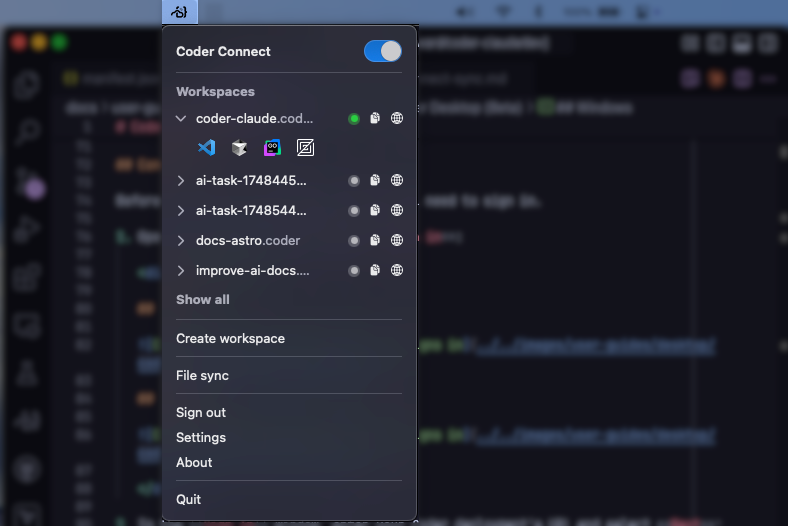
To copy the `.coder` hostname of a workspace agent, select the copy icon beside it.
You can also connect to the SSH server in your workspace using any SSH client, such as OpenSSH or PuTTY:
```sh
ssh your-workspace.coder
```
### Automatic port forwarding
Any services listening on ports in your workspace are automatically available on the same hostname, with no manual port forwarding required.
For example, you can access a web server on port `8080` by visiting `http://your-workspace.coder:8080` in your browser.
This works for all Transmission Control Protocol (TCP) ports.
Start a service in your workspace and access it immediately from your local machine at `http://your-workspace.coder:PORT`.
For other port forwarding methods (CLI, dashboard, SSH), see [Workspace Ports](/docs/@main/workspaces/workspace-access/port-forwarding/).
For Coder versions v2.21.3 and earlier: the Coder IDE extensions for VSCode and JetBrains create their own tunnel and do not utilize the Coder Connect tunnel to connect to workspaces.
### Ping your workspace
Use `ping6` in your terminal to verify the connection to your workspace:
```sh
ping6 -c 5 your-workspace.coder
```
Use `ping` in a Command Prompt or PowerShell terminal to verify the connection to your workspace:
```sh
ping -n 5 your-workspace.coder
```
## Sync a local directory with your workspace
Coder Desktop file sync provides bidirectional synchronization between a local directory and your workspace.
You can work offline, add screenshots to documentation, or use local development tools while keeping your files in sync with your workspace.
1. Create a new local directory.
If you select an existing clone of your repository, Desktop will recognize it as conflicting files.
2. In the Coder Desktop app, select **File sync**.
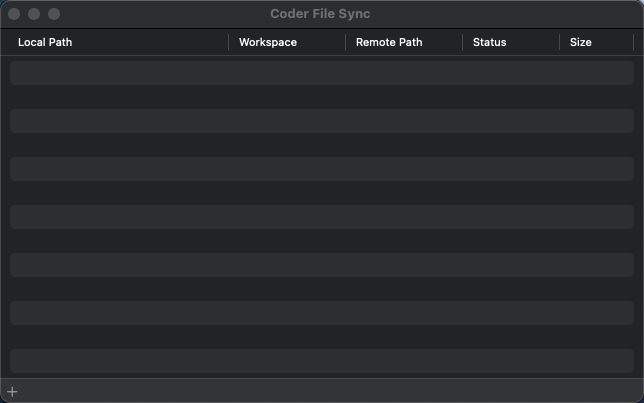
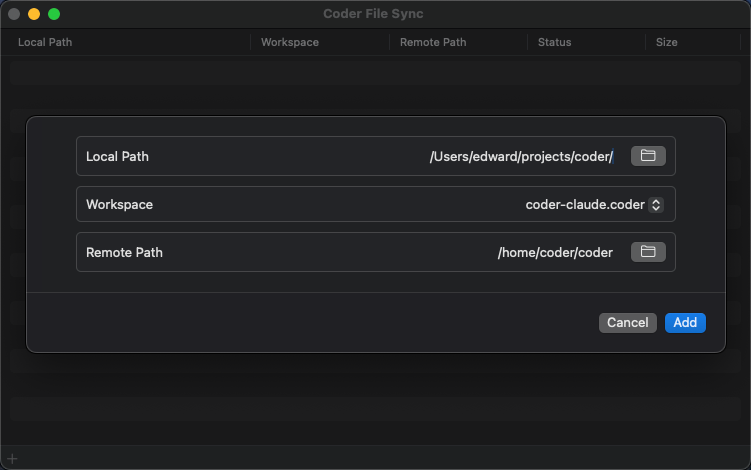
3. Select the **+** in the corner to select the local path, workspace, and remote path, then select **Add**:
4. File sync clones your workspace directory to your local directory, then watches for changes:
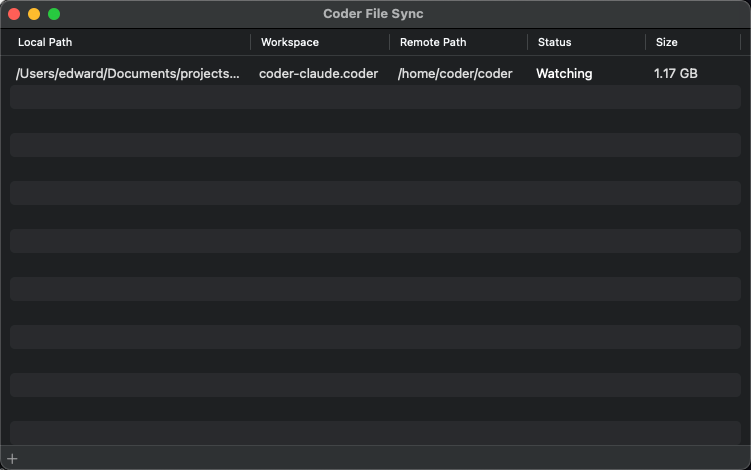
For more information about the current status, hover your mouse over the status.
File sync excludes version control system directories like `.git/` from synchronization, so keep your Git-cloned repository wherever you run Git commands.
This means that if you use an IDE with a built-in terminal to edit files on your remote workspace, that should be the Git clone and your local directory should be for file syncs.
Coder Desktop uses `alpha` and `beta` to distinguish between the:
* Local directory: `alpha`
* Remote directory: `beta`
### File sync conflicts
File sync shows a `Conflicts` status when it detects conflicting files.
You can hover your mouse over the status for the list of conflicts:
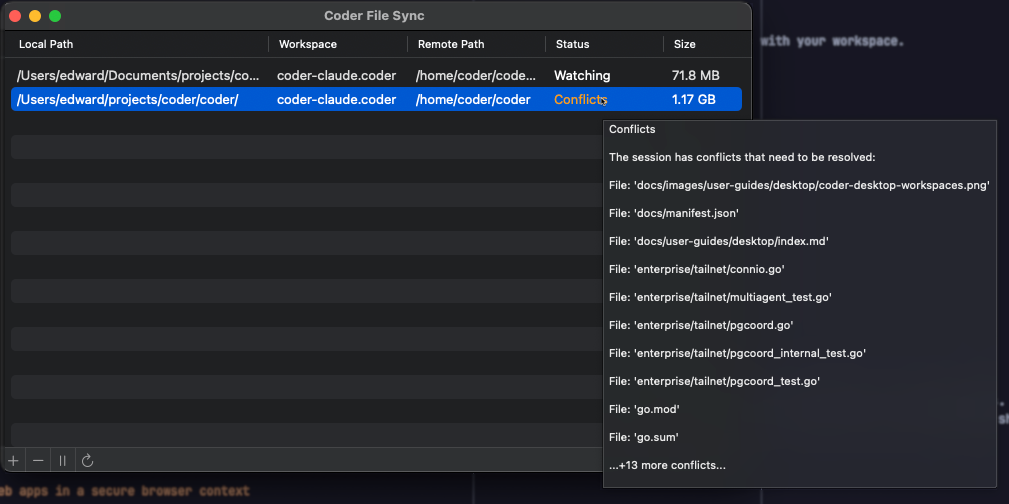
If you encounter a synchronization conflict, delete the conflicting file that contains changes you don't want to keep.
## Troubleshooting
### Access web apps in a secure browser context
Some web applications require a [secure context](https://developer.mozilla.org/en-US/docs/Web/Security/Secure_Contexts) to function correctly.
A browser typically considers an origin secure if the connection is to `localhost`, or over `HTTPS`.
Because Coder Connect uses its own hostnames and does not provide TLS to the browser, Google Chrome and Firefox will not allow any web APIs that require a secure context.
Even though the browser displays a warning about an insecure connection without `HTTPS`, the underlying tunnel is encrypted with WireGuard in the same fashion as other Coder workspace connections (for example, `coder port-forward`).
1. Open Chrome and visit `chrome://flags/#unsafely-treat-insecure-origin-as-secure`.
2. Enter the full workspace hostname, including the `http` scheme and the port (for example, `http://your-workspace.coder:8080`), into the **Insecure origins treated as secure** text field.
If you need to enter multiple URLs, use a comma to separate them.

3. Make sure that the dropdown to the right of the text field is set to **Enabled**.
4. You will be prompted to relaunch Google Chrome at the bottom of the page.
Select **Relaunch** to restart Google Chrome.
5. On relaunch and subsequent launches, Google Chrome will show a banner stating "You are using an unsupported command-line flag".
This banner can be safely dismissed.
6. Web apps accessed on the configured hostnames and ports will now function correctly in a secure context.
1. Open Firefox and visit `about:config`.
2. Read the warning and select **Accept the Risk and Continue** to access the Firefox configuration page.
3. Enter `dom.securecontext.allowlist` into the search bar at the top.
4. Select **String** on the entry with that name at the bottom, then select the plus icon on the right.
5. In the text field, enter the full workspace hostname, without the `http` scheme and port: `your-workspace.coder`.
If you need to enter multiple URLs, use a comma to separate them.
6. Select the tick icon.

7. Web apps accessed on the configured hostnames will now function correctly in a secure context without requiring a restart.
We are planning some changes to Coder Desktop that will make accessing secure context web apps easier in future versions.