# Amazon Web Services
This guide is designed to get you up and running with a Coder proof-of-concept
VM on AWS EC2 using a [Coder-provided AMI](https://github.com/coder/packages).
If you are familiar with EC2 however, you can use our
[install script](/docs/@v2.17.3/install/cli/) to run Coder on any popular Linux distribution.
## Requirements
This guide assumes your AWS account has `AmazonEC2FullAccess` permissions.
## Launch a Coder instance from the from AWS Marketplace
We publish an Ubuntu 22.04 AMI with Coder and Docker pre-installed. Search for
`Coder` in the EC2 "Launch an Instance" screen or
[launch directly from the marketplace](https://aws.amazon.com/marketplace/pp/prodview-5gxjyur2vc7rg).

Be sure to keep the default firewall (SecurityGroup) options checked so you can
connect over HTTP, HTTPS, and SSH.

We recommend keeping the default instance type (`t2.xlarge`, 4 cores and 16 GB
memory) if you plan on provisioning Docker containers as workspaces on this EC2
instance. Keep in mind this platforms is intended for proof-of-concept
deployments and you should adjust your infrastructure when preparing for
production use. See: [Scaling Coder](/docs/@v2.17.3/admin/infrastructure/)
Be sure to add a keypair so that you can connect over SSH to further
[configure Coder](/docs/@v2.17.3/admin/setup/).
After launching the instance, wait 30 seconds and navigate to the public IPv4
address. You should be redirected to a public tunnel URL.
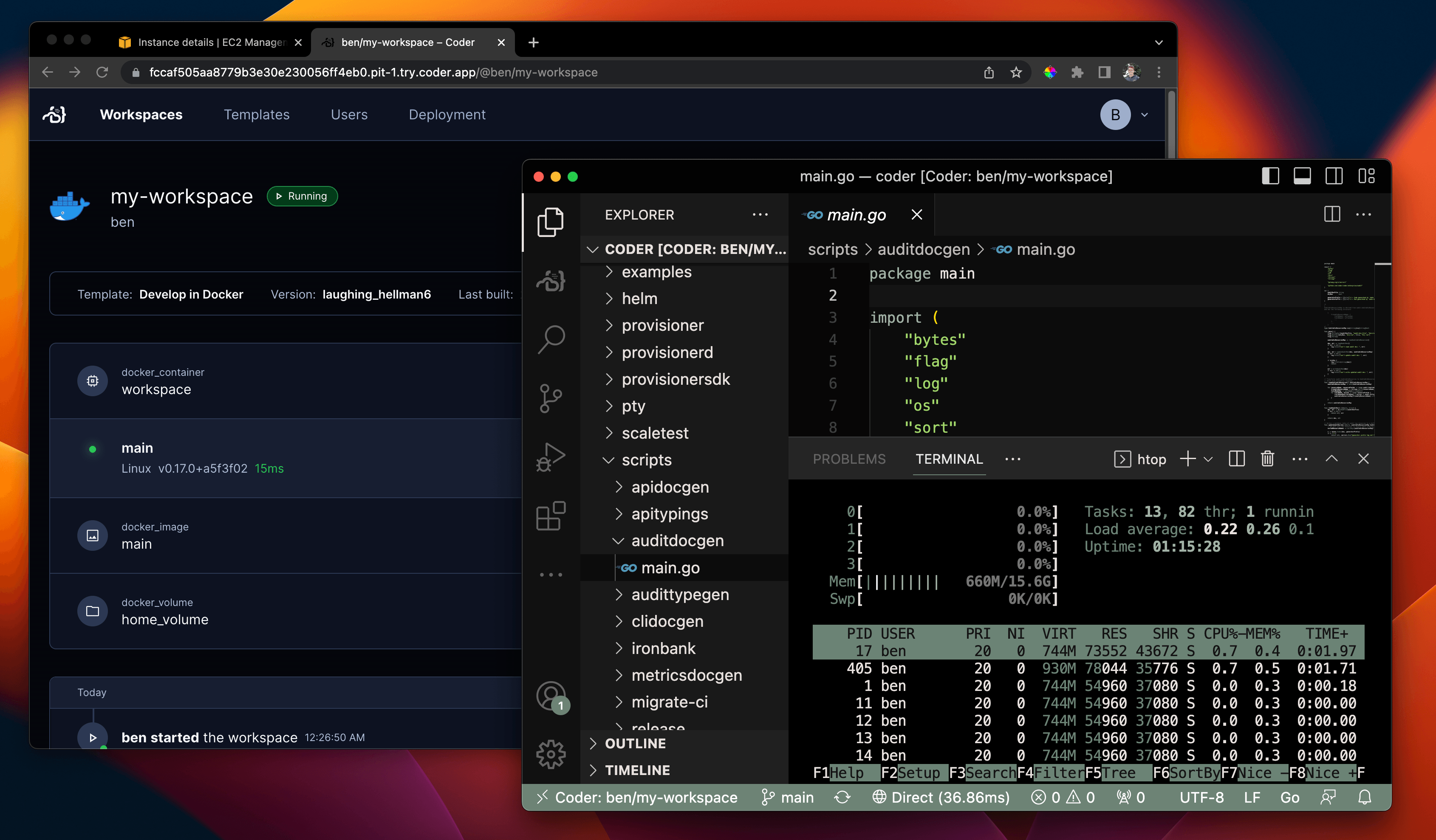
That's all! Use the UI to create your first user, template, and workspace. We
recommend starting with a Docker template since the instance has Docker
pre-installed.
## Configuring Coder server
Coder is primarily configured by server-side flags and environment variables.
Given you created or added key-pairs when launching the instance, you can
[configure your Coder deployment](/docs/@v2.17.3/admin/setup/) by logging in via
SSH or using the console:
```sh
ssh ubuntu@
sudo vim /etc/coder.d/coder.env # edit config
sudo systemctl daemon-reload
sudo systemctl restart coder # restart Coder
```
## Give developers EC2 workspaces (optional)
Instead of running containers on the Coder instance, you can offer developers
full EC2 instances with the
[aws-linux](https://github.com/coder/coder/tree/main/examples/templates/aws-linux)
template.
Before you add the AWS template from the dashboard or CLI, you'll need to modify
the instance IAM role.

You must create or select a role that has `EC2FullAccess` permissions or a
limited
[Coder-specific permissions policy](https://github.com/coder/coder/tree/main/examples/templates/aws-linux#required-permissions--policy).
From there, you can import the AWS starter template in the dashboard and begin
creating VM-based workspaces.

### Next steps
* [IDEs with Coder](/docs/@v2.17.3/user-guides/workspace-access/)
* [Writing custom templates for Coder](/docs/@v2.17.3/admin/templates/)
* [Configure the Coder server](/docs/@v2.17.3/admin/setup/)
* [Use your own domain + TLS](/docs/@v2.17.3/admin/setup/#tls--reverse-proxy)