# Organizations (Premium)
> [!NOTE]
> Organizations requires a
> [Premium license](https://coder.com/pricing#compare-plans). For more details,
> [contact your account team](https://coder.com/contact).
Organizations can be used to segment and isolate resources inside a Coder
deployment for different user groups or projects.
## Example
Here is an example of how one could use organizations to run a Coder deployment
with multiple platform teams, all with unique resources:

For more information about how to use organizations, visit the
[organizations best practices](https://coder.com/docs/tutorials/best-practices/organizations.md)
guide.
## The default organization
All Coder deployments start with one organization called `coder`. All new users
are added to this organization by default.
To edit the organization details, select **Admin settings** from the top bar, then
**Organizations**:
From there, you can manage the name, icon, description, users, and groups:

## Additional organizations
Any additional organizations have unique admins, users, templates, provisioners,
groups, and workspaces. Each organization must have at least one dedicated
[provisioner](https://coder.com/docs/admin/provisioners.md) since the built-in provisioners only apply to
the default organization.
You can configure [organization/role/group sync](https://coder.com/docs/admin/users/idp-sync.md) from your
identity provider to avoid manually assigning users to organizations.
## How to create an organization
### Prerequisites
- Coder v2.16+ deployment with Premium license and Organizations enabled
([contact your account team](https://coder.com/contact)) for more details.
- User with `Owner` role
### 1. Create the organization
To create a new organization:
1. Select **Admin settings** from the top bar, then **Organizations**.
1. Select the current organization to expand the organizations dropdown, then select **Create Organization**:
1. Enter the details and select **Save** to continue:
In this example, we'll create the `data-platform` org.
Next deploy a provisioner and template for this organization.
### 2. Deploy a provisioner
[Provisioners](https://coder.com/docs/admin/provisioners.md) are organization-scoped and are responsible
for executing Terraform/OpenTofu to provision the infrastructure for workspaces
and testing templates. Before creating templates, we must deploy at least one
provisioner as the built-in provisioners are scoped to the default organization.
1. Using Coder CLI, run the following command to create a key that will be used
to authenticate the provisioner:
```shell
coder provisioner keys create data-cluster-key --org data-platform
Successfully created provisioner key data-cluster! Save this authentication token, it will not be shown again.
< key omitted >
```
1. Start the provisioner with the key on your desired platform.
In this example, start the provisioner using the Coder CLI on a host with
Docker. For instructions on using other platforms like Kubernetes, see our
[provisioner documentation](https://coder.com/docs/admin/provisioners.md).
```sh
export CODER_URL=https://
export CODER_PROVISIONER_DAEMON_KEY=
coder provisionerd start --org
```
### 3. Create a template
Once you've started a provisioner, you can create a template. You'll notice the
**Create Template** screen now has an organization dropdown:

### 4. Add members
From **Admin settings**, select **Organizations**, then **Members** to add members to
your organization. Once added, members will be able to see the
organization-specific templates.
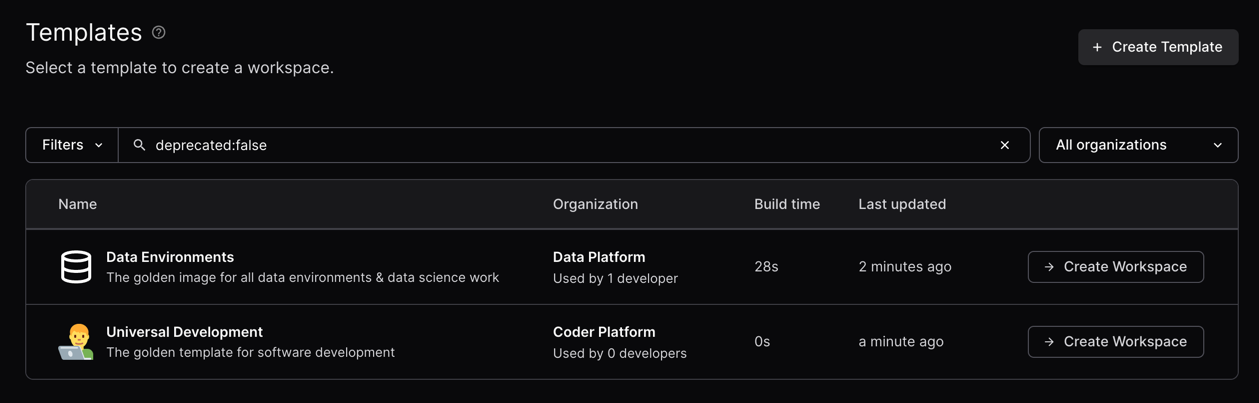
### 5. Create a workspace
Now, users in the data platform organization will see the templates related to
their organization. Users can be in multiple organizations.
## Next steps
- [Organizations - best practices](https://coder.com/docs/tutorials/best-practices/organizations.md)