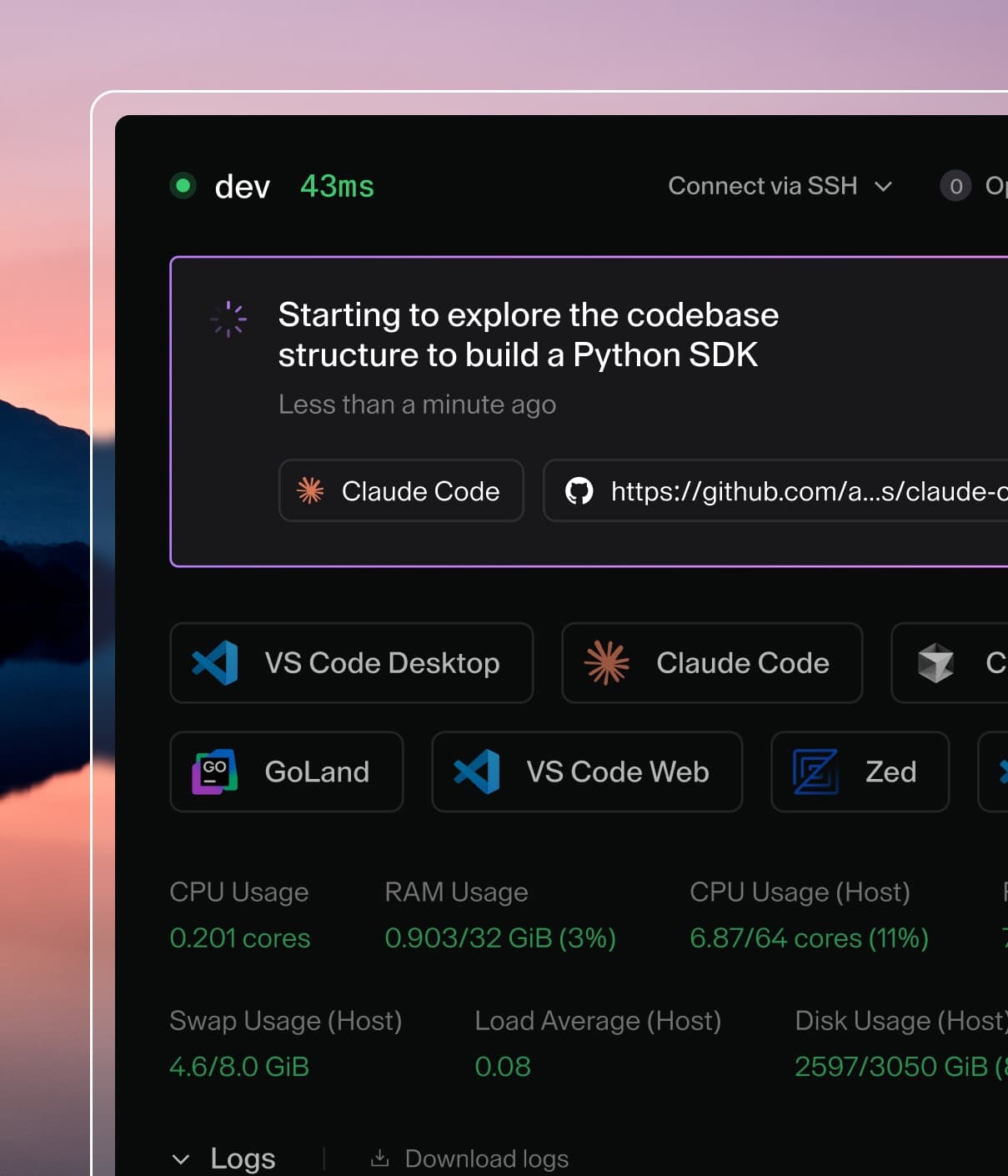
Coder powers secure, scalable development across key industries — automotive, finance, government, and technology — enabling faster builds, tighter compliance, and seamless AI adoption in enterprise-grade cloud environments.
You can develop in your Coder workspace remotely with VS Code.
We support connecting with the desktop client and VS Code in the browser with code-server.
Learn more about how VS Code Web and code-server compare in the code-server doc.
VS Code Desktop
VS Code desktop is a default app for workspaces.
Select VS Code Desktop in the dashboard to one-click enter a workspace.
This automatically installs the Coder Remote extension, authenticates with Coder, and connects to the workspace.
You can install our extension manually in VS Code using the command palette.
Launch VS Code Quick Open (Ctrl+P), paste the following command, and press enter.
ext install coder.coder-remote
Alternatively, manually install the VSIX from the latest release.
Local telemetry
The Coder Remote extension records local telemetry to help diagnose extension and workspace connection issues.
Telemetry is stored on your machine.
It is not sent to Coder unless you export it or include it in a support bundle and share that file.
Local telemetry is controlled by the VS Code setting coder.telemetry.level:
Value
Behavior
off
Disable extension telemetry collection.
local
Record telemetry events on this machine. This is the default.
Stored data
Telemetry can include diagnostic details such as extension version, VS Code version, operating system, machine and session identifiers, deployment URL, workspace and agent names, command outcomes, connection state, request routes, timing, and error details.
It does not intentionally collect source code, terminal contents, tokens, or credentials.
Tracked activity
The exact events vary by extension version.
For a comprehensive list of current events, properties, and attributes, see the extension event reference.
The following categories summarize the diagnostic signals the extension may record:
Area
Examples
Extension lifecycle
Activation, deployment initialization, and configuration loading.
Authentication and credentials
Sign-in state, token refresh, logout, credential storage, and deployment recovery.
Commands and diagnostics
Command outcomes, telemetry exports, support bundle creation, ping, and speed tests.
Workspace workflows
Workspace selection, open attempts, dev container handoff, start, and update prompts.
CLI and remote setup
CLI binary resolution, download, verification, configuration, and setup through SSH handoff.
Connection health
Workspace and agent state transitions, reconnects, SSH process health, and network samples.
HTTP diagnostics
Normalized routes, status classes, and latency rollups.
Storage and retention
The extension stores telemetry as JSON Lines files in its VS Code global storage under a telemetry directory.
Files rotate at 5 MiB, are kept for up to 30 days, and are capped at 100 MiB total by default.
You can tune local retention with the advanced coder.telemetry.local setting.
Most users should keep the default values.
Diagnostics and support bundles
The extension includes commands for collecting diagnostics from VS Code:
Coder: Export Telemetry exports only local telemetry.
Choose a date range and JSON or OTLP JSON zip format, then review the file before sharing it.
Coder: Create Support Bundle runs coder support bundle and adds local extension logs, proxy and Remote-SSH logs, selected settings, and telemetry under vscode-logs/.
Only configured values for coder.globalFlags, coder.headerCommand, and coder.tlsCertRefreshCommand are masked; review other settings before sharing.
With Coder CLI version 2.36.0 or later and a reachable workspace agent that supports file collection, it also collects remote editor server logs under agent/workspace_files/.
Bundles created with the CLI alone don't include local VS Code diagnostics.
Follow the VS Code support bundle procedure to select a workspace, confirm collection, and save the archive.
Coder: View Logs opens SSH proxy logs in VS Code.
Support bundles can contain sensitive diagnostic data.
Review the generated bundle before sharing it.
Learn more about support bundles.
Connection timeouts and reconnects
The Coder Remote extension sets SSH keepalive and Remote - SSH reconnection defaults for Coder workspaces.
If your connection drops while the workspace is under heavy load, such as memory pressure, you can relax these settings.
SSH keepalives
The extension writes these keepalive options to the SSH configuration it generates for Coder workspaces:
Option
Default
Behavior
ServerAliveInterval
10
Sends a keepalive every 10 seconds.
ServerAliveCountMax
3
Disconnects after 3 unanswered keepalives.
With these defaults, the SSH client disconnects after about 30 seconds without a response from the workspace.
To tolerate longer stalls, override the options in the coder.sshConfig VS Code setting:
{
  "coder.sshConfig": ["ServerAliveCountMax=30"]
}
This example disconnects after about 5 minutes without a response.
To remove a default option, set it to an empty value, such as "ServerAliveCountMax=".
The new values apply the next time you connect to the workspace.
If you're already connected, reload the window.
The extension merges SSH options from these sources, from highest to lowest precedence:
When you connect to a workspace, the extension writes these remote.SSH.* settings, in seconds, to your user settings.
They apply to all SSH hosts, not only Coder workspaces.
Purpose
Setting
Set on connect
Recommended
Connection timeout
connectTimeout
Raised to at least 1800
1800 (30 minutes)
Server lifetime after disconnect
reconnectionGraceTime (VS Code, Devin Desktop) or serverShutdownTimeout (Cursor)
28800 (8 hours), if unset
86400 (24 hours)
Reconnection attempts
maxReconnectionAttempts (VS Code, Devin Desktop)
null (8 attempts), if unset
null (8 attempts)
To apply the recommended values, run Coder: Apply Recommended SSH Settings from the Command Palette.
This command overwrites any values you set for these settings.
If you're connected to a workspace, reload the window to apply them.
On Devin Desktop, the extension writes the same values to the matching remote.devinSSH.* settings.
Antigravity has no equivalent settings.
reconnectionGraceTime only applies to Linux workspaces, and only after the remote server restarts.
These settings control how long your editor waits to connect, how long the remote server waits for you to reconnect, and how many times your editor retries.
They don't change when the SSH connection itself times out.
To adjust the SSH connection timeout, use coder.sshConfig.
VS Code extensions
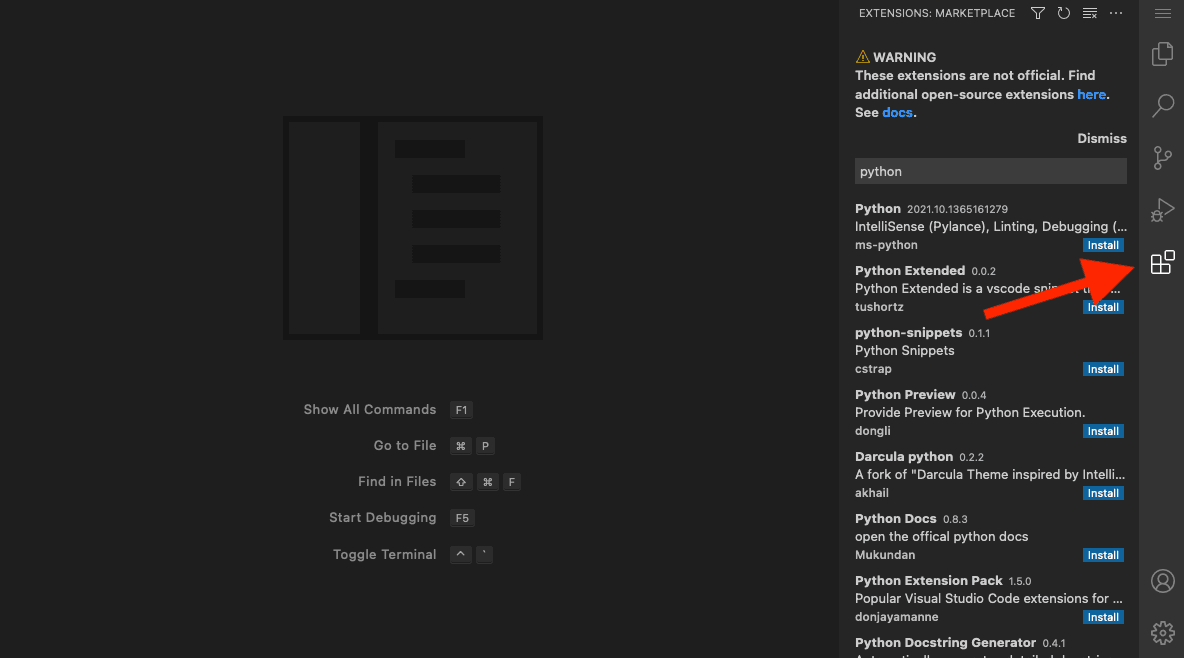
There are multiple ways to add extensions to VS Code Desktop:
You can manually add an extension while you're working in the Code Web IDE.
The extensions can be from Coder's public marketplace, Eclipse Open VSX's public marketplace, or the Eclipse Open VSX local marketplace.
Note
Microsoft does not allow any unofficial VS Code IDE to connect to the extension marketplace.
Add extensions to custom images
You can add extensions to a custom image and install them either through Code Web or using the workspace's terminal.
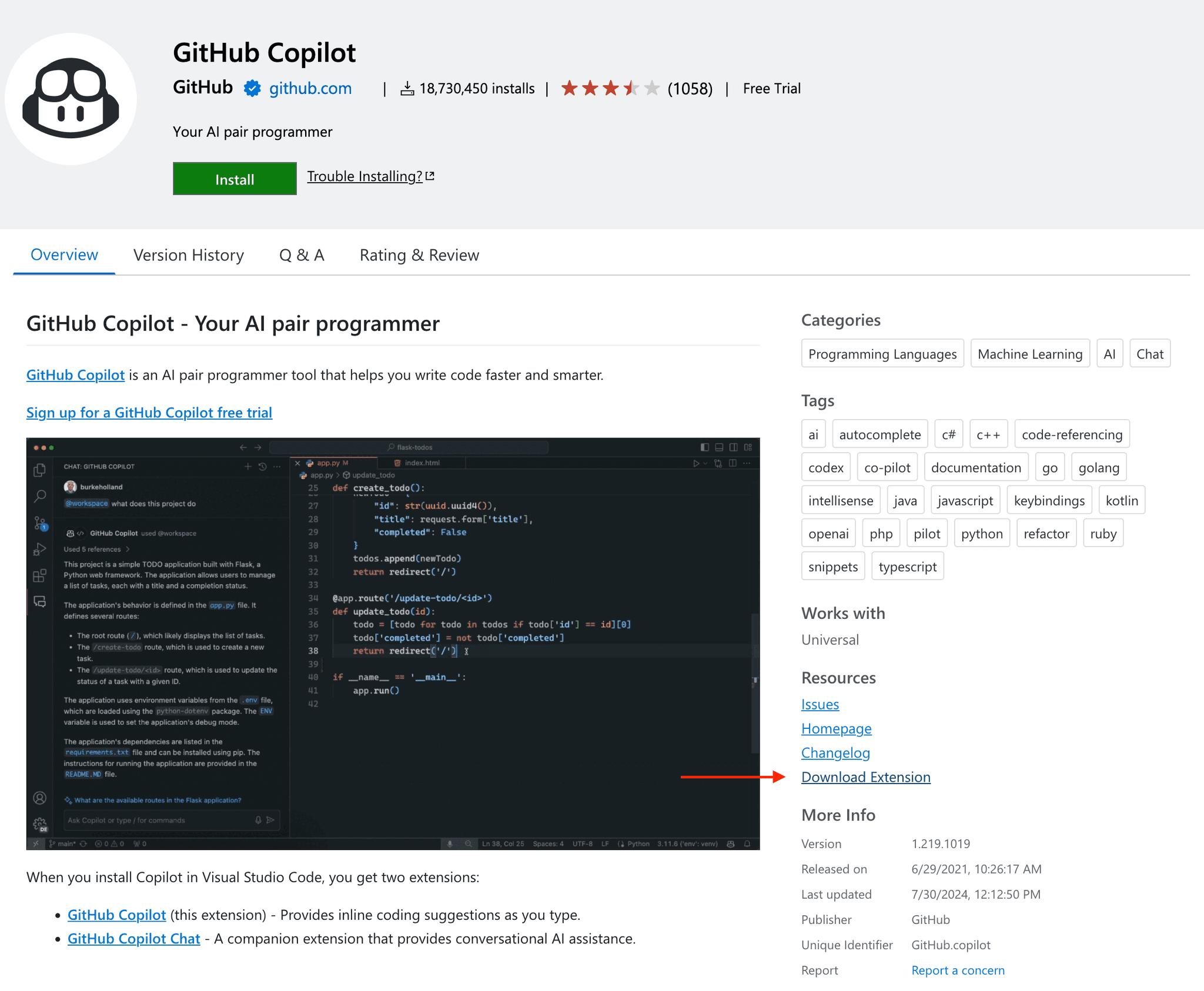
Download the extension(s) from the Microsoft public marketplace.
Add the vsix extension files to the same folder as your Dockerfile.
~/images/base
 ➜  ls -l
 -rw-r--r-- 1 coder coder       0 Aug 1 19:23 Dockerfile
 -rw-r--r-- 1 coder coder 8925314 Aug 1 19:40 GitHub.copilot.vsix
In the Dockerfile, add instructions to make a folder and to copy the vsix files into the newly created folder.
FROM codercom/example-base:ubuntu

# Run below commands as root user
USER root

# Download and install VS Code extensions into the container
RUN mkdir -p /vsix
ADD ./GitHub.copilot.vsix /vsix

USER coder
Build the custom image, and push it to your image registry.
Pass in the image and below command into your template startup_script (be sure to update the filename below):
You will now have access to the extension in your workspace.
Install extensions using a vsix file at the command line
Using the workspace's terminal or the terminal available inside code-server, you can install an extension whose files you've downloaded from a marketplace:
Using the workspace's terminal or the terminal available inside Code Web (code server), run the following to install an extension (be sure to update the snippets with the name of the extension you want to install):
For your local VS Code to pickup extension files in your Coder workspace, include this command in your startup_script, or run in manually in your workspace terminal: