Shared workspaces
Let multiple users securely connect to a single Coder workspace to program and debug together.
On this page
Multiple users can securely connect to a single Coder workspace for programming and debugging.
Features
Workspace sharing is available to all Coder users by default.
Platform admins can disable sharing for the entire deployment with the CODER_DISABLE_WORKSPACE_SHARING setting.
With a Premium subscription, admins can also set a sharing policy for each organization in organization settings.
Owners of a workspace can grant access to other users or groups with scoped roles.
This is helpful in a number of scenarios, including:
- Developers can do ad-hoc debugging or pair programming.
- A workspace can be owned by a group of users for quality assurance (QA), on-call rotations, or shared staging.
- AI workflows where an agent prepares a workspace and a developer takes over to review or finalize the work (ex. with Coder Agents.)
Get started
Workspaces can be shared through either the Coder CLI or UI.
Before you begin, make sure that you have a version of Coder with workspace sharing enabled and that your account has permission to share workspaces. This is true by default. Admins can restrict sharing for the entire deployment, or for each organization with a Premium license.
CLI
To share a workspace:
coder sharing share <workspace> --user alice- Shares the workspace with a single user,
alice, withusepermissions
- Shares the workspace with a single user,
coder sharing share <workspace> --user alice:admin,bob- Shares the workspace with two users -
alicewithadminpermissions, andbobwithusepermissions
- Shares the workspace with two users -
coder sharing share <workspace> --group contractor- Shares the workspace with
contractor, which is a group of users
- Shares the workspace with
To remove sharing from a workspace:
coder sharing remove <workspace> --user alice- Workspace is no longer shared with the user
alice.
- Workspace is no longer shared with the user
coder sharing remove <workspace> --group contractor- Workspace is no longer shared with the group
contractor.
- Workspace is no longer shared with the group
Important
The workspace must be restarted for the user or group removal to take effect.
To show who a workspace is shared with:
coder sharing status <workspace>
To list shared workspaces:
coder list --search shared:truecoder list --search shared_with_user:mecoder list --search shared_with_user:<user>coder list --search shared_with_group:<group>
To list the workspaces you own together with the ones shared with you, directly or through a group:
coder list --search user:me
For full command details, see coder sharing.
UI
Share your workspace
-
Open a workspace that you own.
-
Locate and select the 'Share' button.

- Add the users or groups that you want to share the workspace with. For each one, select a role.
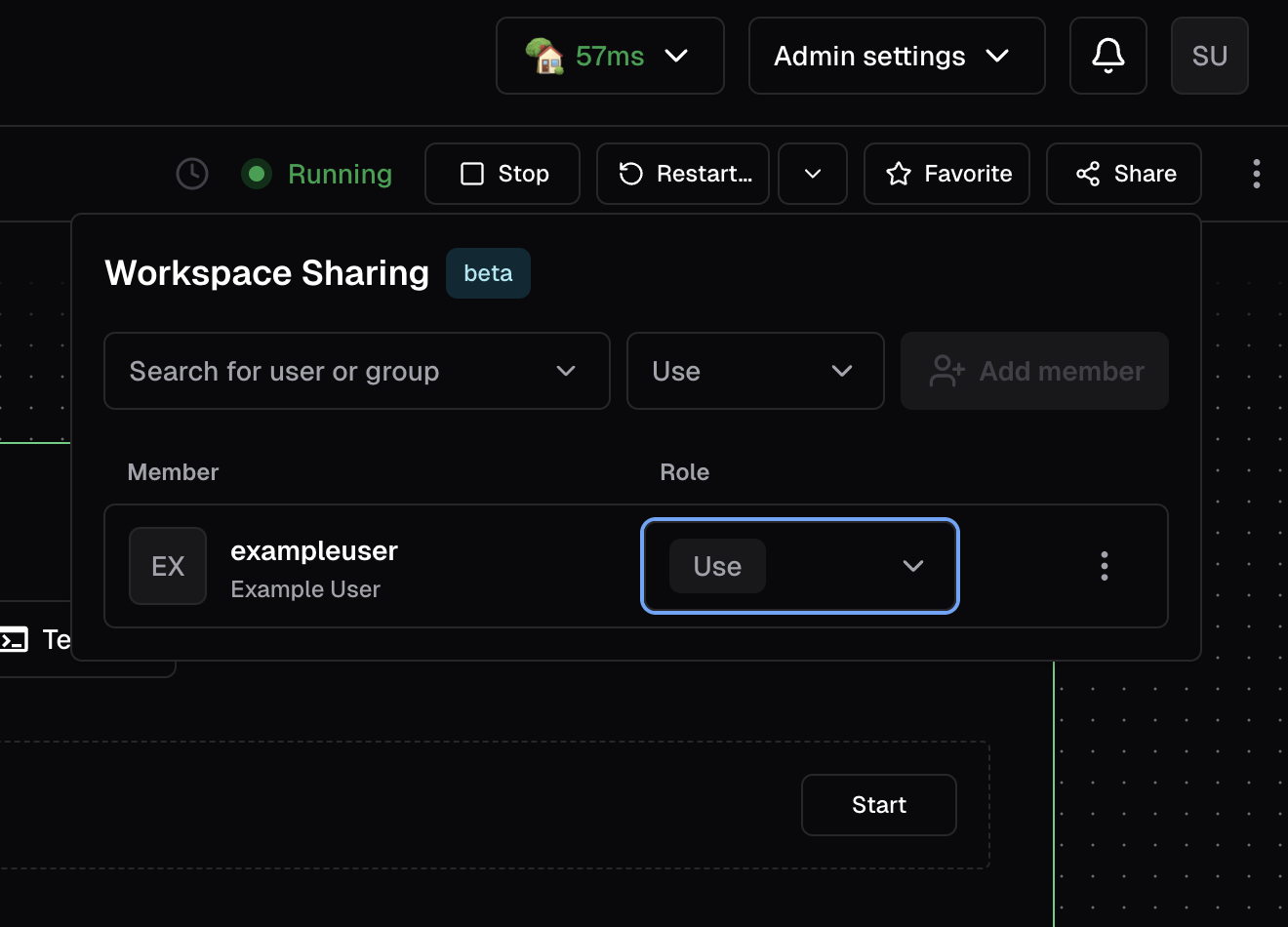
useallows for connection via SSH and apps, the ability to start and stop the workspace, view logs and stats, and update on start when required.adminallows for all of the above, as well as the ability to rename the workspace, update at any time, and invite others with theuserole.- Neither role allows for the user to delete the workspace.
- After removing a user/group, a workspace restart is required for the removal to take effect.
Use a shared workspace
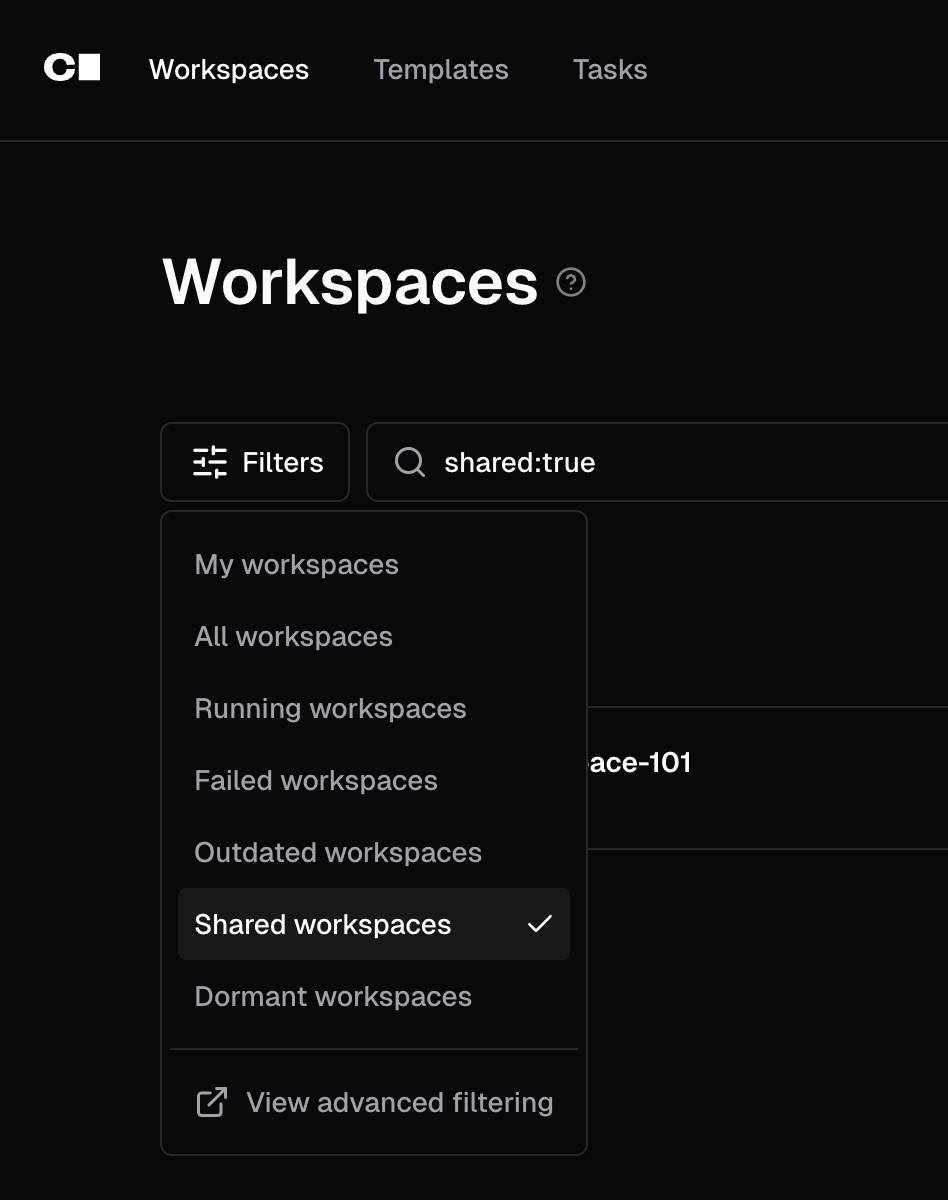
Once a workspace is shared, you can find the shared workspace by filtering for "Shared" in the Workspaces page.
Access workspace apps in shared workspaces
Sharing a workspace grants SSH and terminal access to other users. However, workspace apps like code-server might return a 404 page for non-owners depending on how the app is routed.
By default, workspace apps that don't set subdomain = true use path-based routing (for example, coder.example.com/@user/workspace/apps/code-server/).
Path-based apps share the same origin as the Coder dashboard, so Coder blocks non-owners from accessing them to prevent cross-site scripting risks.
This restriction applies even when the user has been granted access through workspace sharing.
To allow other users to access workspace apps, configure subdomain-based access:
-
Set a wildcard access URL on your deployment (for example,
CODER_WILDCARD_ACCESS_URL=*.coder.example.com). -
Set
subdomain = trueon the workspace app. For example, if you use the code-server module:module "code-server" { source = "registry.coder.com/coder/code-server/coder" agent_id = coder_agent.main.id subdomain = true # ... }
Subdomain-based apps run in an isolated browser security context, so Coder allows other users to access them without additional configuration.
Policies
There are several sharing policy levels that can be selected on a per-organization basis.
- Everyone: anybody can share their workspace with any individual or group in the same organization.
- Service Accounts Only: only workspaces owned by service accounts can be shared with any individual or group in the same organization.
- Disabled: workspaces within the organization cannot be shared.
The Disabled policy applies to every workspace in the organization. It overrides the sharing permission of any role held by a member of that organization, including Organization Admin.
The Disabled policy can also be applied to the entire deployment by setting the CODER_DISABLE_WORKSPACE_SHARING environment variable, or by using the corresponding command argument or config value.
Git identity and credentials
Git in a shared workspace uses the workspace owner's identity and credentials for every user who connects, including users with only the use role.
Coder resolves each of the following from the workspace owner, not from the user who runs the command:
| What | Where it comes from | Result for shared users |
|---|---|---|
| Commit author and committer | The GIT_AUTHOR_* and GIT_COMMITTER_* environment variables, if the template sets them from data.coder_workspace_owner.me at build time | Commits are attributed to the owner |
| Git over SSH | The owner's Coder Git SSH key, which coder gitssh injects through GIT_SSH_COMMAND | Pushes and pulls authenticate as the owner |
| Git over HTTPS | The owner's external auth token, which Coder supplies through GIT_ASKPASS and coder external-auth access-token | Git, and any tool that uses the token, acts with the owner's permissions |
| User secrets | The owner's user secrets | Shared users can read the owner's injected secret values |
Security implications
The use role grants SSH and terminal access, which is enough to run Git with the owner's credentials.
Warning
Share a personally owned workspace only with users you trust to act with your source control permissions. Any shared user can push code, open pull requests, or call your Git provider's API as you, and the Git provider attributes that activity to your account.
Use a service account for shared or long-lived workspaces
To keep personal credentials out of a shared workspace, have a service account own the workspace instead of a person. Git in the workspace then uses the service account's identity and credentials instead of a person's. Creating service accounts requires a Premium license.
Service accounts have no email address and can't sign in to the Coder dashboard.
If the template sets the commit identity from the workspace owner, commits show the service account's name with an empty email address.
To give the workspace access to repositories, run coder publickey as the service account, then add the key to a dedicated machine account on your Git provider.
Grant that account only the repository access the shared work needs.
For a complete setup, refer to Persistent shared workspaces with service accounts.
Commit and push as yourself
A shared user can override the owner's identity and credentials for their own session.
Warning
Every user of a workspace connects as the same operating system user and shares the same home directory. Credentials that you store in the workspace, such as a GitHub CLI token or an SSH private key, are readable by every other user of the workspace.
To set your commit identity for the current shell session, export the Git identity variables:
export GIT_AUTHOR_NAME="Alice Example"
export GIT_AUTHOR_EMAIL="[email protected]"
export GIT_COMMITTER_NAME="$GIT_AUTHOR_NAME"
export GIT_COMMITTER_EMAIL="$GIT_AUTHOR_EMAIL"
Git gives these environment variables precedence over Git configuration.
If the template sets them, git config user.name and git -c user.name=... don't change the commit identity.
To change only the author of a single commit, run git commit --author="Alice Example <[email protected]>".
The committer stays the owner.
To authenticate with your own Git provider account instead of the owner's, use one of the following:
- SSH agent forwarding: connect with
coder ssh --forward-agent <owner>/<workspace>, then runexport GIT_SSH_COMMAND=ssh. Git uses the keys in your local SSH agent instead of the owner's Coder Git SSH key, and no private key is written to the workspace. While you're connected, other users of the workspace can use the forwarded agent socket. - GitHub CLI: run
gh auth loginto sign in, thengh auth setup-gitto make Git use that token over HTTPS. The GitHub CLI stores the token in the workspace, andgh auth setup-gitupdates the shared~/.gitconfig, so the change affects every user of the workspace. Rungh auth logoutwhen you finish.