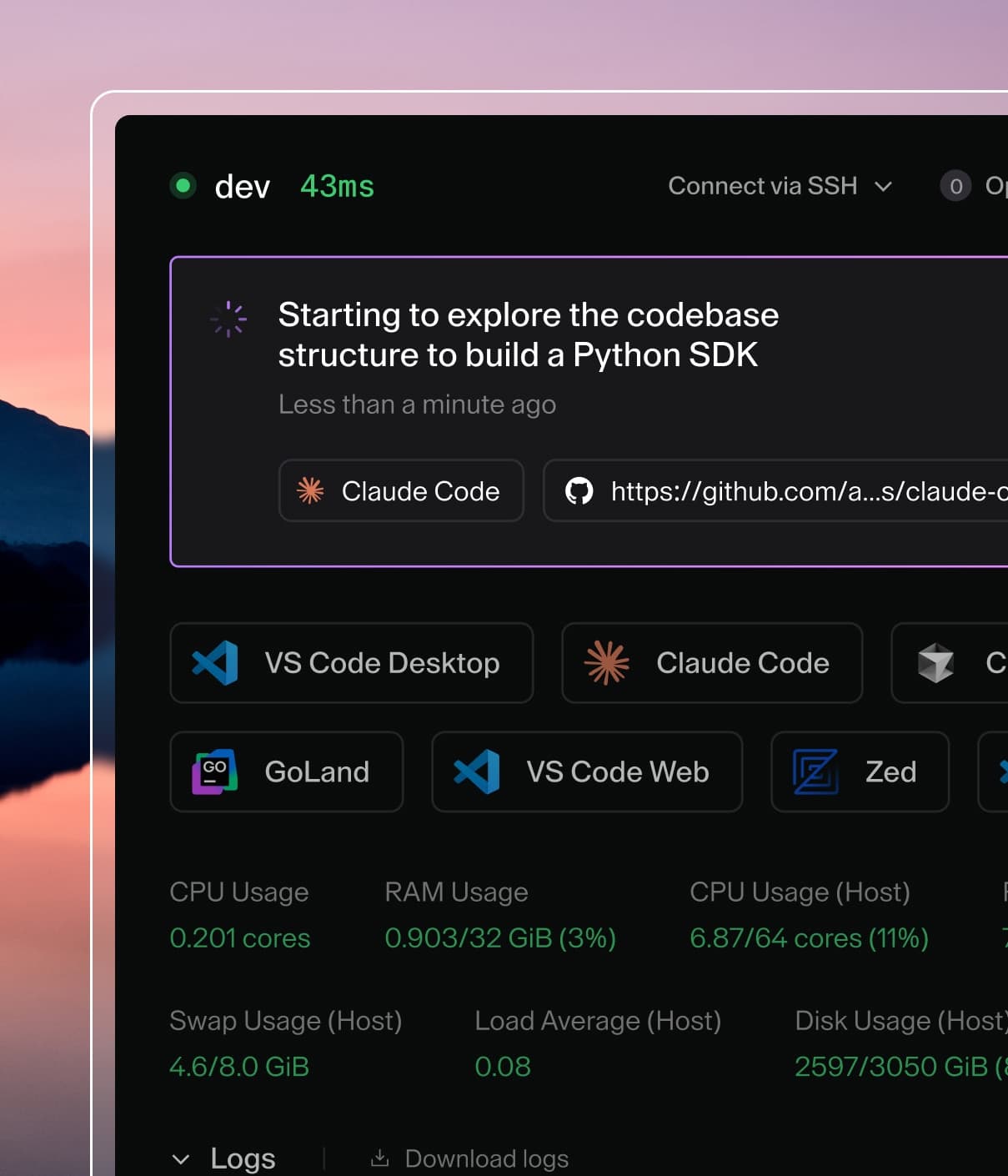
Coder powers secure, scalable development across key industries — automotive, finance, government, and technology — enabling faster builds, tighter compliance, and seamless AI adoption in enterprise-grade cloud environments.
Devin Desktop is Cognition's AI-powered code editor designed for AI-assisted development.
Cognition, the maker of the Devin autonomous coding agent, rebranded the Windsurf Editor (formerly Codeium) as Devin Desktop on June 2, 2026.
If you installed Windsurf before that date, it updated to Devin Desktop automatically, and your plan, extensions, and settings were carried over.
Follow this guide to use Devin Desktop to access your Coder workspaces.
If your team uses Devin Desktop regularly, ask your Coder administrator to add Devin Desktop as a workspace application in your template.
You can also use the devin-desktop module to easily add Devin Desktop to your Coder templates.
Install Devin Desktop
Devin Desktop can connect to your Coder workspaces via SSH: