Add a programming language to your template
Expose a new programming language through a template parameter and install it at workspace startup.
On this page
Now that you've finished Launch your first workspace, you can add another language toolchain to every workspace you create.
The Quickstart template installs a language only when the workspace owner selects it from the Programming Languages parameter. In this guide, you add Ruby as an option.
Note
This guide assumes your Quickstart template is open for editing. If it's not, you can edit the template from the web by finding the template, selecting the three dots menu, and selecting Edit files. Refer to Customize workspace startup for more information.
What you'll do
- Check mark Add a Ruby option to the Programming Languages parameter.
- Check mark Publish the change and apply it to your running workspace.
- Check mark Install the Ruby toolchain so selecting Ruby works.
Parameters in brief
A parameter is a question Coder asks when someone creates a workspace.
Each parameter comes from a coder_parameter data source in the template.
The Programming Languages parameter is a multi-select list, and each language the reader can choose is an option block:
data "coder_parameter" "languages" {
  name         = "languages"
  display_name = "Programming Languages"
  description  = "Select the languages to pre-install in your workspace"
  type         = "list(string)"
  form_type    = "multi-select"
  default      = jsonencode(["python"])
  mutable      = true
  icon         = "/icon/code.svg"
  order        = 1

  option {
    name  = "Python"
    value = "python"
    icon  = "/icon/python.svg"
  }
  # ...more options
}
This produces the following dropdown parameter:
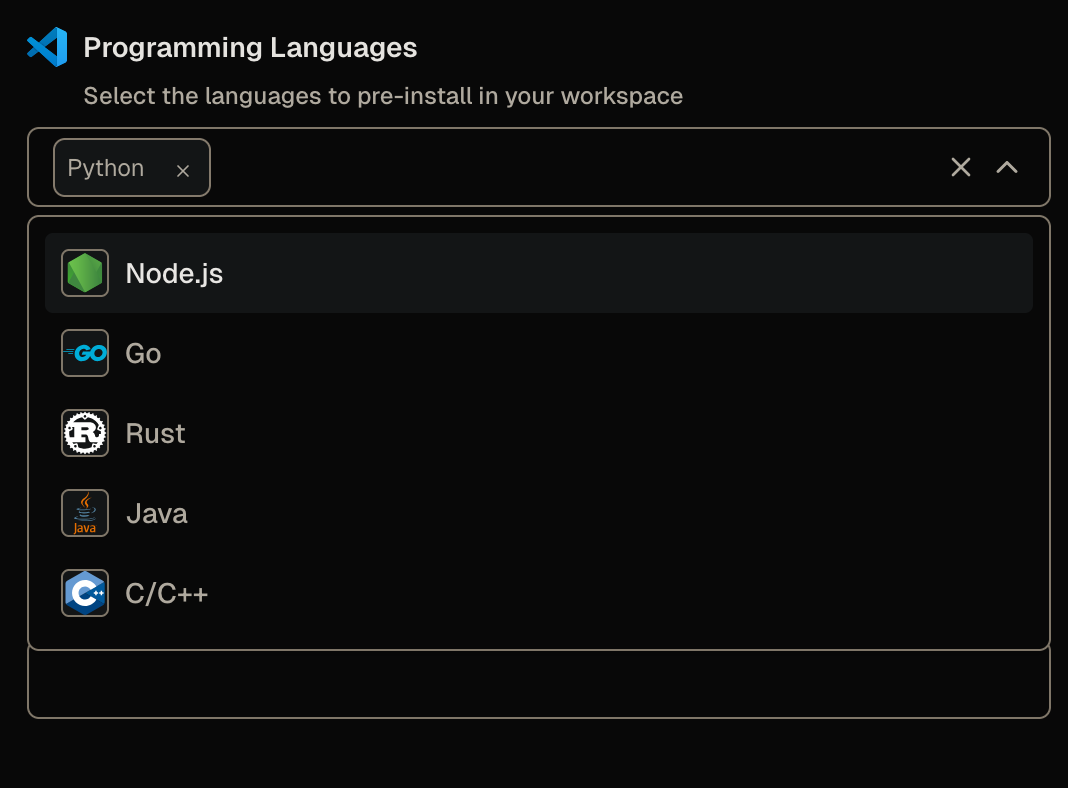 Programming Language dropdown parameter from the Quickstart template
Adding an option adds a choice to that list.
Add the Ruby option
In main.tf, find the data "coder_parameter" "languages" block.
Add a Ruby option after the last existing option, before the parameter's closing brace:
  option {
    name  = "Ruby"
    value = "ruby"
    icon  = "/icon/ruby.svg"
  }
Important
The option block must sit at the same indentation as the other option blocks inside the parameter.
Coder reads the parameter's choices from these blocks, so a misplaced option doesn't appear in the form.
The icon value points at an icon bundled with your Coder deployment.
To browse the full set and copy a path, open https://<your-coder-url>/icons.
Now publish the change as a new template version:
In the web editor, make the edit above in main.tf.
Select Build, wait for the build to pass, then select Publish.
Add Ruby to your workspace
Your workspace from Launch your first workspace is still on the old template version. Update it to the version you just published, and add Ruby to its Programming Languages selection:
- From your workspace, open Workspace settings (top right), then select Parameters.
- Add Ruby to the Programming Languages parameter.
- Apply the change. Coder updates the workspace to the new template version and restarts it with Ruby selected.
Adding the Ruby option to the parameter shows the following:
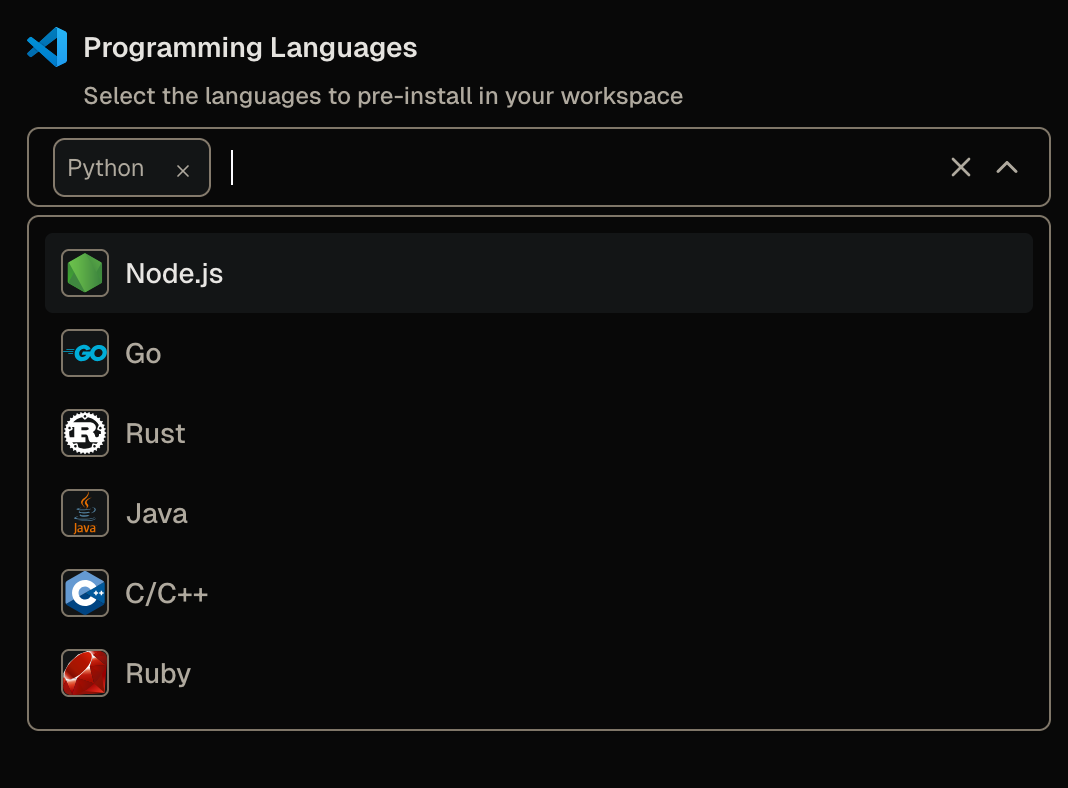 Programming Language dropdown parameter from the Quickstart template with Ruby
Check whether Ruby is installed
When the workspace restarts, open a terminal and ask for the Ruby version:
ruby --versionThe command fails:
ruby: command not foundYou added the option, selected it, and rebuilt the workspace, but Ruby isn't there.
Adding the option only changed the form.
It added Ruby to the list of choices, but nothing in the template acts on that choice yet.
A separate startup script installs each selected toolchain, and you haven't taught it about Ruby.
Install Ruby when the workspace starts
The template installs each selected language from install-languages.sh.tftpl, a startup script that runs when the workspace boots.
Open that file and add a branch that installs Ruby when the reader selects it:
if echo "$LANGUAGES" | grep -q "ruby"; then
  if command -v ruby >/dev/null 2>&1; then
    echo "Ruby: $(ruby --version | head -1)"
  else
    echo "Installing Ruby toolchain..."
    apt_update
    sudo apt-get install -y -qq ruby-full
    echo "Installed Ruby: $(ruby --version | head -1)"
  fi
fi
The script installs Ruby with apt-get, the package manager built into the workspace image.
Warning
Use the package manager the workspace image provides, not a personal one.
If you replace the apt-get line with brew install ruby, the build fails: the codercom/example-base:ubuntu image doesn't include Homebrew, so the workspace logs brew: command not found and Ruby never installs.
To install a personal tool like a Homebrew formula in your own workspace, refer to Install your own command-line tools.
Publish the change, then update your workspace again:
- In the web editor, make the edit above in
install-languages.sh.tftpl. - Select Build, wait for the build to pass, then select Publish.
- On your workspace's home tab, select Update and restart.
Ruby is already selected, so you don't change parameters this time. When the workspace restarts, open a terminal and check again:
ruby --versionThis time the workspace reports a Ruby version.
Add a Ruby preset
Steps 1 through 4 make Ruby selectable as a parameter and install it at startup. The Quickstart template also ships presets: named bundles of parameter values that appear on the workspace creation form:
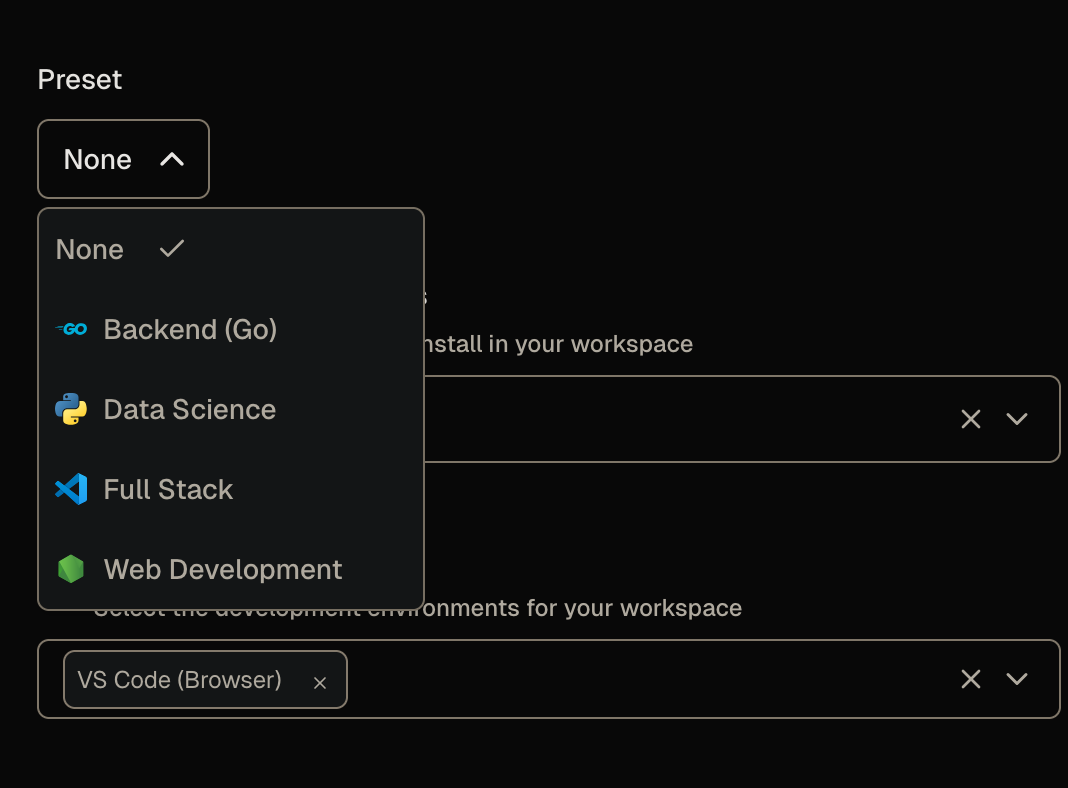 Default presets with the Quickstart template
The shipped presets cover combinations like Go and Python, but none selects Ruby, so add one to keep the parameter and preset choices in sync.
In main.tf, find the # --- Presets --- section and add a Ruby preset next to the existing ones:
data "coder_workspace_preset" "ruby_dev" {
  name = "Ruby Development"
  icon = "/icon/ruby.svg"
  parameters = {
    languages      = jsonencode(["ruby"])
    ides           = jsonencode(["code-server", "jetbrains"])
    jetbrains_ides = jsonencode(["RM"])
    git_repo       = ""
  }
}
This preset adds JetBrains RubyMine as a default option for the language, but you can customize the preferred IDEs in this default based on your needs.
Publish the template again. The next time you create a workspace, Ruby Development appears in the preset list and preselects Ruby:
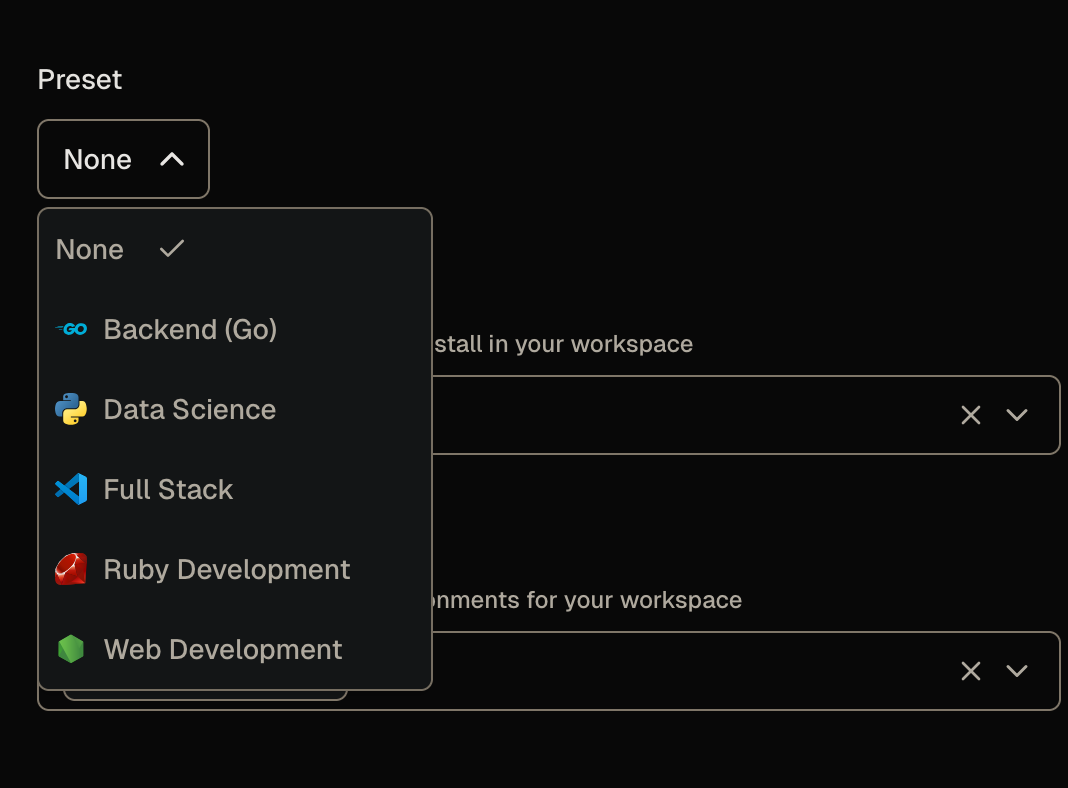 Updated presets with the Quickstart template
Expanding the preset parameters after selecting Ruby Development shows the parameter values Coder will use to create the workspace:
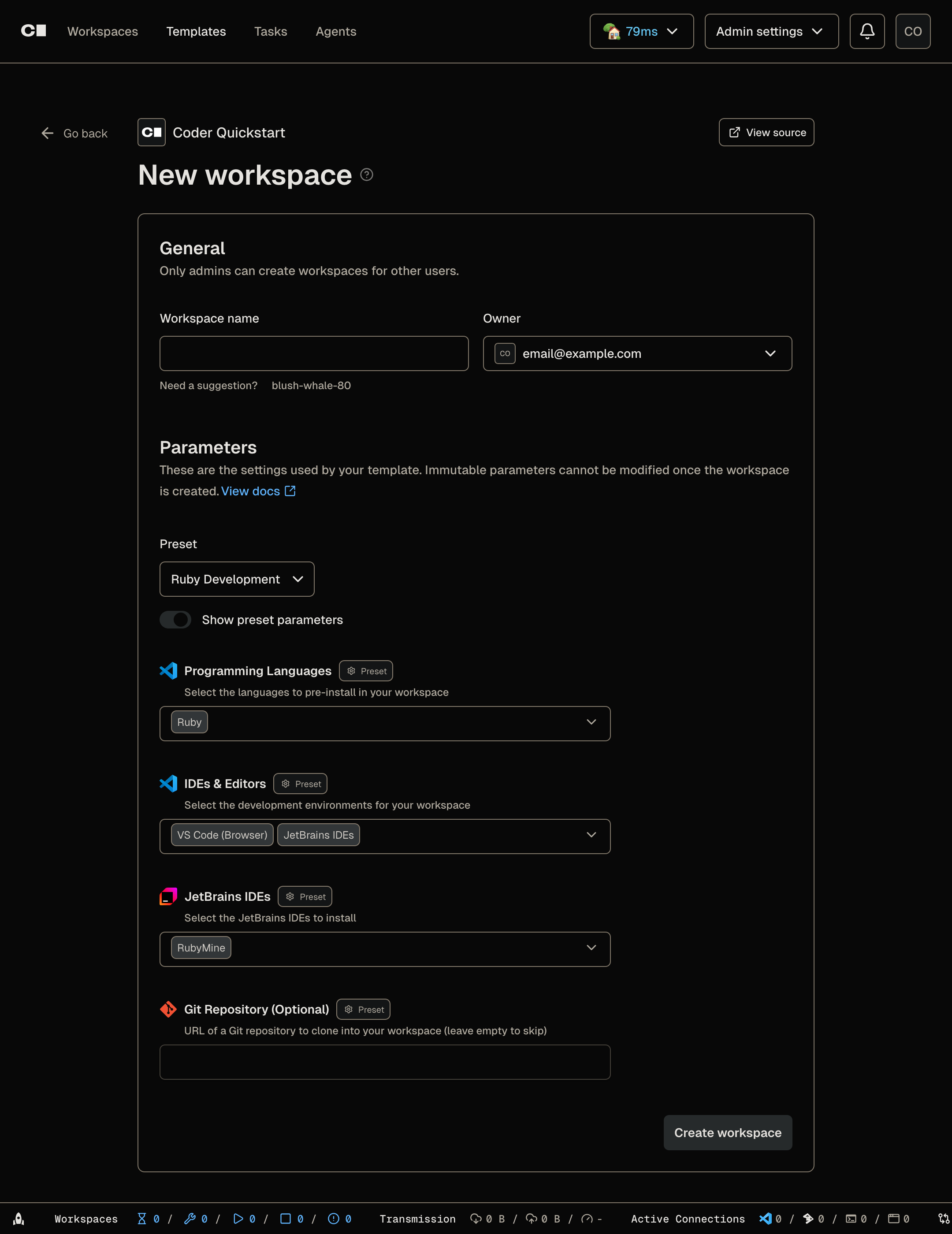 Expanded parameter values for the Ruby Development preset
What just happened
You changed two different things to add one language:
- The
coder_parameteroptionblock added Ruby to the workspace creation form. - The startup script installed the Ruby toolchain when a workspace owner selected Ruby.
A parameter collects a choice. A startup script acts on it. A new language needs both.
You also added support for a new preset, so workspace users can launch a workspace from this template quickly, without having to fill out the parameters manually.
Final code
What's next?
Now that you added a language, you can install your own command-line tools.
Learn more
- Parameters in the Coder documentation
- Terraform data sources
- Terraform types for parameter values