Deploy Coder on Rancher
Deploy Coder on Rancher as a Kubernetes workload using the Rancher UI and Helm.
On this page
You can deploy Coder on Rancher as a Workload.
Requirements
- SUSE Rancher Manager running Kubernetes (K8s) 1.19+ with SUSE Rancher Prime distribution (Rancher Manager 2.10+)
- Helm 3.5+ installed
- Workload Kubernetes cluster for Coder
Overview
Installing Coder on Rancher involves four key steps:
- Create a namespace for Coder
- Set up PostgreSQL
- Create a database connection secret
- Install the Coder application via Rancher UI
Create a namespace
Create a namespace for the Coder control plane. In this tutorial, we call it coder:
kubectl create namespace coderSet up PostgreSQL
Coder requires a PostgreSQL database to store deployment data. We recommend that you use a managed PostgreSQL service, but you can use an in-cluster PostgreSQL service for non-production deployments:
For production deployments, we recommend using a managed PostgreSQL service:
- Google Cloud SQL
- AWS RDS for PostgreSQL
- Azure Database for PostgreSQL
- DigitalOcean Managed PostgreSQL
Ensure that your PostgreSQL service:
- Is running and accessible from your cluster
- Is in the same network/project as your cluster
- Has proper credentials and a database created for Coder
Create the database connection secret
Create a Kubernetes secret with your PostgreSQL connection URL:
kubectl create secret generic coder-db-url -n coder \
  --from-literal=url="postgres://coder:[email protected]:5432/coder?sslmode=disable"
Important
If you're using a managed PostgreSQL service, replace the connection URL with your specific database credentials.
Install Coder through the Rancher UI
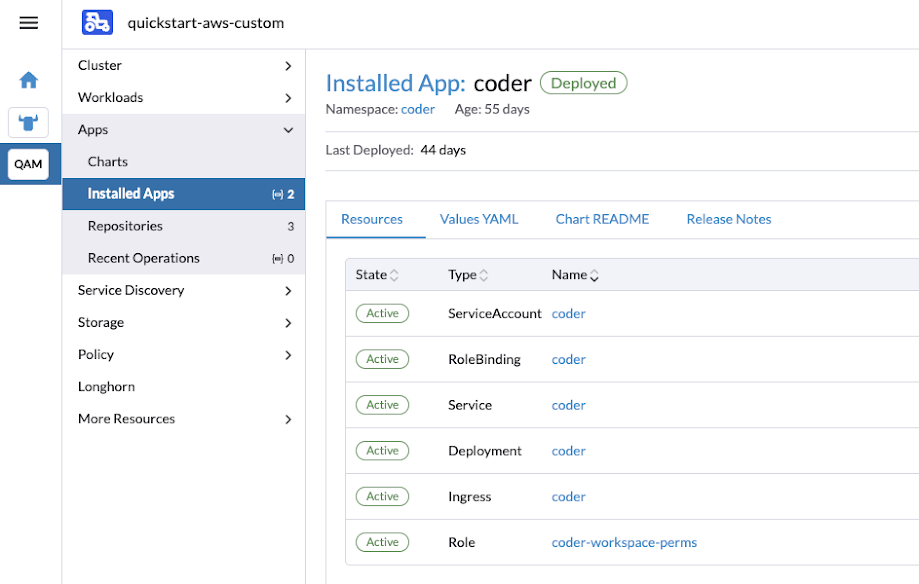
-
In the Rancher Manager console, select your target Kubernetes cluster for Coder.
-
Navigate to Apps > Charts
-
From the dropdown menu, select Partners and search for
Coder -
Select Coder, then Install
-
Select the
codernamespace you created earlier and check Customize Helm options before install.Select Next
-
On the configuration screen, select Edit YAML and enter your Coder configuration settings:
-
Select a Coder version:
- Mainline:
2.36.1 - Stable:
2.35.4
Learn more about release channels in the Releases documentation.
- Mainline:
-
Select Next when your configuration is complete.
-
On the Supply additional deployment options screen:
- Accept the default settings
- Select Install
-
A Helm install output shell will be displayed and indicates the installation status.
Manage your Rancher Coder deployment
To update or manage your Coder deployment later:
- Navigate to Apps > Installed Apps in the Rancher UI.
- Find and select Coder.
- Use the options in the ⋮ menu for upgrade, rollback, or other operations.