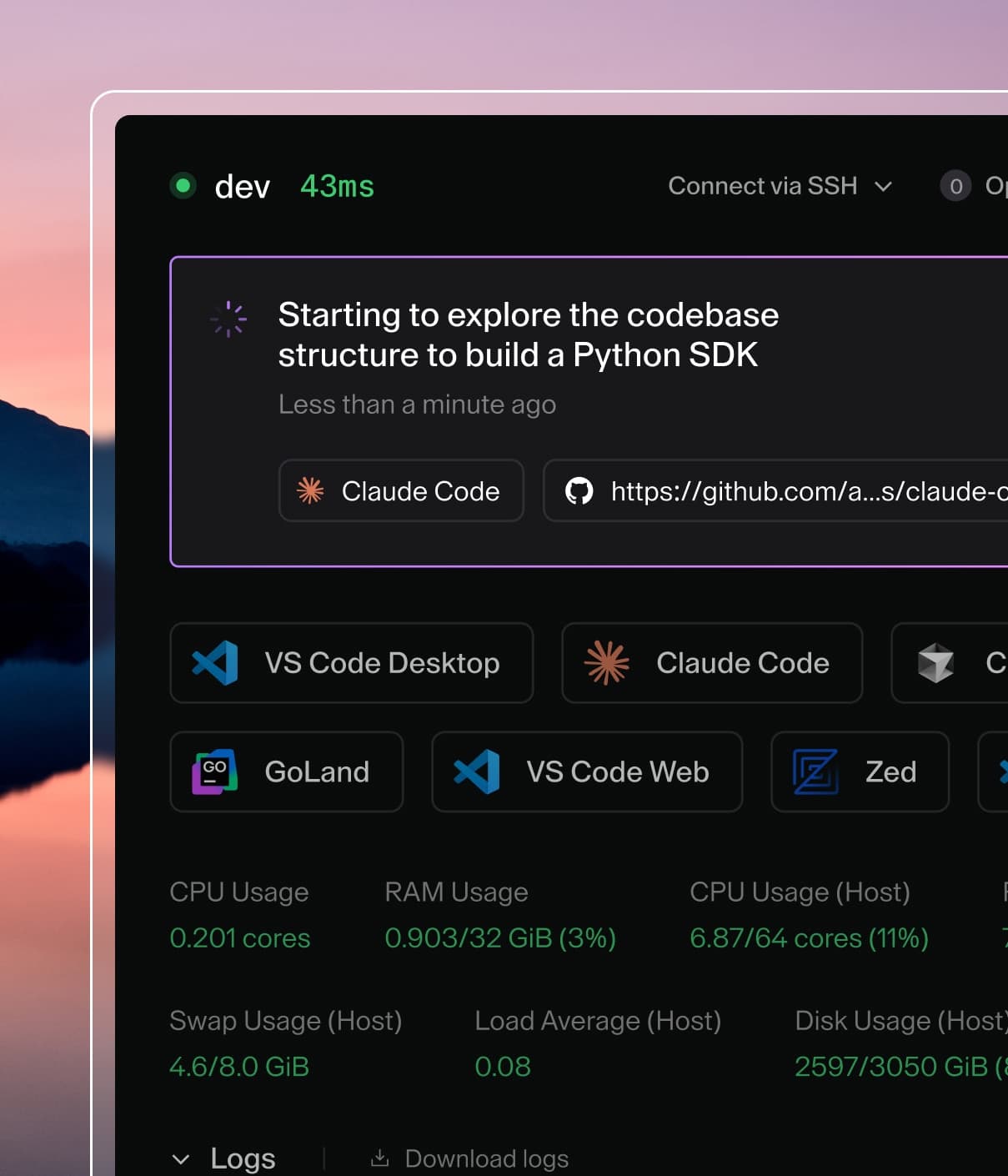
Coder powers secure, scalable development across key industries — automotive, finance, government, and technology — enabling faster builds, tighter compliance, and seamless AI adoption in enterprise-grade cloud environments.
Coder Desktop provides seamless access to your remote workspaces without the need to install a CLI or configure manual port forwarding.
Connect to workspace services using simple hostnames like myworkspace.coder, launch native applications with one click,
and synchronize files between local and remote environments.
Coder Desktop requires a Coder deployment running v2.20.0 or later.
Install Coder Desktop
Important
Coder Desktop can't connect through a corporate VPN.
Due to a known issue,
if your Coder deployment requires that you connect through a corporate VPN, Desktop will timeout when it tries to connect.
Before you can use Coder Desktop, you will need to sign in.
Open the Desktop menu and select Sign in:
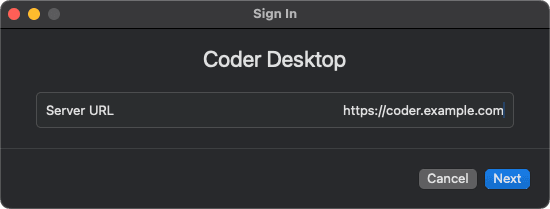
In the Sign In window, enter your Coder deployment's URL and select Next:
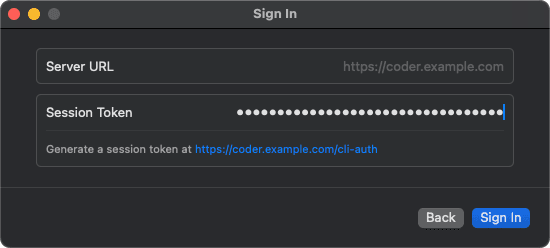
macOS: Select the link to your deployment's /cli-auth page to generate a session token.
Windows: Select Generate a token via the Web UI.
In your web browser, you may be prompted to sign in to Coder with your credentials.
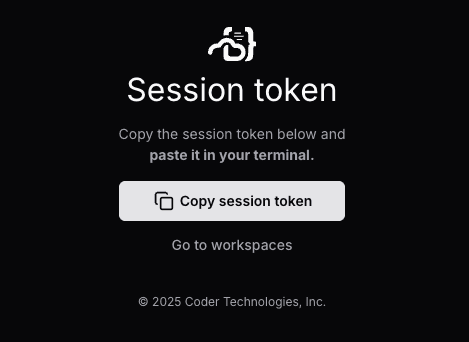
Copy the session token to the clipboard:
Paste the token in the Session Token field of the Sign In screen, then select Sign In:
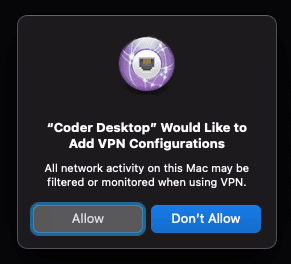
macOS: Allow the VPN configuration for Coder Desktop if you are prompted:
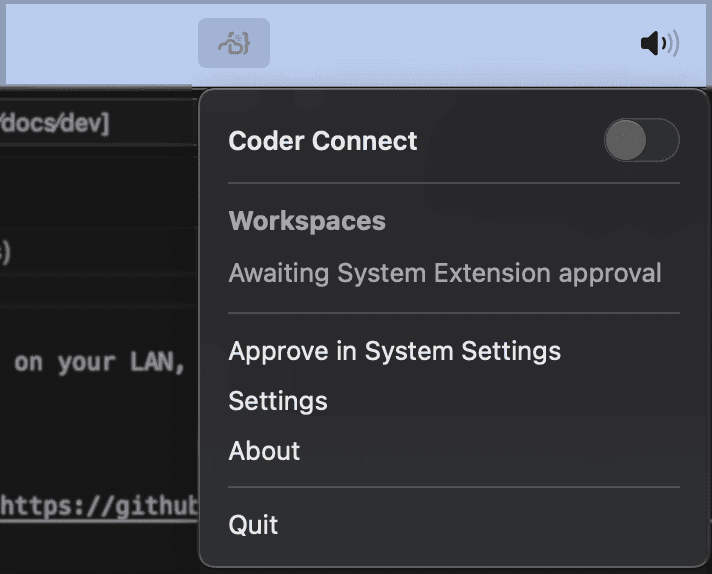
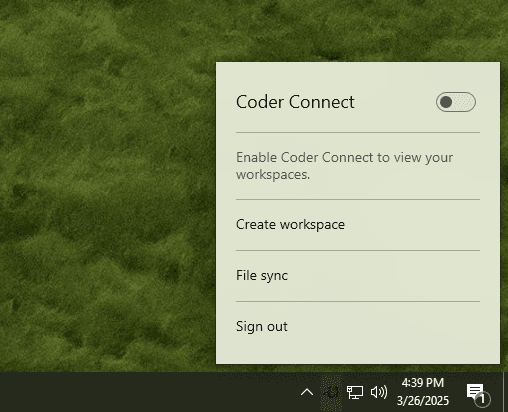
Select the Coder icon in the menu bar (macOS) or system tray (Windows), and click the Coder Connect toggle to enable the connection.
This may take a few moments, because Coder Desktop will download the necessary components from the Coder server if they have been updated.
macOS: You may be prompted to enter your password to allow Coder Connect to start.
Coder Connect is now running!
Troubleshooting
If you encounter an issue with Coder Desktop that is not listed here, file an issue in the GitHub repository for
Coder Desktop for macOS or
Windows, in the
main Coder repository, or consult the
community on Discord.
Known Issues
macOS: Do not install more than one copy of Coder Desktop
To avoid system VPN configuration conflicts, only one copy of Coder Desktop.app should exist on your Mac, and it must remain in /Applications.
Coder Desktop can't connect through another VPN
If the logged in Coder deployment requires a corporate VPN to connect, Coder Connect can't establish communication
through the VPN, and will time out.
This is due to known issues with macOS and
Windows networking.
A resolution is in progress.