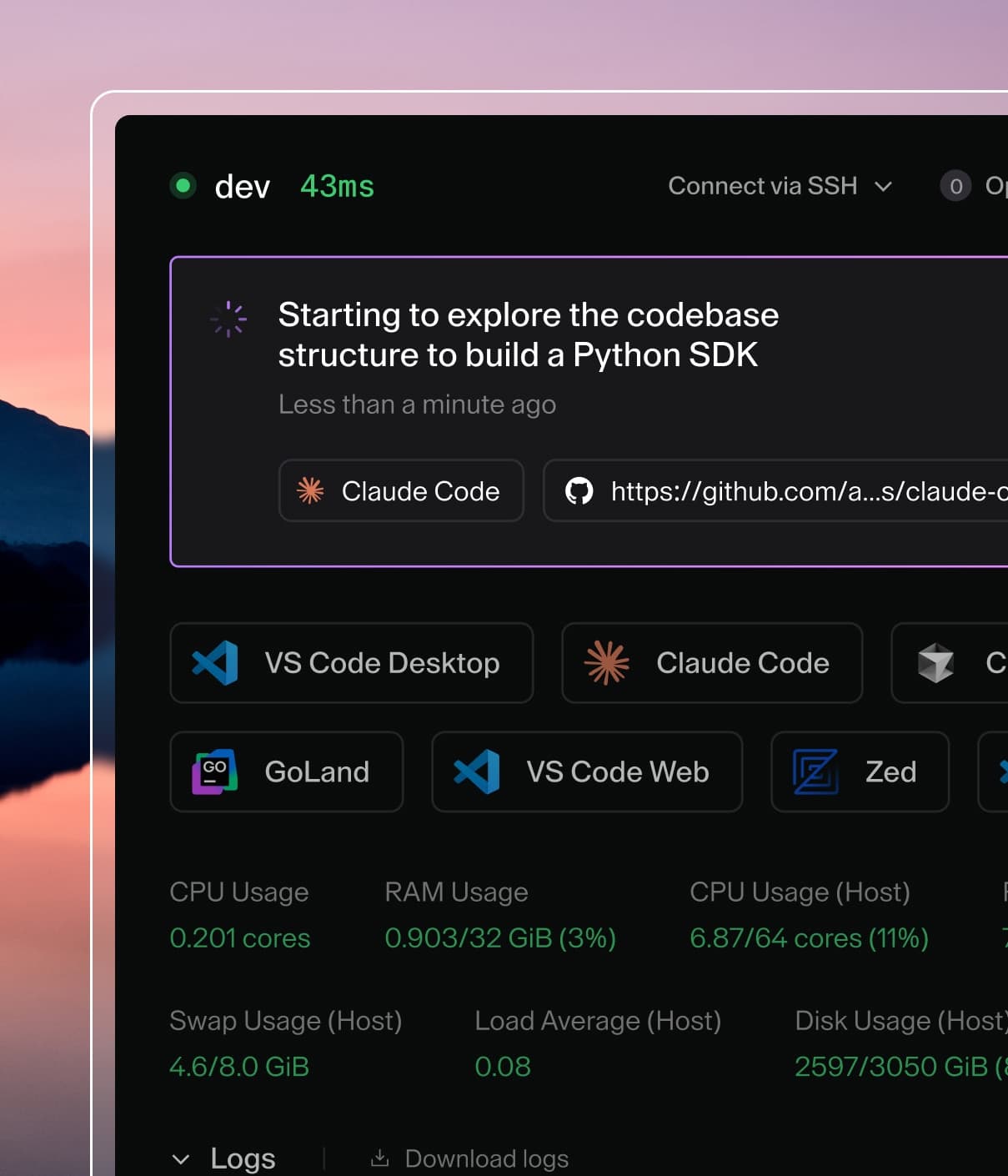
Coder powers secure, scalable development across key industries — automotive, finance, government, and technology — enabling faster builds, tighter compliance, and seamless AI adoption in enterprise-grade cloud environments.
Dev containers define your development environment
as code using a devcontainer.json file. Coder's Dev Containers integration
uses the @devcontainers/cli and
Docker to seamlessly build and run these containers,
with management in your dashboard.
This guide covers the Dev Containers integration. For workspaces without Docker,
administrators can configure
Envbuilder instead,
which builds the workspace image itself from your dev container configuration.
Dev containers appear as sub-agents with their own apps, SSH access, and port forwarding
Prerequisites
Coder version 2.24.0 or later
Docker available inside your workspace
The @devcontainers/cli installed in your workspace
Dev Containers integration is enabled by default. Your workspace needs Docker
(via Docker-in-Docker or a mounted socket) and the devcontainers CLI. Most
templates with Dev Containers support include both. See
Configure a template for dev containers
for setup details.
Features
Automatic dev container detection from repositories
Seamless container startup during workspace initialization
Change detection with outdated status indicator
On-demand container rebuild via dashboard button
Template-defined apps, scripts, and environment variables via Terraform (see limitations)
Integrated IDE experience with VS Code
Direct SSH access to containers
Automatic port detection
Get started
Add a devcontainer.json
Add a devcontainer.json file to your repository. This file defines your
development environment. You can place it in:
The third option allows monorepos to define multiple dev container
configurations in separate sub-folders. See the
Dev Container specification
for details.
Here's a minimal example:
{
  "name": "My Dev Container",
  "image": "mcr.microsoft.com/devcontainers/base:ubuntu"
}
Coder automatically discovers dev container configurations in your repositories
and displays them in your workspace dashboard. From there, you can start a dev
container with a single click.
Coder detects dev container configurations and displays them with a Start button
If your template administrator has configured automatic startup (via the
coder_devcontainer Terraform resource or autostart settings), your dev
container will build and start automatically when the workspace starts.
Connect to your dev container
Once running, your dev container appears as a sub-agent in your workspace
dashboard. You can connect via:
Web terminal in the Coder dashboard
SSH using coder ssh <workspace>.<agent>
VS Code using the "Open in VS Code Desktop" button
The Dev Containers integration uses the devcontainer command from
@devcontainers/cli to manage
containers within your Coder workspace.
When a workspace with Dev Containers integration starts:
If the template defines coder_app, coder_script, or coder_env resources
attached to the dev container, a sub-agent is pre-created with these resources.
The workspace initializes the Docker environment.
The integration detects repositories with dev container configurations.
Detected dev containers appear in the Coder dashboard.
If auto-start is configured (via coder_devcontainer or autostart settings),
the integration builds and starts the dev container automatically.
Coder creates a sub-agent (or updates the pre-created one) for the running
container, enabling direct access.
Without auto-start, users can manually start discovered dev containers from the
dashboard.
Agent naming
Each dev container gets its own agent name, derived from the workspace folder
path. For example, a dev container with workspace folder /home/coder/my-app
will have an agent named my-app.
Agent names are sanitized to contain only lowercase alphanumeric characters and
hyphens. You can also set a
custom agent name
in your devcontainer.json.
Limitations
Linux only: Dev Containers are currently not supported in Windows or
macOS workspaces
Changes to devcontainer.json require manual rebuild using the dashboard
button
The forwardPorts property in devcontainer.json with host:port syntax
(e.g., "db:5432") for Docker Compose sidecar containers is not yet
supported. For single-container dev containers, use coder port-forward to
access ports directly on the sub-agent.
Some advanced dev container features may have limited support