Coder powers secure, scalable development across key industries — automotive, finance, government, and technology — enabling faster builds, tighter compliance, and seamless AI adoption in enterprise-grade cloud environments.
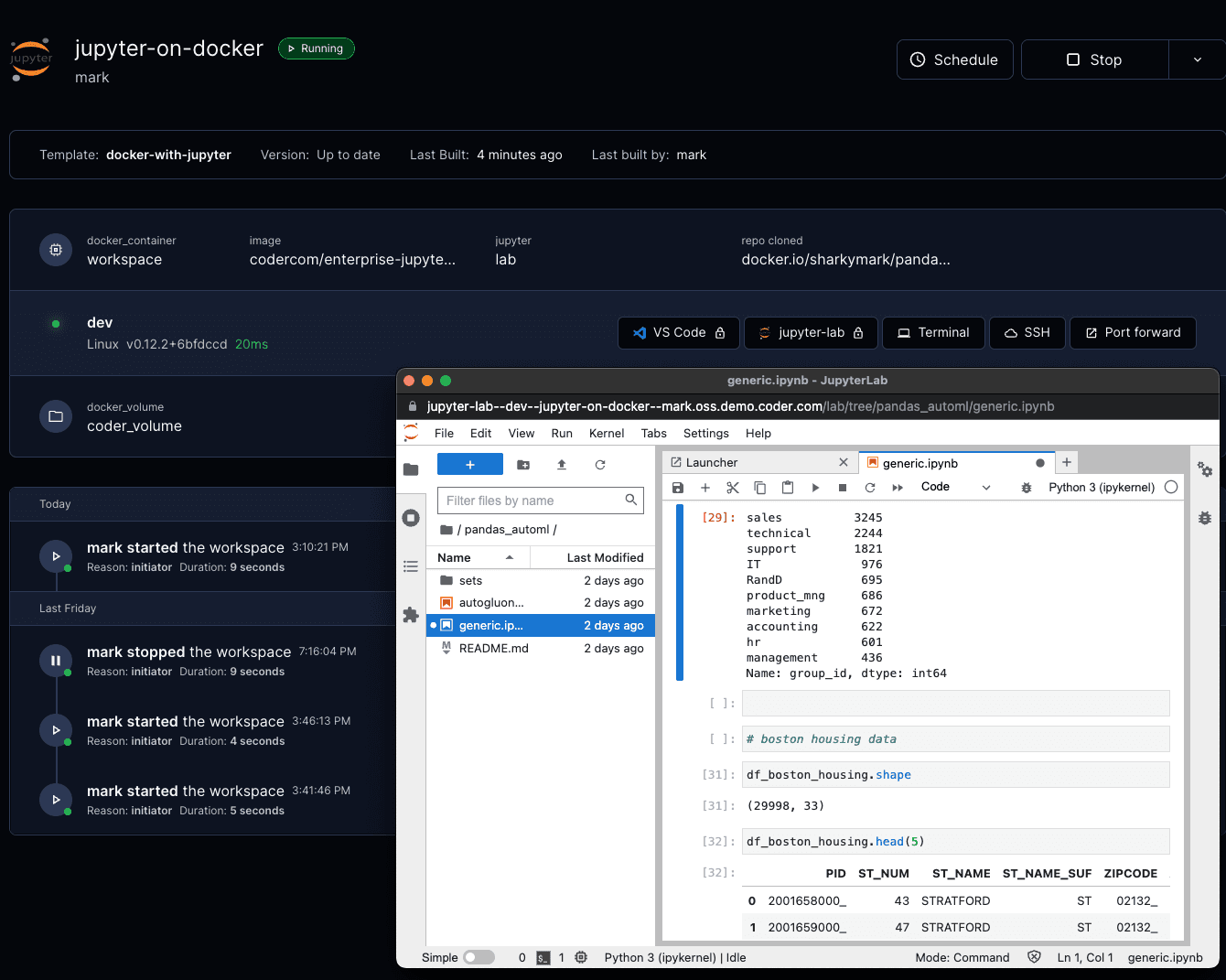
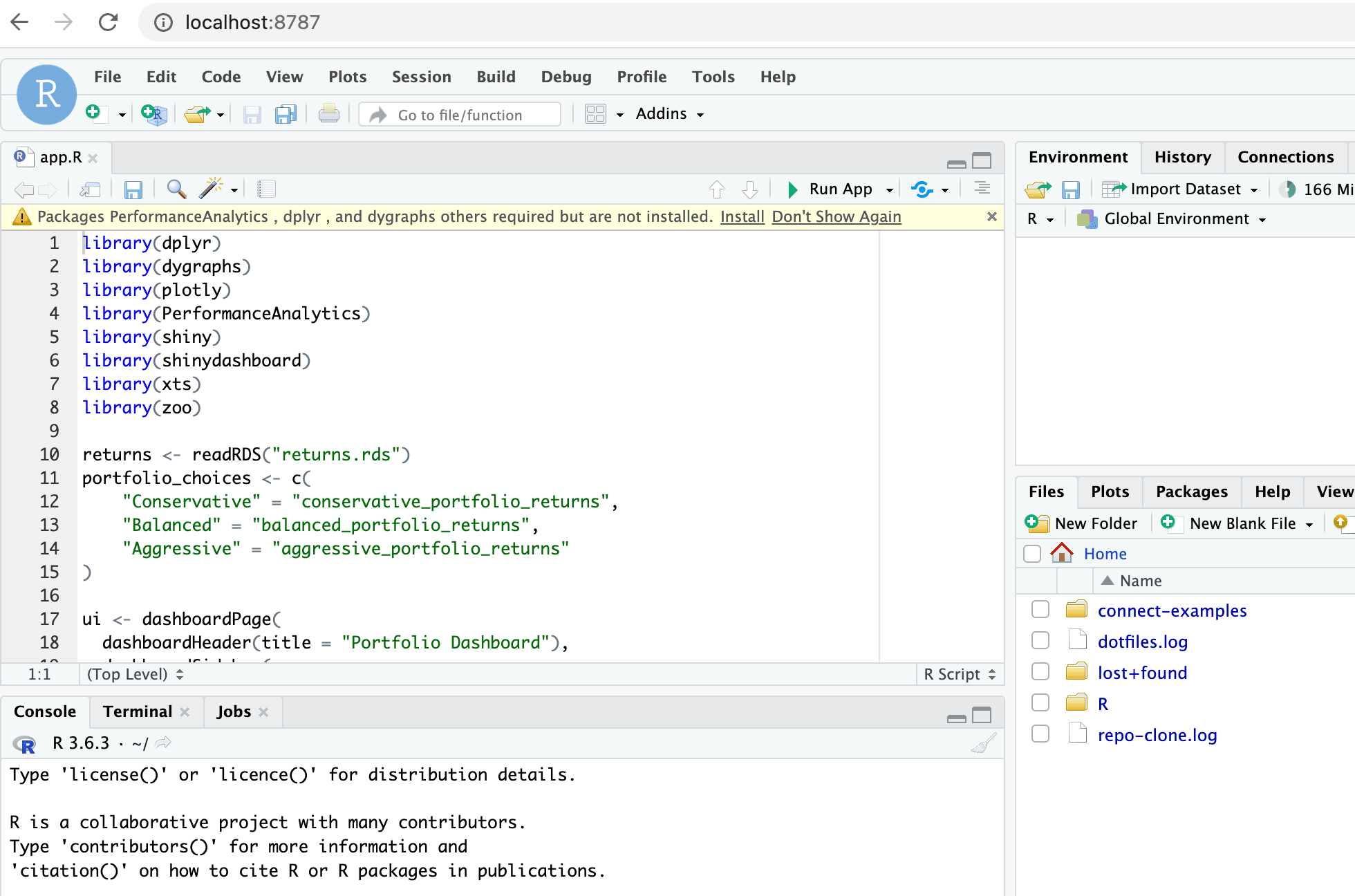
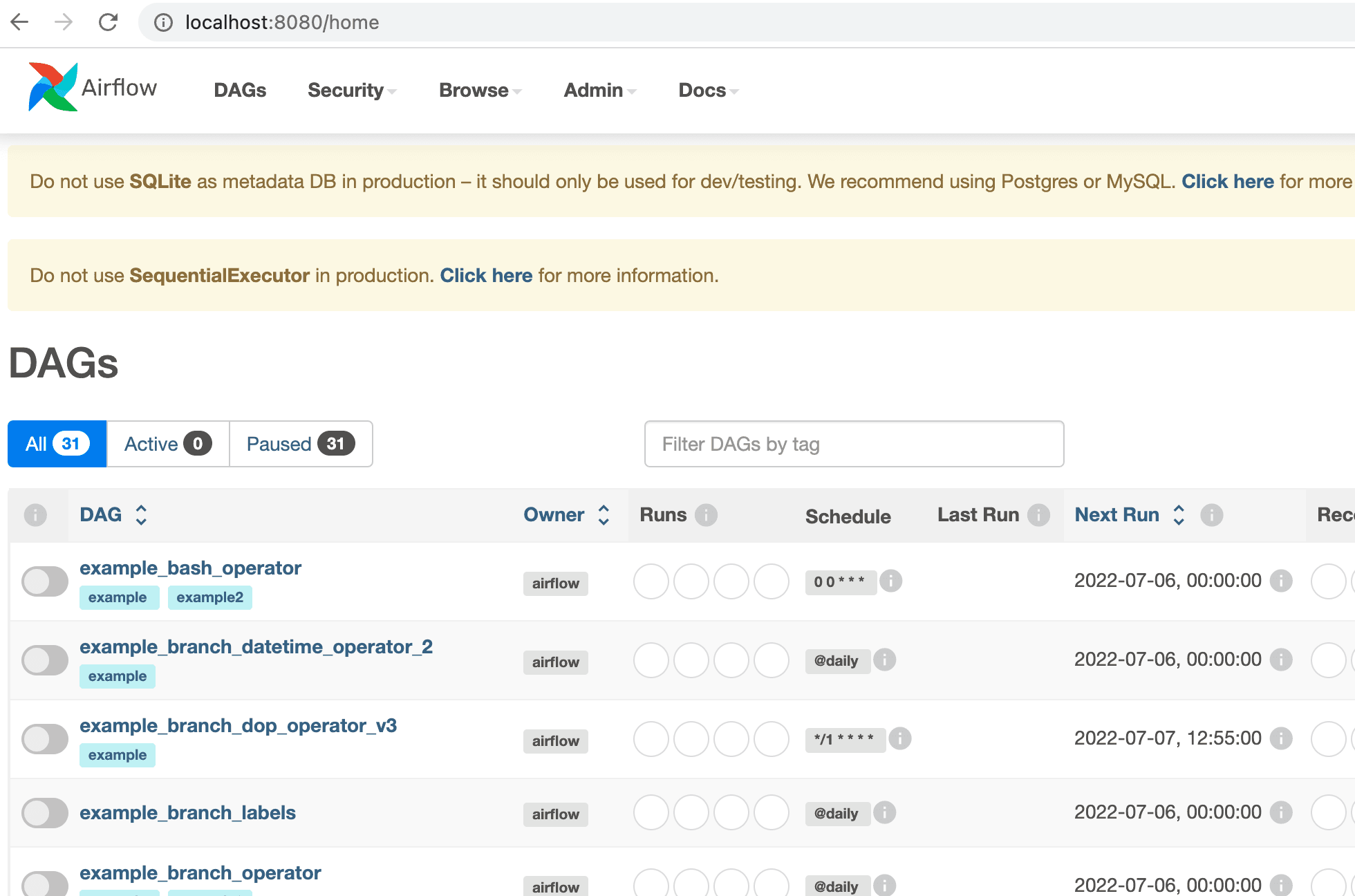
It's common to also let developers to connect via web IDEs.
In Coder, web IDEs are defined as
coder_app
resources in the template. With our generic model, any web application can
be used as a Coder application. For example:
# Add button to open Portainer in the workspace dashboard
# Note: Portainer must be already running in the workspace
resource "coder_app" "portainer" {
  agent_id      = coder_agent.main.id
  slug          = "portainer"
  display_name  = "Portainer"
  icon          = "https://simpleicons.org/icons/portainer.svg"
  url           = "https://localhost:9443/api/status"

  healthcheck {
    url       = "https://localhost:9443/api/status"
    interval  = 6
    threshold = 10
  }
}
code-server
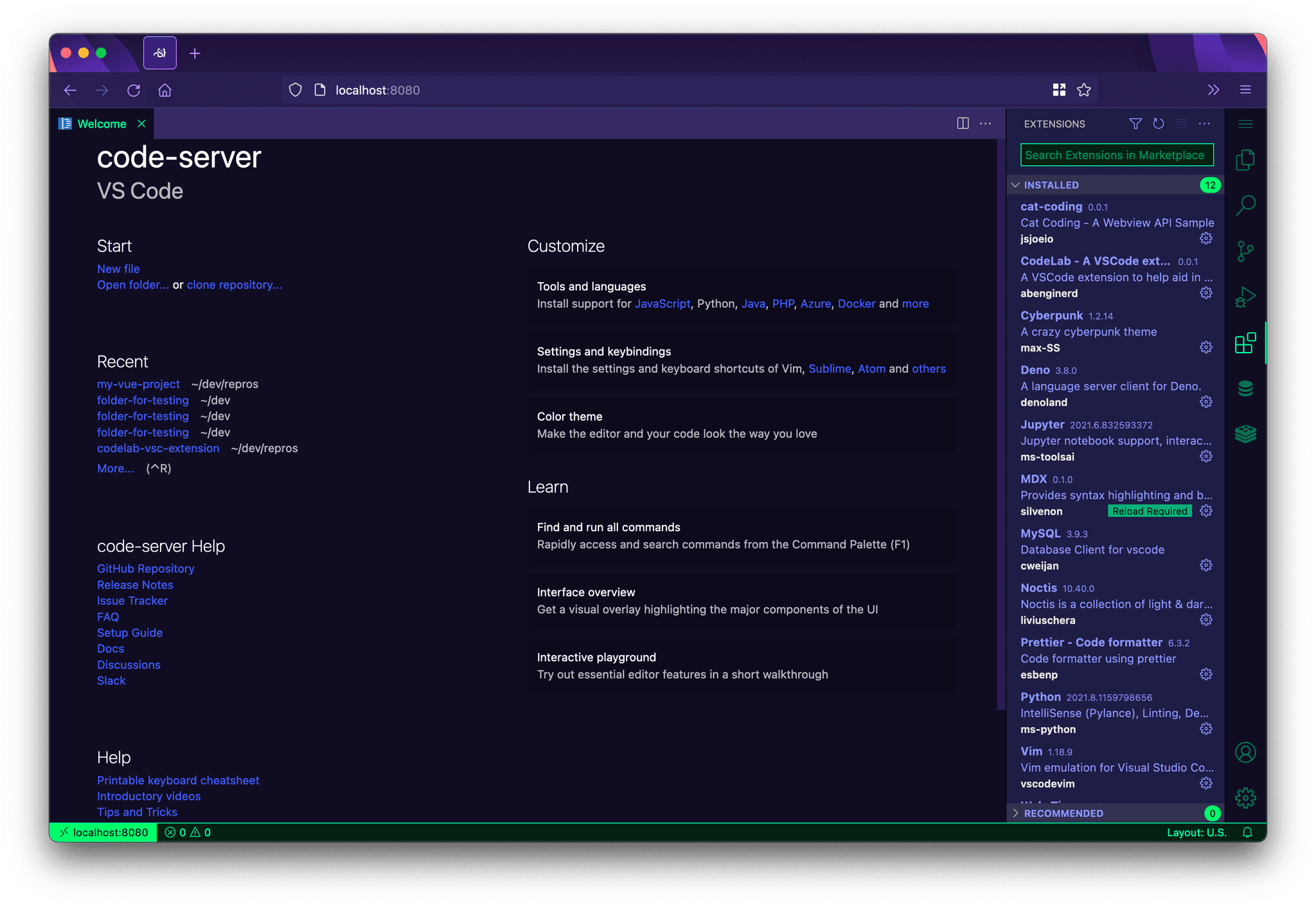
code-server is our supported method of running VS Code in the web browser. A simple way to install code-server in Linux/macOS workspaces is via the Coder agent in your template:
# edit your template
cd your-template/
vim main.tf
resource "coder_agent" "main" {
    arch           = "amd64"
    os             = "linux"
    startup_script = <<EOF
    #!/bin/sh
    # install and start code-server
    # remove '-s -- --version 4.8.3' to install the latest version
    curl -fsSL https://code-server.dev/install.sh | sh -s -- --version 4.8.3
    code-server --auth none --port 13337
    EOF
}
For advanced use, we recommend installing code-server in your VM snapshot or container image. Here's a Dockerfile which leverages some special code-server features:
FROM codercom/enterprise-base:ubuntu

# install a specific code-server version
RUN curl -fsSL https://code-server.dev/install.sh | sh -s -- --version=4.8.3

# pre-install versions
RUN code-server --install-extension eamodio.gitlens

# directly start code-server with the agent's startup_script (see above),
# or use a process manager like supervisord
You'll also need to specify a coder_app resource related to the agent. This is how code-server is displayed on the workspace page.
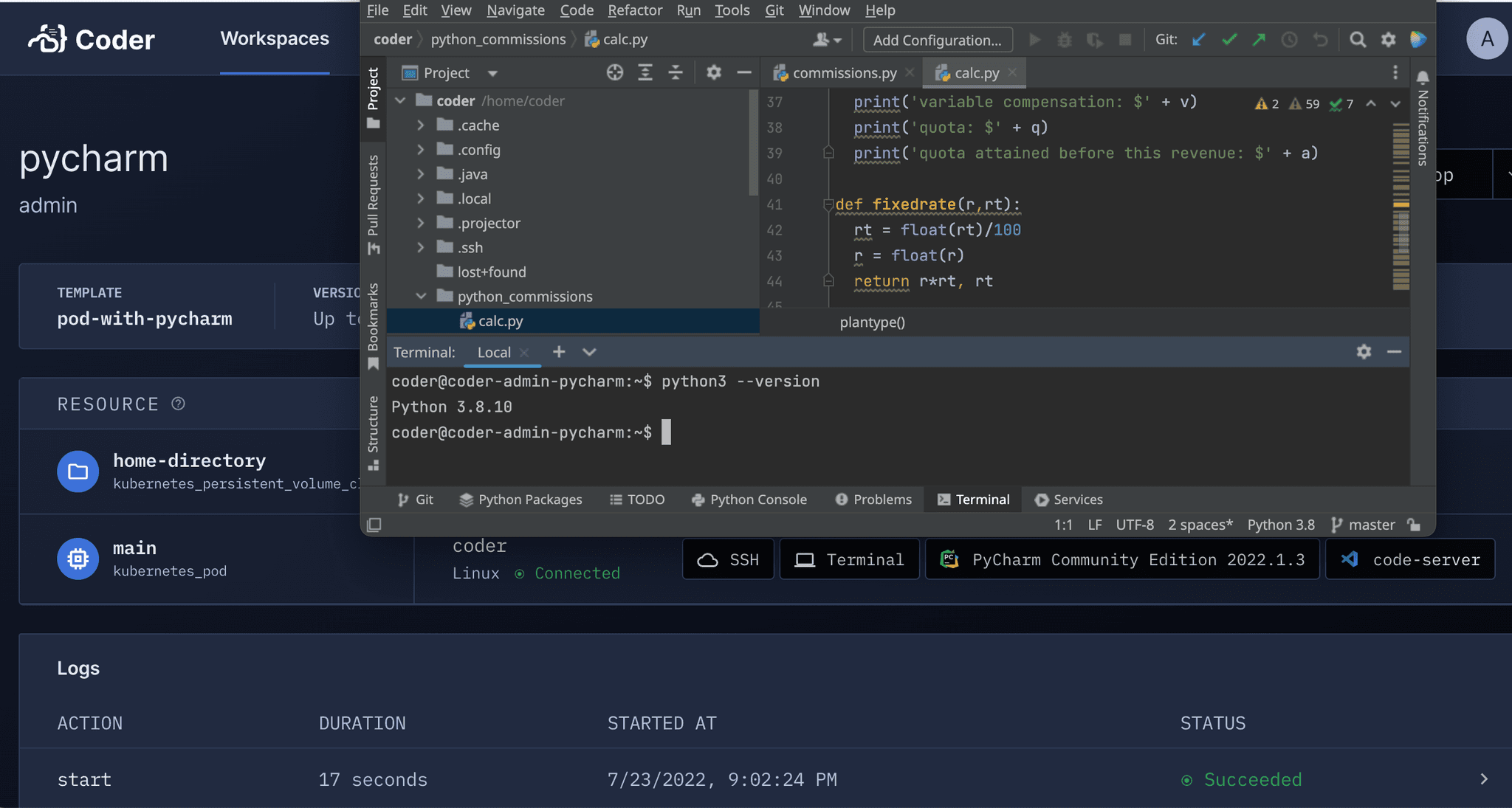
JetBrains Projector is a JetBrains Incubator project which renders JetBrains IDEs in the web browser.
It is common to see latency and performance issues with Projector. We recommend using JetBrains Gateway whenever possible (also no Template edits required!)
Workspace requirements:
JetBrains projector CLI
At least 4 CPU cores and 4 GB RAM
CLion
PyCharm
DataGrip
GoLand
IntelliJ IDEA Community
IntelliJ IDEA Ultimate
PhpStorm
PyCharm Community
PyCharm Professional
Rider
RubyMine
WebStorm
Pre-built templates:
You can reference/use these pre-built templates with JetBrains projector:
If you prefer to run web IDEs in localhost, you can port forward using
SSH or the Coder CLI port-forward sub-command. Some web IDEs
may not support URL base path adjustment so port forwarding is the only
approach.