Coder powers secure, scalable development across key industries — automotive, finance, government, and technology — enabling faster builds, tighter compliance, and seamless AI adoption in enterprise-grade cloud environments.
Follow this guide to get your first Coder development environment
running in under 10 minutes. This guide covers the essential concepts and shows
you how to create your first workspace and run VS Code from it.
What You'll Build
In this quickstart, you'll:
✅ Install Coder server
✅ Create a template (blueprint for dev environments)
✅ Launch a workspace (your actual dev environment)
✅ Connect from your favorite IDE
Understanding Coder: 30-Second Overview
Before diving in, here are the core concepts that power Coder explained through
a cooking analogy:
Component
What It Is
Real-World Analogy
You
The engineer/developer/builder working
The head chef cooking the meal
Templates
A Terraform blueprint that defines your dev environment (OS, tools, resources)
Recipe for a meal
Workspaces
The actual running environment created from the template
The cooked meal
Users
A developer who launches the workspace from a template and does their work inside it
The people eating the meal
Putting it Together: Coder separates who defines environments from who uses them. Admins create and manage Templates, the recipes, while developers use those Templates to launch Workspaces, the meals.
You might need to log out and back in or restart the machine for changes to
take effect.
Step 2: Install & Start Coder
Install the coder CLI to get started:
Install Coder:
curl -L https://coder.com/install.sh | sh
For standalone binaries, system packages, or other alternate installation
methods, refer to the
latest release on GitHub.
Start Coder:
coder server
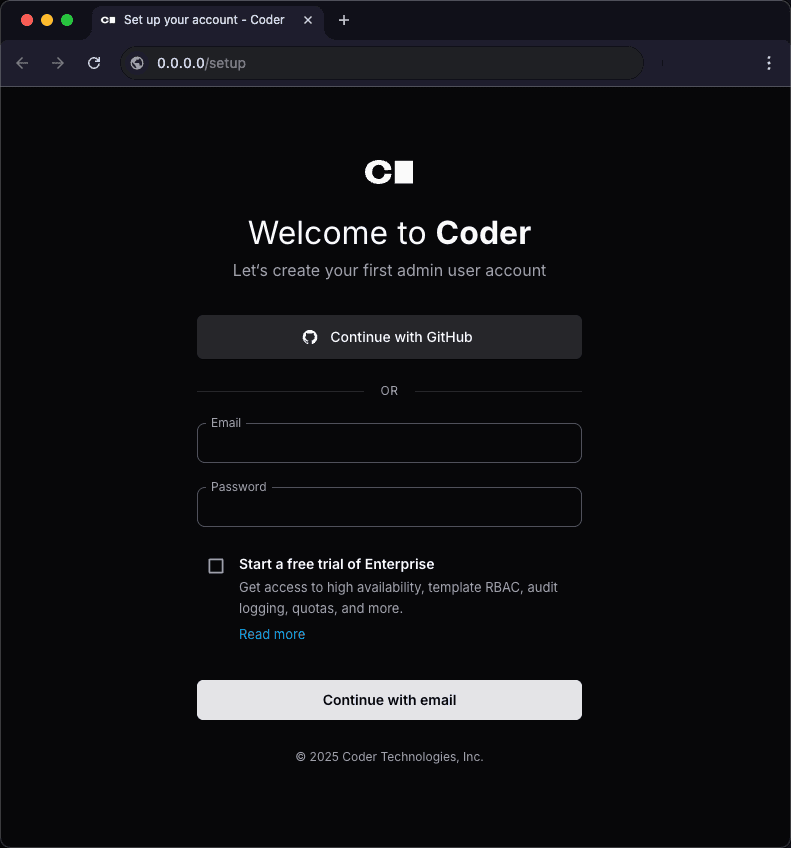
Coder will attempt to open the setup page in your browser. If it doesn't open
automatically, go to http://localhost:3000.
If you get a browser warning similar to Secure Site Not Available, you can
ignore the warning and continue to the setup page.
If your Coder server is on a network or cloud device, or you are having trouble
viewing the page, locate the web UI URL in Coder logs in your terminal. It looks
like https://<CUSTOM-STRING>.<TUNNEL>.try.coder.app. It's one of the first
lines of output, so you might have to scroll up to find it.
You can also choose to Continue with GitHub instead of creating an admin
account. The first user that signs in is automatically granted admin
permissions.
Step 4: Create your First Template and Workspace
Tip
If you use an AI coding assistant, the coder-templates agent skill can guide you through creating and customizing templates with best practices built-in.
Templates define what's in your development environment. Let's start simple:
Click "Templates" → "New Template"
Choose a starter template:
Starter
Best For
Includes
Docker Containers (Recommended)
Getting started quickly, local development, prototyping
Ubuntu container with common dev tools, Docker runtime
Kubernetes (Deployment)
Cloud-native teams, scalable workspaces
Pod-based workspaces, Kubernetes orchestration
AWS EC2 (Linux)
Teams needing full VMs, AWS-native infrastructure
Full EC2 instances with AWS integration
Click "Use template" on Docker Containers. Note: running this template requires Docker to be running in the background, so make sure Docker is running!
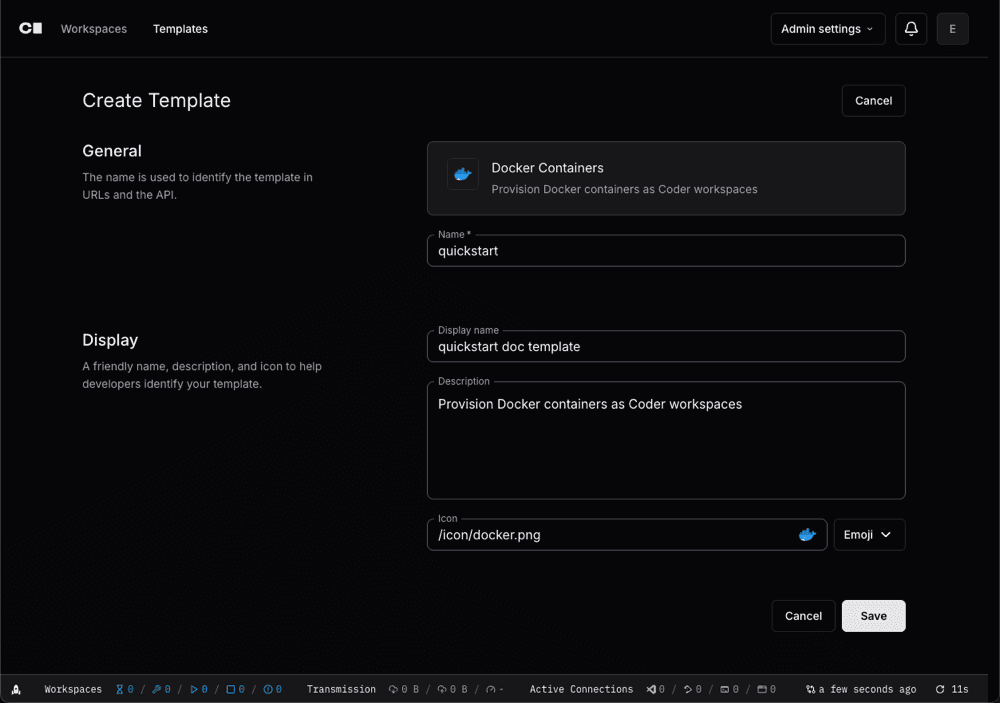
Name your template:
Name: quickstart
Display name: quickstart doc template
Description: Provision Docker containers as Coder workspaces
Click "Save"
What just happened? You defined a template — a reusable blueprint for dev
environments — in your Coder deployment. It's now stored in your organization's
template list, where you and any teammates in the same org can create workspaces
from it. Let's launch one.
Step 5: Launch your Workspace
After the template is ready, select Create Workspace.
Give the workspace a name and select Create Workspace.
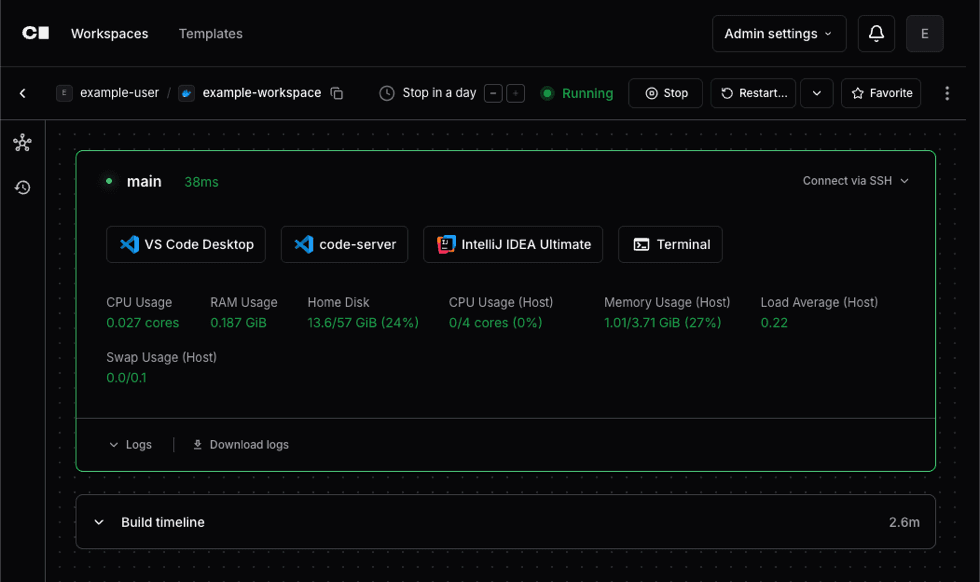
Coder starts your new workspace:
Workspace
is running
Step 6: Connect your IDE
Select VS Code Desktop to install the Coder extension and connect to your
Coder workspace.
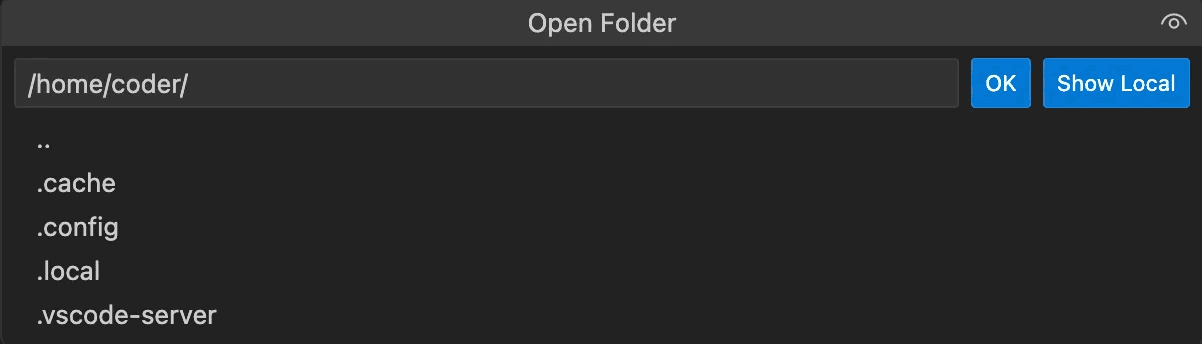
After VS Code loads the remote environment, you can select Open Folder to
explore directories in the Docker container or work on something new.
To clone an existing repository:
Select Clone Repository and enter the repository URL.
For example, to clone the Coder repo, enter
https://github.com/coder/coder.git.
Error: Error pinging Docker server: Cannot connect to the Docker daemon at
unix:///var/run/docker.sock. Is the docker daemon running?
Install Docker for your system:
curl -sSL https://get.docker.com | sh
Set up the Docker daemon in rootless mode for your user to run Docker as a
non-privileged user:
dockerd-rootless-setuptool.sh install
Depending on your system's dependencies, you might need to run other commands
before you retry this step. Read the output of this command for further
instructions.
Assign your user to the Docker group:
sudo usermod -aG docker $USER
Confirm that the user has been added:
$ groups
docker sudo users
Ubuntu users might not see the group membership update. In that case, run
the following command or reboot the machine:
newgrp docker
Can't start Coder server: Address already in use
Encountered an error running "coder server", see "coder server --help" for more information
error: configure http(s): listen tcp 127.0.0.1:3000: bind: address already in use