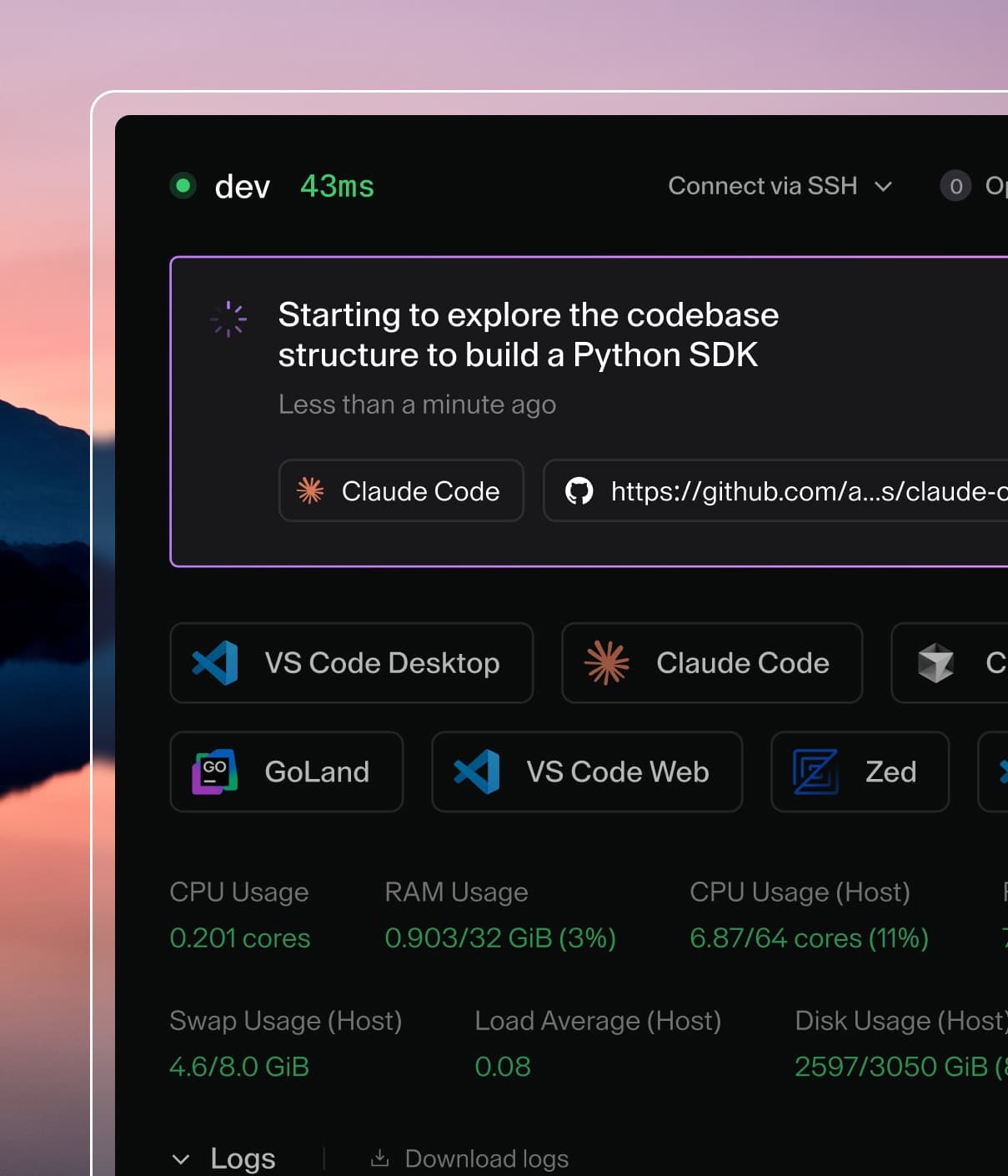
Coder powers secure, scalable development across key industries — automotive, finance, government, and technology — enabling faster builds, tighter compliance, and seamless AI adoption in enterprise-grade cloud environments.
You can preview what occurs during the install process:
curl -fsSL https://code-server.dev/install.sh | sh -s -- --dry-run
To install, run:
curl -fsSL https://code-server.dev/install.sh | sh
You can modify the installation process by including one or more of the
following flags:
--dry-run: echo the commands for the install process without running them.
--method: choose the installation method.
--method=detect: detect the package manager but fallback to
--method=standalone.
--method=standalone: install a standalone release archive into ~/.local.
--prefix=/usr/local: install a standalone release archive system-wide.
--version=X.X.X: install version X.X.X instead of latest version.
--help: see usage docs.
When done, the install script prints out instructions for running and starting
code-server.
If you're concerned about the install script's use of curl | sh and the
security implications, please see this blog
post
by sandstorm.io.
If you prefer to install code-server manually, despite the detection
references and --dry-run feature, then continue on for
information on how to do this. The install.sh script runs the
exact same commands presented in the rest of this document.
Detection reference
For Debian and Ubuntu, code-server will install the latest deb package.
For Fedora, CentOS, RHEL and openSUSE, code-server will install the latest RPM
package.
For Arch Linux, code-server will install the AUR package.
For any unrecognized Linux operating system, code-server will install the
latest standalone release into ~/.local.
Ensure that you add ~/.local/bin to your $PATH to run code-server.
For macOS, code-server will install the Homebrew package (if you don't have
Homebrew installed, code-server will install the latest standalone release
into ~/.local).
Ensure that you add ~/.local/bin to your $PATH to run code-server.
For FreeBSD, code-server will install the npm package with yarn
or npm.
If you're installing code-server onto architecture with no releases,
code-server will install the npm package with yarn or npm
We currently offer releases for amd64 and arm64.
The npm package builds the native modules on post-install.
yarn, npm
We recommend installing with yarn or npm when:
You aren't using a machine with amd64 or arm64.
You're on Linux with glibc < v2.17, glibcxx < v3.4.18 on amd64, glibc
< v2.23, or glibcxx < v3.4.21 on arm64.
You're running Alpine Linux or are using a non-glibc libc. See
#1430
for more information.
Installing code-server with yarn or npm builds native modules on install.
This process requires C dependencies; see our guide on [installing these
dependencies]./npm.md for more information.
You must have Node.js v12 (or later) installed. See
#1633.
To install:
yarn global add code-server
# Or: npm install -g code-server
code-server
# Now visit http://127.0.0.1:8080. Your password is in ~/.config/code-server/config.yaml
Standalone releases
We publish self-contained .tar.gz archives for every release on
GitHub. The archives bundle the
node binary and node modules.
We create the standalone releases using the npm package, and we
then create the remaining releases using the standalone version.
The only requirement to use the standalone release is glibc >= 2.17 and
glibcxx >= v3.4.18 on Linux (for macOS, there is no minimum system
requirement).
To use a standalone release:
Download the latest release archive for your system from
GitHub.
Unpack the release.
Run code-server by executing ./bin/code-server.
You can add ./bin/code-server to your $PATH so that you can execute
code-server without providing full path each time.
Here is a sample script for installing and using a standalone code-server
release on Linux:
mkdir -p ~/.local/lib ~/.local/bin
curl -fL https://github.com/cdr/code-server/releases/download/v$VERSION/code-server-$VERSION-linux-amd64.tar.gz \
  | tar -C ~/.local/lib -xz
mv ~/.local/lib/code-server-$VERSION-linux-amd64 ~/.local/lib/code-server-$VERSION
ln -s ~/.local/lib/code-server-$VERSION/bin/code-server ~/.local/bin/code-server
PATH="~/.local/bin:$PATH"
code-server
# Now visit http://127.0.0.1:8080. Your password is in ~/.config/code-server/config.yaml
Debian, Ubuntu
The standalone arm64 .deb does not support Ubuntu 16.04 or earlier. Please
upgrade or build with yarn.
curl -fOL https://github.com/cdr/code-server/releases/download/v$VERSION/code-server_$VERSION_amd64.deb
sudo dpkg -i code-server_$VERSION_amd64.deb
sudo systemctl enable --now code-server@$USER
# Now visit http://127.0.0.1:8080. Your password is in ~/.config/code-server/config.yaml
Fedora, CentOS, RHEL, SUSE
The standalone arm64 .rpm does not support CentOS 7. Please upgrade or build
with yarn.
curl -fOL https://github.com/cdr/code-server/releases/download/v$VERSION/code-server-$VERSION-amd64.rpm
sudo rpm -i code-server-$VERSION-amd64.rpm
sudo systemctl enable --now code-server@$USER
# Now visit http://127.0.0.1:8080. Your password is in ~/.config/code-server/config.yaml
Arch Linux
# Install code-server from the AUR using yay.
yay -S code-server
sudo systemctl enable --now code-server@$USER
# Now visit http://127.0.0.1:8080. Your password is in ~/.config/code-server/config.yaml
# Install code-server from the AUR with plain makepkg.
git clone https://aur.archlinux.org/code-server.git
cd code-server
makepkg -si
sudo systemctl enable --now code-server@$USER
# Now visit http://127.0.0.1:8080. Your password is in ~/.config/code-server/config.yaml
macOS
brew install code-server
brew services start code-server
# Now visit http://127.0.0.1:8080. Your password is in ~/.config/code-server/config.yaml
Docker
# This will start a code-server container and expose it at http://127.0.0.1:8080.
# It will also mount your current directory into the container as `/home/coder/project`
# and forward your UID/GID so that all file system operations occur as your user outside
# the container.
#
# Your $HOME/.config is mounted at $HOME/.config within the container to ensure you can
# easily access/modify your code-server config in $HOME/.config/code-server/config.json
# outside the container.
mkdir -p ~/.config
docker run -it --name code-server -p 127.0.0.1:8080:8080 \
  -v "$HOME/.config:/home/coder/.config" \
  -v "$PWD:/home/coder/project" \
  -u "$(id -u):$(id -g)" \
  -e "DOCKER_USER=$USER" \
  codercom/code-server:latest