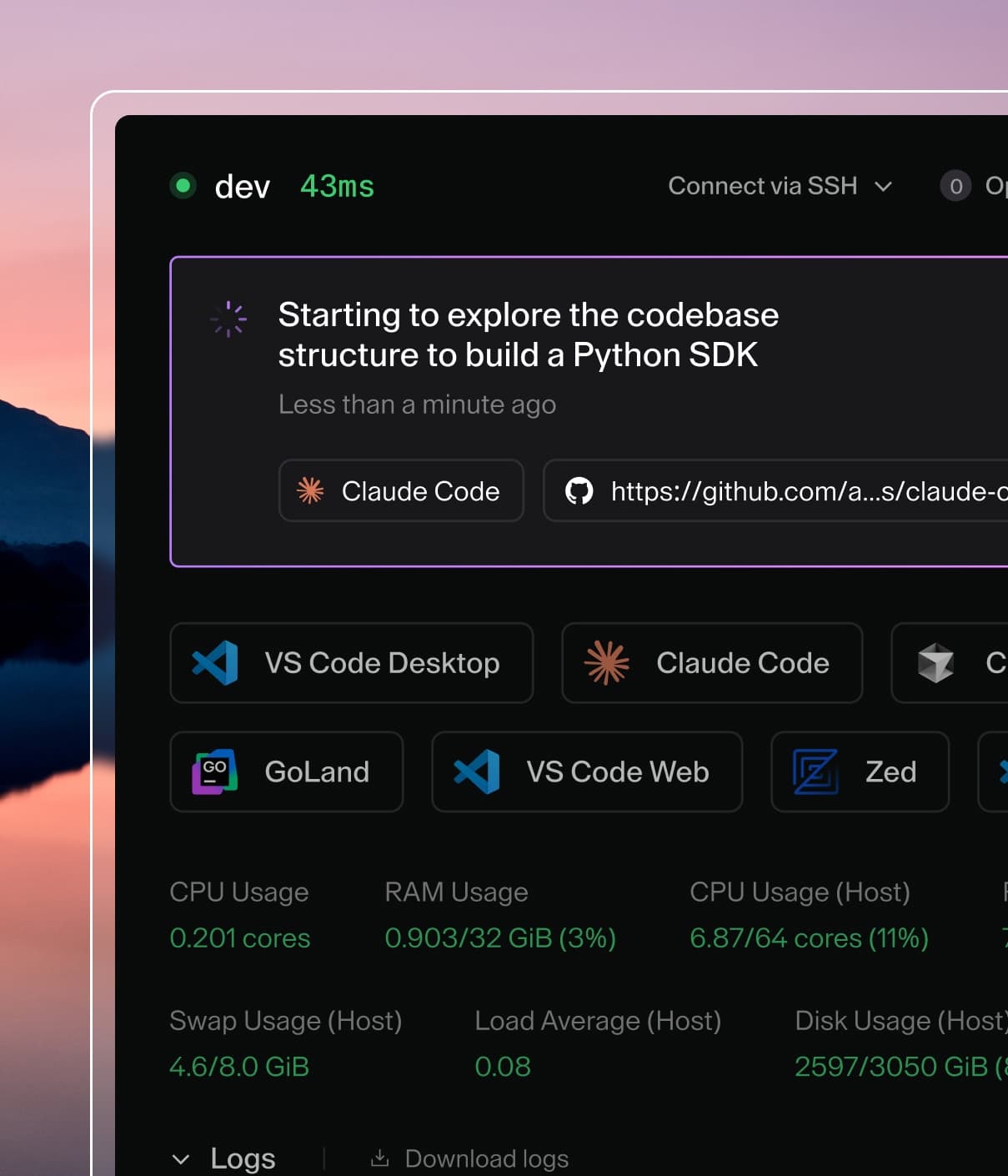
Coder powers secure, scalable development across key industries — automotive, finance, government, and technology — enabling faster builds, tighter compliance, and seamless AI adoption in enterprise-grade cloud environments.
All Coder deployments start with one organization called coder. All new users
are added to this organization by default.
To edit the organization details, select Admin settings from the top bar, then
Organizations:
From there, you can manage the name, icon, description, users, and groups:
Additional organizations
Any additional organizations have unique admins, users, templates, provisioners,
groups, and workspaces. Each organization must have at least one dedicated
provisioner since the built-in provisioners only apply to
the default organization.
You can configure organization/role/group sync from your
identity provider to avoid manually assigning users to organizations.
How to create an organization
Prerequisites
Coder v2.16+ deployment with Premium license and Organizations enabled
(contact your account team) for more details.
User with Owner role
1. Create the organization
To create a new organization:
Select Admin settings from the top bar, then Organizations.
Select the current organization to expand the organizations dropdown, then select Create Organization:
Enter the details and select Save to continue:
In this example, we'll create the data-platform org.
Next deploy a provisioner and template for this organization.
2. Deploy a provisioner
Provisioners are organization-scoped and are responsible
for executing Terraform/OpenTofu to provision the infrastructure for workspaces
and testing templates. Before creating templates, we must deploy at least one
provisioner as the built-in provisioners are scoped to the default organization.
Using Coder CLI, run the following command to create a key that will be used
to authenticate the provisioner:
coder provisioner keys create data-cluster-key --org data-platform
Successfully created provisioner key data-cluster! Save this authentication token, it will not be shown again.

< key omitted >
Start the provisioner with the key on your desired platform.
In this example, start the provisioner using the Coder CLI on a host with
Docker. For instructions on using other platforms like Kubernetes, see our
provisioner documentation.
Once you've started a provisioner, you can create a template. You'll notice the
Create Template screen now has an organization dropdown:
4. Add members
From Admin settings, select Organizations, then Members to add members to
your organization. Once added, members will be able to see the
organization-specific templates.
5. Create a workspace
Now, users in the data platform organization will see the templates related to
their organization. Users can be in multiple organizations.
Default member roles
Note
Editing default member roles requires a Premium license.
(learn more).
Each organization carries a default_org_member_roles list of built-in role
names. Coder unions this list into every member's effective roles at request
time, so changes propagate to all current and future members on their next
request without re-issuing tokens or editing per-user role assignments.
The default value is ["organization-workspace-access"]. With that default,
every organization member can read, build, ssh into, and execute commands in
workspaces they own. Removing organization-workspace-access from the list
creates organization members that cannot create or use workspaces unless the
role is assigned to them directly, which is useful for restricted accounts
that should only hold the minimal member permissions.
To edit the default roles in the dashboard, go to
Admin settings > Organizations > Roles > Default Roles, or
set default_org_member_roles via
PATCH /organizations/{organization}.
Limitations
default_org_member_roles accepts built-in role names only. Custom
organization roles are rejected; assign them directly to members instead.
Removing a role from the list removes it from every member that does not
hold the role through a direct assignment, including existing members.
Review the per-organization audit log if you
need to trace who changed the defaults.