Coder powers secure, scalable development across key industries — automotive, finance, government, and technology — enabling faster builds, tighter compliance, and seamless AI adoption in enterprise-grade cloud environments.
Follow the steps in this guide to install Coder locally or on a cloud-hosting
provider, set up a workspace, and connect to it from VS Code.
By the end of this guide, you'll have a remote development environment that you
can connect to from any device anywhere, so you can work on the same files in a
persistent environment from your main device, a tablet, or your phone.
You might need to log out and back in or restart the machine for changes to
take effect.
Install Coder:
curl -L https://coder.com/install.sh | sh
For standalone binaries, system packages, or other alternate installation
methods, refer to the
latest release on GitHub.
Start Coder:
coder server
Configure Coder with a new Workspace
Coder will attempt to open the setup page in your browser. If it doesn't open
automatically, go to http://localhost:3000.
If you get a browser warning similar to Secure Site Not Available, you
can ignore the warning and continue to the setup page.
If your Coder server is on a network or cloud device, or you are having
trouble viewing the page, locate the web UI URL in Coder logs in your
terminal. It looks like https://<CUSTOM-STRING>.<TUNNEL>.try.coder.app.
It's one of the first lines of output, so you might have to scroll up to find
it.
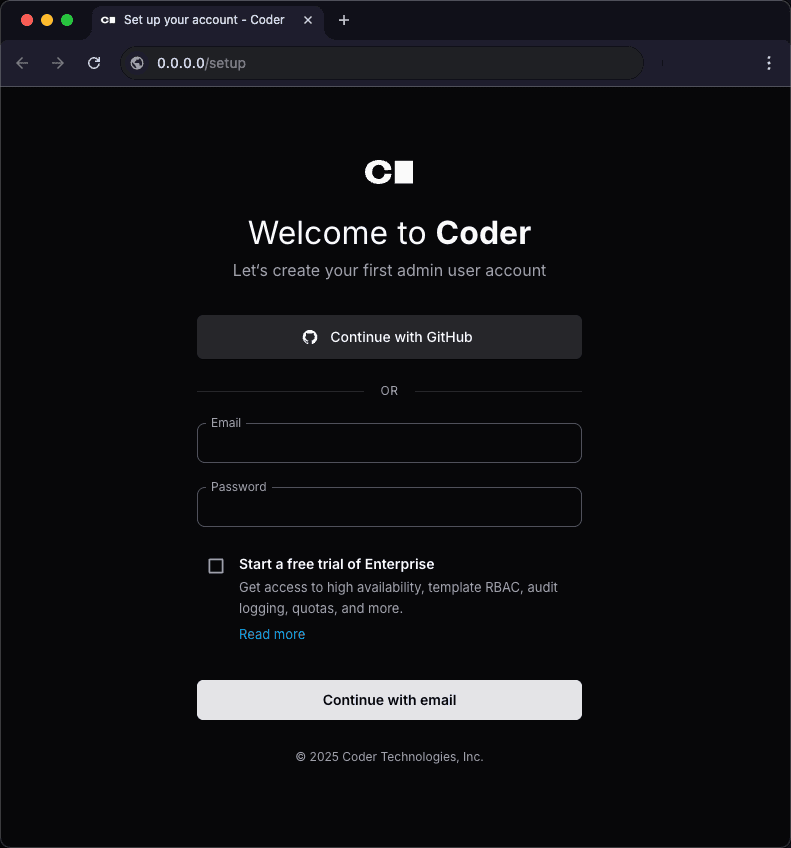
On the Welcome to Coder page, to use your GitHub account to log in,
select Continue with GitHub.
You can also enter an email and password to create a new admin account on
the Coder deployment:
Welcome
to Coder - Create admin user
On the Workspaces page, select Go to templates to create a new
template.
For this guide, use a Docker container. Locate Docker Containers and
select Use template.
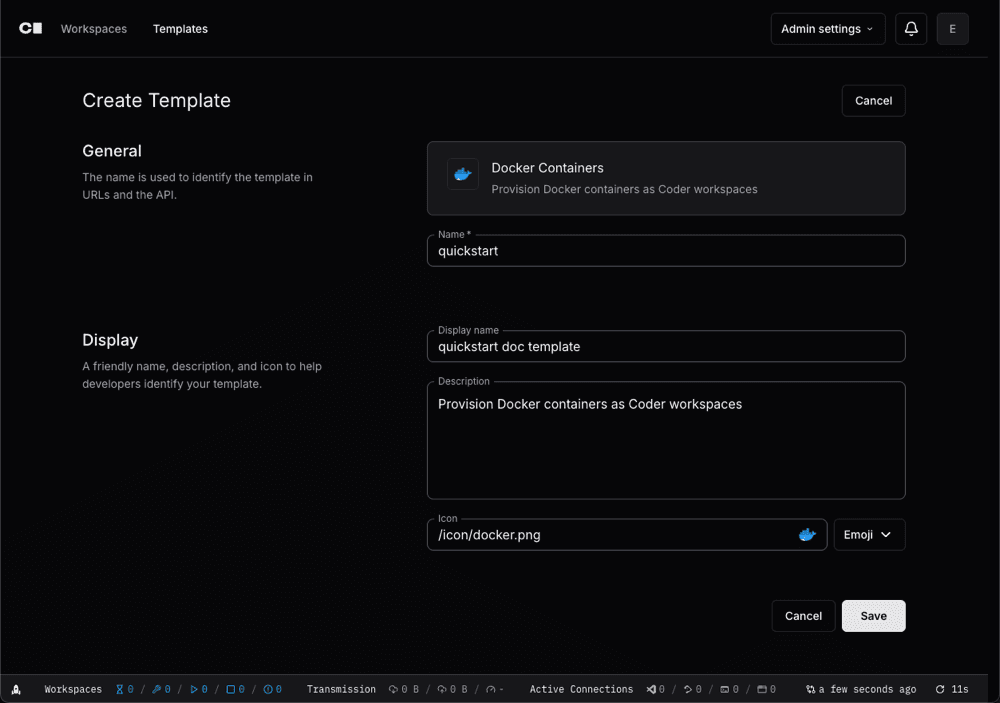
Give the template a Name that you'll recognize both in the Coder UI and
in command-line calls.
The rest of the template details are optional, but will be helpful when you
have more templates.
Create
template
Select Save.
After the template is ready, select Create Workspace.
Give the workspace a name and select Create Workspace.
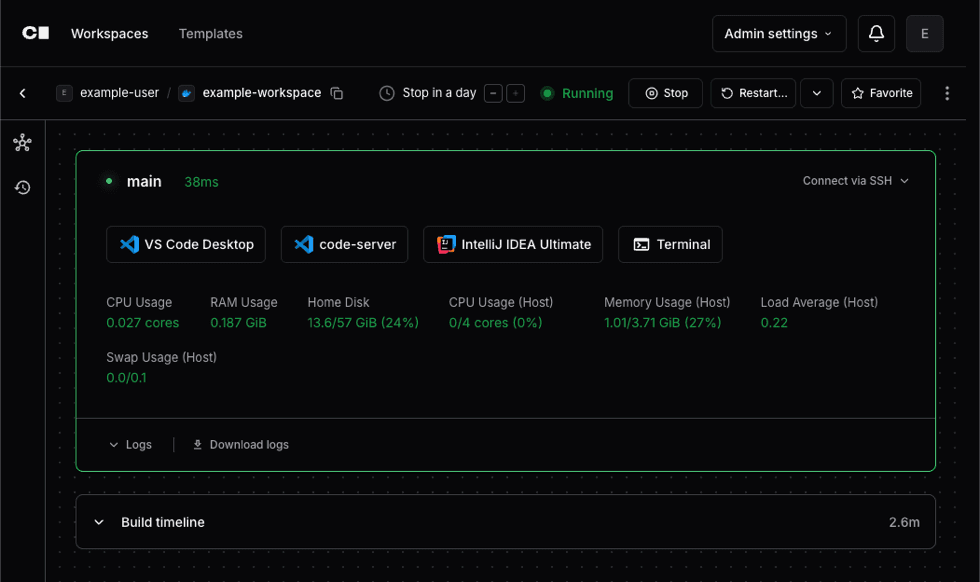
Coder starts your new workspace:
Workspace
is running
Select VS Code Desktop to install the Coder extension and connect to your
Coder workspace.
Work on some code
After VS Code loads the remote environment, you can select Open Folder to
explore directories in the Docker container or work on something new.
To clone an existing repository:
Select Clone Repository and enter the repository URL.
For example, to clone the Coder repo, enter
https://github.com/coder/coder.git.
Error: Error pinging Docker server: Cannot connect to the Docker daemon at
unix:///var/run/docker.sock. Is the docker daemon running?
Install Docker for your system:
curl -sSL https://get.docker.com | sh
Set up the Docker daemon in rootless mode for your user to run Docker as a
non-privileged user:
dockerd-rootless-setuptool.sh install
Depending on your system's dependencies, you might need to run other commands
before you retry this step. Read the output of this command for further
instructions.
Assign your user to the Docker group:
sudo usermod -aG docker $USER
Confirm that the user has been added:
$ groups
docker sudo users
Ubuntu users might not see the group membership update. In that case, run
the following command or reboot the machine:
newgrp docker
Can't start Coder server: Address already in use
Encountered an error running "coder server", see "coder server --help" for more information
error: configure http(s): listen tcp 127.0.0.1:3000: bind: address already in use