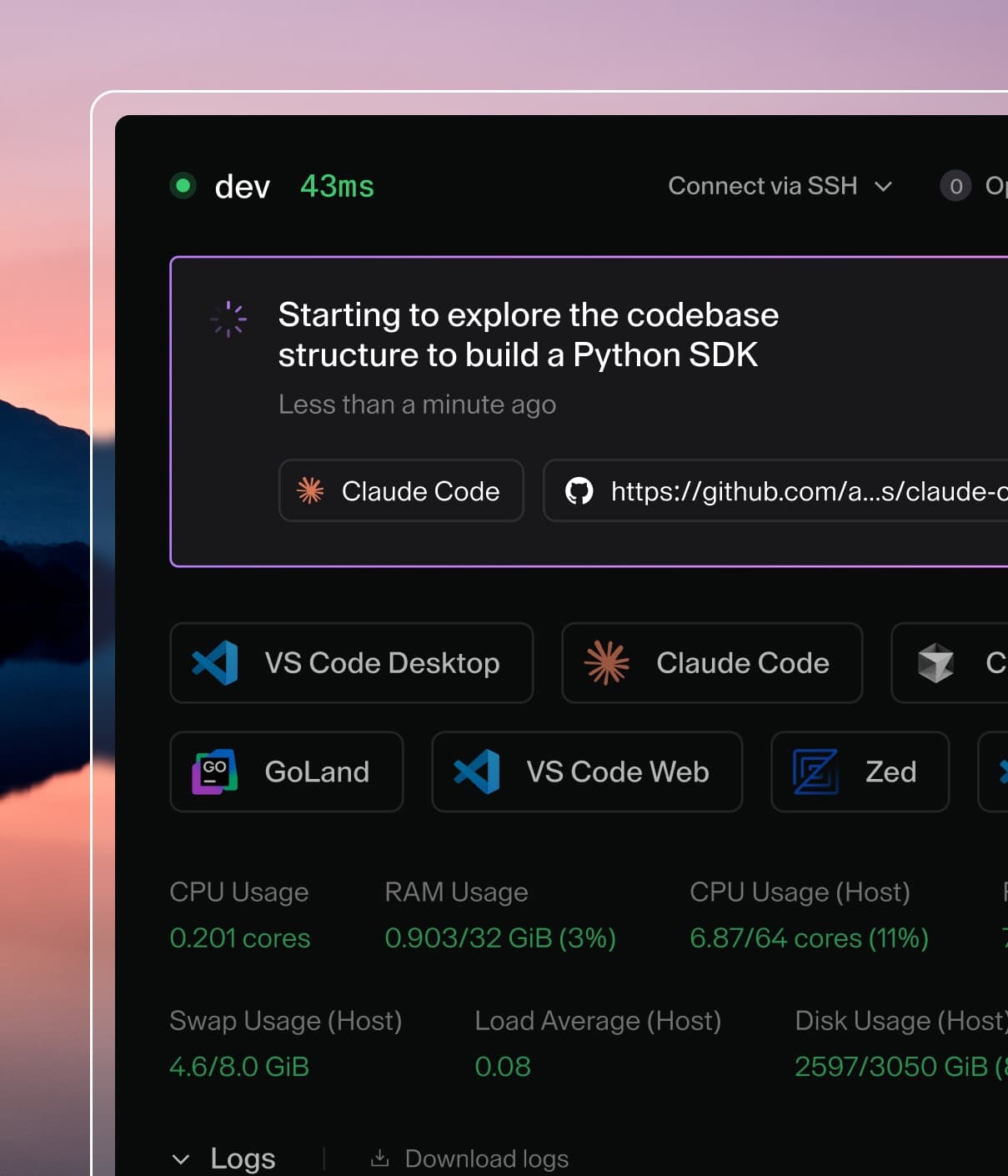
Coder powers secure, scalable development across key industries — automotive, finance, government, and technology — enabling faster builds, tighter compliance, and seamless AI adoption in enterprise-grade cloud environments.
Port forwarding lets developers securely access processes on their Coder workspace from a local machine.
A common use case is testing web applications in a browser.
Automatic port forwarding via VPN tunnel. All workspace ports are available at workspace.coder:PORT with no manual setup. Supports peer-to-peer connections.
Coder Desktop and coder port-forward are generally more performant than:
The Dashboard which proxies traffic through the Coder control plane versus peer-to-peer which is possible with the Coder CLI and Coder Desktop
sshd which does double encryption of traffic with both Wireguard and SSH
Coder Desktop
Coder Desktop provides automatic port forwarding to every service running in your workspace.
Once Coder Connect is enabled, any port your application listens on is instantly accessible at <workspace-name>.coder:PORT from your local machine, with no additional commands or configuration.
This command can be used to forward TCP or UDP ports from the remote workspace so they can be accessed locally.
Both the TCP and UDP command line flags (--tcp and --udp) can be given once or multiple times.
The supported syntax variations for the --tcp and --udp flag are:
Single port with optional remote port: local_port[:remote_port]
Comma separation local_port1,local_port2
Port ranges start_port-end_port
Any combination of the above
Examples
Forward the remote TCP port 8080 to local port 8000:
coder port-forward myworkspace --tcp 8000:8080
Forward the remote TCP port 3000 and all ports from 9990 to 9999 to their respective local ports.
Forward the remote TCP port 3000 and all ports from 9990 to 9999 to their respective local ports to the agent in your Workspace (typically main or dev).
This is needed when you have multiple agents in your workspace.
To enable port forwarding via the dashboard, Coder must be configured with a wildcard access URL.
If an access URL is not specified, Coder will create a publicly accessible URL to reverse proxy the deployment, and port forwarding will work.
There is a DNS limitation where each segment of hostnames must not exceed 63 characters.
If your app name, agent name, workspace name and username exceed 63 characters in the hostname, port forwarding via the dashboard will not work.
From a coder_app resource
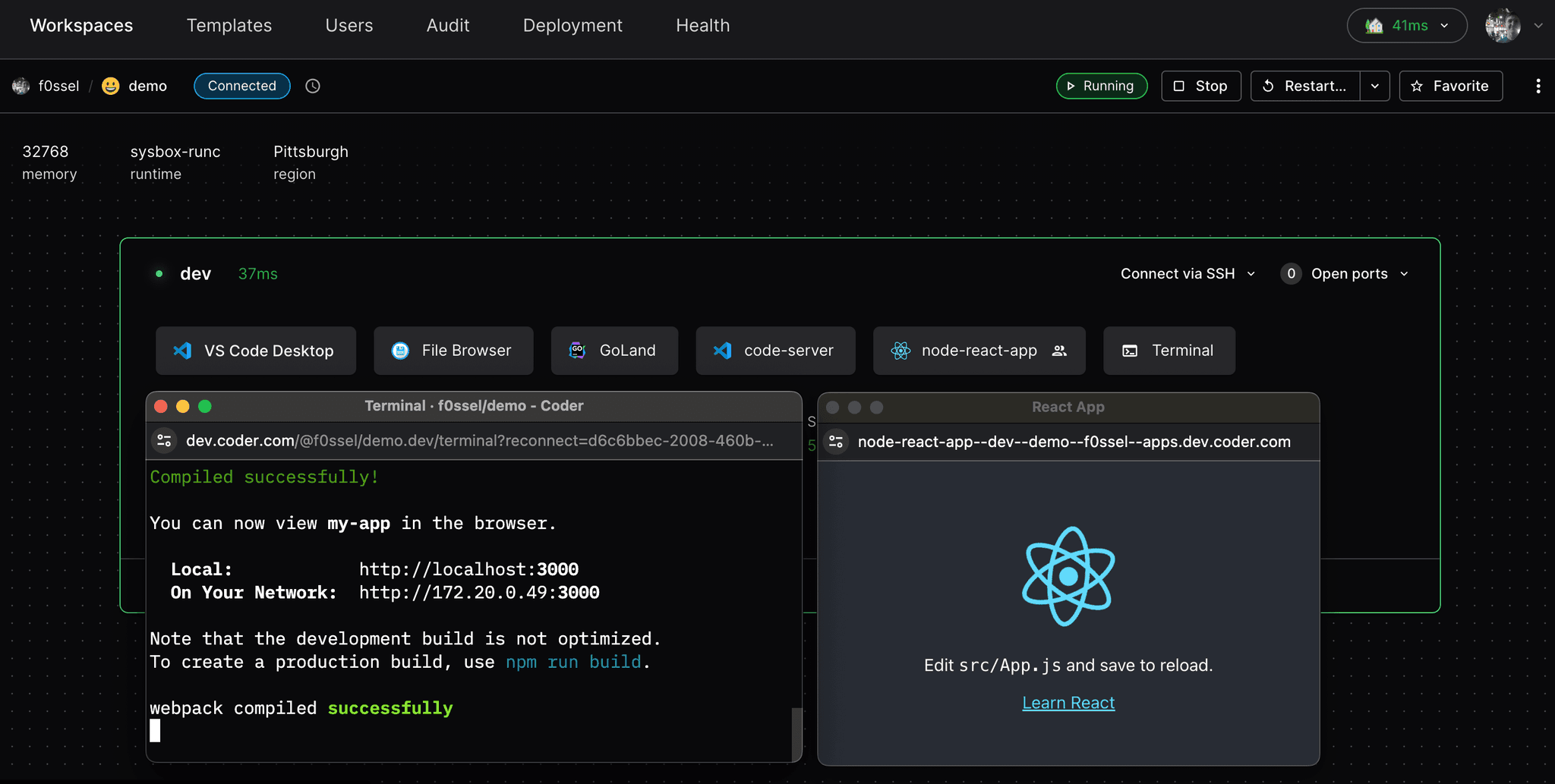
One way to port forward is to configure a coder_app resource in the workspace's template.
This approach shows a visual application icon in the dashboard.
See the following coder_app example for a Node React app and note the subdomain and share settings:
Valid share values include owner - private to the user, authenticated - accessible by any user authenticated to the Coder deployment, and public - accessible by users outside of the Coder deployment.
Access workspace ports
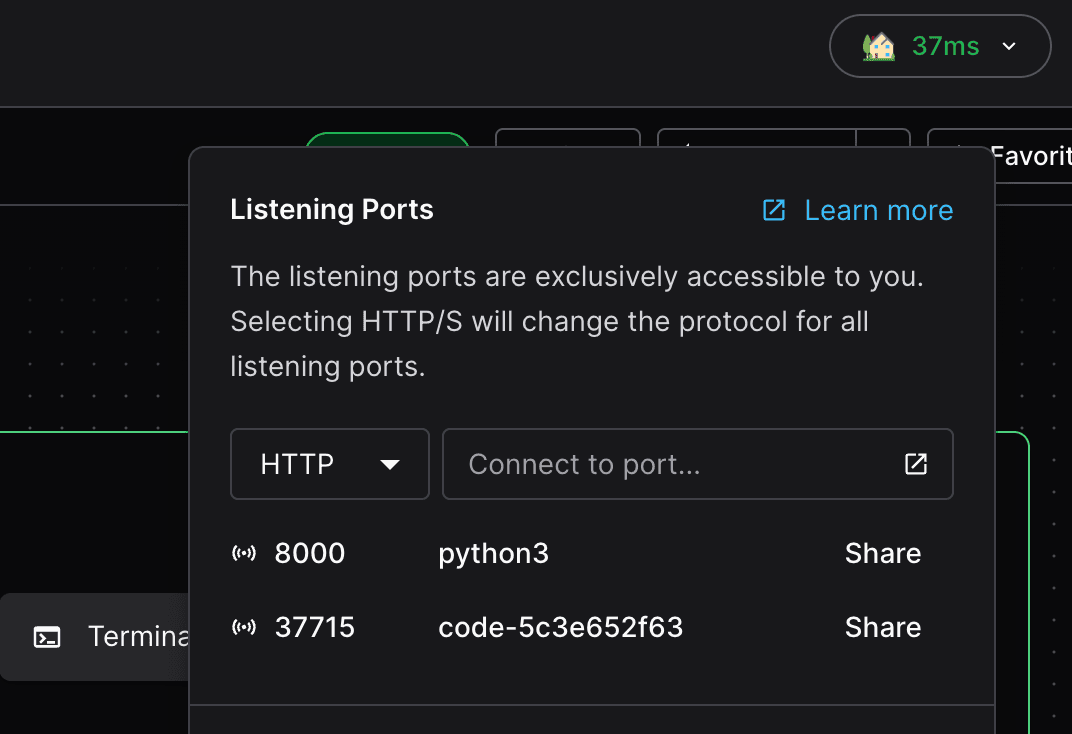
Another way to port forward in the dashboard is to use the "Open Ports" button to specify an arbitrary port.
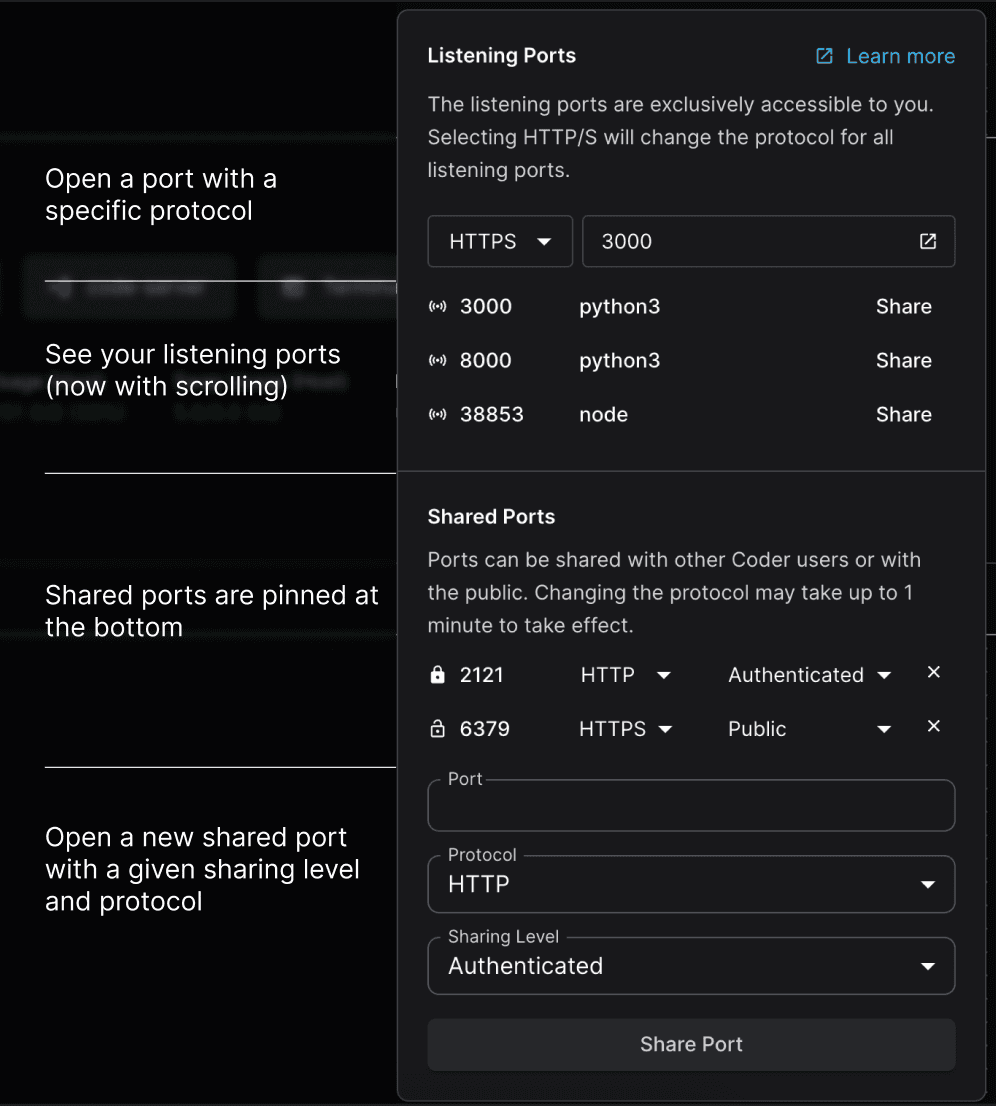
Coder will also detect if apps inside the workspace are listening on ports, and list them below the port input (this is only supported on Windows and Linux workspace agents).
Share ports
We allow developers to share ports as URLs, either with other authenticated coder users or publicly.
Using the open ports interface, developers can assign a sharing levels that match our coder_app’s share option in Coder terraform provider.
owner (Default): The implicit sharing level for all listening ports, only visible to the workspace owner
authenticated: Accessible by other authenticated Coder users on the same deployment.
public: Accessible by any user with the associated URL.
Once a port is shared at either authenticated or public levels, it will stay pinned in the open ports UI for better accessibility regardless of whether or not it is still accessible.
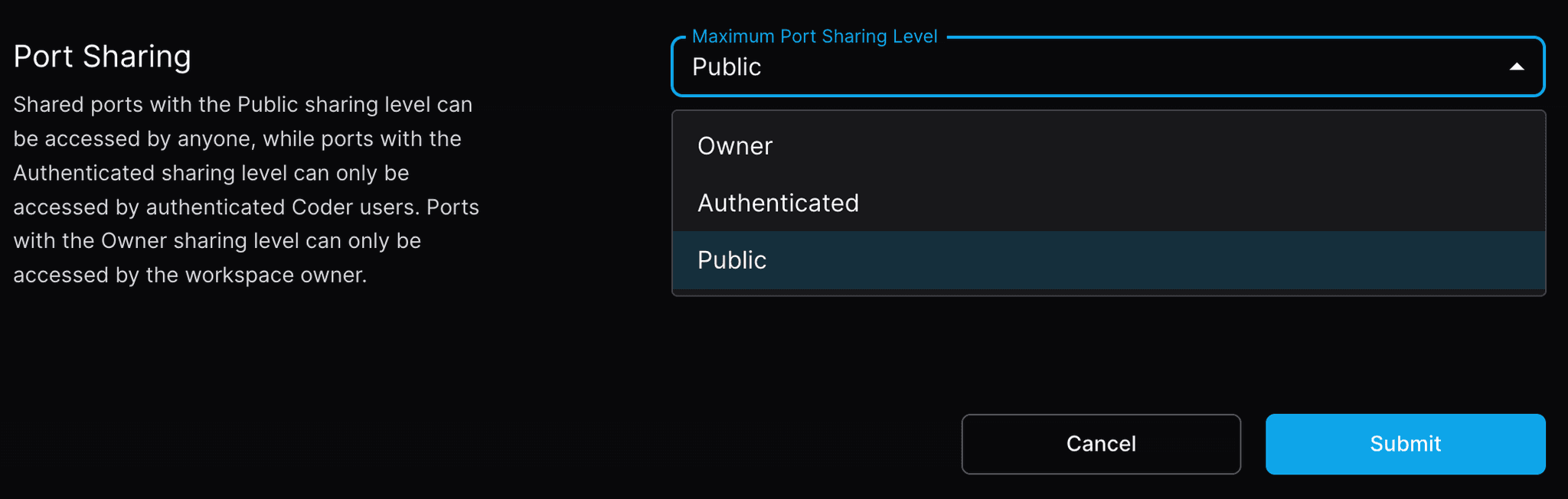
The sharing level is limited by the maximum level enforced in the template settings in premium deployments, and not restricted in OSS deployments.
This can also be used to change the sharing level of coder_apps by entering their port number in the sharable ports UI.
The share attribute on coder_app resource uses a different method of authentication and is not impacted by the template's maximum sharing level, nor the level of a shared port that points to the app.
Configure maximum port sharing level
Note
Configuring port sharing level is a Premium feature.
Learn more.
Premium-licensed template admins can control the maximum port sharing level for workspaces under a given template in the template settings.
By default, the maximum sharing level is set to Owner, meaning port sharing is disabled for end-users.
OSS deployments allow all workspaces to share ports at both the authenticated and public levels.
Configure port protocol
Both listening and shared ports can be configured to use either HTTP or HTTPS to connect to the port.
For listening ports the protocol selector applies to any port you input or select from the menu.
Shared ports have protocol configuration for each shared port individually.
You can access any port on the workspace and can configure the port protocol manually by appending a s to the port in the URL.
When forwarding via the dashboard, Coder automatically sets headers that allow requests between separately forwarded applications belonging to the same user.
When forwarding through other methods the application itself will need to set its own CORS headers if they are being forwarded through different origins since Coder does not intercept these cases.
See below for the required headers.
Authentication
Since ports forwarded through the dashboard are private, cross-origin requests must include credentials (set credentials: "include" if using fetch) or the requests cannot be authenticated and you will see an error resembling the following:
Access to fetch at
'<https://coder.example.com/api/v2/applications/auth-redirect>' from origin
'<https://8000--dev--user--apps.coder.example.com>' has been blocked by CORS
policy: No 'Access-Control-Allow-Origin' header is present on the requested
resource. If an opaque response serves your needs, set the request's mode to
'no-cors' to fetch the resource with CORS disabled.
Headers
Below is a list of the cross-origin headers Coder sets with example values:
The allowed origin will be set to the origin provided by the browser if the users are identical.
Credentials are allowed and the allowed methods and headers will echo whatever the request sends.
Configuration
These cross-origin headers are not configurable by administrative settings.
If applications set any of the above headers they will be stripped from the response except for Vary headers that are set to a value other than the ones listed above.
In other words, CORS behavior through the dashboard is not currently configurable by either admins or users.
Allowed by default
Which requests between forwarded apps the dashboard allows by default.
Columns are the origin: the user, workspace, and app that sends the request.
Rows are the destination: the user, workspace, and app that receives it.
From user
Alice
Bob
From workspace
Workspace 1
Workspace 2
Workspace 3
To user
To workspace
To app
App A
App B
App C
App D
Alice
Workspace 1
App A
✅
✅*
✅*
❌
App B
✅*
✅
✅*
❌
Workspace 2
App C
✅*
✅*
✅
❌
Bob
Workspace 3
App D
❌
❌
❌
✅
'*' means credentials: "include" is required
SSH
First, configure SSH on your local machine.
Then, use ssh to forward like so: