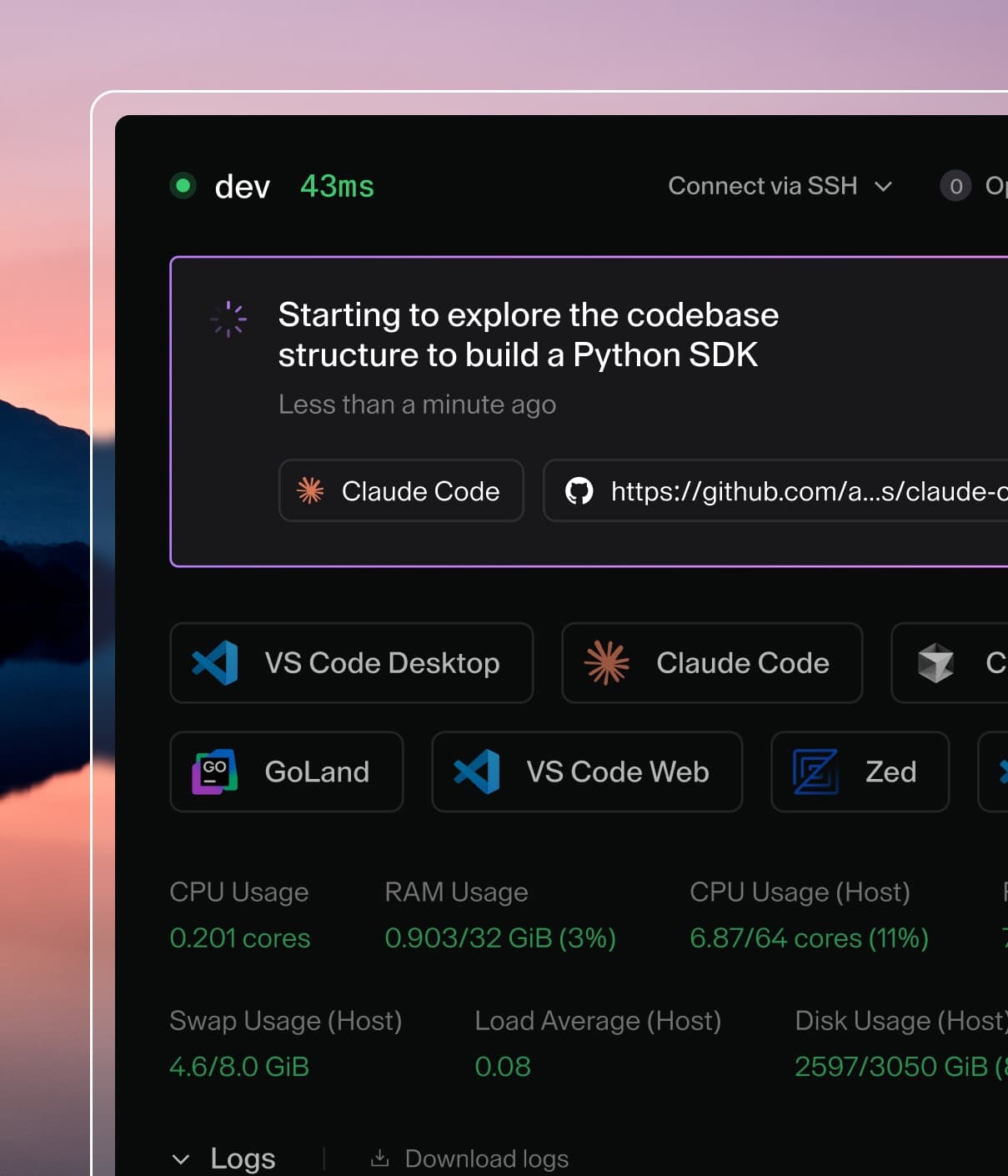
Coder powers secure, scalable development across key industries — automotive, finance, government, and technology — enabling faster builds, tighter compliance, and seamless AI adoption in enterprise-grade cloud environments.
Coder Desktop provides seamless access to your remote workspaces through a native application.
Connect to workspace services using simple hostnames like myworkspace.coder, launch applications with one click, and synchronize files between local and remote environments, all without installing a CLI or configuring manual port forwarding.
Tip
Coder Desktop provides automatic port forwarding to every service running in your workspace.
Any port your application listens on is instantly accessible at workspace-name.coder:PORT with no manual setup required.
For a comparison of all port forwarding methods, see Workspace Ports.
Organization administrators can also enforce this setting across managed devices using MDM (Mobile Device Management) software by deploying a configuration profile that sets this preference.
Troubleshooting
Connection Issues
Can't connect to workspace
Verify Coder Connect is enabled (toggle should be ON)
Check that your deployment URL is correct
Ensure your session token hasn't expired
Try disconnecting and reconnecting Coder Connect
VPN extension not working
Restart Coder Desktop
Check system permissions for network extensions
Ensure only one copy of Coder Desktop is installed
Recover from a stale tunnel
If the menu bar or tray shows Coder Connect as enabled but workspaces are unreachable (SSH hangs, workspace.coder fails to resolve, or file sync cannot list the workspace directory), the embedded tunnel may be in a stale state.
Restart the helper components first.
If that doesn't resolve the issue, reboot your computer.
Run the following commands in a terminal.
These steps leave the app and helper daemon installed.
They only restart the running tunnel and flush DNS caches.
Stop the Coder VPN configuration:
vpn_name=$(scutil --nc list | grep "com.coder.Coder-Desktop" | awk -F'"' '{print $2}' | tail -n1)
if [ -n "$vpn_name" ]; then scutil --nc stop "$vpn_name"; fi
Quit the Coder Desktop app:
osascript -e 'tell application id "com.coder.Coder-Desktop" to quit'
Do not use launchctl bootout here.
bootout removes the daemon from launchd's system domain entirely, and relaunching the app does not re-bootstrap it.
Use kickstart -k to restart it in place.
Confirm the stale tunnel is gone (the command should print nothing):
scutil --nc list | grep "com.coder.Coder-Desktop"
Relaunch Coder Desktop from your /Applications folder and toggle Coder Connect back on.
To verify the tunnel is healthy after relaunching, query the built-in sentinel hostname against Coder Desktop's embedded DNS server:
dig @fd60:627a:a42b::53 AAAA is.coder--connect--enabled--right--now.coder +short
dscacheutil -q host -a name is.coder--connect--enabled--right--now.coder
Both commands should return an fd60:627a:a42b::/48 address.
If dig returns nothing or dscacheutil reports no entries, Coder Connect is not publishing DNS.
Collect logs and file an issue.
Collect logs
When reporting an issue, attach the relevant log files so we can diagnose it faster.
Coder Desktop and its network extension write to the Apple unified logging system.
The file sync (Mutagen) daemon writes to a separate log file.
Export the unified logs for the last hour with the log command:
The BEGINSWITH predicate captures the app, the helper daemon, and the network extension, which all log under subsystems prefixed with com.coder.Coder-Desktop.
Adjust --last (for example, 30m, 2h, 1d) to cover the time the issue occurred.
You can stream the logs live while reproducing an issue: