Coder powers secure, scalable development across key industries — automotive, finance, government, and technology — enabling faster builds, tighter compliance, and seamless AI adoption in enterprise-grade cloud environments.
Administrators configure LLM providers and models from the Coder dashboard.
Providers, models, and centrally managed credentials are deployment-wide
settings managed by platform teams. Developers select from the set of models
that an administrator has enabled.
Optionally, administrators can allow developers to supply their own API keys
for specific providers. See User API keys below.
Providers
Each LLM provider has a type, a credential configuration, and an optional base URL override.
Coder supports the following provider types:
Provider
Description
Anthropic
Claude models via Anthropic API
OpenAI
GPT and o-series models via OpenAI API
Google
Gemini models via Google AI API
Azure OpenAI
OpenAI models hosted on Azure
AWS Bedrock
Models via AWS Bedrock (bearer token or ambient AWS credentials)
OpenAI Compatible
Any endpoint implementing the OpenAI API
OpenRouter
Multi-model routing via OpenRouter
Vercel AI Gateway
Models via Vercel AI SDK
The OpenAI Compatible type is a catch-all for any service that exposes an
OpenAI-compatible chat completions endpoint. Use it to connect to self-hosted
models, internal gateways, or third-party proxies like LiteLLM.
Add a provider
Navigate to the Agents page in the Coder dashboard.
Open Settings > Manage Agents and select the Providers tab.
Click the provider you want to configure.
Enter the API key for the provider, if required.
Optionally set a Base URL to override the default endpoint. This is
useful for enterprise proxies, regional endpoints, or self-hosted models.
Click Save.
The providers list shows all supported providers and their configuration
status.
Adding a provider usually requires an API key. AWS Bedrock can also use
ambient AWS credentials. The base URL is optional.
Configuring AWS Bedrock
AWS Bedrock supports two credential modes for Agents providers:
Bearer token mode: Enter a Bedrock-compatible bearer token in the
API key field when you add the provider.
Ambient AWS credentials mode: Leave the API key field empty. The
Coder server resolves credentials from the standard AWS SDK credential chain,
including IAM instance roles and AWS_ACCESS_KEY_ID /
AWS_SECRET_ACCESS_KEY environment variables.
Region comes from the standard AWS SDK configuration. In most deployments, set
AWS_REGION on the Coder server. Bearer token mode falls back to us-east-1
when no region is configured. Ambient credentials require a region from the
standard AWS SDK chain, for example AWS_REGION.
The Base URL field overrides the Bedrock runtime endpoint. Use it for
custom endpoints or VPC endpoints.
Note
Agents Bedrock provider configuration is separate from AI Gateway Bedrock
flags (CODER_AIBRIDGE_BEDROCK_*). AI Gateway and Agents use independent
credential paths.
Provider credentials and security
Provider API keys entered in the dashboard are stored encrypted in the Coder
database. They are never exposed to workspaces, developers, or the browser
after initial entry. The dashboard shows only whether a key is set, not the
key itself.
When a provider uses ambient credentials, Coder resolves them from the server
environment at request time instead of storing a secret in the database.
Because the agent loop runs in the control plane, workspaces never need direct
access to LLM providers. See
Architecture for details
on this security model.
Key policy
Each provider has three policy flags that control how provider credentials are
sourced:
Setting
Default
Description
Central API key
On
The provider uses deployment-managed credentials configured by an administrator. For most providers, this is an API key.
Allow user API keys
Off
Developers may supply their own API key for this provider.
Central key as fallback
Off
When user keys are allowed, fall back to deployment-managed credentials if a developer has not set a personal key.
At least one credential source must be enabled. These settings appear in the
provider configuration form under Key policy.
The interaction between these flags determines whether a provider is available
to a given developer:
Central key
User keys allowed
Fallback
Developer has key
Result
On
Off
—
—
Uses central key
Off
On
—
Yes
Uses developer's key
Off
On
—
No
Unavailable
On
On
Off
Yes
Uses developer's key
On
On
Off
No
Unavailable
On
On
On
Yes
Uses developer's key
On
On
On
No
Uses central key
When a developer's personal key is present, it always takes precedence over
deployment-managed credentials. When user keys are required and fallback is
disabled, the provider is unavailable to developers who have not saved a
personal key, even if deployment-managed credentials exist. This is
intentional: it enforces that each developer authenticates with their own
credentials.
Models
Each model belongs to a provider and has its own configuration for context limits,
generation parameters, and provider-specific options.
Add a model
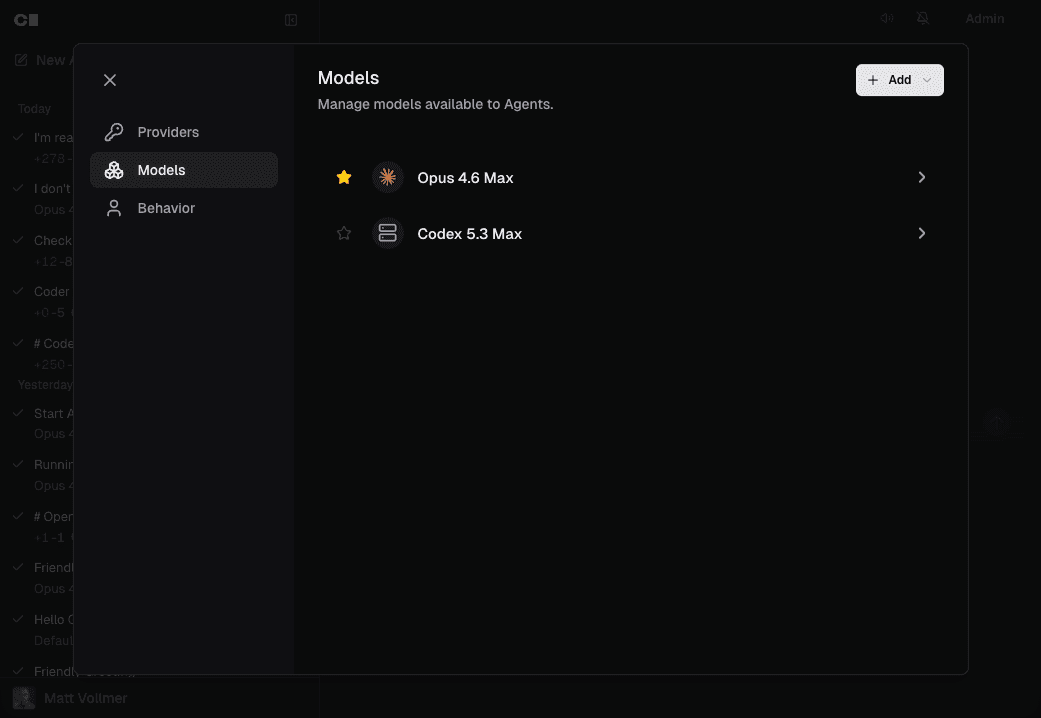
Open Settings > Manage Agents and select the Models tab.
Click Add and select the provider for the new model.
Enter the Model Identifier — the exact model string your provider
expects (e.g., claude-opus-4-6, gpt-5.3-codex).
Set a Display Name so developers see a human-readable label in the model
selector.
Set the Context Limit — the maximum number of tokens in the model's
context window (e.g., 200000 for Claude Sonnet).
Configure any provider-specific options (see below).
Click Save.
The models list shows all configured models grouped by provider.
Adding a model requires a model identifier, display name, and context
limit. Provider-specific options appear dynamically based on the selected
provider.
Set a default model
Click the star icon next to a model in the models list to make it the
default. The default model is pre-selected when developers start a new chat.
Only one model can be the default at a time.
Model options
Every model has a set of general options and provider-specific options.
The admin UI generates these fields automatically from the provider's
configuration schema, so the available options always match the provider type.
General options
These options apply to all providers:
Option
Description
Model Identifier
The API model string sent to the provider (e.g., claude-opus-4-6).
Display Name
The label shown to developers in the model selector.
Context Limit
Maximum tokens in the context window. Used to determine when context compaction triggers.
Compression Threshold
Percentage (0–100) of context usage at which the agent compresses older messages into a summary.
Max Output Tokens
Maximum tokens generated per model response.
Temperature
Controls randomness. Lower values produce more deterministic output.
Top P
Nucleus sampling threshold.
Top K
Limits token selection to the top K candidates.
Presence Penalty
Penalizes tokens that have already appeared in the conversation.
Frequency Penalty
Penalizes tokens proportional to how often they have appeared.
Input Price
Optional USD price metadata for input tokens, recorded per 1M tokens.
Output Price
Optional USD price metadata for output tokens, recorded per 1M tokens.
Cache Read Price
Optional USD price metadata for cache read tokens, recorded per 1M tokens.
Cache Write Price
Optional USD price metadata for cache creation/write tokens, recorded per 1M tokens.
Provider-specific options
Each provider type exposes additional options relevant to its models. These
fields appear dynamically in the admin UI when you select a provider.
How much effort the model spends reasoning (minimal, low, medium, high, xhigh).
Max Completion Tokens
Cap on completion tokens for reasoning models.
Parallel Tool Calls
Whether the model can call multiple tools at once.
Google
Option
Description
Thinking Budget
Maximum tokens for the model's internal reasoning.
Include Thoughts
Whether to include thinking traces in the response.
OpenRouter
Option
Description
Reasoning Enabled
Enable extended reasoning mode.
Reasoning Effort
Reasoning effort level (low, medium, high).
Vercel AI Gateway
Option
Description
Reasoning Enabled
Enable extended reasoning mode.
Reasoning Effort
Reasoning effort level.
Note
Azure OpenAI uses the same options as OpenAI. AWS Bedrock uses the same
model configuration options as Anthropic (thinking budget, reasoning
effort).
How developers select models
Developers see a model selector dropdown when starting or continuing a chat on
the Agents page. The selector shows only models from providers that have valid
credentials configured. Models are grouped by provider if multiple providers
are active.
The model selector uses the following precedence to pre-select a model:
Last used model — stored in the browser's local storage.
Admin-designated default — the model marked with the star icon.
First available model — if no default is set and no history exists.
Developers cannot add their own providers or models. If no models are
configured, the chat interface displays a message directing developers to
contact an administrator.
Model overrides
Beyond the chat-level model picker, Coder Agents supports two override
layers:
Subagent overrides (admin, deployment-wide): Pin specific subagent
contexts to a particular model. Configure them at Agents >
Settings > Manage Agents > Agents.
Personal overrides (per user, opt-in by admin): Let users override
the model for their own root chats and delegated subagents. Admins
enable the toggle on the same admin page; once on, each user sees an
Agents tab in their personal Agents > Settings.
The configurable contexts:
Context
Layer
Applies to
General
Admin + user
Write-capable subagents (spawn_agent with type=general or computer_use).
Explore
Admin + user
Read-only subagents (spawn_agent with type=explore).
Title generation
Admin only
Automatic title generation for new chats.
Root
User only
The user's own root chats.
Resolution order, evaluated per chat or subagent:
Personal override (when the admin gate is on and a model is set).
Admin subagent override.
The chat's selected model (or the deployment default for new chats).
If a referenced model is later disabled or deleted, that layer is skipped
and resolution falls through to the next.
Note
Both override layers are experimental and may change between releases.
The same values are available through the experimental chat
configuration API under /api/experimental/chats/config/.
User API keys (BYOK)
When an administrator enables Allow user API keys on a provider,
developers can supply their own API key from the Agents settings page.
Managing personal API keys
Navigate to the Agents page in the Coder dashboard.
Open Settings and select the API Keys tab.
Each provider that allows user keys is listed with a status indicator:
Key saved — your personal key is active and will be used for requests.
Using shared key — no personal key set, but the central deployment
key is available as a fallback.
No key — you must add a personal key before you can use this provider.
Enter your API key and click Save.
Personal API keys are encrypted at rest using the same database encryption
used for deployment-managed provider secrets. The dashboard never displays a
saved key, only whether one is set.
How key selection works
When you start a chat, the control plane resolves which credential source to
use for each provider:
If you have a personal key for the provider, it is used.
If you do not have a personal key and central key fallback is enabled,
deployment-managed credentials are used.
If you do not have a personal key and fallback is disabled, the provider
is unavailable to you. Models from that provider will not appear in the
model selector.
Removing a personal key
Click Remove on the provider card in the API Keys settings tab. If
central key fallback is enabled, subsequent requests will use the shared
deployment-managed credentials. If fallback is disabled, the provider becomes
unavailable until you add a new personal key.
Using an LLM proxy
Organizations that route LLM traffic through a centralized proxy — such as
Coder's AI Gateway or third parties like LiteLLM — can point any provider's Base URL at their proxy endpoint.
For example, to route all OpenAI traffic through Coder's AI Gateway:
Add or edit the OpenAI provider.
Set the Base URL to your AI Gateway endpoint
(e.g., https://example.coder.com/api/v2/aibridge/openai/v1).
Enter the API key your proxy expects.
Alternatively, use the OpenAI Compatible provider type if your proxy serves
multiple model families through a single OpenAI-compatible endpoint.
This lets you keep existing proxy-level features like per-user budgets, rate
limiting, and audit logging while using Coder Agents as the developer interface.