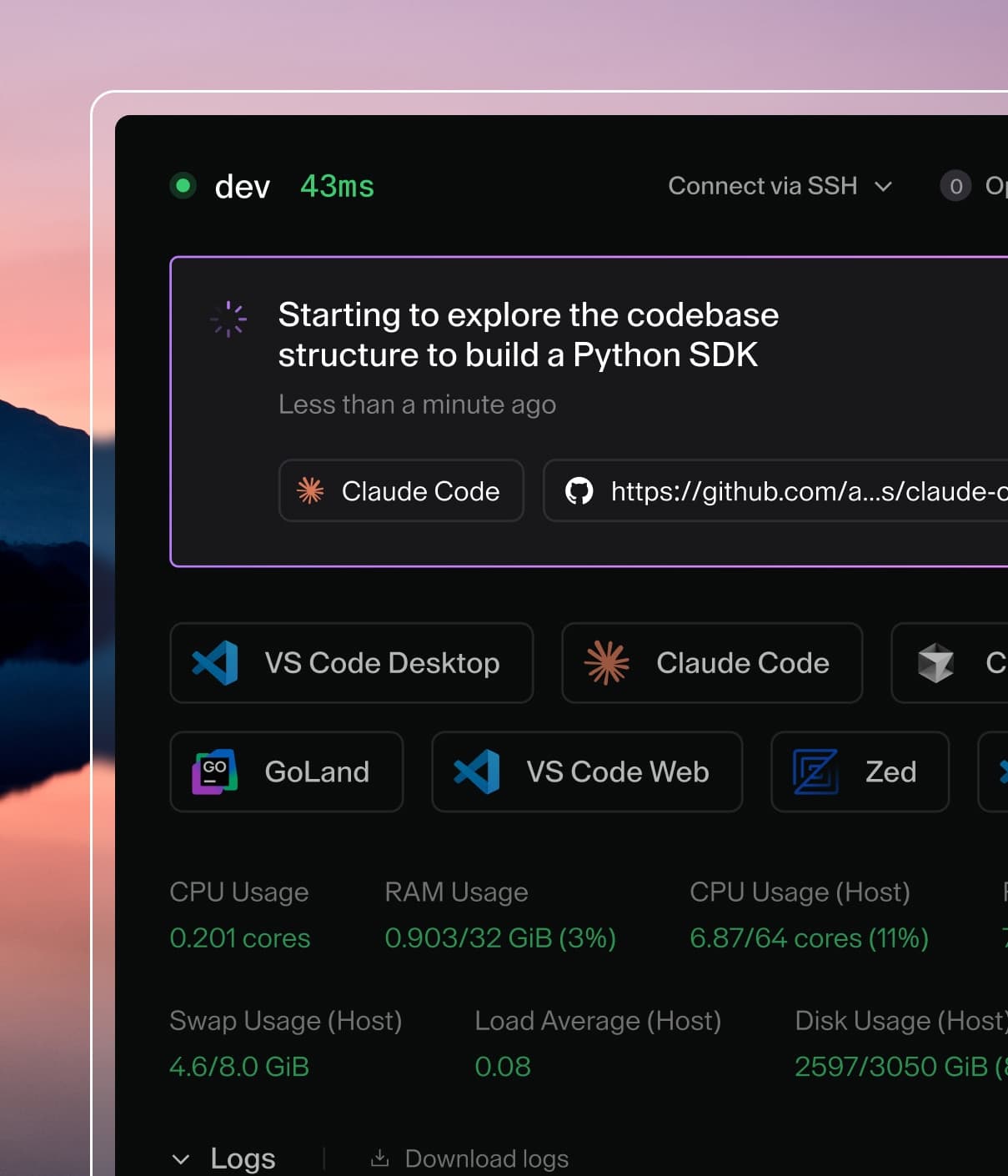
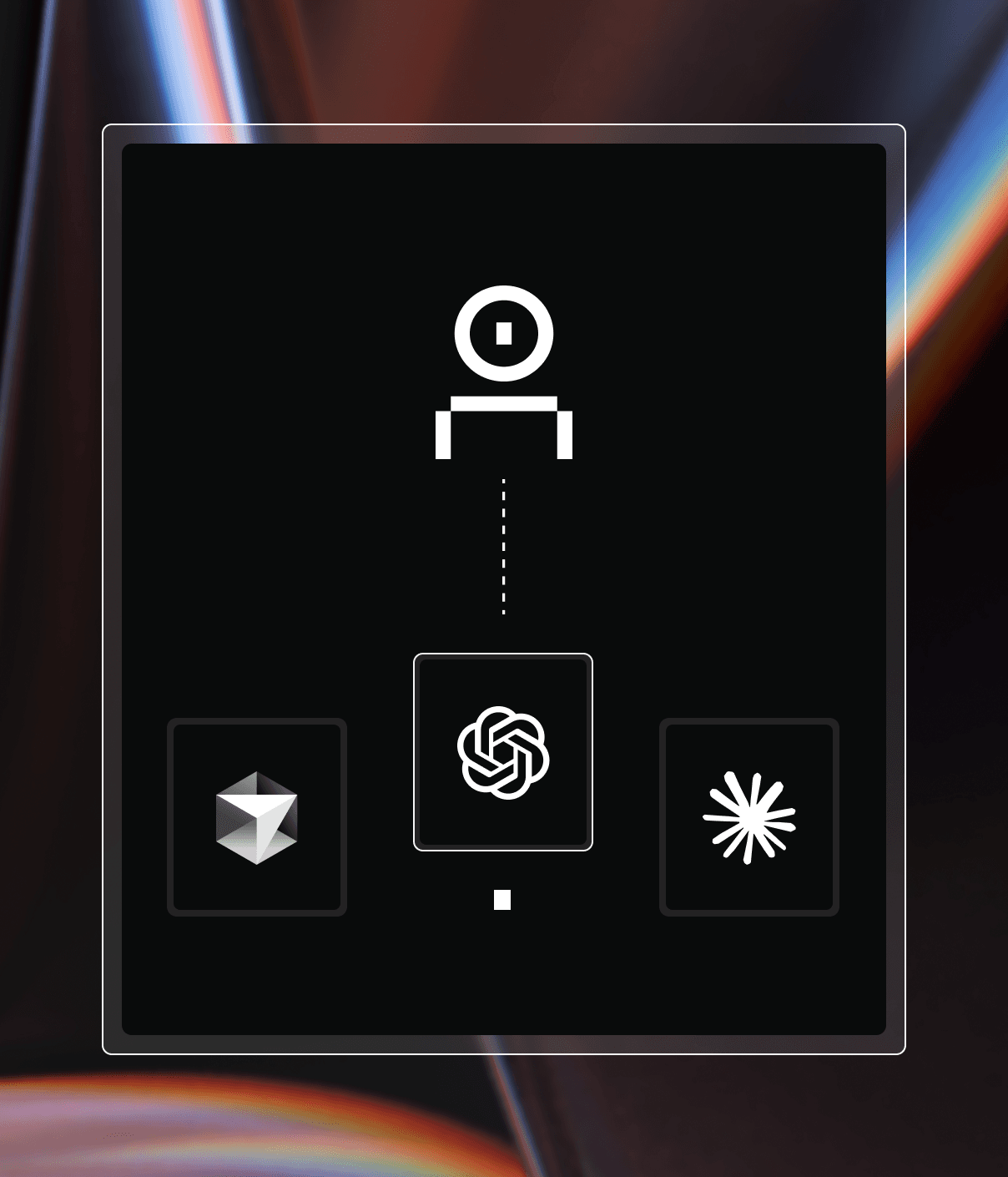
Coder powers secure, scalable development across key industries — automotive, finance, government, and technology — enabling faster builds, tighter compliance, and seamless AI adoption in enterprise-grade cloud environments.
Coder Agents is a chat interface and API for delegating development work and research to coding agents in your Coder deployment. Developers describe the work they want done, and Coder Agents handles selecting a template, provisioning a workspace, and executing the task.
Coder Agents includes its own self-hosted AI coding
agent that runs the agent loop directly within the Coder control plane.
No specialized software, API keys, or network access is required inside your workspace. The only requirement is network access between the control plane and external LLM providers.
What Coder Agents is and isn't
It is a standalone agent written in Go.
It implements standard agentic patterns, such as sub-agent delegation, context compaction, file editing, and shell execution.
It works with any LLM provider you configure.
It is not a wrapper around third-party agent tools like Claude Code
or Codex.
Coder Agents is not a replacement for your text editor or IDE. It is the
primary interface where developers work with and orchestrate coding agents.
Developers still connect to workspaces via VS Code, Cursor, JetBrains, or any
other editor to review, refine, and complete work that the agent produces.
Who Coder Agents is for
Coder Agents is designed for organizations that need to self-host their AI
coding workflows and maintain full control over how agents operate. It is a
strong fit for:
Regulated industries such as financial services, healthcare, and
government, where AI tools must run on controlled infrastructure with
auditable access and strict network boundaries.
Platform engineering teams that want to provide developers with a
high-quality AI coding experience without managing per-workspace agent
installations, API key distribution, or third-party agent licensing.
Organizations with existing Coder deployments that want to add agentic
capabilities using their current templates, workspaces, and identity
providers rather than adopting a separate SaaS product.
Coder Agents runs entirely self-hosted. There is no SaaS or managed component — the agent
loop, chat history, and all tool execution happen within your Coder deployment.
How it works
The agent loop runs inside the control plane. When a user
submits a prompt, the control plane:
Sends the prompt to the configured LLM provider (Anthropic, OpenAI, Google,
Azure, AWS Bedrock, or any OpenAI-compatible endpoint).
Receives the model's response, which may include tool calls such as reading
files, writing code, or running shell commands.
Executes tool calls by connecting to a Coder workspace over the existing
workspace connection — the same path used for web terminals, port
forwarding, and IDE access.
Returns tool results to the model and continues the loop until the task is
complete.
The workspace itself has no knowledge of AI. It is standard compute
infrastructure — there are no LLM API keys, no agent harnesses, and no special
software installed. All intelligence lives in the control plane.
The agent loop runs in the control plane. It makes outbound requests to LLM
providers and connects to workspaces only when tool execution is needed.
Automatic workspace provisioning
Not every chat requires a workspace.
The agent uses the conversation and available tools when they're sufficient for your request.
If missing tools, skills, MCP integrations, or context block progress, the agent creates a suitable workspace and uses its capabilities to continue.
Workspaces also support reading code, running commands, and editing files.
Requests to fix a bug or build an app authorize the necessary workspace setup; you don't need to ask for a workspace separately.
Questions and self-contained code examples don't need a workspace when the conversation and available tools are sufficient.
This means:
Faster responses — conversations that don't require workspace access
start immediately with no provisioning delay.
Lower infrastructure cost: the agent uses existing tools and context when they can complete your request without a workspace.
When a workspace is needed, the agent reads the templates available to that user —
including their descriptions and parameters — selects the appropriate one, and
creates a workspace automatically. Template visibility is scoped to the user's role and permissions, so the agent can only select templates the user is authorized to use. Users can also manually choose which workspace is used when starting a new chat.
Platform teams control template routing by writing clear template descriptions.
For example, a description like "Use this template for Python backend services
in the payments repo" helps the agent select the correct infrastructure.
Administrators can also block agents on a template, which hides it from the agent completely.
Refer to Platform Controls for that setting.
Examples of what triggers workspace creation:
The examples in the first column assume the available tools and context are sufficient.
Any request, including planning or Q&A, can require a workspace if the agent lacks the capabilities or context to complete it.
Creating a workspace doesn't change the current mode's tool restrictions: workspace MCP tools remain unavailable in Plan Mode.
Workspace skills, MCP tools, and context can finish loading after the workspace reports ready.
The agent can continue with available file and shell tools, but provisioning doesn't guarantee immediate access to a missing MCP tool.
No workspace needed
Workspace provisioned
"What are the tradeoffs between REST and gRPC?"
"Find and fix the nil pointer crash in the auth service"
"Help me draft an RFC for adding a caching layer"
"Run the test suite and fix any failures"
"What's the best way to handle retry logic in Go?"
"Refactor the handler to use the new SDK types"
"Compare connection pooling strategies for Postgres"
"Read the config file and add the new feature flag"
Sub-agents
Coder Agents supports sub-agent delegation. The root agent can spawn child
agents to work on independent tasks in parallel. Each sub-agent gets its own
context window, which keeps individual conversations focused and avoids the
quality degradation that occurs as context windows grow large.
For example, an agent tasked with "explore this repository and document its
structure" might spawn separate sub-agents to analyze the backend, frontend,
and infrastructure directories simultaneously.
Chat persistence
All chat state is stored in the Coder database, not in the workspace. If a
workspace is stopped, deleted, or rebuilt, the full conversation history
survives. The agent can resume work by creating a new workspace with the same
template and continuing from the last known state, such as a git branch.
Message queuing
Users can send follow-up messages while the agent is actively working. Messages
are queued and delivered when the agent completes its current step, so there is
no need to wait for a response before providing additional context or changing
direction.
File attachments
Users can attach files to chat messages by pasting from the clipboard, dragging files into the input area, or using the attachment button.
Supported types are PNG, JPEG, GIF, and WebP images, plus plain text, Markdown, CSV, JSON, SVG, and PDF files.
Each upload can be up to 10 MiB.
By default, a chat can have up to 50 attachments.
Adding more permanently deletes the earliest uploads, which then show as expired.
You can change the limit with CODER_CHAT_MAX_ATTACHMENTS_PER_CHAT.
Attachments are sent to the model as multimodal content alongside the text prompt.
This is useful for sharing screenshots of errors, UI mockups, terminal output, logs, or other context that helps the agent understand the task.
Messages can contain attachments alone or combined with text.
Image attachments require a model that supports vision input, and Anthropic models (including Bedrock-hosted Claude) cap each inline image at 5 MiB.
Providers differ in which types they accept as native file content; a part the provider rejects is downgraded to text instead of being dropped.
Security benefits of the control plane architecture
Running the agent loop in the control plane rather than inside the developer
workspace is an architectural decision that directly addresses the primary
concerns regulated organizations have with AI coding tools: how do you give
developers access to coding agents without introducing unnecessary risk?
Traditionally, agents run inside the same compute where code
lives. This means the agent needs LLM API keys in the workspace, outbound
network access to model providers, and often elevated permissions. In a
regulated environment, this creates a surface area that is difficult to lock
down.
Coder Agents eliminates this by moving the agent loop out of the workspace
entirely:
No API keys in workspaces. LLM provider credentials never enter the
workspace. The control plane makes all outbound requests to model providers
directly, so there is nothing for a developer or a compromised process to
exfiltrate.
No agent software to manage. Workspaces don't need Claude Code, Codex,
or any agent harness installed. This eliminates a class of supply chain risk
and removes the need to keep agent software up to date across all workspaces.
Network boundaries are simpler. Because the workspace doesn't need access
to LLM APIs, you can apply strict egress rules. An agent-only template might
permit access to only your git provider (e.g., github.com) and nothing
else. The workspace never needs to reach the internet for AI functionality.
Centralized, enforced control. Platform teams configure models, system
prompts, and tool permissions from the control plane. These settings are
enforced server-side, so they are not user preferences that developers can
override.
User identity is always attached. Every action the agent takes — PRs
opened, code pushed, commands run — is tied to the user who submitted the
prompt. There is no shared bot identity or anonymous execution.
No privilege escalation. The agent operates with the exact same
permissions as the user who submitted the prompt. If a developer cannot
access a template, workspace, or resource through the Coder dashboard,
the agent cannot access it either. There is no escalation of privileges
and no shared service account.
Workspace isolation is preserved. The agent can only access workspaces
owned by the user who submitted the prompt. There is no cross-user
workspace access — an agent running on behalf of one developer cannot
read files, execute commands, or interact with another developer's
workspaces.
Tip
For highly sensitive environments, create a dedicated set of templates for
agent workloads with stricter network policies than your standard developer
templates. Because the AI comes from the control plane, these templates don't
need any outbound access to LLM providers.
Warning
By default, agent workspaces have the same network access and permissions
as any workspace the user creates manually. If your templates do not
restrict outbound network access, the agent has full internet access from
the workspace. See Template Optimization
for guidance on configuring network boundaries and scoping credentials for
agent workloads.
LLM provider support
Coder Agents works with any LLM provider. Administrators configure providers
and models from the Coder dashboard or API. Supported providers include:
Provider
Description
Anthropic
Claude models via Anthropic API
OpenAI
GPT and Codex models via OpenAI API
Google
Gemini models via Google AI API
Azure OpenAI
OpenAI models hosted on Azure
AWS Bedrock
Models available through AWS Bedrock
OpenAI Compatible
Any endpoint implementing the OpenAI API
OpenRouter
Multi-model routing via OpenRouter
Vercel AI Gateway
Models via Vercel AI SDK
Most providers support custom base URLs, which allows integration with
enterprise LLM proxies, self-hosted model endpoints, and internal gateways.
Administrators can configure multiple providers simultaneously and set a default model in each organization.
Developers select from enabled models when starting a chat.
Providers are deployment-wide, and models belong to an organization.
Refer to Organization scope for details.
The model configuration in the Agents settings panel.
Built-in tools
The agent has access to a set of workspace tools that it uses to accomplish
tasks:
Tool
Description
list_templates
Browse available workspace templates
read_template
Get template details and configurable parameters
create_workspace
Create a workspace from a template
start_workspace
Start a stopped workspace for the current chat
stop_workspace
Stop the current chat's workspace and wait for the stop build to finish
propose_plan
Present a Markdown plan file for user review
ask_user_question
Ask the user structured clarification questions during plan mode
read_file
Read file contents from the workspace
write_file
Write a file to the workspace
edit_files
Replace old_text with new_text across files
execute
Run shell commands in the workspace
process_output
Retrieve output from a background process
process_list
List all tracked processes in the workspace
process_signal
Send a signal (terminate/kill) to a tracked process
attach_file
Attach a workspace file to the chat as a durable downloadable attachment
spawn_agent (type=general or explore)
Delegate a task to a sub-agent running in parallel, optionally on a specific model
list_subagent_models
List the models available for spawn_agent's model_config_id argument
wait_agent
Wait for a sub-agent to complete and collect its result
message_agent
Send a follow-up message to a running sub-agent
interrupt_agent
Halt a sub-agent's current turn; it transitions to waiting or running if there are queued messages
spawn_agent (type=computer_use)
Spawn a sub-agent with desktop interaction (screenshot, mouse, keyboard)
list_agents
List spawned child agents, most recently active first
read_skill
Read the instructions for a workspace skill by name
read_skill_file
Read a supporting file from a skill's directory
web_search
Search the internet (provider-native, when enabled)
find_tools
Search the deferred MCP tool catalog and activate matching tools. Only available when the mcp-tool-search experiment is enabled and the turn has MCP tools to defer
These tools connect to the workspace over the same secure connection used for
web terminals and IDE access. No additional ports or services are required in
the workspace.
Platform tools (list_templates, read_template, create_workspace,
start_workspace, stop_workspace, propose_plan, ask_user_question) and orchestration tools (spawn_agent,
list_subagent_models, wait_agent, message_agent, interrupt_agent, list_agents)
are only available to root chats. Sub-agents do not have access to these
tools and cannot create workspaces or spawn further sub-agents.
spawn_agent with type=computer_use additionally requires an
Anthropic or OpenAI provider and the virtual desktop feature to be
enabled by an administrator.
read_skill and read_skill_file are available when the workspace contains
skills in its .agents/skills/ directory.
propose_plan and ask_user_question are only available while plan mode is active.
In plan mode, the agent can still inspect the workspace and template metadata, execute shell commands for exploration, and read process output.
write_file and edit_files remain available only for the chat-specific plan file under .coder/plans/.
Workspace MCP tools are unavailable in plan mode, and plan-mode sub-agents receive no MCP tools.
Plan mode
Plan mode lets you ask the agent to investigate first and present a plan before
implementation. Open the chat input menu and choose Plan first to enable it
for the current chat.
After you enable it, later turns in that chat stay in plan mode until you turn it off or select Implement plan after a proposed plan.
Because the mode is stored on the chat, reloading the page preserves the current setting.
While plan mode is active:
The agent can inspect repository files, workspace state, and available templates.
write_file and edit_files can only modify the chat-specific plan file under .coder/plans/.
ask_user_question can gather structured clarification from the user before a plan is proposed.
propose_plan snapshots the current plan file into the transcript so you can review it before implementation starts.
execute and process_output remain available for exploration, such as cloning repositories, searching code, and running inspection commands.
External MCP tools are available to root chats only for the server configurations an administrator approved for plan mode; workspace MCP tools and MCP tools for plan-mode sub-agents are not available.
Dynamic tools, provider-native tools, and computer-use tools are not available.
Root plan-mode chats can also use external MCP tools that an administrator approved for plan mode.
This keeps planning turns focused on analysis and plan authoring rather than implementation.
Once you select Implement plan, the next turn runs in normal mode again.