Coder powers secure, scalable development across key industries — automotive, finance, government, and technology — enabling faster builds, tighter compliance, and seamless AI adoption in enterprise-grade cloud environments.
Notifications are sent by Coder in response to specific internal events, such as a workspace being deleted or a user being created.
Available events may differ between versions.
For a list of all events, visit your Coder deployment's https://coder.example.com/deployment/notifications.
Event Types
Notifications are sent in response to internal events, to alert the affected user(s) of the event.
Coder supports the following list of events:
Template Events
These notifications are sent to users with template admin roles:
Report: Workspace builds failed for template
This notification is delivered as part of a weekly cron job and summarizes the failed builds for a given template.
Template deleted
Template deprecated
User Events
These notifications are sent to users with owner and user admin roles:
User account activated
User account created
User account deleted
User account suspended
These account notifications cover both user and service accounts.
These notifications are sent to users themselves:
User account suspended
User account activated
User password reset (One-time passcode)
Workspace Events
These notifications are sent to the workspace owner:
Workspace automatic build failure
Workspace autostop reminder
Workspace created
Workspace deleted
Workspace manual build failure
Workspace manually updated
Workspace marked as dormant
Workspace marked for deletion
Out of memory (OOM) / Out of disk (OOD)
Template admins can configure OOM/OOD notifications in the template main.tf.
Workspace automatically updated
Delivery Methods
Notifications can be delivered through the Coder dashboard Inbox and by SMTP or webhook.
OOM/OOD notifications can be delivered to users in VS Code.
Premium customers can configure which method to use for each of the supported Events.
See the Preferences section for more details.
Configuration
You can modify the notification delivery behavior in your Coder deployment's https://coder.example.com/settings/notifications, or with the following server flags:
Required
CLI
Env
Type
Description
Default
✔️
--notifications-dispatch-timeout
CODER_NOTIFICATIONS_DISPATCH_TIMEOUT
duration
How long to wait while a notification is being sent before giving up.
1m
✔️
--notifications-method
CODER_NOTIFICATIONS_METHOD
string
Which delivery method to use (available options: 'smtp', 'webhook'). See Delivery Methods below.
smtp
-️
--notifications-max-send-attempts
CODER_NOTIFICATIONS_MAX_SEND_ATTEMPTS
int
The upper limit of attempts to send a notification.
5
-️
--notifications-inbox-enabled
CODER_NOTIFICATIONS_INBOX_ENABLED
bool
Enable or disable inbox notifications in the Coder dashboard.
true
Configure OOM/OOD notifications
You can monitor out of memory (OOM) and out of disk (OOD) errors and alert users when they overutilize memory and disk.
This can help prevent agent disconnects due to OOM/OOD issues.
Use the smtp method to deliver notifications by email to your users.
Coder does not ship with an SMTP server, so you will need to configure Coder to use an existing one.
Enable STARTTLS to upgrade insecure SMTP connections using TLS. Ignored if CODER_EMAIL_FORCE_TLS is set.
false
-
--email-tls-skip-verify
CODER_EMAIL_TLS_SKIPVERIFY
bool
Skip verification of the target server's certificate (insecure).
false
-
--email-tls-server-name
CODER_EMAIL_TLS_SERVERNAME
string
Server name to verify against the target certificate.
-
--email-tls-cert-file
CODER_EMAIL_TLS_CERTFILE
string
Certificate file to use.
-
--email-tls-cert-key-file
CODER_EMAIL_TLS_CERTKEYFILE
string
Certificate key file to use.
NOTE:
you MUST use CODER_EMAIL_FORCE_TLS if your smarthost supports TLS on a port other than 465.
Send emails using G-Suite
After setting the required fields above:
Create an App Password using the account you wish to send from.
Set the following configuration options:
CODER_EMAIL_SMARTHOST=smtp.gmail.com:465
CODER_EMAIL_AUTH_USERNAME=<user>@<domain>
CODER_EMAIL_AUTH_PASSWORD="<app password created above (no spaces)>"
Note:
The CODER_EMAIL_AUTH_PASSWORD must be entered without spaces.
The webhook delivery method sends an HTTP POST request to the defined endpoint.
The purpose of webhook notifications is to enable integrations with other systems.
Settings:
Required
CLI
Env
Type
Description
✔️
--notifications-webhook-endpoint
CODER_NOTIFICATIONS_WEBHOOK_ENDPOINT
url
The endpoint to which to send webhooks.
Here is an example payload for Coder's webhook notification:
_version: describes the version of this schema; follows semantic versioning
msg_id: the UUID of the notification (matches the ID in the notification_messages table)
payload: contains the specific details of the notification; described below
title: the title of the notification message (equivalent to a subject in SMTP delivery)
body: the body of the notification message (equivalent to the message body in SMTP delivery)
The payload object has these keys:
_version: describes the version of this inner schema; follows semantic versioning
notification_name: name of the event which triggered the notification
user_id: Coder internal user identifier of the target user (UUID)
user_email: email address of the target user
user_name: name of the target user
user_username: username of the target user
actions: a list of CTAs (Call-To-Action); these are mainly relevant for SMTP delivery in which they're shown as buttons
labels: dynamic map of zero or more string key-value pairs; these vary from event to event
User Preferences
All users have the option to opt-out of any notifications.
Go to Account -> Notifications to turn notifications on or off.
The delivery method for each notification is indicated on the right hand side of this table.
Delivery Preferences
Note
Delivery preferences is a Premium feature.
Learn more.
Administrators can configure which delivery methods are used for each different event type.
You can find this page under https://$CODER_ACCESS_URL/deployment/notifications?tab=events.
Custom notifications
Custom notifications let you send an ad‑hoc notification to yourself using the Coder CLI.
These are useful for surfacing the result of long-running tasks or important state changes.
At this time, custom notifications can only be sent to the user making the request.
If notifications are not being delivered, use the following methods to troubleshoot:
Ensure notifications are being added to the notification_messages table.
Review any available error messages in the status_reason column
Review the logs.
Search for the term notifications for diagnostic information.
If you do not see any relevant logs, set CODER_LOG_FILTER=".*notifications.*" to filter for notification-related logs.
If you are on version 2.15.x, notifications must be enabled using the notificationsexperiment.
Notifications are enabled by default in Coder v2.16.0 and later.
Internals
The notification system is built to operate concurrently in a single- or multi-replica Coder deployment, and has a built-in retry mechanism.
It uses the configured Postgres database to store notifications in a queue and facilitate concurrency.
All messages are stored in the notification_messages table.
Messages older than seven days are deleted.
Message States
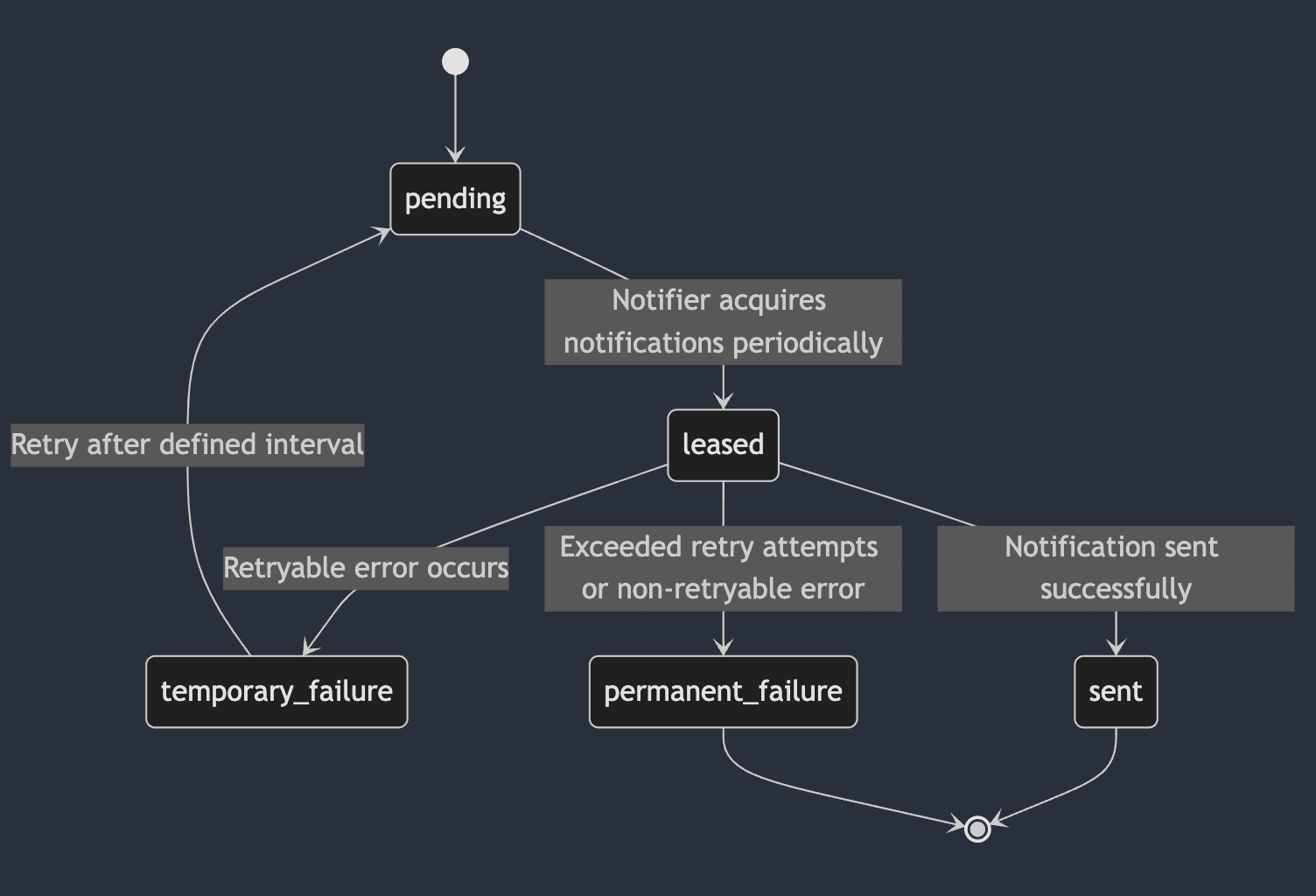
A notifier here refers to a Coder replica which is responsible for dispatching the notification.
All running replicas act as notifiers to process pending messages.
a message begins in pending state
transitions to leased when a Coder replica acquires new messages from the database
new messages are checked for every CODER_NOTIFICATIONS_FETCH_INTERVAL (default: 15s)
if a message is delivered successfully, it transitions to sent state
if a message encounters a non-retryable error (for example, misconfiguration), it transitions to permanent_failure
if a message encounters a retryable error (for example, temporary server outage), it transitions to temporary_failure
this message will be retried up to CODER_NOTIFICATIONS_MAX_SEND_ATTEMPTS (default: 5)
this message will transition back to pending state after CODER_NOTIFICATIONS_RETRY_INTERVAL (default: 5m) and be retried
after CODER_NOTIFICATIONS_MAX_SEND_ATTEMPTS is exceeded, it transitions to permanent_failure