Coder powers secure, scalable development across key industries — automotive, finance, government, and technology — enabling faster builds, tighter compliance, and seamless AI adoption in enterprise-grade cloud environments.
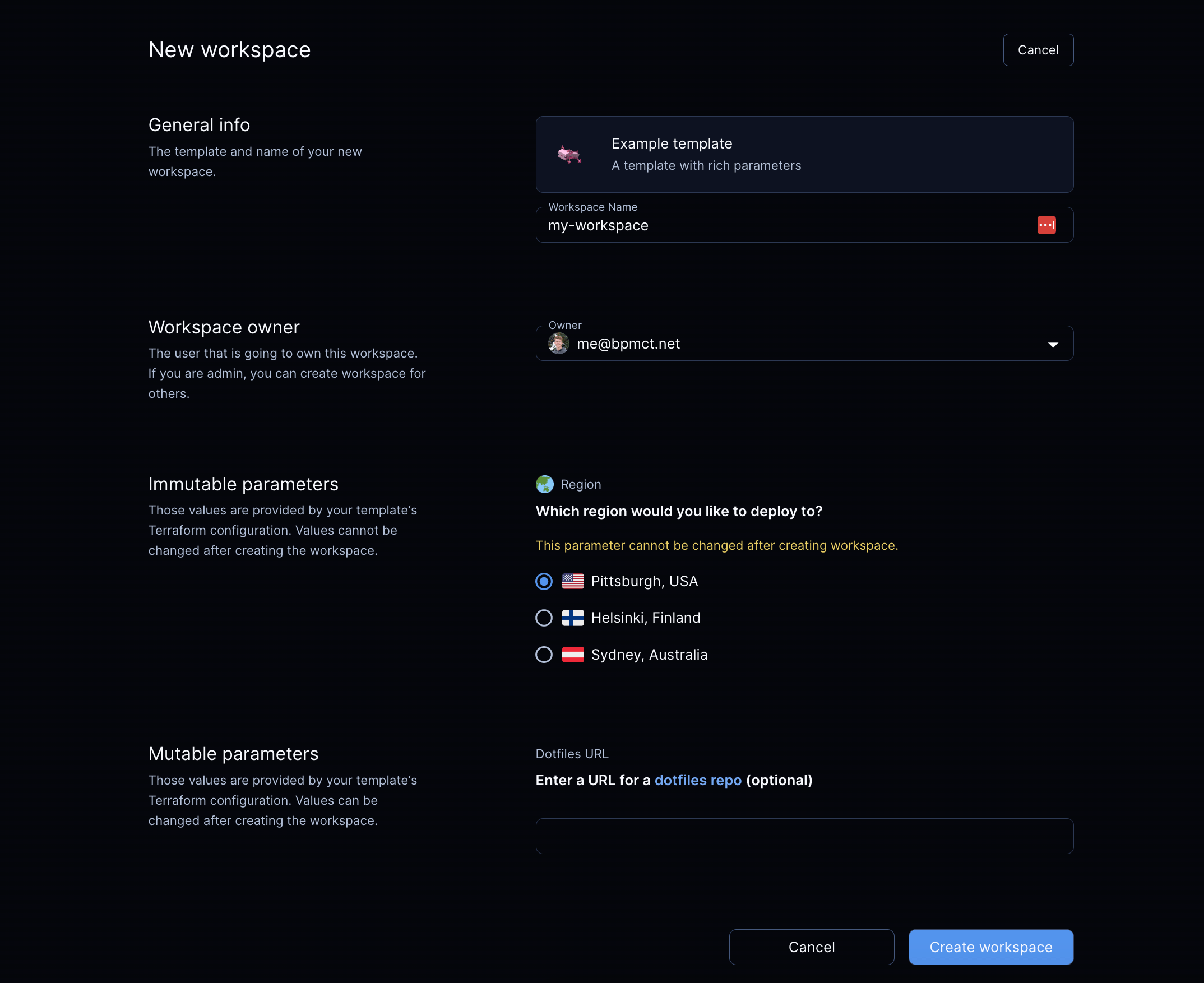
Parameters prompt the user for information when they create or update a workspace, such as a region, an instance size, or a repository URL.
You declare each parameter in your template's Terraform with the coder_parameter data source, so the workspace creation form lives next to the provisioning code that uses it.
Users set parameter values in the dashboard or with the CLI.
Because Coder evaluates parameters as Terraform, a parameter can do more than collect a value.
It can react to other parameters, change based on who is filling in the form, and render as a dropdown, slider, multi-select, or other control.
Use these capabilities to replace several near-duplicate templates with one template whose form adapts to each team.
Note
Earlier Coder releases called these capabilities dynamic parameters.
Every template uses them by default, so this section covers them alongside the basics.
Templates that still use compatibility mode render the older classic form.
This section covers:
Form types and styling: Choose the input control for each parameter, such as a dropdown, slider, or text area.
Validation: Constrain values with ranges, monotonic numbers, regular expressions, and rules that depend on other parameters.
Conditional parameters: Show, hide, or change parameters based on the user's other selections.
You can try most examples in this section in the Parameters Playground.
With the Parameters Playground, you can experiment before you change a live template.
Define a parameter
Hardcode the template properties that you control, such as a security group.
Use parameters for the properties that developers choose, such as instance size, geographical location, or repository URL.
This example lets a developer choose a Docker host for the workspace:
data "coder_parameter" "docker_host" {
  name        = "Region"
  description = "Which region would you like to deploy to?"
  icon        = "/emojis/1f30f.png"
  type        = "string"
  default     = "tcp://100.94.74.63:2375"

  option {
    name = "Pittsburgh, USA"
    value = "tcp://100.94.74.63:2375"
    icon = "/emojis/1f1fa-1f1f8.png"
  }

  option {
    name = "Helsinki, Finland"
    value = "tcp://100.117.102.81:2375"
    icon = "/emojis/1f1eb-1f1ee.png"
  }

  option {
    name = "Sydney, Australia"
    value = "tcp://100.127.2.1:2375"
    icon = "/emojis/1f1e6-1f1f9.png"
  }
}
From there, a template can refer to a parameter's value:
Form types, styling, and the other features in this section require version 2.4.0 or later of the Coder Terraform provider.
Set the version in your template's terraform block:
If a template's active version was published before Coder supported these features, publish a new version to generate the metadata the form requires.
To publish one without editing the template's Terraform, refresh the template data.
How Coder evaluates parameters
Coder parses every parameter from your template's Terraform and evaluates it again each time the user changes a value in the form.
You can use native Terraform functions, locals, and conditionals in any parameter attribute.
Coder reads Terraform data sources once, when it imports a template version, and stores the results.
Rendering the form evaluates your parameter expressions against those stored results, so a data source where its underlying value changes in your cloud or cluster keeps returning the imported value.
The coder_workspace_owner data source is the exception.
Coder substitutes the identity of the user filling in the form each time it renders, which is what makes identity-aware parameters work.
To pick up a change to any other data source, refresh the template data.
This imports the active version's source files again and publishes the result as a new active version.
Important
Parameters do not support external data fetching via HTTP endpoints at workspace build time.
External fetching would introduce unpredictability in workspace builds after publishing a template.
Instead, you should pull in any required data for a workspace build as a locals or JSON file, then reference that data in Terraform.
If you have a use case for external data fetching, file an issue or create a discussion in the Coder GitHub repository.
Types
A Coder parameter can have one of these types:
string
bool
number
list(string)
To specify a default value for a parameter with the list(string) type, use a JSON array and the Terraform jsonencode function.
For example:
data "coder_parameter" "security_groups" {
  name        = "Security groups"
  icon        = "/icon/aws.png"
  type        = "list(string)"
  description = "Select appropriate security groups."
  mutable     = true
  default = jsonencode([
    "Web Server Security Group",
    "Database Security Group",
    "Backend Security Group"
  ])
}
Note
Overriding a list(string) on the CLI is tricky because:
--parameter "parameter_name=parameter_value" is parsed as CSV.
parameter_value is parsed as JSON.
So, to properly specify a list(string) with the --parameter CLI argument, you will need to take care of both CSV quoting and shell quoting.
For the above example, to override the default values of the security_groups parameter, you will need to pass the following argument to coder create:
Alternatively, you can use --rich-parameter-file to work around the above issues.
This allows you to specify parameters as YAML.
An equivalent parameter file for the above --parameter is provided below:
security_groups:
  - DevOps Security Group
  - Backend Security Group
Options
A string parameter can provide a set of options to limit the user's choices:
data "coder_parameter" "docker_host" {
  name        = "Region"
  description = "Which region would you like to deploy to?"
  type        = "string"
  default     = "tcp://100.94.74.63:2375"

  option {
    name = "Pittsburgh, USA"
    value = "tcp://100.94.74.63:2375"
    icon = "/emojis/1f1fa-1f1f8.png"
  }

  option {
    name = "Helsinki, Finland"
    value = "tcp://100.117.102.81:2375"
    icon = "/emojis/1f1eb-1f1ee.png"
  }

  option {
    name = "Sydney, Australia"
    value = "tcp://100.127.2.1:2375"
    icon = "/emojis/1f1e6-1f1f9.png"
  }
}
Option changes across template versions
When creating Coder templates, authors have the flexibility to modify parameter options associated with rich parameters.
Such modifications can involve adding, substituting, or removing a parameter option.
It's important to note that making these changes can lead to discrepancies in parameter values utilized by ongoing workspace builds.
Consequently, workspace users will be prompted to select the new value from a pop-up window or by using the command-line interface.
While this additional interactive step might seem like an interruption, it serves a crucial purpose.
It prevents workspace users from becoming trapped with outdated template versions, ensuring they can smoothly update their workspace without any hindrances.
Example:
Bob creates a workspace using the python-dev template.
This template has a parameter image_tag, and Bob selects 1.12.
Later, the template author Alice is notified of a critical vulnerability in a package installed in the python-dev template, which affects the image tag 1.12.
Alice remediates this vulnerability, and pushes an updated template version that replaces option 1.12 with 1.13 for the image_tag parameter.
She then notifies all users of that template to update their workspace immediately.
Bob saves their work, and selects the Update option in the UI.
As their workspace uses the now-invalid option 1.12, for the image_tag parameter, they are prompted to select a new value for image_tag.
Required and optional parameters
A parameter is required if it doesn't have the default property.
The user must provide a value to this parameter before creating a workspace:
data "coder_parameter" "account_name" {
  name        = "Account name"
  description = "Cloud account name"
  mutable     = true
}
If a parameter contains the default property, Coder will use this value if the user does not specify any:
data "coder_parameter" "base_image" {
  name        = "Base image"
  description = "Base machine image to download"
  default     = "ubuntu:latest"
}
Admins can also set the default property to an empty value so that the parameter field can remain empty:
data "coder_parameter" "dotfiles_url" {
  name        = "dotfiles URL"
  description = "Git repository with dotfiles"
  mutable     = true
  default     = ""
}
Mutability
Immutable parameters can only be set in these situations:
Creating a workspace for the first time.
Updating a workspace to a new template version.
This sets the initial value for required parameters.
The idea is to prevent users from modifying fragile or persistent workspace resources like volumes, regions, and so on.
Example:
data "coder_parameter" "region" {
  name        = "Region"
  description = "Region where the workspace is hosted"
  mutable     = false
  default     = "us-east-1"
}
If a required parameter is empty or if the workspace creation page detects an incompatibility between selected parameters, the Create workspace button is disabled until the issues are resolved.
Ephemeral parameters
Ephemeral parameters are introduced to users in order to model specific behaviors in a Coder workspace, such as reverting to a previous image, restoring from a volume snapshot, or building a project without using cache.
These parameters are settable when creating, starting, updating, or restarting a workspace but do not persist after the workspace is stopped.
Since these parameters are ephemeral in nature, subsequent builds proceed in the standard manner:
data "coder_parameter" "force_rebuild" {
  name         = "force_rebuild"
  type         = "bool"
  description  = "Rebuild the Docker image rather than use the cached one."
  mutable      = true
  default      = false
  ephemeral    = true
}
Autofill parameters from a URL
When the template doesn't specify default values, Coder looks for URL query parameters with the form param.<name>=<value> to autofill parameters.
This feature enables platform teams to create pre-filled workspace creation links.