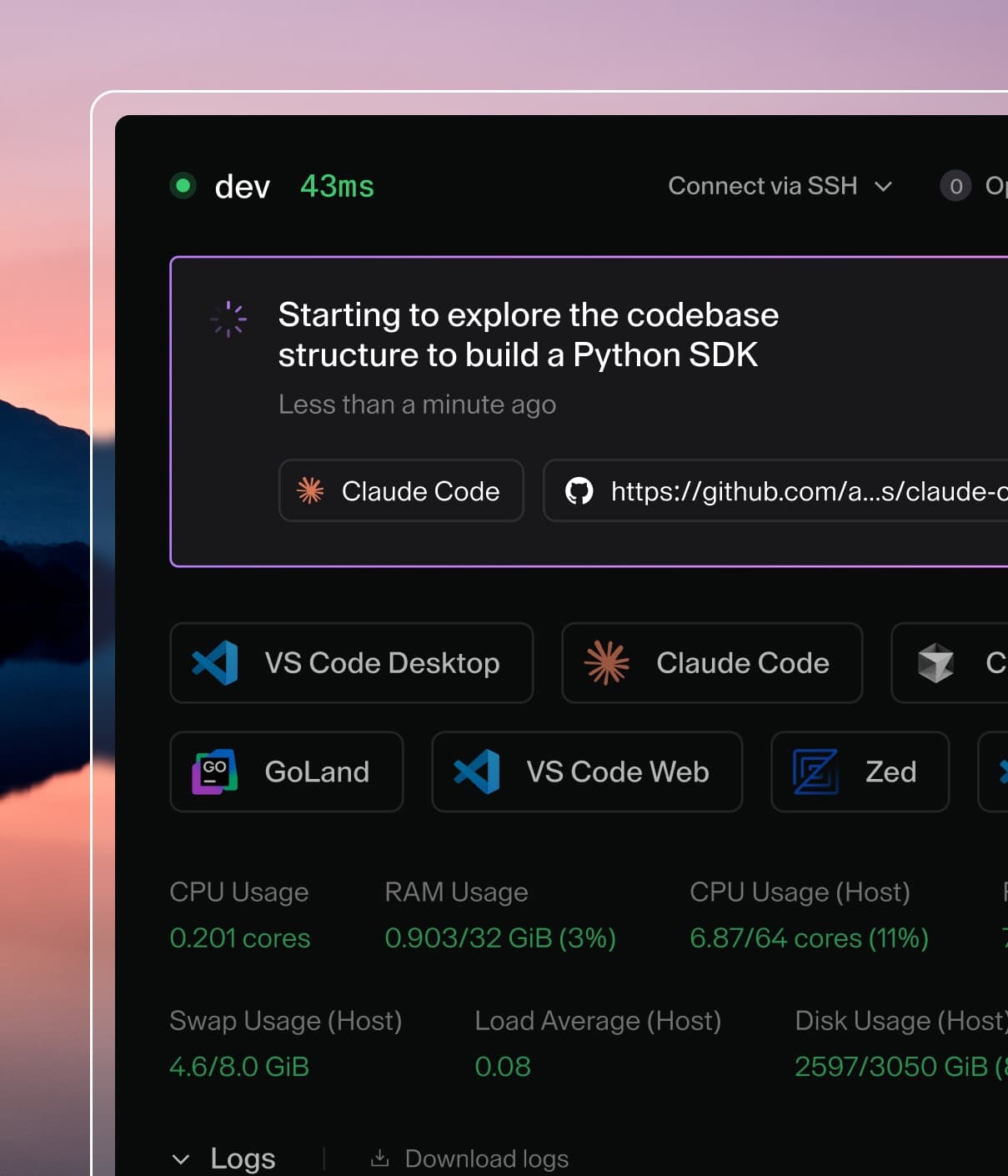
Coder powers secure, scalable development across key industries — automotive, finance, government, and technology — enabling faster builds, tighter compliance, and seamless AI adoption in enterprise-grade cloud environments.
Workspace templates can extend the agent with custom skills and MCP tools.
These mechanisms let platform teams provide repository-specific instructions, domain expertise, and external tool integrations without modifying the agent itself.
How the workspace shares context with chats
The workspace agent owns discovery.
It scans a fixed set of locations for instruction files, skills, and MCP configuration, then pushes the result to Coder as a single context snapshot.
Chats never scan the workspace themselves; they read the snapshot the agent pushed.
A workspace-attached chat pins one snapshot.
The pinned copy is what the agent's system prompt and tool list are built from, so a chat keeps working with a consistent view of your skills and MCP tools even while you edit files in the workspace.
The lifecycle of an edit looks like this:
You add a skill, edit .mcp.json, or change an instruction file in the workspace.
A file watcher notices the change, and the agent re-scans after a short period and then pushes a new snapshot.
Chats that have not pinned a snapshot yet pin the new one immediately.
Chats that already pinned an older snapshot are marked out of date instead of being switched over.
Selecting Refresh context in the chat re-pins that chat to the latest snapshot.
This is why an in-flight chat can keep using an older snapshot: a push never rewrites a chat's pinned context.
The pin only moves when the chat is first hydrated or when you refresh it.
The agent publishes nothing until the workspace is ready.
Until startup scripts finish, the agent holds an empty snapshot, so a chat opened during workspace startup can show no skills and no MCP tools until the first real push lands.
Where the agent looks
Each scan location is a scan root.
The agent scans the following:
The workspace working directory
~/.coder and ~/.coder/skills
~/.claude/plugins/cache
Any additional source you declare through the agent's context sources API
Declared sources contribute instruction files and skills only.
A .mcp.json file inside a declared source appears in the context inventory, but the agent does not connect to the servers it lists; MCP servers load only from the workspace working directory.
Discovery is shallow.
Instruction files (AGENTS.md, CLAUDE.md, .cursorrules) and .mcp.json are read only at the top level of a scan root, and skills are read only from the fixed container directories described below.
The agent never walks further down the tree and never climbs to a parent directory.
To pick up context in another directory, declare that directory as its own source.
Snapshot limits
A snapshot is capped so a large workspace cannot flood a chat's prompt:
Limit
Behavior when exceeded
64 KiB per file resource
The resource is reported with an oversize status and no content, so the chat lists it but cannot read it
2 MiB of file content across a snapshot
Resources past the cap are reported as excluded with no content
500 resources per snapshot
Resources past the cap are reported as excluded with no content
The byte caps measure file contents, such as instruction files and skill files.
MCP server entries count toward the 500-resource cap, but their tool definitions are not measured by the byte caps.
Excluded and oversize resources still appear in the chat's context list with their status and error, so a dropped skill or instruction file is visible rather than silently missing.
Skills
Skills are structured, reusable instruction sets that the agent loads on demand.
A chat can use skills from four sources:
Workspace skills live in the workspace filesystem and are discovered automatically when a chat attaches to a workspace.
Personal skills belong to you and are available to all of your chats.
Organization skills belong to an organization and are available to the chats in that organization.
Project skills belong to a chat project and are available to the chats in that project.
The rest of this section describes workspace skills.
How skills work
A skill is a directory containing a required SKILL.md file and any supporting files the skill needs.
The agent looks for skill directories in the immediate children of these containers, relative to each scan root:
skills/
.agents/skills/
.claude/skills/
.codex/skills/
Because ~/.coder/skills is itself a scan root, skills placed directly under it are discovered too.
Each discovered skill contributes its name and description to the <available-skills> block in the agent's system prompt.
The full instructions are loaded only when the agent calls a tool, and they are served from the chat's pinned snapshot rather than read live from the workspace.
A skill added after a chat pinned its snapshot appears in that chat after you refresh its context.
Two tools are registered when skills are present:
Tool
Parameters
Description
read_skill
name (string)
Returns the SKILL.md body, the absolute skill directory (workspace skills), and a list of supporting files
read_skill_file
name (string), path (string)
Returns the content of a supporting file
For workspace skills, read_skill also returns dir, the absolute path to the skill directory in the workspace.
The agent's read_file and execute tools operate on that same workspace filesystem, so you can join dir with a supporting file's relative path to read or run that file directly, for example to execute a bundled scripts/ helper.
read_skill_file remains available as a path-safe convenience for reading supporting files.
Supporting files are read over the workspace connection, so read_skill_file and the supporting-file list need a reachable workspace.
The skill body comes from the pin and keeps working when the workspace is unreachable.
Each SKILL.md starts with YAML frontmatter containing a name and an optional description, followed by the full instructions in markdown:
---
name: deep-review
description: "Multi-reviewer code review with domain-specific reviewers"
---

# Deep Review

Instructions for the skill go here...
Naming and size constraints
Names must be kebab-case (^[a-z0-9]+(-[a-z0-9]+)*$) and match the directory name exactly.
SKILL.md has a maximum size of 64 KB.
A larger file is reported with an oversize status and contributes no content to the chat.
Supporting files have a maximum size of 512 KB.
Files exceeding the limit are silently truncated.
A skill with its frontmatter missing, unparsable, not kebab-case, or not matching its directory name is reported as invalid and contributes no instructions.
Path safety
read_skill_file rejects absolute paths, paths containing .., and references to hidden files.
All paths are resolved relative to the skill directory.
Personal skills
Personal skills are user-owned skills that are available to all of your chats.
They are not tied to a specific workspace.
Manage them from the Agents page, under Settings > Skills, in the Personal skills section.
Personal skills use the same SKILL.md format as workspace skills: YAML frontmatter with a kebab-case name, an optional description, and a markdown body.
This keeps content portable between personal skills and workspace skills.
---
name: personal-reviewer
description: "Personal review guidance"
---

# Personal Reviewer

Instructions for the skill go here...
Each personal skill is stored as a single SKILL.md file containing frontmatter and body content.
Supporting files are not supported.
Each SKILL.md file can be up to 64 KB, and each user can create up to 100 personal skills.
Personal skills are stored in Coder, not in the workspace, so they are not part of a workspace context snapshot and do not depend on a pin or a refresh.
If you need richer skills with supporting files or multiple files, use workspace skills instead.
Store them in the repo under .agents/skills/<name>/, or load them from a workspace.
Organization skills
Organization skills let administrators publish a skill once for an organization instead of copying it into every workspace.
Chats in that organization can use the organization's skills next to personal and workspace skills.
Chats in other organizations never receive them.
Organization skills use the same single-file SKILL.md format and the same 64 KB limit as personal skills, so they cannot include supporting files.
Each organization can have up to 100 skills, and skills that are turned off count toward that limit.
Manage organization skills
Manage organization skills from Admin settings > AI > Coder Agents > Skills.
If you can view the skills of more than one organization, choose the organization in the organization picker.
The page address is /ai/settings/skills?org=<organization-name>.
Action
Built-in roles that can do it
Add, edit, delete, turn on or off, manage permissions
Site owners and organization admins
View, download, and export the skills and their SKILL.md content
Site owners, organization admins, auditors
A custom role can grant the same actions through organization_skill permissions.
Auditors get a read-only view of the page.
Coder records organization skill changes, including permission changes, in the audit log.
Control who can use an organization skill
Each organization skill has a list of the groups and members who can use it.
A new skill is shared with the organization's Everyone group, so every member can use it until an administrator narrows the list.
To change who can use a skill:
Open the skill's row menu.
Select Manage permissions.
In the Skill permissions dialog, add or remove organization members and groups.
Each entry grants the Use role.
Only current members of the organization can use a shared skill.
Removing someone from the organization also removes them from the list of every skill, so adding them back later doesn't restore those entries.
Site owners, organization admins, and auditors can read every skill in the organization, so they can use every organization skill that's turned on, whether or not the list includes them.
Without a Premium license, you can't create groups, so the only group is Everyone.
In that case, share a skill either with everyone or with individual members.
The organization skill API lives under /api/experimental/organizations/{organization}/skills.
It is experimental and might change.
Find the organization skills you can use
To check which organization skills you can use, open the Agents page and go to Settings > Skills.
The From your organizations section shows one organization at a time and lists that organization's skills that are turned on and that you can use.
For site owners, organization admins, and auditors, it lists every organization skill that is turned on.
If more than one of your organizations has such skills, choose an organization in the section's organization picker.
The section starts on your default organization when that organization has such skills.
An organization with no such skills doesn't appear in the picker, and the section doesn't appear when none of your organizations has any.
To read a skill, open its row menu and select View, which shows its name, description, and body in a read-only dialog.
To save its SKILL.md content as a file, select Download instead.
To save all of the listed skills of the selected organization in one archive, select Export all.
This section is read-only.
Ask an organization admin to change an organization skill.
Project skills
Project skills let the people who work in a chat project share skills with every chat in that project.
Chats outside the project never receive them.
Chat projects are experimental and require the chat-projects experiment.
Project skills use the same single-file SKILL.md format and the same 64 KB limit as personal skills, so they cannot include supporting files.
Each project can have up to 100 skills, and skills that are turned off count toward that limit.
Anyone who can edit a project can add, change, turn on or off, and delete its skills.
To manage them, open the project page and select the Skills row in the Details panel.
A chat in the project can use the project's skills while the chat owner owns the project or the project is shared with them, the same rule as for project instructions and memory.
An administrator role that can view every project does not count.
A sub-agent chat uses the skills of the project its top-level chat belongs to.
Show as action adds a button that inserts the skill into your message, above the composer on the project page and in the project's chats.
Turn off Agents can use it automatically to keep agents from loading the skill on their own, so it runs only when someone invokes it from the / menu or an action button.
The project skill API lives under /api/experimental/organizations/{organization}/chats/projects/{project}/skills.
It is experimental and might change.
How chats load stored skills
Personal, organization, and project skills are stored in Coder, not in the workspace.
At each step, a chat loads the personal skills of the chat owner that are turned on, and the organization skills of the chat's organization that are turned on and that the chat owner can use.
A chat in a project also loads the project's skills that are turned on, as long as the chat owner owns the project or the project is shared with them.
Workspace skills come from the chat's pinned context snapshot.
Because stored skills are read again at each step, a change takes effect on the chat's next step.
For example, when an administrator turns off an organization skill or removes someone's access, the chat stops listing that skill on its next step.
The / menu in the chat composer lists skills in four groups: Personal skills, Organization skills, Project skills, and Workspace skills.
The Project skills group appears only in chats that belong to a project.
The Organization skills group shows the skills of the chat's organization that are turned on and that you can use.
For site owners, organization admins, and auditors, the group lists every organization skill that is turned on.
Turn a skill on or off
Personal, organization, and project skills each have an Enabled column in their skills table.
If you can edit the skill, the column shows a switch that turns the skill on or off.
Otherwise, the column shows a check mark for a skill that is turned on and an X for a skill that is turned off.
For example, auditors on the Skills admin page and everyone in the From your organizations section see these icons instead of a switch.
A skill that is turned off stays stored, but it is hidden from the / menu and from the list of skills the agent can choose from.
If the agent asks for a skill that is turned off, read_skill reports that the skill was not found.
When a chat has no skills left to load, the agent doesn't get the read_skill tool at all.
Skills with the same name
The same skill name can exist in more than one source.
No source overrides another.
Instead, each copy gets a qualified alias that names its source:
Source
Qualified alias
Personal
personal/<name>
Organization
org/<name>
Project
project/<name>
Workspace
workspace/<name>
A bare name that matches more than one source is ambiguous, so read_skill rejects it.
The agent must pass the qualified alias instead, for example org/code-review.
The list of available skills in the agent's system prompt shortens a description longer than 1,024 characters to its first 1,023 characters followed by an ellipsis.
The stored description keeps the full text.
The read_skill result returns the skill body without the frontmatter, so it doesn't include the description.
Workspace MCP tools
Workspace templates can expose custom MCP tools by placing a .mcp.json file in the workspace working directory.
The agent connects to these servers, reports their tools in the context snapshot it pushes, and chats register those tools alongside their built-in tools.
To declare an MCP server inline on one chat through the API instead, refer to Inline MCP servers.
Configuration
Define MCP servers in .mcp.json at the workspace root.
Each entry under mcpServers describes a server.
The transport type is inferred from whether command or url is present, or you can set it explicitly with type:
Stdio transport:
set command, and optionally args and env.
The agent spawns the process in the workspace.
HTTP transport:
set url, and optionally headers.
The agent connects to the HTTP endpoint from the workspace.
How discovery works
The agent connects to the servers declared in .mcp.json once startup scripts finish.
Servers that fail to connect are skipped, and the rest still contribute their tools.
A single set of connections is shared by tool discovery and tool execution, so each declared server is launched once.
When the connected tool list changes, the agent re-scans and pushes a new snapshot.
Editing .mcp.json does not require a workspace restart.
The agent notices edits to the file and reloads its servers automatically.
The reload changes the pushed snapshot, but an MCP-only change does not mark existing chats out of date, and the dashboard offers Refresh context only on chats that are marked out of date.
New chats and chats that have not pinned a snapshot yet receive the new tool set immediately.
An existing chat keeps its current tool set until another context change, such as editing an instruction file or a skill, marks it out of date; refreshing then re-pins the whole snapshot, including the new MCP tools.
The snapshot carries tool definitions only, not a way to run them.
Every workspace MCP tool call is proxied back through the workspace agent, so a chat can list workspace MCP tools while the workspace is unreachable, but calling one requires a running workspace with the server connected.
Tool naming
Tool names are prefixed with the server name as serverName__toolName to avoid collisions between servers and with built-in tools.