Coder powers secure, scalable development across key industries — automotive, finance, government, and technology — enabling faster builds, tighter compliance, and seamless AI adoption in enterprise-grade cloud environments.
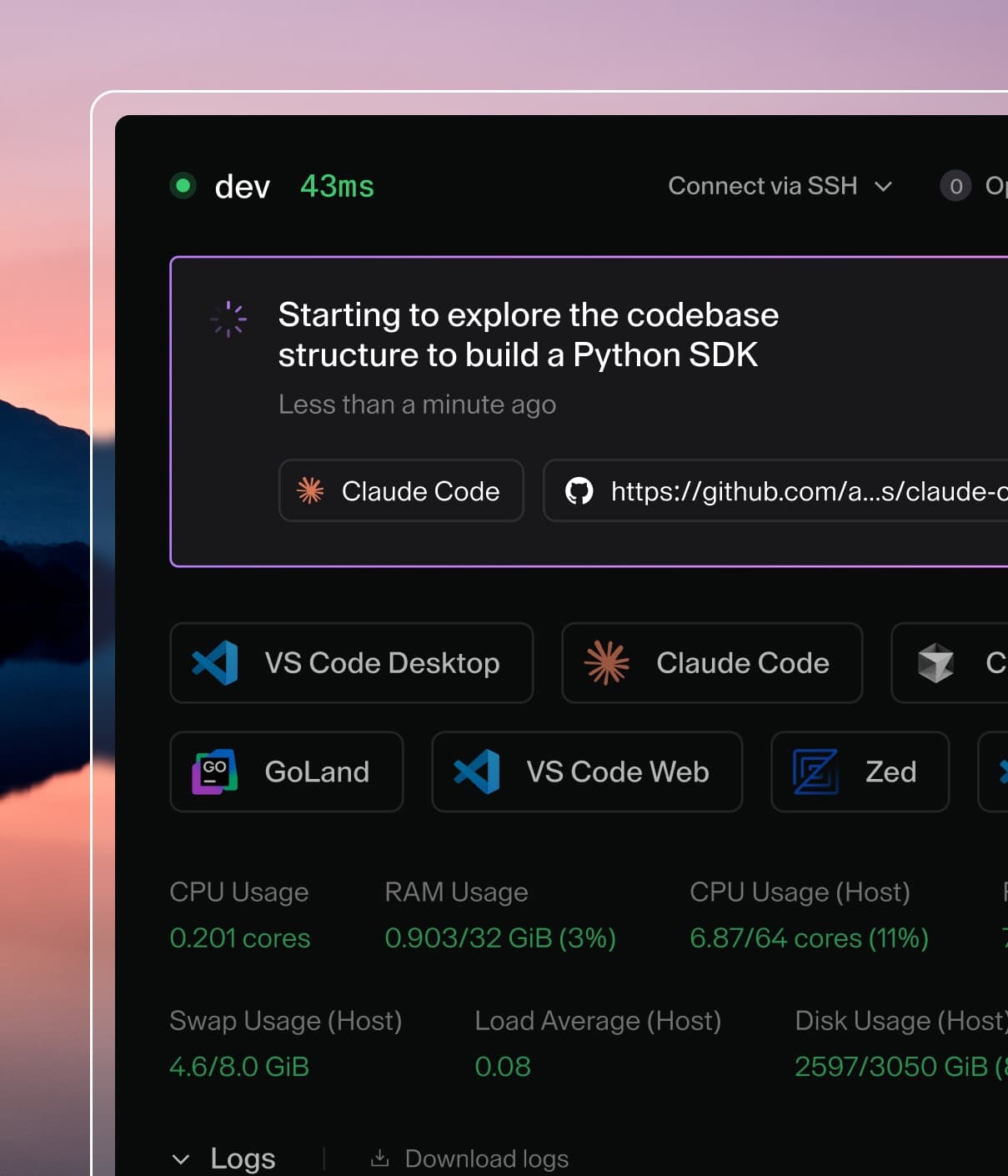
The dev container integration appears in your Coder dashboard, providing a visual representation of the running environment:
Dev containers appear as sub-agents with their own apps, SSH access, and port forwarding
SSH access
Each dev container has its own agent name, derived from the workspace folder (for example, /home/coder/my-project becomes my-project).
You can find agent names in your workspace dashboard, or see Agent naming for details on how names are generated.
Use the Coder CLI
The simplest way to SSH into a dev container is using coder ssh with the workspace and agent name:
coder ssh <workspace>.<agent>
For example, to connect to a dev container with agent name my-project in workspace my-workspace:
coder ssh my-workspace.my-project
To SSH into the main workspace agent instead of the dev container:
coder ssh my-workspace
Use OpenSSH (config-ssh)
You can also use standard OpenSSH tools after generating SSH config entries with coder config-ssh:
coder config-ssh
This creates a wildcard SSH host entry that matches all your workspaces and their agents, including dev container sub-agents.
You can then connect using:
ssh my-project.my-workspace.me.coder
The default hostname suffix is .coder.
If your organization uses a different suffix, adjust the hostname accordingly.
The suffix can be configured via coder config-ssh --hostname-suffix or by your deployment administrator.
This method works with any SSH client, IDE remote extensions, rsync, scp, and other tools that use SSH.
Web terminal access
Once your workspace and dev container are running, you can use the web terminal in the Coder interface to execute commands directly inside the dev container.
IDE integration (VS Code)
You can open your dev container directly in VS Code by:
Selecting Open in VS Code Desktop from the dev container agent in the Coder web interface.
Using the Coder CLI:
coder open vscode <workspace>.<agent>
For example:
coder open vscode my-workspace.my-project
VS Code will automatically detect the dev container environment and connect appropriately.
While optimized for VS Code, other IDEs with dev container support may also work.
Port forwarding
Since dev containers run as sub-agents, you can forward ports directly to them using standard Coder port forwarding:
coder port-forward <workspace>.<agent> --tcp 8080
For example, to forward port 8080 from a dev container with agent name my-project:
This forwards port 8080 on your local machine directly to port 8080 in the dev container.
Coder also automatically detects ports opened inside the container.
Expose ports on the parent workspace
If you need to expose dev container ports through the parent workspace agent (rather than the sub-agent), you can use the appPort property in your devcontainer.json:
{
  "appPort": ["8080:8080", "4000:3000"]
}
This maps container ports to the parent workspace, which can then be forwarded using the main workspace agent.
When you modify your devcontainer.json, you need to rebuild the container for changes to take effect.
Coder detects changes and shows an Outdated status next to the dev container.
The Outdated indicator appears when changes to devcontainer.json are detected
Select Rebuild to recreate your dev container with the updated configuration.