Coder powers secure, scalable development across key industries — automotive, finance, government, and technology — enabling faster builds, tighter compliance, and seamless AI adoption in enterprise-grade cloud environments.
Be sure to keep the default firewall options checked so you can connect over
HTTP, HTTPS, and SSH.
We recommend keeping the default instance type (e2-standard-4, 4 cores and 16
GB memory) if you plan on provisioning Docker containers as workspaces on this
VM instance. Keep in mind this platforms is intended for proof-of-concept
deployments and you should adjust your infrastructure when preparing for
production use. See: Scaling Coder
Be sure to add a keypair so that you can connect over SSH to further
configure Coder.
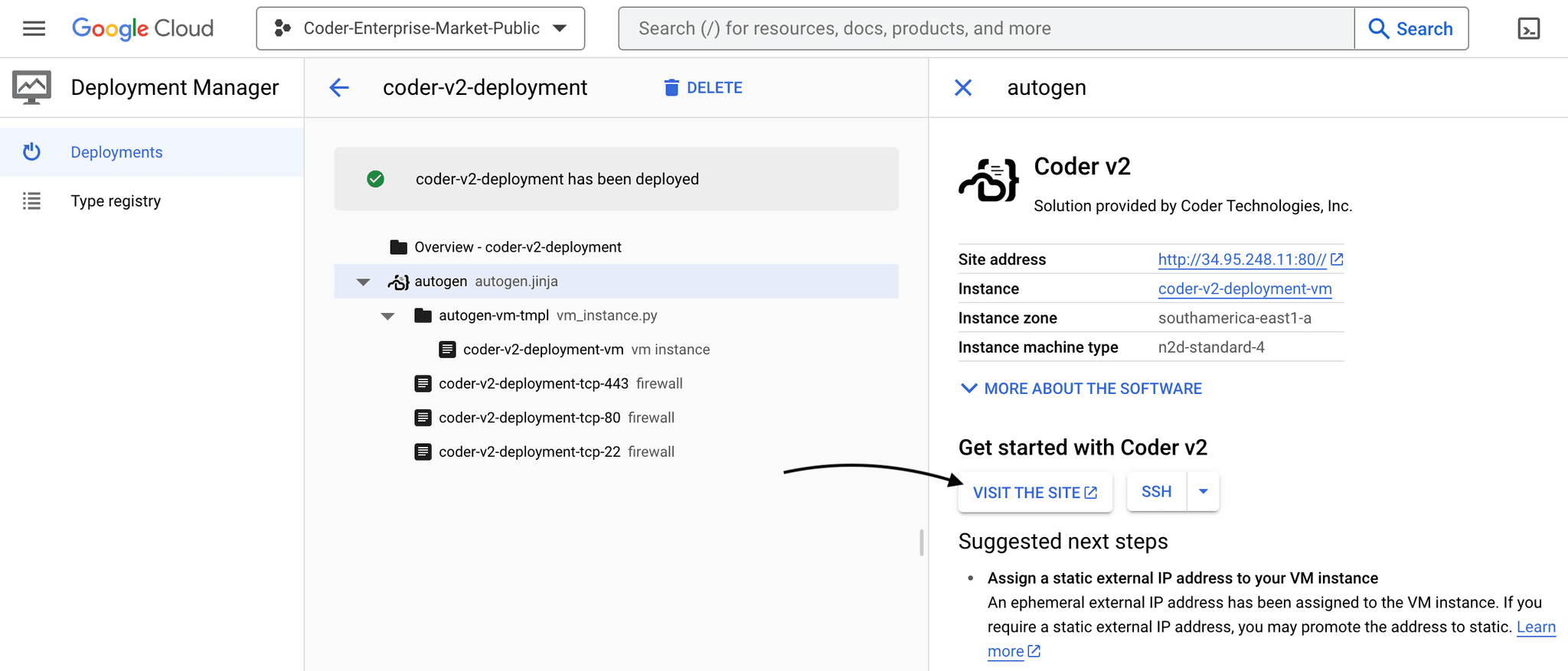
After launching the instance, wait 30 seconds and navigate to the public IPv4
address. You should be redirected to a public tunnel URL.
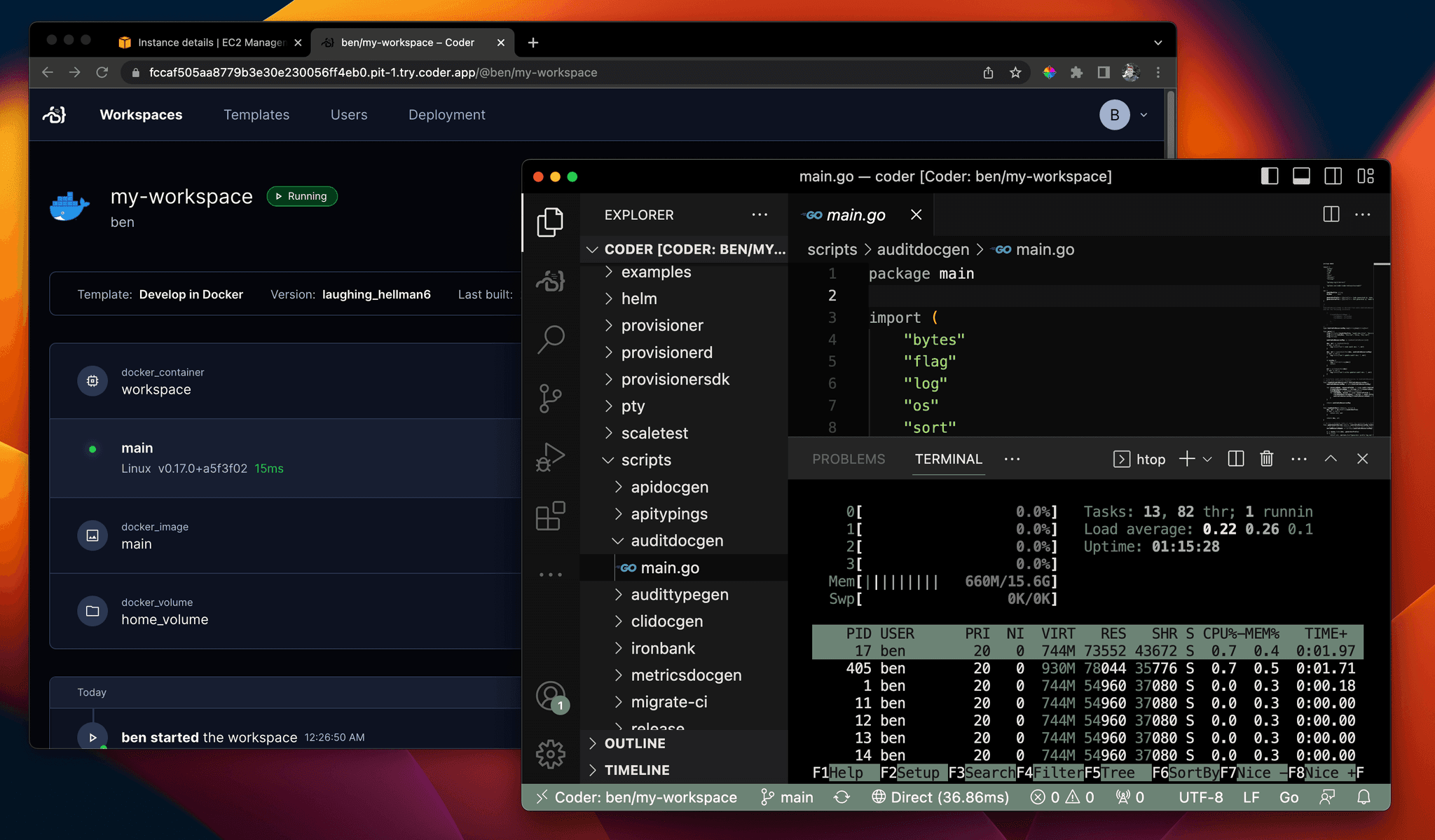
That's all! Use the UI to create your first user, template, and workspace. We
recommend starting with a Docker template since the instance has Docker
pre-installed.
Configuring Coder server
Coder is primarily configured by server-side flags and environment variables.
Given you created or added key-pairs when launching the instance, you can
configure your Coder deployment by logging in via
SSH or using the console:
Instead of running containers on the Coder instance, you can offer developers
full VM instances with the
gcp-linux
template.
Before you can use this template, you must authorize Coder to create VM
instances in your GCP project. Follow the instructions in the
gcp-linux template README
to set up authentication.