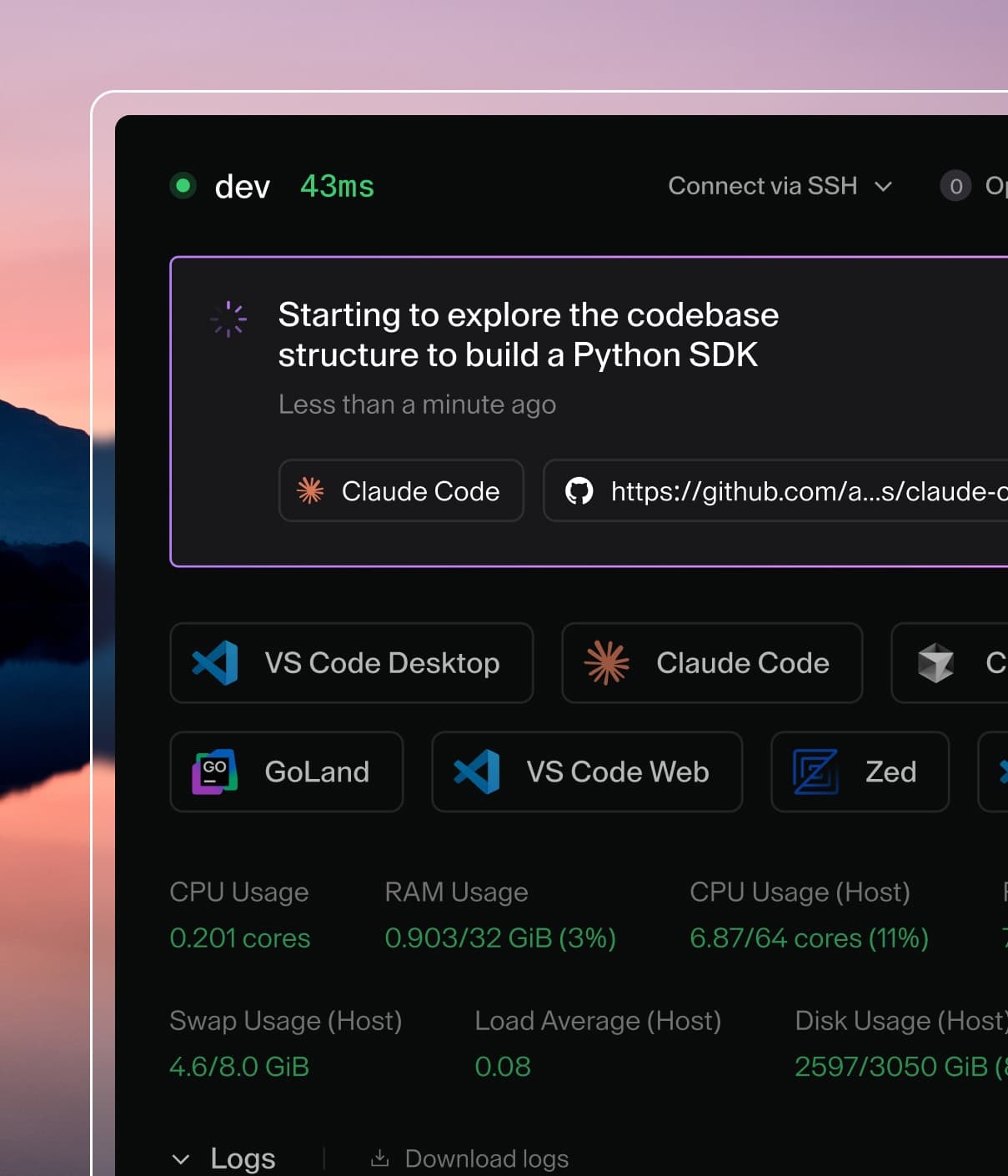
Coder powers secure, scalable development across key industries — automotive, finance, government, and technology — enabling faster builds, tighter compliance, and seamless AI adoption in enterprise-grade cloud environments.
Multiple users can securely connect to a single Coder workspace for programming and debugging.
Features
Workspace sharing is available to all Coder users by default, but platform admins with a Premium subscription can choose to disable sharing within their organizations or for their entire deployment.
Owners of a workspace can grant access to other users or groups with scoped roles.
This is helpful in a number of scenarios, including:
Developers can do ad-hoc debugging or pair programming.
A workspace can be owned by a group of users for QA, on-call rotations, or shared staging.
AI workflows where an agent prepares a workspace and a developer takes over to review or finalize the work (ex. with Coder Tasks.)
Getting Started
Workspaces can be shared through either the Coder CLI or UI.
Before you begin, ensure that you have a version of Coder with workspace sharing enabled and that your account has permission to share workspaces. This is true by default if you are an OSS user, but deployments with Premium licenses may be restricted by admins.
CLI
To share a workspace:
coder sharing share <workspace> --user alice
Shares the workspace with a single user, alice, with use permissions
Workspace is no longer shared with the group contractor.
Important
The workspace must be restarted for the user or group removal to take effect.
To show who a workspace is shared with:
coder sharing status <workspace>
To list shared workspaces:
coder list --search shared:true
coder list --search shared_with_user:me
coder list --search shared_with_user:<user>
coder list --search shared_with_group:<group>
UI
Sharing your Workspace
Open a workspace that you own.
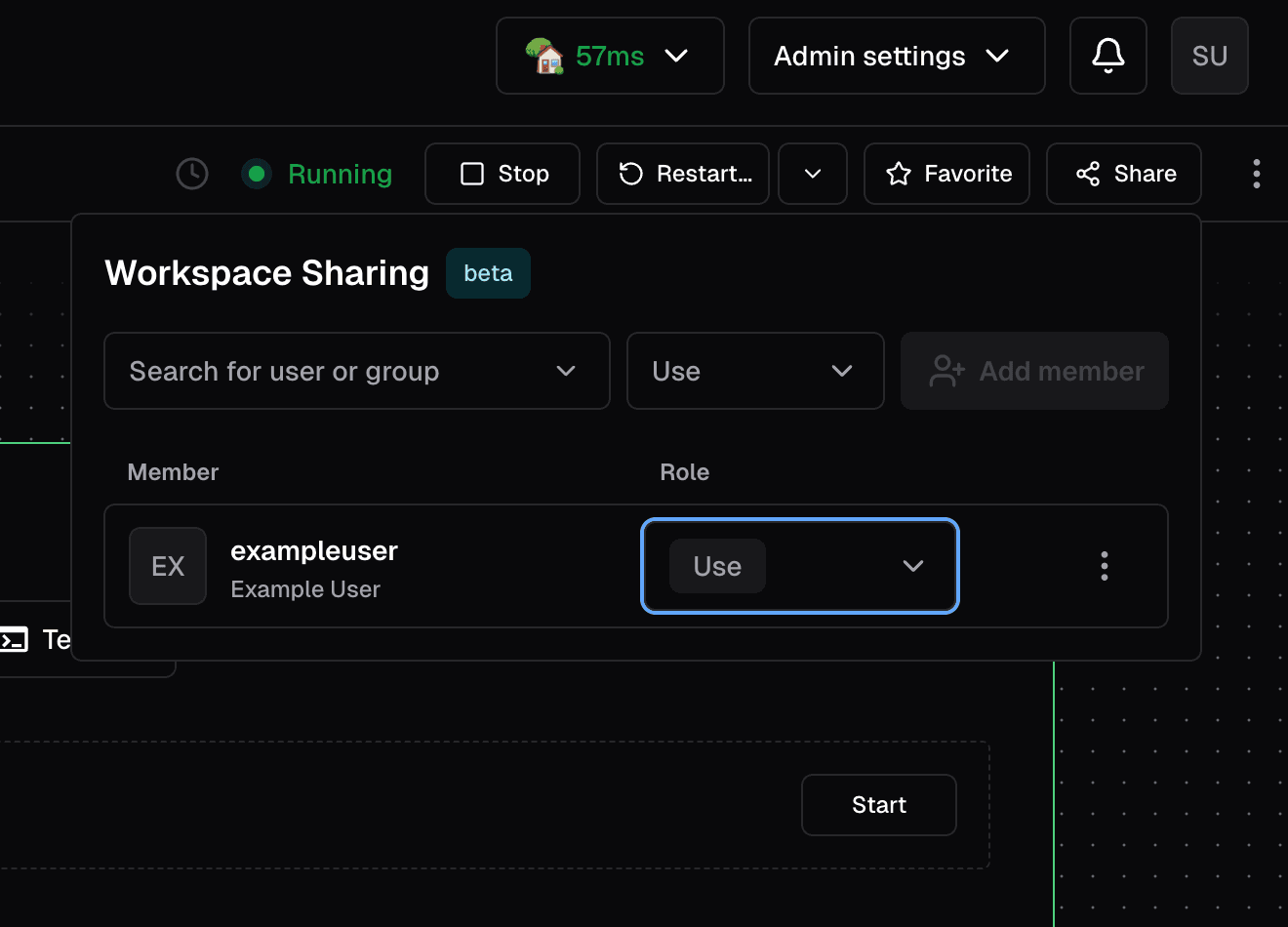
Locate and click the 'Share' button.
Add the users or groups that you want to share the workspace with. For each one, select a role.
use allows for connection via SSH and apps, the ability to start and stop the workspace, view logs and stats, and update on start when required.
admin allows for all of the above, as well as the ability to rename the workspace, update at any time, and invite others with the use role.
Neither role allows for the user to delete the workspace.
After removing a user/group, a workspace restart is required for the removal to take effect.
Using a shared workspace
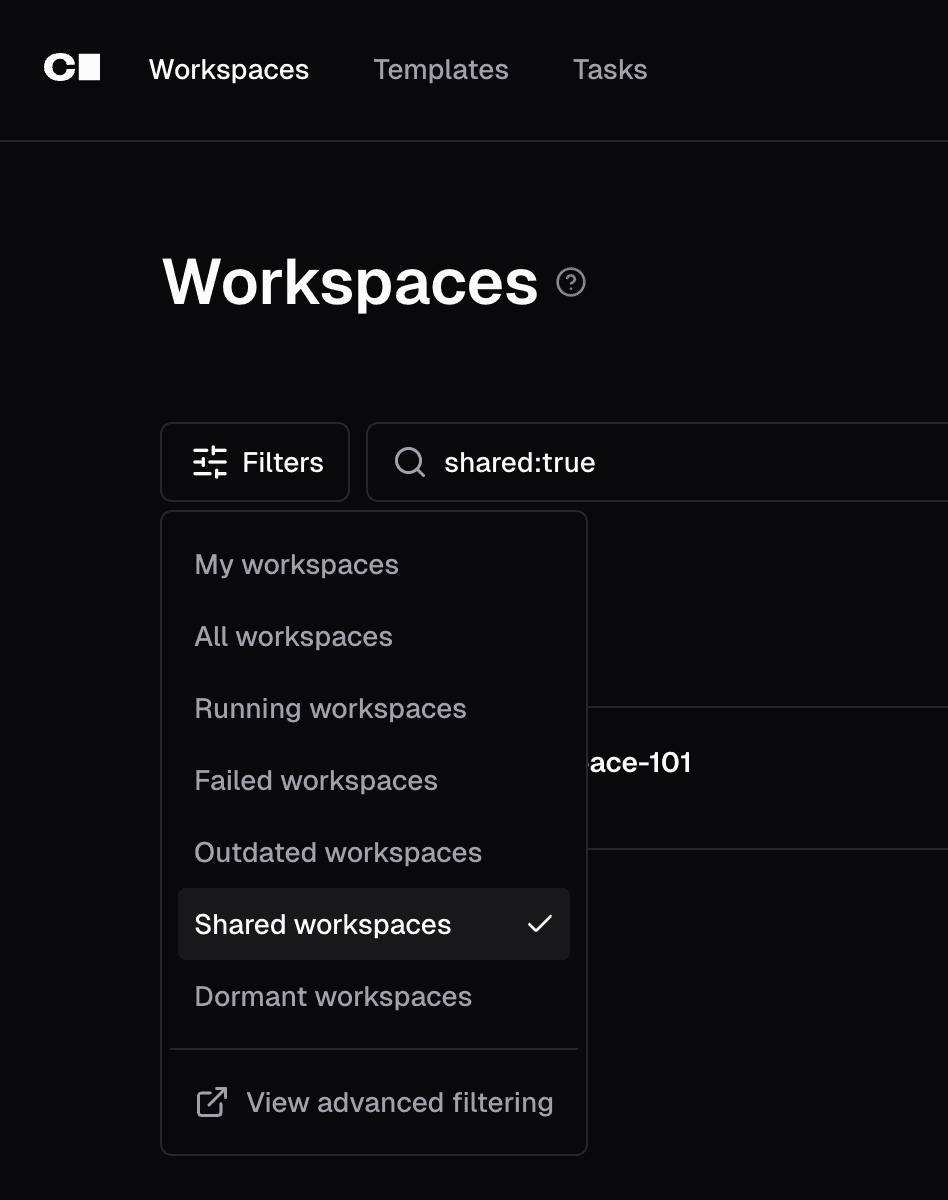
Once a workspace is shared, you can find the shared workspace by filtering for "Shared" in the Workspaces page.
Accessing workspace apps in shared workspaces
Sharing a workspace grants SSH and terminal access to other users. However,
workspace apps like code-server may return a 404 page for non-owners
depending on how the app is routed.
By default, workspace apps that don't set subdomain = true use path-based
routing (e.g., coder.example.com/@user/workspace/apps/code-server/).
Path-based apps share the same origin as the Coder dashboard, so Coder blocks
non-owners from accessing them to prevent
cross-site scripting risks.
This restriction applies even when the user has been granted access through
workspace sharing.
To allow other users to access workspace apps, configure subdomain-based access:
Set a
wildcard access URL
on your deployment
(e.g., CODER_WILDCARD_ACCESS_URL=*.coder.example.com).
Set subdomain = true on the workspace app. For example, if you use the
code-server module: