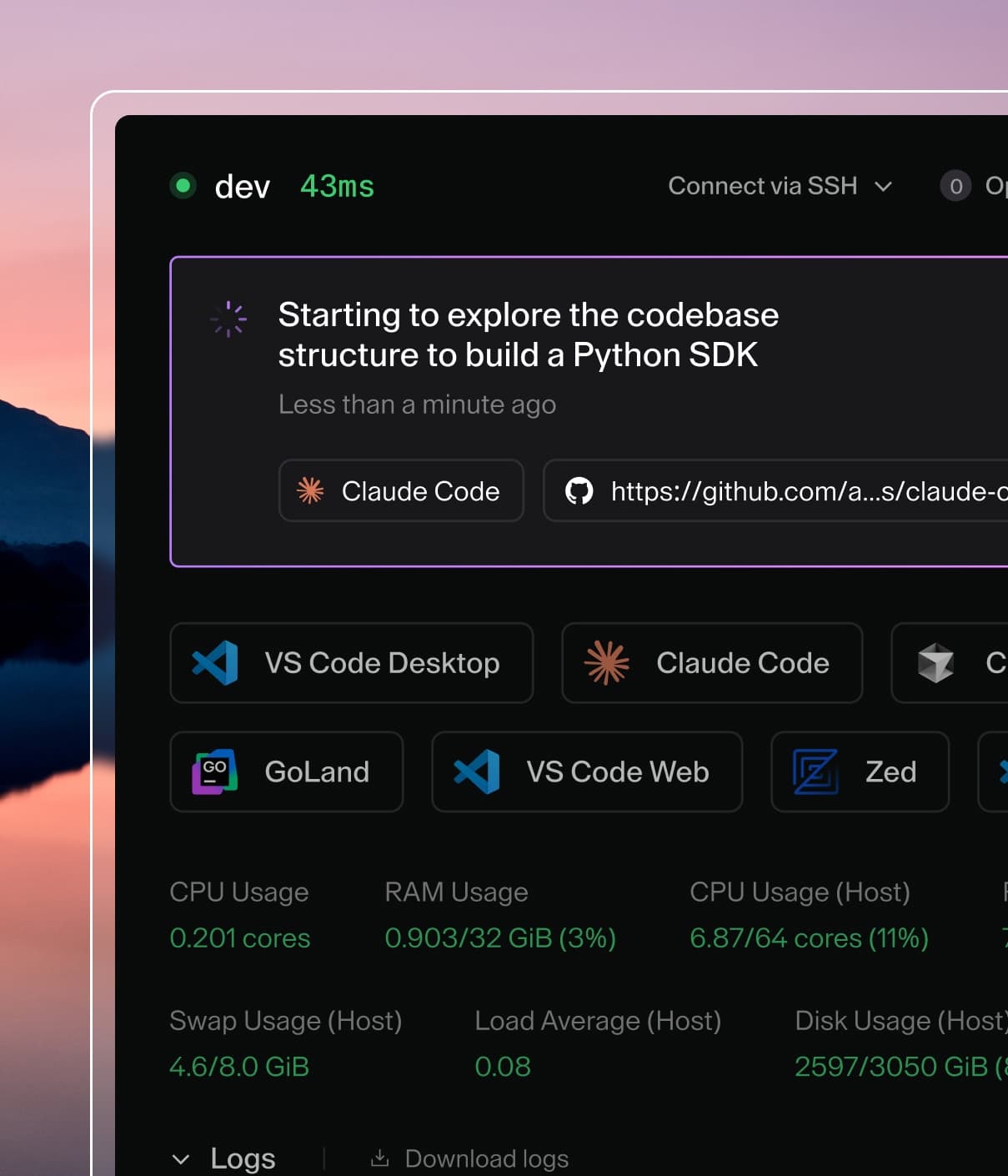
Coder powers secure, scalable development across key industries — automotive, finance, government, and technology — enabling faster builds, tighter compliance, and seamless AI adoption in enterprise-grade cloud environments.
This guide provides best practices for upgrading Coder, along with
troubleshooting steps for common issues encountered during upgrades,
particularly with database migrations in high availability (HA) deployments.
Before you upgrade
Tip
To check your current Coder version, use coder version from the CLI, check
the bottom-right of the Coder dashboard, or query the /api/v2/buildinfo
endpoint. See the version command for details.
Schedule upgrades during off-peak hours. Upgrades can cause a noticeable
disruption to the developer experience. Plan your maintenance window when
the fewest developers are actively using their workspaces.
The larger the version jump, the more migrations will run. If you are
upgrading across multiple minor versions, expect longer migration times.
Large upgrades should complete in minutes (typically 4-7 minutes).
If your upgrade is taking significantly longer, there may be an issue requiring investigation.
Check for known issues affecting your upgrade path. Some version upgrades
have known issues that may require a larger maintenance window or additional
steps. For example, upgrades from v2.26.0 to v2.27.8 may encounter issues with
the api_keys table—upgrading to v2.26.6 first can help mitigate this.
Contact Coder support for guidance on your specific
upgrade path.
Pre-upgrade strategy for Kubernetes HA deployments
Standard Kubernetes rolling updates may fail when exclusive database locks are
required because old replicas keep connections open. For production deployments
running multiple replicas (HA), active connections from existing pods can
prevent the new pod from acquiring necessary locks.
Recommended strategy for major upgrades
Scale down before upgrading: Before running helm upgrade, scale your
Coder deployment down to eliminate database connection contention from
existing pods.
Scale to zero for a clean cutover with no active database connections
when the upgrade starts. This momentarily ensures no application access to
the database, allowing migrations to acquire locks immediately:
kubectl scale deployment coder --replicas=0
Scale to one if you prefer to minimize downtime. This keeps one pod
running but eliminates contention from multiple replicas:
kubectl scale deployment coder --replicas=1
Perform upgrade: Run your standard Helm upgrade command. When scaling to
zero, this will bring up a fresh pod that can run migrations without
competing for database locks.
Scale back: Once the upgrade is healthy, scale back to your desired
replica count.
Kubernetes liveness probes and long-running migrations
Liveness probes can cause pods to be killed during long-running database
migrations. Starting with Coder v2.30.0, liveness probes are disabled by
default in the Helm chart.
This change was made because:
Liveness probes can kill pods during legitimate long-running migrations
If a Coder pod becomes unresponsive (due to a deadlock, etc.), it's better to
investigate the issue rather than have Kubernetes silently restart the pod
If you have enabled liveness probes in your deployment and observe pods
restarting with CrashLoopBackOff during an upgrade, the liveness probe may be
killing the pod prematurely.
Diagnose liveness probe issues
To confirm whether Kubernetes is killing pods due to liveness probe failures,
check the Kubernetes events and pod logs:
# Check events for the Coder deployment
kubectl get events --field-selector involvedObject.name=coder -n <namespace>

# Check pod logs for migration progress
kubectl logs -l app.kubernetes.io/name=coder -n <namespace> --previous
Look for events indicating Liveness probe failed or Container coder failed liveness probe, will be restarted.
Recommended approach
If you have liveness probes enabled and experience issues during upgrades,
disable them before upgrading:
kubectl edit deployment coder
Remove the livenessProbe section entirely, then proceed with the upgrade.
Note
For versions prior to v2.30.0, liveness probes were enabled by default. You
can disable them by editing the Deployment directly with kubectl edit deployment coder or by using a ConfigMap override. See the
Helm chart values
for configuration options available in v2.30.0+.
Workaround steps
Remove or adjust liveness probes: Temporarily remove the livenessProbe
from your Deployment configuration to prevent Kubernetes from restarting the
pod during migrations.
Isolate the migration: Ensure all extra replica sets are shut down. If
you have clear evidence of database locks from old pods, scale the deployment
to 1 replica to prevent old pods from holding locks on the tables being
upgraded.
Clear database locks: Monitor database activity. If the migration remains
blocked by locks despite scaling down, you may need to manually terminate
existing connections. See
Recover from failed database migrations
below for instructions.
Recover from failed database migrations
If an upgrade gets stuck in a restart loop due to database locks:
Scale to zero: Scale the Coder deployment to 0 to stop all application
activity.
kubectl scale deployment coder --replicas=0
Clear connections: Terminate existing connections to the Coder database
to release any lingering locks. This PostgreSQL command drops all active
connections to the database:
Caution
This command is intrusive and should be used as a last resort. Contact
Coder support before running destructive database
commands in production. SQL commands may vary depending on your PostgreSQL
version and configuration.
SELECT pg_terminate_backend(pid)
FROM pg_stat_activity
WHERE datname = 'coder'
AND pid <> pg_backend_pid();
Check schema migrations: Verify the level of upgrade and check if dirty
is true. If this has progressed, this now indicates your current Coder
installation state.
Note
The SQL commands below are for informational purposes. If you are unsure
about querying your database directly, contact
Coder support for assistance.
SELECT * FROM schema_migrations;
Ensure image version: Confirm the Deployment image is set to the
appropriate version (old or new, depending on the database migration state
found in step 3). Match your tag in the
migrations directory
to the value in the schema_migrations output.
Resume the upgrade: Follow the
pre-upgrade strategy to scale
back up and continue the upgrade process.
When to contact support
If you encounter any of the following issues, contact
Coder support:
Locking issues that cannot be mitigated by the steps in this guide
Migrations taking significantly longer than expected (more than 15 minutes) without evidence of lock contention, which may indicate database resource constraints requiring investigation
Resource consumption issues (excessive memory, CPU, or OOM kills) during
upgrades
Any other upgrade problems not covered by this documentation
When contacting support, please collect and provide:
coderd logs with details on the stages where the upgrade stalled
PostgreSQL logs if available
The Coder versions involved (source and target)
Your deployment configuration (number of replicas, resource limits)