Coder powers secure, scalable development across key industries — automotive, finance, government, and technology — enabling faster builds, tighter compliance, and seamless AI adoption in enterprise-grade cloud environments.
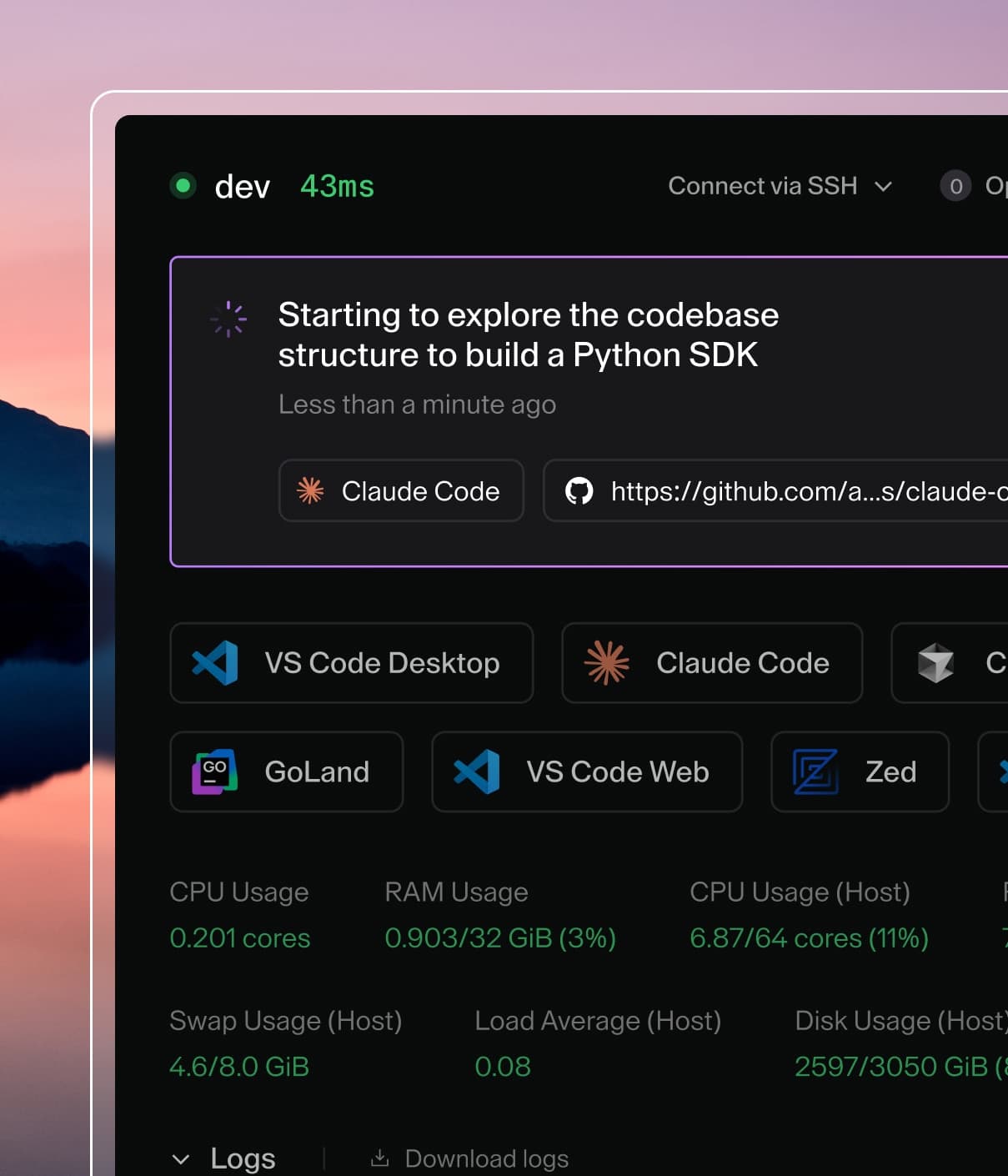
Click VS Code Desktop in the dashboard to one-click enter a workspace. This automatically installs the Coder Remote extension, authenticates with Coder, and connects to the workspace.
Launch VS Code Quick Open (Ctrl+P), paste the following command, and press enter.
ext install coder.coder-remote
Alternatively, manually install the VSIX from the latest release.
SSH configuration
Before proceeding, run coder login <accessURL> if you haven't already to
authenticate the CLI with the web UI and your workspaces.
To access Coder via SSH, run the following in the terminal:
coder config-ssh
Run coder config-ssh --dry-run if you'd like to see the changes that will be
made before proceeding.
Confirm that you want to continue by typing yes and pressing enter. If
successful, you'll see the following message:
You should now be able to ssh into your workspace.
For example, try running:

$ ssh coder.<workspaceName>
Your workspace is now accessible via ssh coder.<workspace_name> (e.g.,
ssh coder.myEnv if your workspace is named myEnv).
JetBrains Gateway
Gateway operates in a client-server model, using an SSH connection to the remote
host to install and start the server.
Setting up Gateway also involves picking a project directory, so if you have not
already done so, you may wish to open a terminal on your Coder workspace and
check out a copy of the project you intend to work on.