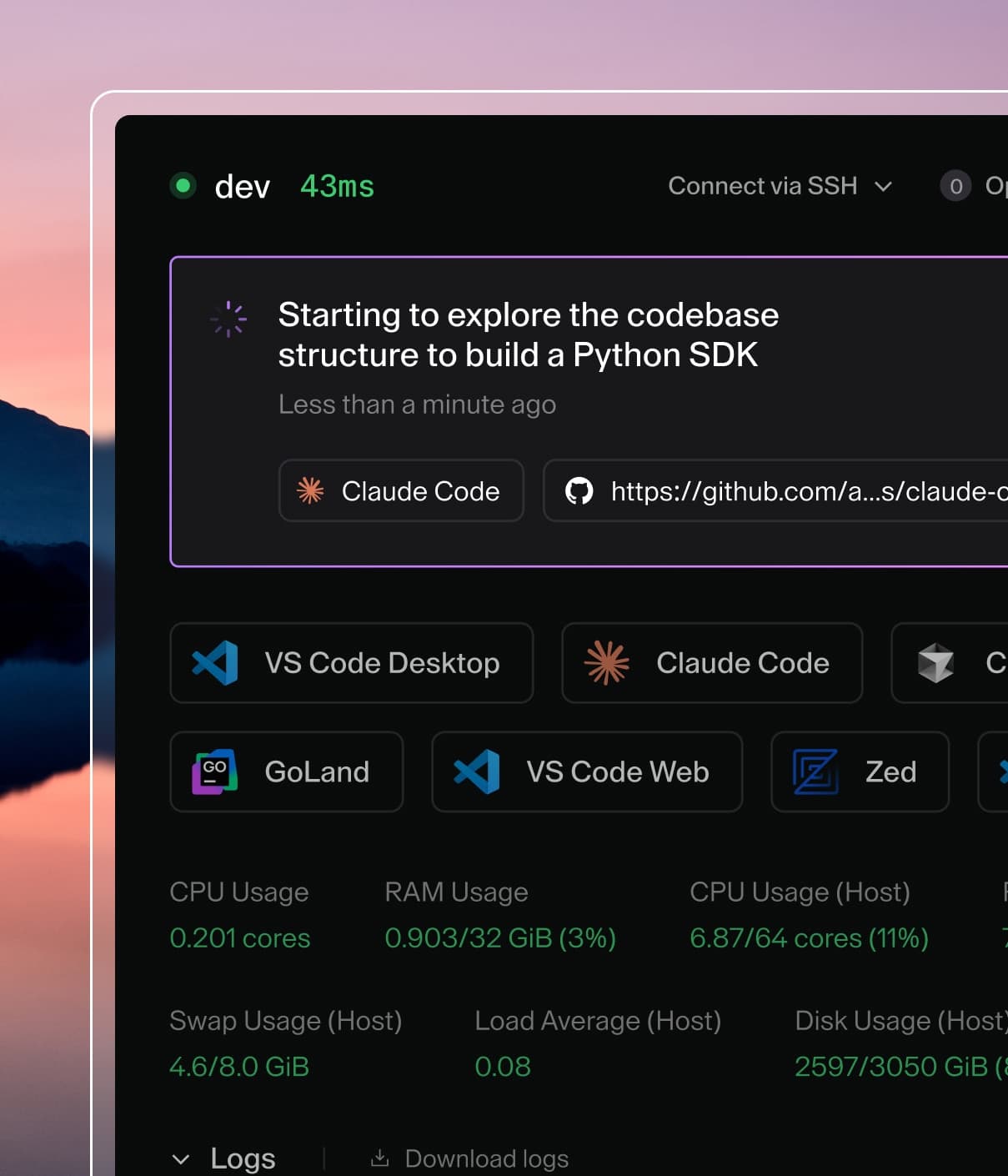
Coder powers secure, scalable development across key industries — automotive, finance, government, and technology — enabling faster builds, tighter compliance, and seamless AI adoption in enterprise-grade cloud environments.
Workspaces contain the IDEs, dependencies, and configuration information needed
for software development.
Create workspaces
Each Coder user has their own workspaces created from shared
templates:
# create a workspace from the template; specify any variables
coder create --template="<templateName>" <workspaceName>

# show the resources behind the workspace and how to connect
coder show <workspace-name>
Workspaces in Coder are started and stopped, often based on whether there was
any activity or if there was a template
update available.
Resources are often destroyed and re-created when a workspace is restarted,
though the exact behavior depends on the template. For more
information, see Resource Persistence.
⚠️ To avoid data loss, refer to your template documentation for information on
where to store files, install software, etc., so that they persist. Default
templates are documented in ../examples/templates.
You can use coder show <workspace-name> to see which resources are
persistent and which are ephemeral.
When a workspace is deleted, all of the workspace's resources are deleted.
Workspace scheduling
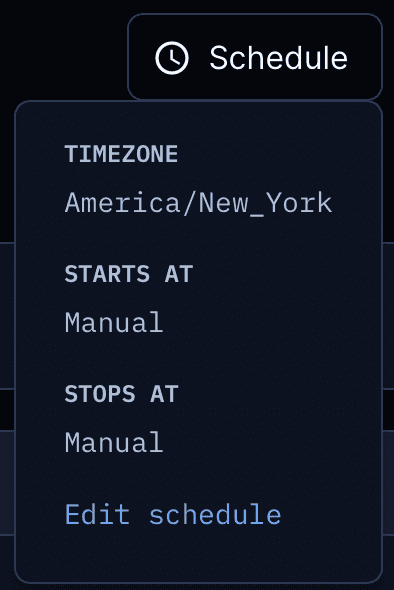
By default, workspaces are manually turned on/off by the user. However, a schedule
can be defined on a per-workspace basis to automate the workspace start/stop.
Auto-start
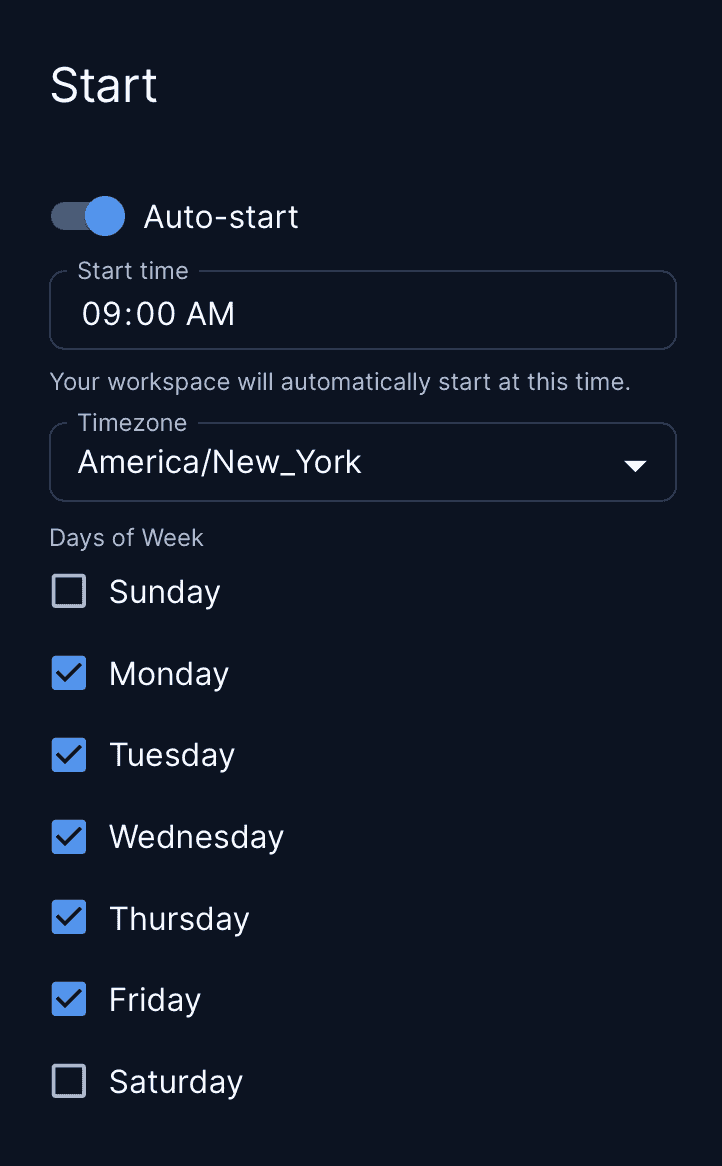
The auto-start feature automates the workspace build at a user-specified time
and day(s) of the week. In addition, users can select their preferred timezone.
Auto-stop
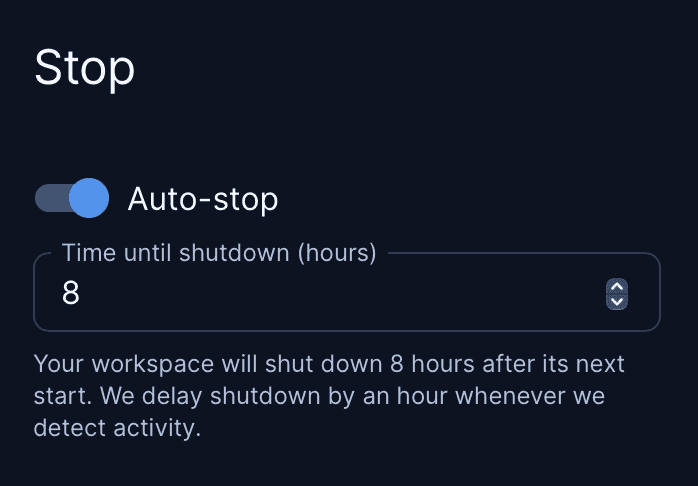
The auto-stop feature shuts off workspaces after given number of hours in the "on"
state. If Coder detects workspace connection activity, the auto-stop timer is bumped up
one hour. IDE, SSH, Port Forwarding, and coder_app activity trigger this bump.
Updating workspaces
Use the following command to update a workspace to the latest template version.
The workspace will be stopped and started:
coder update <workspace-name>
Repairing workspaces
Use the following command to re-enter template input
variables in an existing workspace. This command is useful when a workspace fails
to build because its state is out of sync with the template.