Coder powers secure, scalable development across key industries — automotive, finance, government, and technology — enabling faster builds, tighter compliance, and seamless AI adoption in enterprise-grade cloud environments.
Templates are written in Terraform and describe the
infrastructure for workspaces (e.g., docker_container, aws_instance,
kubernetes_pod).
In most cases, a small group of users (team leads or Coder administrators) have
permissions to create and manage templates. Then, other
users provision their workspaces from templates using the UI
or CLI.
Get the CLI
The CLI and the server are the same binary. We did this to encourage virality so
individuals can start their own Coder deployments.
From your local machine, download the CLI for your operating system from the
releases or run:
curl -fsSL https://coder.com/install.sh | sh
To see the sub-commands for managing templates, run:
coder templates --help
Login to your Coder Deployment
Before you can create templates, you must first login to your Coder deployment
with the CLI.
coder login https://coder.example.com # aka the URL to your coder instance
This will open a browser and ask you to authenticate to your Coder deployment,
returning an API Key.
Make a note of the API Key. You can re-use the API Key in future CLI logins or
sessions.
coder --token <your-api-key> login https://coder.example.com/ # aka the URL to your coder instance
Add a template
Before users can create workspaces, you'll need at least one template in Coder.
# create a local directory to store templates
mkdir -p $HOME/coder/templates
cd $HOME/coder/templates

# start from an example
coder templates init

# optional: modify the template
vim <template-name>/main.tf

# add the template to Coder deployment
coder templates create <template-name>
See the documentation and source code for each example as well as community
templates in the
examples/
directory in the repo.
Configure Max Workspace Auto-Stop
To control cost, specify a maximum time to live flag for a template in hours or
minutes.
coder templates create my-template --ttl 4h
Customize templates
Example templates are not designed to support every use (e.g
examples/aws-linux
does not support custom VPCs). You can add these features by editing the
Terraform code once you run coder templates init (new) or coder templates pull (existing).
Refer to the following resources to build your own templates:
While templates are written with standard Terraform, the Coder Terraform Provider is used to define the workspace lifecycle and establish a connection from resources
to Coder.
Below is an overview of some key concepts in templates (and workspaces). For all
template options, reference Coder Terraform provider docs.
Resource
Resources in Coder are simply Terraform resources.
If a Coder agent is attached to a resource, users can connect directly to the
resource over SSH or web apps.
Coder agent
Once a Coder workspace is created, the Coder agent establishes a connection
between a resource (docker_container) and Coder, so that a user can connect to
their workspace from the web UI or CLI. A template can have multiple agents to
allow users to connect to multiple resources in their workspace.
Resources must download and start the Coder agent binary to connect to Coder.
This means the resource must be able to reach your Coder URL.
The coder_agent resource can be configured with additional arguments. For example,
you can use the env property to set environment variables that will be inherited
by all child processes of the agent, including SSH sessions. See the
Coder Terraform Provider documentation
for the full list of supported arguments for the coder_agent.
startup_script
Use the Coder agent's startup_script to run additional commands like
installing IDEs, cloning dotfiles, and cloning
project repos.
resource "coder_agent" "coder" {
  os   = "linux"
  arch = "amd64"
  dir = "/home/coder"
  startup_script = <<EOT
#!/bin/bash

# install code-server 4.8.3
curl -fsSL https://code-server.dev/install.sh | sh -s -- --version 4.8.3

# The & prevents the startup_script from blocking so the
# next commands can run.
code-server --auth none --port &

# var.repo and var.dotfiles_uri is specified
# elsewhere in the Terraform code as input
# variables.

# clone repo
ssh-keyscan -t rsa github.com >> ~/.ssh/known_hosts
git clone --progress [email protected]:${var.repo}

# use coder CLI to clone and install dotfiles
coder dotfiles -y ${var.dotfiles_uri}

  EOT
}
Parameters
Templates often contain parameters. These are defined by variable blocks in
Terraform. There are two types of parameters:
Admin/template-wide parameters are set when a template is created/updated.
These values are often cloud configuration, such as a VPC, and are annotated
with sensitive = true in the template code.
User/workspace parameters are set when a user creates a workspace. These
values are often personalization settings such as "preferred region", "machine
type" or "workspace image".
The template sample below uses admin and user parameters to allow developers
to create workspaces from any image as long as it is in the proper registry:
variable "image_registry_url" {
  description = "The image registry developers can select"
  default     = "artifactory1.organization.com"
  sensitive   = true # admin (template-wide) parameter
}

variable "docker_image_name" {
  description = "The image your workspace will start from"
  default     = "base_image"
  sensitive   = false # user (workspace) parameter
}

resource "docker_image" "workspace" {
  # ... other config
  name = "${var.image_registry_url}/${var.docker_image_name}"
}
Coder workspaces can be started/stopped. This is often used to save on cloud
costs or enforce ephemeral workflows. When a workspace is started or stopped,
the Coder server runs an additional terraform apply,
informing the Coder provider that the workspace has a new transition state.
This template sample has one persistent resource (docker volume) and one
ephemeral resource (docker image).
data "coder_workspace" "me" {
}

resource "docker_volume" "home_volume" {
  # persistent resource (remains a workspace is stopped)
  count = 1
  name  = "coder-${data.coder_workspace.me.id}-home"
  lifecycle {
    ignore_changes = all
  }
}

resource "docker_container" "workspace" {
  # ephemeral resource (deleted when workspace is stopped, created when started)
  count = data.coder_workspace.me.start_count # 0 (stopped), 1 (started)
  volumes {
    container_path = "/home/coder/"
    volume_name    = docker_volume.home_volume.name
    read_only      = false
  }
  # ... other config
}
Using updated images when rebuilding a workspace
To ensure that Coder uses an updated image when rebuilding a workspace, we
suggest that admins update the tag in the template (e.g., my-image:v0.4.2 ->
my-image:v0.4.3) or digest (my-image@sha256:[digest] ->
my-image@sha256:[new_digest]).
Alternatively, if you're willing to wait for longer start times from Coder, you
can set the imagePullPolicy to Always in your Terraform template; when set,
Coder will check image:tag on every build and update if necessary:
Using the CLI, login to Coder and run the following command to edit a single
template:
coder templates edit <template-name> --description "This is my template"
Review editable template properties by running coder templates edit -h.
Alternatively, you can pull down the template as a tape archive (.tar) to your
current directory:
coder templates pull <template-name> file.tar
Then, extract it by running:
tar -xf file.tar
Make the changes to your template then run this command from the root of the
template folder:
coder templates push <template-name>
Your updated template will now be available. Outdated workspaces will have a
prompt in the dashboard to update.
Delete templates
You can delete a template using both the coder CLI and UI. Only template admins
and owners can delete a template, and the template must not
have any running workspaces associated to it.
Using the CLI, login to Coder and run the following command to delete a
template:
coder templates delete <template-name>
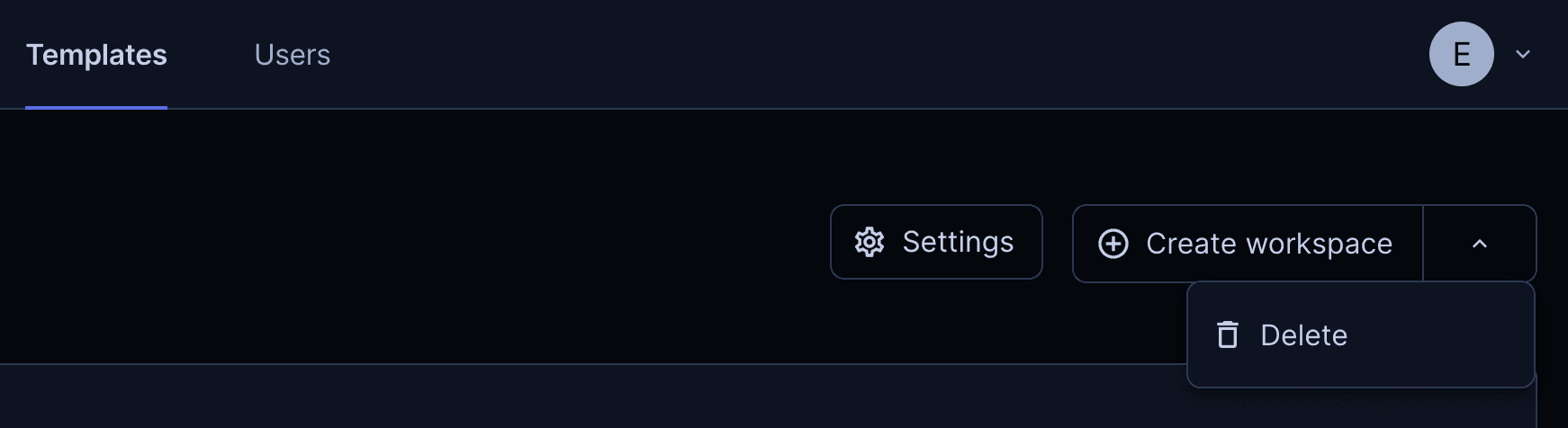
In the UI, navigate to the template you want to delete, and select the dropdown
in the right-hand corner of the page to delete the template.
Delete workspaces
When a workspace is deleted, the Coder server essentially runs a terraform
destroy to remove all resources
associated with the workspace.
By default, all templates allow developers to connect over SSH and a web
terminal. See Configuring Web IDEs to learn how to give
users access to additional web applications.
Data source
When a workspace is being started or stopped, the coder_workspace data source
provides some useful parameters. See the Coder Terraform provider for more information.
For example, the Docker quick-start template
sets a few environment variables based on the username and email address of the
workspace's owner, so that you can make Git commits immediately without any
manual configuration:
You can add these environment variable definitions to your own templates, or
customize them however you like.
Troubleshooting templates
Occasionally, you may run into scenarios where a workspace is created, but the
agent is not connected. This means the agent or init script
has failed on the resource.
$ coder ssh myworkspace
Waiting for [agent] to connect...
While troubleshooting steps vary by resource, here are some general best
practices:
Ensure the resource has curl installed
Ensure the resource can curl your Coder access
URL
Manually connect to the resource and check the agent logs (e.g., kubectl exec, docker exec or AWS console)
The Coder agent logs are typically stored in /var/log/coder-agent.log
The Coder agent startup script logs are typically stored in
/var/log/coder-startup-script.log