Coder powers secure, scalable development across key industries — automotive, finance, government, and technology — enabling faster builds, tighter compliance, and seamless AI adoption in enterprise-grade cloud environments.
A template can prompt the user for additional information when creating
workspaces with
parameters.
The user can set parameters in the dashboard UI and CLI.
You'll likely want to hardcode certain template properties for workspaces, such
as security group. But you can let developers specify other properties with
parameters like instance size, geographical location, repository URL, etc.
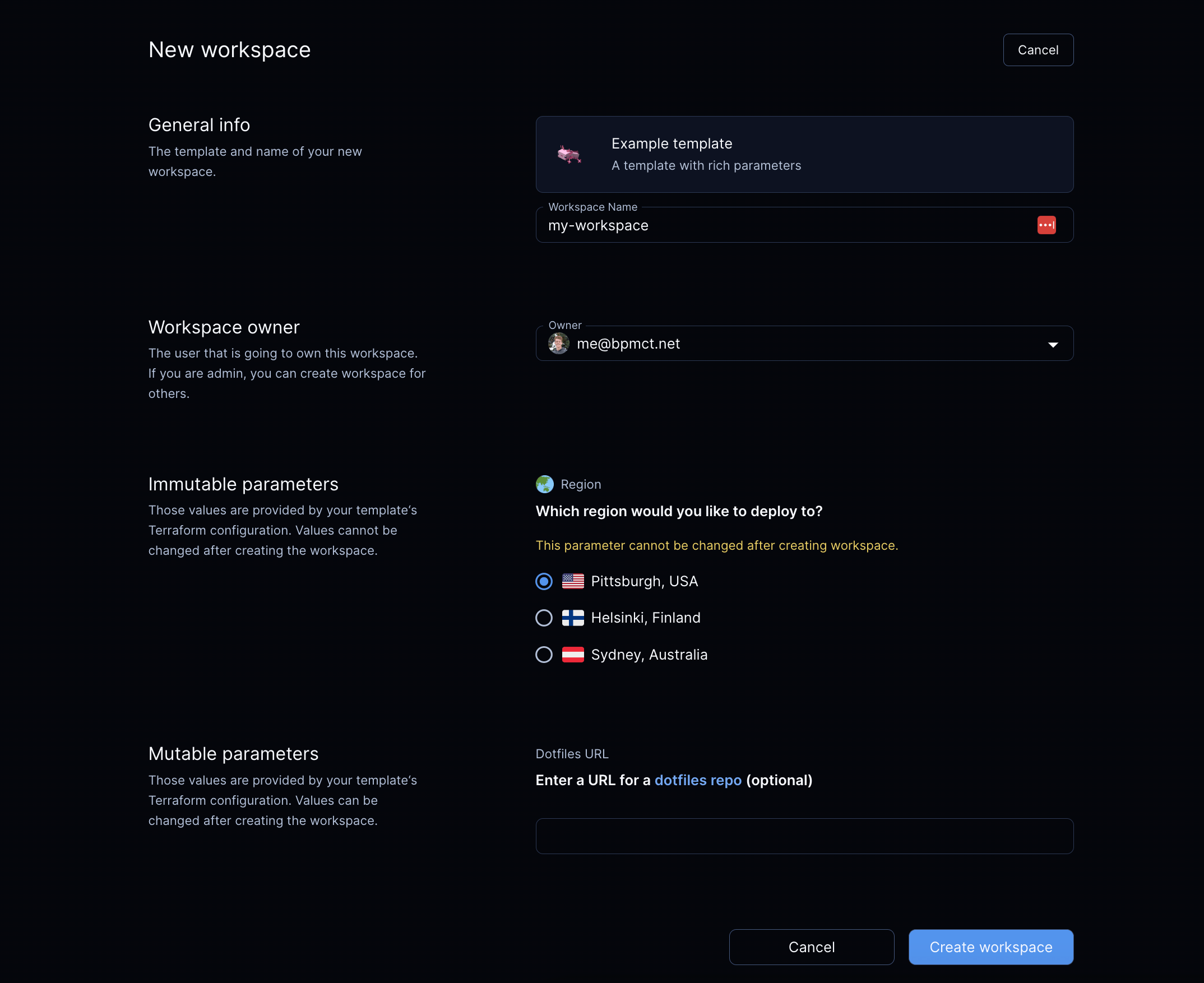
This example lets a developer choose a Docker host for the workspace:
data "coder_parameter" "docker_host" {
  name        = "Region"
  description = "Which region would you like to deploy to?"
  icon        = "/emojis/1f30f.png"
  type        = "string"
  default     = "tcp://100.94.74.63:2375"

  option {
    name = "Pittsburgh, USA"
    value = "tcp://100.94.74.63:2375"
    icon = "/emojis/1f1fa-1f1f8.png"
  }

  option {
    name = "Helsinki, Finland"
    value = "tcp://100.117.102.81:2375"
    icon = "/emojis/1f1eb-1f1ee.png"
  }

  option {
    name = "Sydney, Australia"
    value = "tcp://100.127.2.1:2375"
    icon = "/emojis/1f1e6-1f1f9.png"
  }
}
From there, a template can refer to a parameter's value:
Alternatively, you can use --rich-parameter-file to work around the above
issues. This allows you to specify parameters as YAML. An equivalent parameter
file for the above --parameter is provided below:
security_groups:
  - DevOps Security Group
  - Backend Security Group
Options
A string parameter can provide a set of options to limit the user's choices:
data "coder_parameter" "docker_host" {
  name        = "Region"
  description = "Which region would you like to deploy to?"
  type        = "string"
  default     = "tcp://100.94.74.63:2375"

  option {
    name = "Pittsburgh, USA"
    value = "tcp://100.94.74.63:2375"
    icon = "/emojis/1f1fa-1f1f8.png"
  }

  option {
    name = "Helsinki, Finland"
    value = "tcp://100.117.102.81:2375"
    icon = "/emojis/1f1eb-1f1ee.png"
  }

  option {
    name = "Sydney, Australia"
    value = "tcp://100.127.2.1:2375"
    icon = "/emojis/1f1e6-1f1f9.png"
  }
}
Incompatibility in Parameter Options for Workspace Builds
When creating Coder templates, authors have the flexibility to modify parameter
options associated with rich parameters. Such modifications can involve adding,
substituting, or removing a parameter option. It's important to note that making
these changes can lead to discrepancies in parameter values utilized by ongoing
workspace builds.
Consequently, workspace users will be prompted to select the new value from a
pop-up window or by using the command-line interface. While this additional
interactive step might seem like an interruption, it serves a crucial purpose.
It prevents workspace users from becoming trapped with outdated template
versions, ensuring they can smoothly update their workspace without any
hindrances.
Example:
Bob creates a workspace using the python-dev template. This template has a
parameter image_tag, and Bob selects 1.12.
Later, the template author Alice is notified of a critical vulnerability in a
package installed in the python-dev template, which affects the image tag
1.12.
Alice remediates this vulnerability, and pushes an updated template version
that replaces option 1.12 with 1.13 for the image_tag parameter. She
then notifies all users of that template to update their workspace
immediately.
Bob saves their work, and selects the Update option in the UI. As their
workspace uses the now-invalid option 1.12, for the image_tag parameter,
they are prompted to select a new value for image_tag.
Required and optional parameters
A parameter is required if it doesn't have the default property. The user
must provide a value to this parameter before creating a workspace:
data "coder_parameter" "account_name" {
  name        = "Account name"
  description = "Cloud account name"
  mutable     = true
}
If a parameter contains the default property, Coder will use this value if the
user does not specify any:
data "coder_parameter" "base_image" {
  name        = "Base image"
  description = "Base machine image to download"
  default     = "ubuntu:latest"
}
Admins can also set the default property to an empty value so that the
parameter field can remain empty:
data "coder_parameter" "dotfiles_url" {
  name        = "dotfiles URL"
  description = "Git repository with dotfiles"
  mutable     = true
  default     = ""
}
Mutability
Immutable parameters can only be set in these situations:
Creating a workspace for the first time.
Updating a workspace to a new template version. This sets the initial value
for required parameters.
The idea is to prevent users from modifying fragile or persistent workspace
resources like volumes, regions, and so on.
Example:
data "coder_parameter" "region" {
  name        = "Region"
  description = "Region where the workspace is hosted"
  mutable     = false
  default     = "us-east-1"
}
You can modify a parameter's mutable attribute state anytime. In case of
emergency, you can temporarily allow for changing immutable parameters to fix an
operational issue, but it is not advised to overuse this opportunity.
Ephemeral parameters
Ephemeral parameters are introduced to users in order to model specific
behaviors in a Coder workspace, such as reverting to a previous image, restoring
from a volume snapshot, or building a project without using cache. These
parameters are only settable when starting, updating, or restarting a workspace
and do not persist after the workspace is stopped.
Since these parameters are ephemeral in nature, subsequent builds proceed in the
standard manner:
data "coder_parameter" "force_rebuild" {
  name         = "force_rebuild"
  type         = "bool"
  description  = "Rebuild the Docker image rather than use the cached one."
  mutable      = true
  default      = false
  ephemeral    = true
}
Validating parameters
Coder supports rich parameters with multiple validation modes: min, max,
monotonic numbers, and regular expressions.
Number
You can limit a number parameter to min and max boundaries.
You can also specify its monotonicity as increasing or decreasing to verify
the current and new values. Use the monotonic attribute for resources that
can't be shrunk or grown without implications, like disk volume size.
data "coder_parameter" "instances" {
  name        = "Instances"
  type        = "number"
  description = "Number of compute instances"
  validation {
    min       = 1
    max       = 8
    monotonic = "increasing"
  }
}
It is possible to override the default error message for a number parameter,
along with its associated min and/or max properties. The following message
placeholders are available {min}, {max}, and {value}.
data "coder_parameter" "instances" {
  name        = "Instances"
  type        = "number"
  description = "Number of compute instances"
  validation {
    min       = 1
    max       = 4
    error     = "Sorry, we can't provision too many instances - maximum limit: {max}, wanted: {value}."
  }
}
NOTE: as of
terraform-provider-coder v0.19.0,
options can be specified in number parameters; this also works with
validations such as monotonic.
String
You can validate a string parameter to match a regular expression. The regex
property requires a corresponding error property.
data "coder_parameter" "project_id" {
  name        = "Project ID"
  description = "Alpha-numeric project ID"
  validation {
    regex = "^[a-z0-9]+$"
    error = "Unfortunately, this isn't a valid project ID"
  }
}
Create Autofill
When the template doesn't specify default values, Coder may still autofill
parameters.
Coder will look for URL query parameters with form param.<name>=<value>.
This feature enables platform teams to create pre-filled template creation
links.
Coder will populate recently used parameter key-value pairs for the user.
This feature helps reduce repetition when filling common parameters such as
dotfiles_url or region.