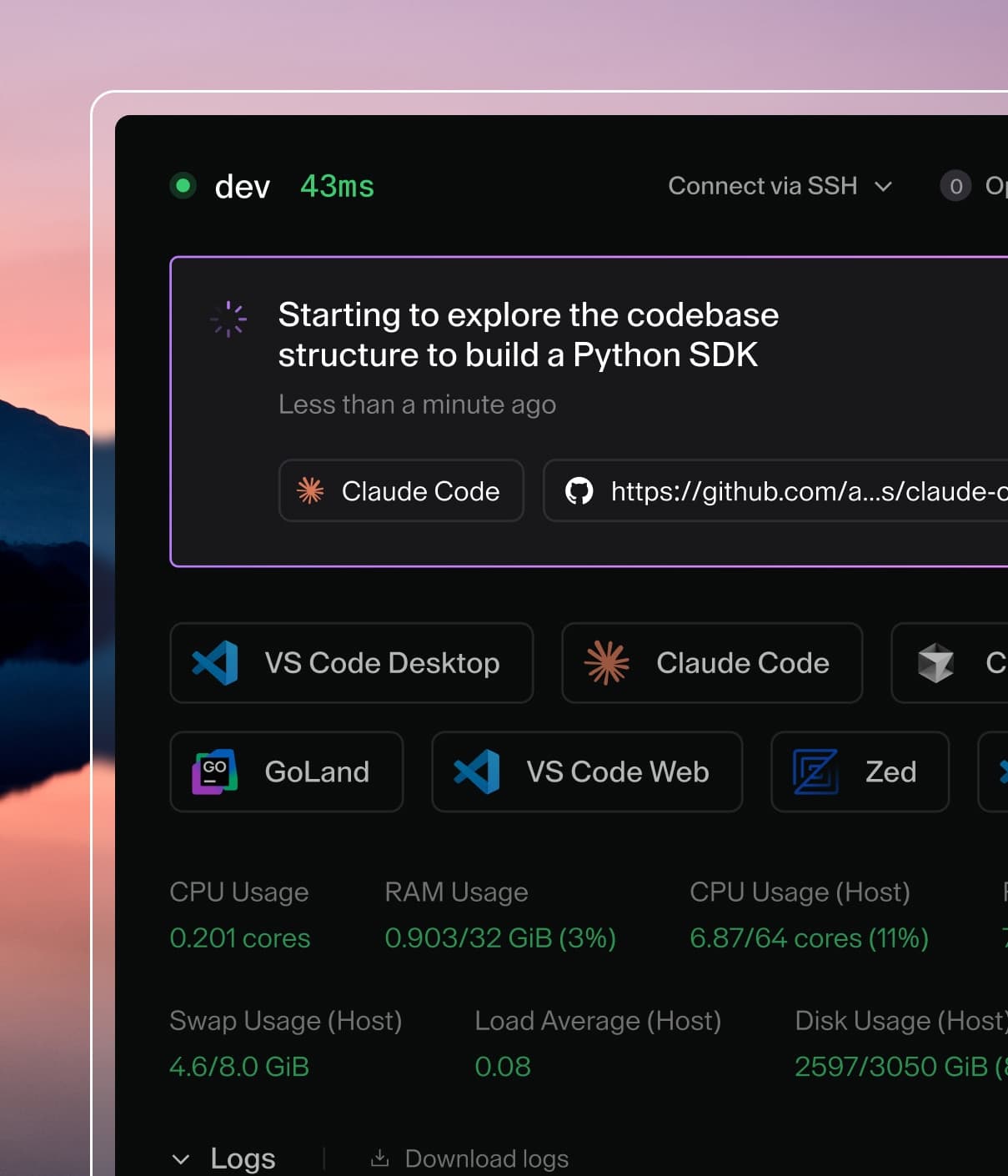
Coder powers secure, scalable development across key industries — automotive, finance, government, and technology — enabling faster builds, tighter compliance, and seamless AI adoption in enterprise-grade cloud environments.
Workspaces are flexible, reproducible, and isolated units of compute. Workspaces
are created via Terraform, managed through the Coder control plane, accessed
through the Coder agent, then stopped and deleted again by Terraform.
This page covers how workspaces move through this lifecycle. To learn about
automating workspace schedules for cost control, read the
workspace scheduling docs.
Workspace ephemerality
Workspaces are composed of resources which may be ephemeral or persistent.
Persistent resources stay provisioned when the workspace is stopped, where as
ephemeral resources are destroyed and recreated on restart. All resources are
destroyed when a workspace is deleted.
Template administrators can learn more about resource configuration in the
extending templates docs.
Workspace States
Generally, there are 3 states that a workspace may fall into:
Deleted: All resources destroyed, workspace records removed from database
If some error occurs during the above, a workspace may fall into one of the
following broken states:
Failed: Failure during provisioning, no resource consumption
Unhealthy: Resources have been provisioned, but the agent can't facilitate
connections
Workspace creation
Workspaces are created from templates via the
CLI, API, or dashboard.
By default, there is no limit on the number of workspaces a user may create,
regardless of the template's resource demands. Enterprise administrators may
limit the number of workspaces per template, group, and organization using
quotas to prevent over provisioning and control
costs.
When a user creates a workspace, they're sending a build request to the control
plane. Coder takes this and uses Terraform to
provision a workspace defined by your template.
Generally, templates define the resources and environment of a workspace.
The resources that run the agent are described as computational resources,
while those that don't are called peripheral resources. A workspace must
contain some computational resource to run the Coder agent process.
The provisioned workspace's computational resources start the agent process,
which opens connections to your workspace via SSH, the terminal, and IDES such
as JetBrains or
VSCode.
Once started, the Coder agent is responsible for running your workspace startup
scripts. These may configure tools, service connections, or personalization with
dotfiles.
Once these steps have completed, your workspace will now be in the Running
state. You can access it via any of the supported methods, stop it
when you're away, or delete it once it's no longer in use.
Stopping workspaces
Workspaces may be stopped manually by users and admins in the dashboard, CLI, or
API. Workspaces may be automatically stopped due to template updates or
inactivity by scheduling configuration.
Once stopped, a workspace may resume running by starting it manually, or via
user connection if automatic start is enabled.
Deleting workspaces
Similarly to stopping, workspaces may be deleted manually or automatically by
Coder through workspace dormancy.
A delete workspace build runs terraform destroy, destroying both persistent
and ephemeral resources. This action can not be reverted.
When enabled on enterprise deployments, workspaces will become dormant after a
specified duration of inactivity. Then, if left dormant, the workspaces will be
queued for deletion. Learn about configuring workspace dormancy in the template
scheduling docs.
Orphan resources
Typically, when a workspace is deleted, all of the workspace's resources are
deleted along with it. Rarely, one may wish to delete a workspace without
deleting its resources, e.g. a workspace in a broken state. Users with the
Template Admin role have the option to do so both in the UI, and also in the CLI
by running the delete command with the --orphan flag. This option should be
considered cautiously as orphaning may lead to unaccounted cloud resources.
Broken workspace states
During a workspace start or stop build, one of two errors may lead to a broken
state. If the call to terraform apply fails to correctly provision resources,
a workspace build has failed. If the computational resources fail to connect
the agent, a workspace becomes unhealthy.
A failed workspace is most often caused by misalignment from the definition in
your template's Terraform file and the target resources on your infrastructure.
Unhealthy workspaces are usually caused by a misconfiguration in the agent or
workspace startup scripts.
Workspace build times
After a successful build, you can see a timing breakdown of the workspace
startup process from the dashboard (starting in v2.17). We capture and display
both time taken to provision the workspace's compute and agent startup steps.
These include any
coder_scripts
such as dotfiles or
coder_app
startups.