Coder powers secure, scalable development across key industries — automotive, finance, government, and technology — enabling faster builds, tighter compliance, and seamless AI adoption in enterprise-grade cloud environments.
You can develop in your Coder workspace remotely with
VSCode. We support connecting with the
desktop client and VSCode in the browser with
code-server.
VSCode Desktop
VSCode desktop is a default app for workspaces.
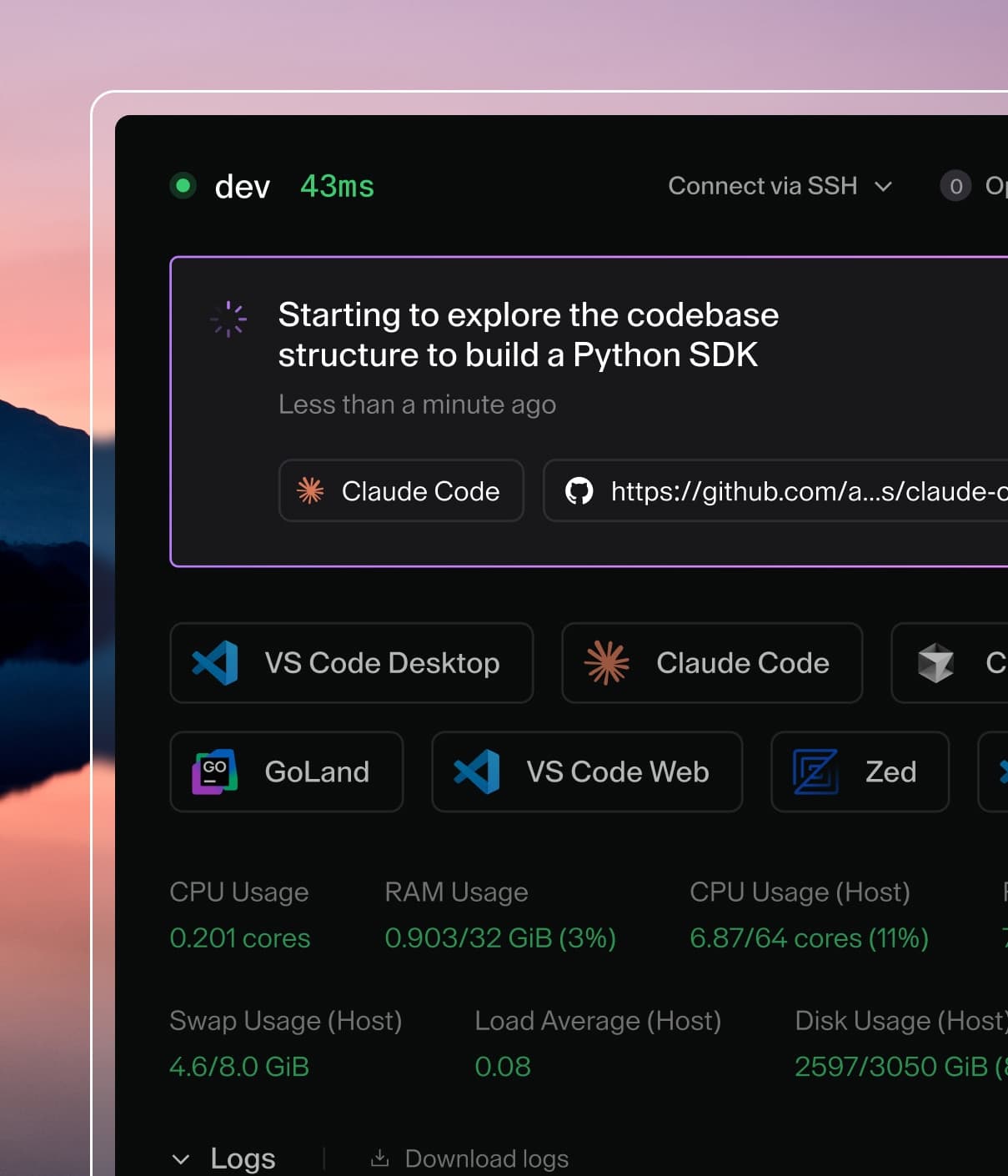
Click VS Code Desktop in the dashboard to one-click enter a workspace. This
automatically installs the Coder Remote
extension, authenticates with Coder, and connects to the workspace.
You can install our extension manually in VSCode using the command palette.
Launch VS Code Quick Open (Ctrl+P), paste the following command, and press
enter.
ext install coder.coder-remote
Alternatively, manually install the VSIX from the
latest release.
VS Code extensions
There are multiple ways to add extensions to VS Code Desktop:
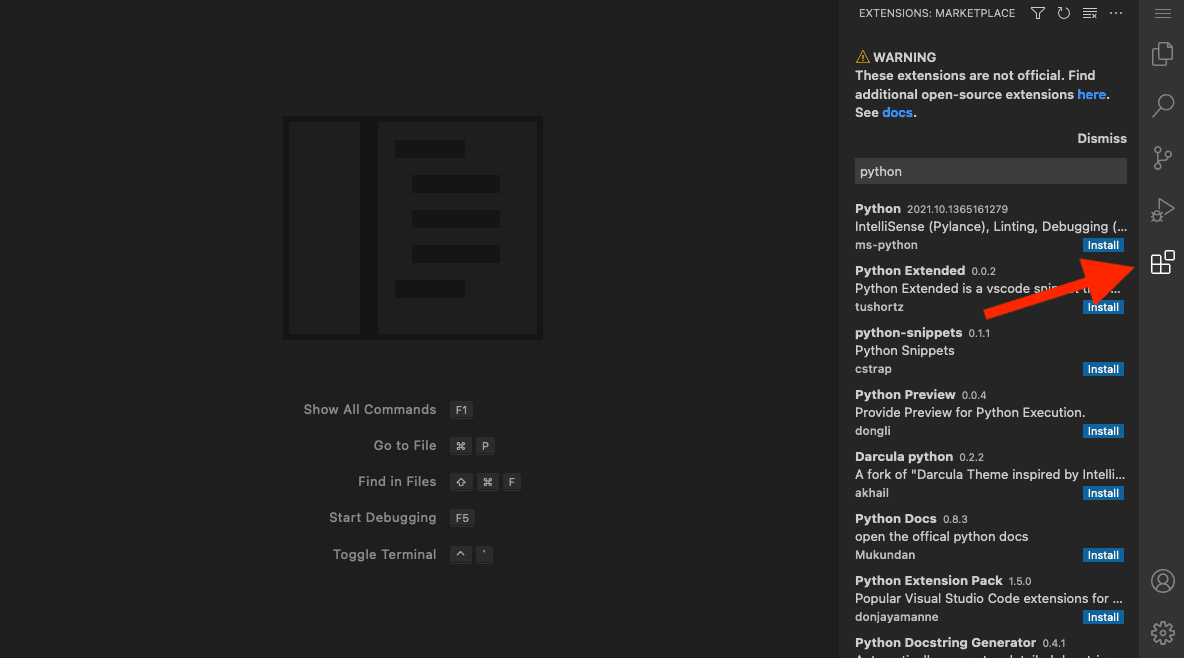
You can manually add an extension while you're working in the Code Web IDE. The
extensions can be from Coder's public marketplace, Eclipse Open VSX's public
marketplace, or the Eclipse Open VSX local marketplace.
Note: Microsoft does not allow any unofficial VS Code IDE to connect to the
extension marketplace.
Adding extensions to custom images
You can add extensions to a custom image and install them either through Code
Web or using the workspace's terminal.
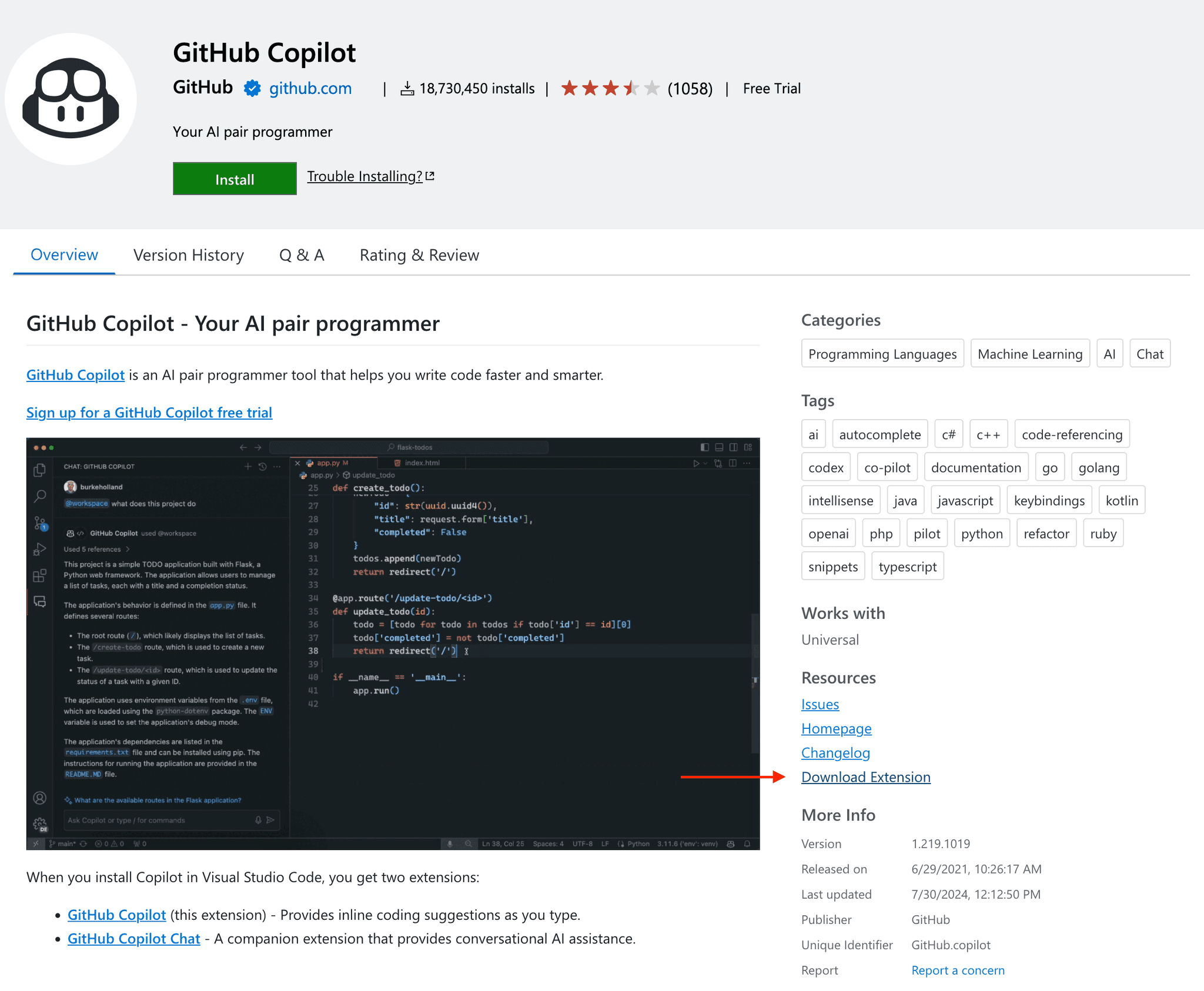
Download the extension(s) from the Microsoft public marketplace.
Add the vsix extension files to the same folder as your Dockerfile.
~/images/base
 ➜  ls -l
 -rw-r--r-- 1 coder coder       0 Aug 1 19:23 Dockerfile
 -rw-r--r-- 1 coder coder 8925314 Aug 1 19:40 GitHub.copilot.vsix
In the Dockerfile, add instructions to make a folder and to copy the vsix
files into the newly created folder.
FROM codercom/enterprise-base:ubuntu

# Run below commands as root user
USER root

# Download and install VS Code extensions into the container
RUN mkdir -p /vsix
ADD ./GitHub.copilot.vsix /vsix

USER coder
Build the custom image, and push it to your image registry.
Pass in the image and below command into your template startup_script (be
sure to update the filename below):
You will now have access to the extension in your workspace.
Installing extensions using its vsix file at the command line
Using the workspace's terminal or the terminal available inside code-server,
you can install an extension whose files you've downloaded from a marketplace:
Using the workspace's terminal or the terminal available inside Code Web (code
server), run the following to install an extension (be sure to update the
snippets with the name of the extension you want to install):
For your local VS Code to pickup extension files in your Coder workspace,
include this command in your startup_script, or run in manually in your
workspace terminal: