Coder powers secure, scalable development across key industries — automotive, finance, government, and technology — enabling faster builds, tighter compliance, and seamless AI adoption in enterprise-grade cloud environments.
Once AI Gateway is setup on your deployment, the AI coding tools used by your users will need to be configured to route requests via AI Gateway.
There are two ways to connect AI tools to AI Gateway:
Base URL configuration (Recommended): Most AI tools allow customizing the base URL for API requests. This is the preferred approach when supported.
AI Gateway Proxy: For tools that don't support base URL configuration, AI Gateway Proxy can intercept traffic and forward it to AI Gateway.
Note
AI Gateway works with tools running inside or outside
of Coder workspaces. For non-workspace setup, see
External and Desktop Clients.
Base URLs
Most AI coding tools allow the "base URL" to be customized. In other words, when a request is made to OpenAI's API from your coding tool, the API endpoint such as /v1/chat/completions will be appended to the configured base. Therefore, instead of the default base URL of https://api.openai.com/v1, you'll need to set it to https://coder.example.com/api/v2/aibridge/openai/v1.
The exact configuration method varies by client — some use environment variables, others use configuration files or UI settings:
OpenAI-compatible clients: Set the base URL (commonly via the OPENAI_BASE_URL environment variable) to https://coder.example.com/api/v2/aibridge/openai/v1
Anthropic-compatible clients: Set the base URL (commonly via the ANTHROPIC_BASE_URL environment variable) to https://coder.example.com/api/v2/aibridge/anthropic
Replace coder.example.com with your actual Coder deployment URL.
Authentication
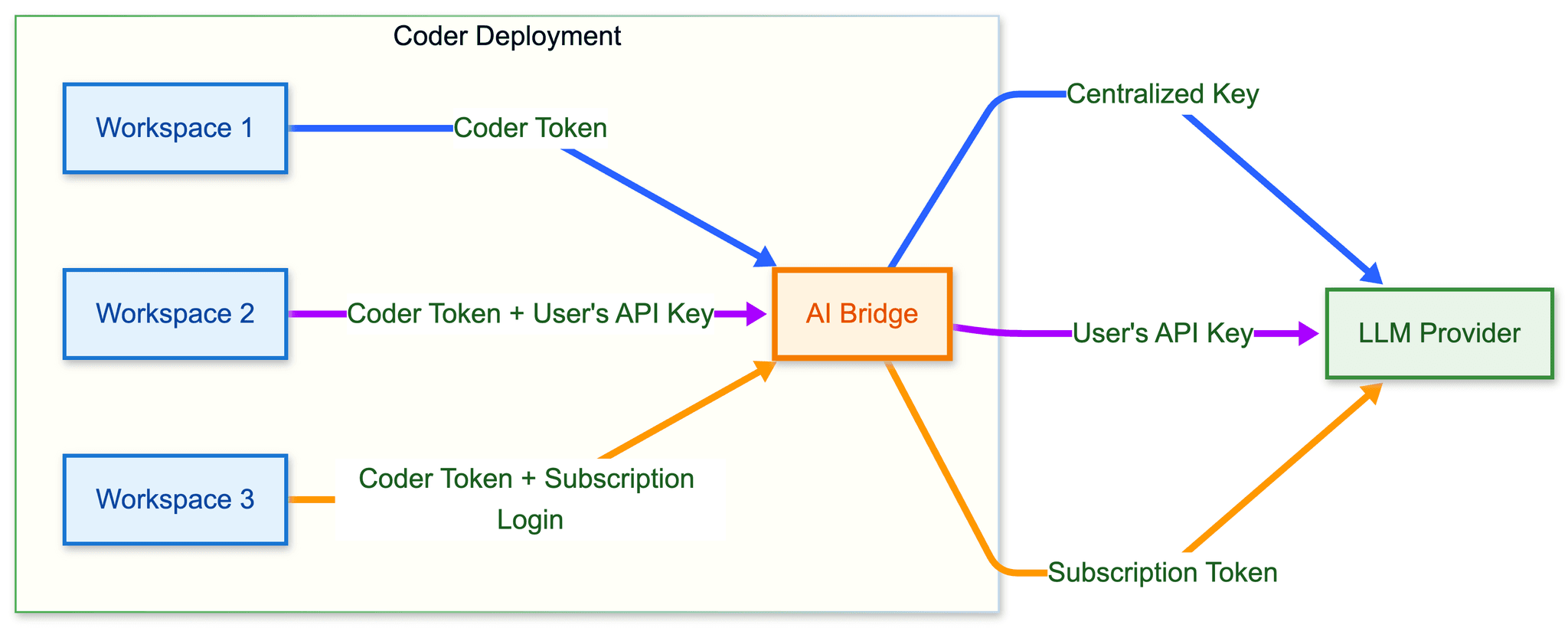
Instead of distributing provider-specific API keys (OpenAI/Anthropic keys) to users, they authenticate to AI Gateway using their Coder API token:
OpenAI clients: Users set OPENAI_API_KEY to their Coder API token
Anthropic clients: Users set ANTHROPIC_API_KEY to their Coder API token
Again, the exact environment variable or setting naming may differ from tool to tool. See a list of supported clients below and consult your tool's documentation for details.
Retrieving your session token
If you're logged in with the Coder CLI, you can retrieve your current session
token using coder login token:
In addition to centralized key management, AI Gateway supports Bring Your
Own Key (BYOK) mode. Users can provide their own LLM API keys or use
provider subscriptions (such as Claude Pro/Max or ChatGPT Plus/Pro) while
AI Gateway continues to provide observability and governance.
In BYOK mode, users need two credentials:
A Coder API token to authenticate with AI Gateway.
Their own LLM credential (personal API key or subscription token) which AI Gateway forwards
to the upstream provider.
BYOK and centralized modes can be used together. When a user provides
their own credential, AI Gateway forwards it directly. When no user
credential is present, AI Gateway falls back to the admin-configured
provider key. This lets organizations offer centralized keys as a default
while allowing individual users to bring their own.
See individual client pages for configuration details.
Enabling or disabling BYOK
BYOK is enabled by default. Administrators can disable it using --aibridge-allow-byok=false or CODER_AIBRIDGE_ALLOW_BYOK=false:
coder server --aibridge-allow-byok=false
When disabled, BYOK requests are rejected with a 403 Forbidden response and only centralized key authentication is permitted.
Compatibility
The table below shows tested AI clients and their compatibility with AI Gateway.
Legend: ✅ supported, ⚙️ requires AI Gateway Proxy, ❌ not supported, - not applicable.
Configuring In-Workspace Tools
AI coding tools running inside a Coder workspace, such as IDE extensions, can be configured to use AI Gateway.
This section applies when you want template admins to preconfigure tools inside Coder workspaces. For tools running outside of a workspace, see External and Desktop Clients.
While users can manually configure these tools with a long-lived API key, template admins can provide a more seamless experience by pre-configuring them. Admins can automatically inject the user's session token with data.coder_workspace_owner.me.session_token and the AI Gateway base URL into the workspace environment.
In this example, Claude Code respects these environment variables and will route all requests via AI Gateway.
data "coder_workspace_owner" "me" {}

data "coder_workspace" "me" {}

resource "coder_agent" "dev" {
    arch = "amd64"
    os   = "linux"
    dir  = local.repo_dir
    env = {
        ANTHROPIC_BASE_URL : "${data.coder_workspace.me.access_url}/api/v2/aibridge/anthropic",
        ANTHROPIC_AUTH_TOKEN : data.coder_workspace_owner.me.session_token
    }
    ... # other agent configuration
}
External and Desktop Clients
You can also configure AI tools running outside of a Coder workspace, such as local IDE extensions or desktop applications, to connect to AI Gateway. Use the same settings as the in-workspace case, configure the base URL and authenticate with a Coder API token.
For base URL setup, the client machine must have network access to the AI Gateway endpoint on your Coder deployment. Clients using AI Gateway Proxy must be able to reach the proxy endpoint and trust its CA certificate.
Users can generate a long-lived API token from the Coder UI or CLI. Follow the instructions at Sessions and API tokens to create one.
For headless scenarios, first create a service account, then generate a long-lived token for it.
Example
For clients supporting [base URL](#base-urls), eg. [Claude Code](./claude-code.md):