Coder powers secure, scalable development across key industries — automotive, finance, government, and technology — enabling faster builds, tighter compliance, and seamless AI adoption in enterprise-grade cloud environments.
AI Governance Cost Control reports estimated spend rather than billed cost.
Estimates will not match your provider invoices exactly. For details, see
How spend is estimated.
These terms appear throughout this page and in the Coder dashboard:
Term
What it means
Where it is set
Budget period
The window spend accumulates in before it resets. Defaults to the UTC calendar month.
Deployment settings
Budget policy
The rule that selects a user's effective group. Defaults to the highest budget.
Deployment settings
Group budget
A spend limit granted to each member of a group.
Groups > {group} > Settings
User override
A spend limit for one user that supersedes their group budget.
Groups > {group} > Members tab
Effective group
The group that supplies a user's budget and has their spend associated with it.
Resolved automatically
Estimated spend
A user's approximate spend in the current budget period.
Estimated from usage
Deployment settings
Two deployment-wide settings govern budget resolution and the reset window. Each
accepts a single value today.
Setting
Flag
Environment variable
Supported values
Default
Budget policy
--ai-budget-policy
CODER_AI_BUDGET_POLICY
highest
highest
Budget period
--ai-budget-period
CODER_AI_BUDGET_PERIOD
month
month
Budget policy determines which budget wins when a user belongs to more
than one budgeted group. highest selects the largest.
Budget period sets the reset window. month is the UTC calendar month, so
spend resets at 00:00 UTC on the first day of each month.
These settings are deployment-wide.
Budget
Every user's spend is recorded against a group. A user only has a budget
when one is set on a group they belong to, or when they are given a user
override.
Note
When AI Governance Cost Control is first deployed, users have unlimited
spend until an administrator sets budgets. Their spend is recorded against
the Everyone group.
Group budget
Setting a group budget requires the Owner, User Admin, Organization Admin, or
Organization User Admin role.
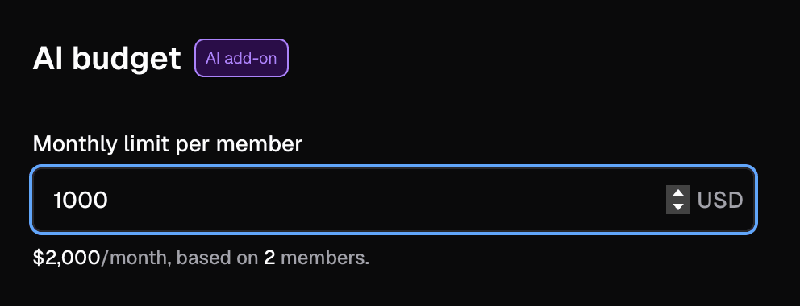
A group budget applies to each member individually rather than to the group as a
whole. For example, if a group has ten members and a budget of $200 USD, each
member can spend $200 USD and the group has a total spend limit of $2,000 USD.
Go to Groups and select a group.
Select Settings.
Under AI budget, set Monthly limit per member.
Select Save.
Budget values behave as follows:
An empty field means no limit. The field displays unlimited.
$0 USD blocks every request routed via AI Gateway from members whose
effective group is this group.
The maximum is $1,000,000 USD per member per budget period.
Note: Members who belong to other groups with budgets are still governed by
whichever group the budget policy selects. See
Effective group resolution.
User override
Adding or removing an override requires the Owner or User Admin
role. Other administrator roles can view
overrides but cannot change them.
Override a group budget when one user needs a different limit from the rest of
their group.
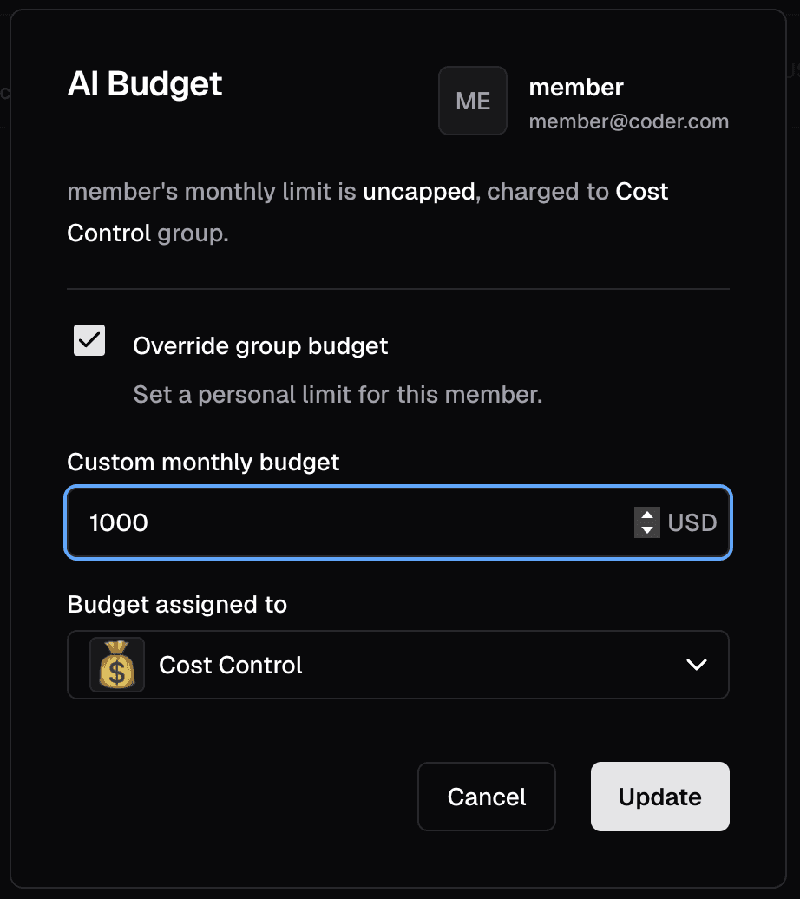
Go to Groups, select a group, then open the Members tab.
Find the member to apply the override to, open their action menu, and select
Manage AI budget.
Enable Override group budget.
Set Custom monthly budget, then choose the group in
Budget assigned to.
Select Update.
Overrides behave as follows:
A user can have only one override at a time.
An override supersedes every group budget the user belongs to.
Spend is always attributed to a group, so an override must name the assigned
group. This group can be different from the group selected in the Members
tab. The user must belong to the assigned group.
The $0 USD to $1,000,000 USD range applies to overrides as well.
Disabling Override group budget removes the override and returns the user
to the budget of their effective group.
Effective group resolution
A user can belong to several groups that have budgets, and can also hold an
override. AI Gateway resolves a single effective group for each request, in this
order:
The user's override takes precedence over every group
budget.
Otherwise, the budget policy selects one of the
groups the user belongs to. The default policy, highest, selects the group
with the largest budget.
If none of those groups has a budget, the user has effectively unlimited
spend and their spend is recorded against the Everyone group.
Note
Groups with identical budgets are ranked by the organization membership the
user joined first, then by group ID. To see the effective group currently
assigned to a user, see Monitor spend. The effective group is
deployment-wide, so it can be a group in a different organization.
Recorded spend is immutable. Changing which budget applies to a user affects
future requests only: spend that Coder has already recorded stays with the group
it was attributed to, so a user's history can span several groups. The effective
group is resolved at request time, so changing a group budget can change which
group applies to a user on future requests.
How enforcement works
AI Gateway checks each request before forwarding it upstream. The check compares
the user's spend in the current budget period with the budget that applies to the
request:
Spend below the budget: the request proceeds.
Spend at or above the budget: AI Gateway returns 403 Forbidden with a
message that describes the issue.
Users without a budget have unlimited spend, so their requests proceed
without enforcement. A blocked user's access resumes when the budget period
resets, when an administrator raises the budget, or when an override is added.
Note
Enforcement is approximate. A request's cost is known only after the provider
response reaches AI Gateway, so concurrent in-flight requests can carry a user
slightly past their budget. Subsequent requests are blocked after the recorded
spend reaches the budget.
Notifications
The first time a user's spend crosses a threshold within a budget period, Coder
notifies the user and deployment-wide Owners and User Admins, excluding the
affected user:
Threshold
User notification
Admin notification
85%
You're approaching your budget
<username> is approaching their budget
100%
You've reached your budget
<username> has reached their budget
A single expensive request can cross both thresholds at once.
Budgets of $0 USD and unpriced usage cross no thresholds.
Notifications are informational. Enforcement does not depend on them.
Coder multiplies the token usage of each request by the published price of the
model that served it. Prices come from a curated models.dev
snapshot that ships with every Coder release, so no configuration is required.
Spend accumulates only from the moment v2.36 is deployed. Upgrading mid-month
therefore produces a partial first period.
To see which models are priced in the release version you run, consult the
price book for your Coder version:
Replace <VERSION> with your Coder minor version, for example 2.36.
Important
Estimated spend can differ from provider-reported amounts, and some usage might
not count toward spend:
Estimates exclude negotiated discounts, committed-use pricing, and
provider-specific billing rules.
Requests to models that are missing from the price table record token usage
but add nothing to a user's spend. A user who only calls unpriced models is
effectively unlimited.
Monitor coder_ai_gateway_cost_control_unpriced_token_usage_records_total,
labeled by provider, provider_type, and model, to detect unpriced usage.
The (provider_type, model) tuple identifies the missing price. Any non-zero
value means spend is under-counted. Because the price book ships with the
release, a newly launched model can remain unpriced until you upgrade Coder.
Monitor spend
Spend reporting is available in the Coder dashboard and as a CSV export.
Prometheus metrics report enforcement and pricing gaps.
Dashboard
Visibility follows the viewer's role:
Who
Sees
Every user
Their own spend and budget, or unlimited state, in their avatar menu
Members of a group
The group's spend and budget, and their own member row
Owners, User Admins, and organization administrators
Spend and budgets for every group and every member
The Groups page compares each group's spend with the combined limits of
the members it covers.
The Members tab of a group reports each member's spend, their budget, and
its source, labeled Custom limit for an override or Group limit for a
group budget. If the effective group is another group in the same organization,
the row shows Budget managed by another group. If the effective group is in a
different organization, the row shows a dash and explains that the group is not
visible there.
The avatar menu reports the signed-in user's own spend for the budget period
as $<spend> / $<budget> USD, or $<spend> / Unlimited USD when no budget
applies.
Administrators can also use the
Get user AI spend API
endpoint to see a user's current effective group.
CSV Export
Users who can read group-member data for the organization can export estimated
spend for reporting and internal cost allocation. The export is available through
the API only.
Without parameters, the export covers the current budget period.
To select a range, pass period_start and period_end together as RFC 3339
timestamps. A range can span at most 31 days.
Each row breaks spend down by user, group, model, and provider, with the
underlying token counts.
Prometheus Metrics
Prometheus metrics report blocked requests, users over budget, unpriced usage,
and enforcement latency. For the full metric list, including types and labels,
see Prometheus metrics.
Migrate from Coder Agents Cost Control
In release 2.36, native Coder Agents usage limits are no longer configurable
or enforced. Existing native values remain stored, have no effect, and are not
migrated to AI Gateway budgets.
Warning
Spend limits previously configured under Admin settings > AI >
Spend are no longer enforced by Coder Agents. To enforce spend, set an
AI Gateway budget.
Configure new AI Gateway budgets from the group settings page or use the API to
get,
upsert, or
delete a group
budget.
Expect the following differences:
AI Gateway has no deployment-wide default budget. Each group that needs a
limit requires its own budget.
The UTC calendar month is the only budget period. Daily and weekly periods are
not currently supported.
Users in several budgeted groups receive the highest budget by default. Native
Coder Agents usage limits applied the lowest group limit.
Budgets cover priced AI Gateway traffic. Chat, IDE extensions, and CLI agents
draw on the same budget when their provider and model are priced. See
How spend is estimated.
Recorded spend and native limit values do not carry over to AI Gateway
budgets.