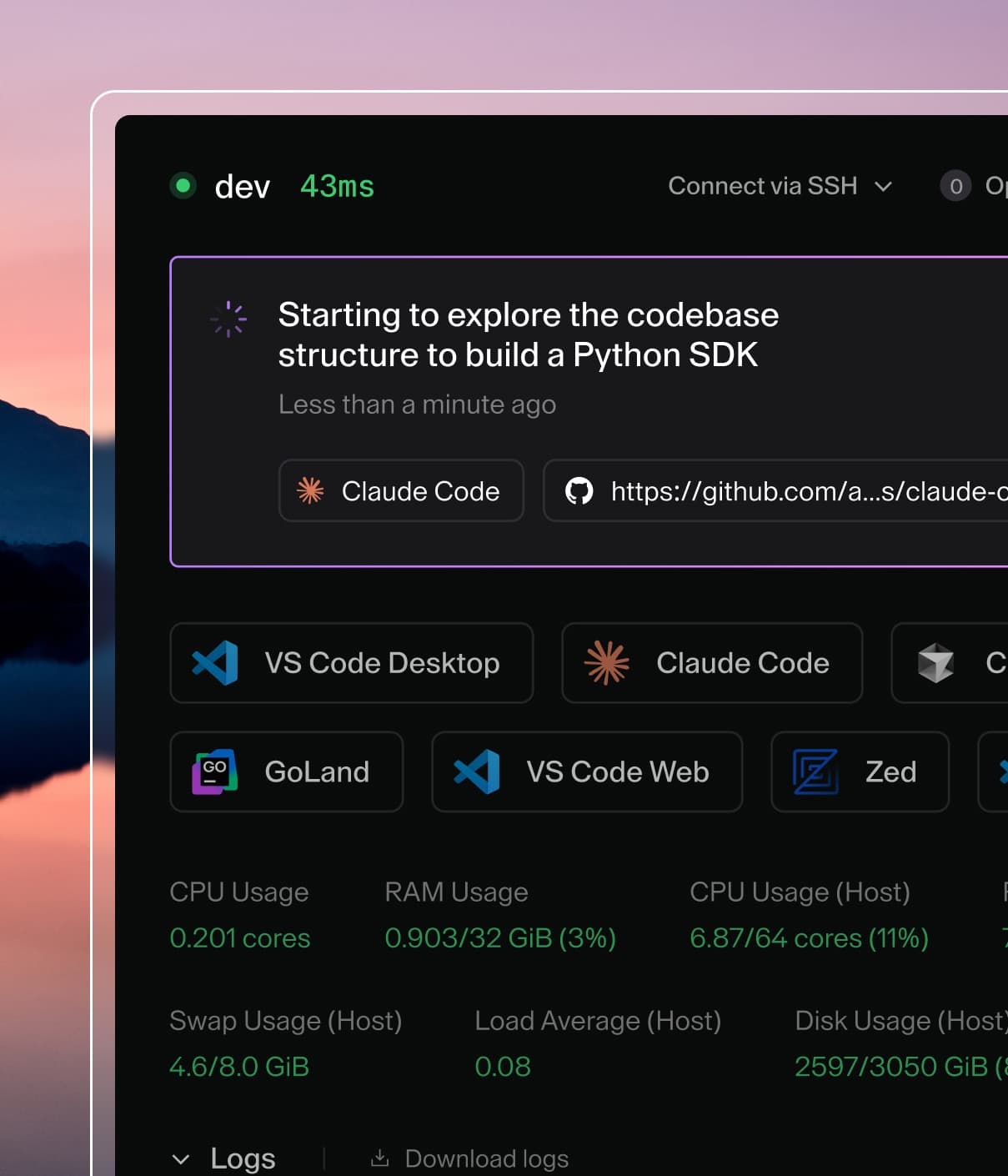
Coder powers secure, scalable development across key industries — automotive, finance, government, and technology — enabling faster builds, tighter compliance, and seamless AI adoption in enterprise-grade cloud environments.
This feature is experimental. Pin a release before broad rollout and review the release notes before upgrading.
An automation sends a saved prompt to a Coder Agents chat when a trigger fires.
This page is for Coder Agents users who create and run automations.
An administrator must turn on the feature first, as described in Enable automations.
Each automation has one trigger and one target:
A webhook trigger sends the prompt when an external system posts an event to the automation's endpoint.
A schedule trigger sends the prompt on a cron schedule.
An existing chat target sends the prompt to one chat you own.
A new chat target starts a new chat for every run.
The automation sends the message as its owner, with the owner's permissions.
An automation only submits messages.
The chat's agent, tools, and workspace do the work, the same way they handle a message you type.
Enable automations
Automations are behind the chat-automations experiment.
To turn it on for every user at startup, run coder server with the flag:
coder server --experiments=chat-automations
Or set the environment variable:
CODER_EXPERIMENTS=chat-automations
Turn automations on or off at runtime
chat-automations is a user-scoped experiment, so an Owner can change it at runtime with an experiment rule, without a restart.
A rule turns the experiment on for every user, off for every user, or on for the users who match a condition.
Refer to Target experiments at runtime for the rule modes and condition syntax.
To turn automations on for every user:
coder exp experiment-rules on chat-automations
The command prints the new rule, for example Experiment "chat-automations" rule is now on (revision 1).
To turn automations off for every user, even if the startup --experiments list enables them:
coder exp experiment-rules off chat-automations
The command prints the new rule, for example Experiment "chat-automations" rule is now off (revision 2).
Use off to stop automations for every user.
coder exp experiment-rules reset chat-automations restores the startup default, which can leave automations on for every user.
What happens when automations are off
When the experiment is off for a user:
The Automations entry is hidden from the Agents sidebar, and the management API returns 404 for that user.
Webhook deliveries to automations that user owns return 404 when the secret is valid.
A wrong secret still returns 401.
Schedules that user owns don't run.
Coder checks for due schedules every 30 seconds and accepts an occurrence up to 60 seconds late.
An occurrence that came due while the experiment was off can run once, late, if the experiment is back on at a check inside that window.
This recovery is best effort: lock or hook delays can still push the occurrence past the window.
Otherwise the occurrence counts as missed and the schedule continues from its next time.
To avoid depending on this recovery, turn the experiment back on before the occurrence is due.
Agents in that user's chats aren't offered the manage_automations tool, and turning on Manage automations for a chat fails.
Messages that automations already queued in a chat stay queued and still run.
To remove them, turn off or delete the automation before you turn the experiment off, or select Remove from queue on each message in the chat.
Who can manage automations
The Coder Agents User (agents-access) organization role lets members create, read, update, and delete their own automations in that organization.
Refer to Getting started for how members get this role.
Users with the Owner role can read every automation, and organization admins can read every automation in their organization.
Only the automation's owner can edit it, turn it back on, rotate its secret, or run it.
Other users who can update an automation, such as an organization admin, can only turn it off.
Users with delete permission can delete it.
Create a webhook automation
You can create an automation on the Automations page or with the API.
Create it in the dashboard
On the Agents page, select Automations in the sidebar.
If you belong to several organizations, select the organization next to New automation.
Select New automation.
Enter a Name.
Enter a Prompt.
Under Trigger, select Webhook.
Under Use, select Single-use or Multi-use.
Under Target, select Existing chat or New chat each run.
For an existing chat, select a Chat.
For an existing chat, select a When busy option.
For a new chat, select a Model.
Select Save.
The Copy the webhook secret dialog shows the Publish endpoint, the Secret, and an Example request.
Copy the secret before you select Done.
Coder shows the secret only once.
Create it with the API
Send a POST request to /api/experimental/organizations/{organization}/chat-automations, where {organization} is the organization name or ID:
Webhooks only. Defaults to multi. Can't change after creation.
schedule_cron
Five-field cron expression
Schedules only. Required for schedules.
schedule_time_zone
IANA time zone name
Schedules only. Required for schedules.
target_mode
existing_chat or new_chat
Required. Can't change after creation.
target_chat_id
Chat ID
Required for existing_chat.
when_busy
queue or skip
existing_chat only. Defaults to queue for webhooks and skip for schedules.
new_chat_model_config_id
Model configuration ID
Required for new_chat.
reasoning_effort
none, minimal, low, medium, high, xhigh, or max
new_chat only. Optional.
The response returns 201 with the automation and a webhook_secret field.
The secret starts with coder_automation_.
Coder returns it only in this response and when you rotate it, and stores only a SHA-256 hash of it.
The response doesn't contain the endpoint URL.
Build it from the automation ID: /api/experimental/chat-automations/{automation}/events.
Other management requests use the same base path:
Request
Purpose
GET /api/experimental/organizations/{organization}/chat-automations
List the automations you can read.
GET /api/experimental/organizations/{organization}/chat-automations/{automation}
The endpoint path carries the /api/experimental prefix.
Experimental API paths can change in a later release, so keep the URL configurable in your senders.
The body must be valid JSON of at most 256 KiB.
Any JSON value is accepted.
A successful delivery returns 202 with the ID of the saved input and the chat that received it:
A 202 means Coder saved the message.
It doesn't mean the agent has run the turn yet.
The chat receives the saved prompt, then a separate text part that wraps the body as untrusted event data.
The message shows an Automation run badge with the automation name.
Webhook responses
Status
Cause
202
Coder saved the message.
400
The body isn't valid JSON or couldn't be read, or no chat model is available in the organization.
401
The automation doesn't exist, isn't a webhook, or the secret is missing, wrong, or rotated. Every case returns the same response.
403
The automation is turned off, its owner isn't active, its owner can't send messages to the target chat or create chats, or a chat lifecycle hook denied it.
404
The experiment is off for the automation owner.
409
A single-use webhook was already used, the target chat is unavailable, the chat is busy and When busy is set to Skip the run, or the model is unavailable.
413
The body is larger than 256 KiB.
429
Automations already fill their share of the chat's queue, the chat's queue is full, or the sender hit the rate limit.
502
Coder couldn't reach a chat lifecycle hook.
The events endpoint has its own rate limit.
It counts requests per client IP address across all automations and uses the deployment's API rate limit, 512 requests per minute by default.
Coder doesn't retry or deduplicate deliveries.
If a sender retries after a timeout, the chat can receive the same event twice.
Single-use and multi-use webhooks
A multi-use webhook accepts events until you turn the automation off.
A single-use webhook accepts one event.
Later deliveries return 409, and the automation stays turned on.
A delivery that Coder refuses doesn't use up a single-use webhook.
You choose single use or multi use when you create the webhook and can't change it later.
An update request that includes webhook_use doesn't fail, but Coder ignores the field.
Rotate the webhook secret
Rotate the secret when it leaks or when you hand the endpoint to a new sender.
Rotating the secret invalidates the old one immediately, and requests with the old secret return 401.
To rotate it in the dashboard, edit the automation and select Rotate secret, then confirm.
The Copy the webhook secret dialog shows the new secret.
To rotate it with the API, send a POST request to /api/experimental/organizations/{organization}/chat-automations/{automation}/secret/rotate.
The response contains webhook_secret and webhook_secret_version.
You can't rotate the secret of a used single-use webhook.
The dashboard hides Rotate secret for it, and the rotate request returns 409.
Create a new automation instead.
Create a schedule automation
On the Agents page, select Automations in the sidebar.
If you belong to several organizations, select the organization next to New automation.
Select New automation.
Enter a Name.
Enter a Prompt.
Under Trigger, select Schedule.
Select a Repeat option.
If the Repeat option runs at a time of day, select a Time.
To write the schedule yourself, enter a Cron expression instead.
Select a Time zone.
Check the times under Upcoming runs.
Under Target, select Existing chat or New chat each run.
For an existing chat, select a Chat.
For an existing chat, select a When busy option.
For a new chat, select a Model.
Select Save.
With the API, send "kind": "schedule" with schedule_cron and schedule_time_zone in the create request.
Write the schedule
The cron expression has five fields: minute, hour, day of month, month, and day of week.
For example, 0 9 * * 1-5 runs at 9:00 AM on weekdays.
Set the time zone in its own field as an IANA name, such as America/New_York.
Coder rejects Local, descriptors such as @daily, and CRON_TZ= prefixes.
Coder also rejects a schedule that never runs.
When you restrict both the day of month and the day of week, the schedule runs on days that match either field.
Schedules follow wall-clock time in their time zone, so a 0 9 * * * schedule runs at 9:00 AM local time before and after a daylight saving time change.
Check upcoming runs
The control plane computes the next runs of a schedule:
The editor lists them under Upcoming runs while you type.
Responses for turned-on schedules include next_run_times, up to five times in UTC.
POST /api/experimental/organizations/{organization}/chat-automations/schedule-preview evaluates an unsaved schedule.
Send schedule_cron and schedule_time_zone, and the response contains next_run_times.
When a schedule runs
Coder checks for due schedules every 30 seconds and accepts an occurrence up to 60 seconds late.
An occurrence that is older than that is missed and never replayed.
After a server outage, schedules continue from their next time and don't catch up on missed runs.
When you turn a schedule back on, it continues from its next future time.
When you change its cron expression or time zone, Coder recomputes its next run.
Run a schedule now
To send a schedule's prompt immediately, select Run now on its row on the Automations page.
With the API, send a POST request to /api/experimental/organizations/{organization}/chat-automations/{automation}/runs.
Run now works only for schedule automations that are turned on, and only the owner can use it.
It returns 202 with input_id and chat_id, and doesn't change the schedule's next run.
Unlike a scheduled run, Run now reports refusals: 409 when the automation is off or the chat is busy and When busy is set to Skip the run, and 429 when the queue share or the queue is full.
Other refusals return the same status codes as webhook deliveries, such as 409 when the target chat or the model is unavailable.
Choose a target
An existing chat target must be a top-level chat that the automation owner owns, in the same organization as the automation.
Sub-agent chats can't be targets.
Messages to an existing chat use that chat's own model and tools.
A new chat target starts a chat for every run with the model you pick.
You can also set a reasoning effort.
Each new chat is titled with the automation name and the run time.
Schedules use the schedule's time zone, and webhooks use UTC.
New chats get only the MCP servers with the force_onavailability policy that the owner can access.
To find the chats an automation created or sent messages to, select View chats on its row.
If an existing chat target is deleted or archived, the row shows Missing target.
Webhook deliveries return 409 and the schedule doesn't run.
Coder doesn't turn the automation off.
Edit the automation to pick another chat, unarchive the chat, or turn the automation off.
Choose what happens when the chat is busy
The When busy setting applies only to existing chat targets.
A chat counts as busy unless it is idle with no queued messages.
Option
API value
Behavior
Default for
Skip the run
skip
Coder refuses the run while the chat is busy.
Schedules
Queue the prompt
queue
Coder adds the prompt to the chat's queue, behind messages already waiting.
Webhooks
Automations never interrupt or steer a turn that is already running.
A chat's queue holds up to the number of messages set by --chat-max-queued-messages-per-chat, 20 by default.
Automation messages together can fill at most half of it, rounded down and at least one, which is 10 by default.
When the automation share is full, webhook deliveries and Run now return 429, and the scheduled occurrence is skipped.
Let an agent manage automations
An agent can create and manage automations with the manage_automations tool.
Turn it on for each chat:
In an existing chat, open the plus menu in the chat input and turn on Manage automations.
When you start a new chat, turn on Manage automations in the same menu before you send the first message.
The switch is off by default.
It's available only on top-level chats, and only the chat owner can change it.
The agent receives the tool only when all of these are true:
The chat is a top-level chat and isn't archived.
Manage automations is on for the chat.
The chat isn't in plan mode.
The experiment is on for the chat owner.
The tool supports the list, get, create, update, enable, disable, delete, and run_now actions.
The agent acts as you, so its automations count toward your limit and appear on your Automations page with a Created by agent in link to the chat.
In a turn that you start, the agent can list, read, turn off, and delete any of your automations in the chat's organization, including automations that target other chats.
Listing automations leaves out their prompts, but reading one automation shows its prompt in the chat.
The agent can create, update, enable, or run only automations that stay close to its own chat:
An existing chat automation must target the calling chat.
A new chat automation must use the chat's model, or a model without provider tools such as web search.
Coder checks these rules again when it applies the change.
In a turn that an automation started, the agent can't create, update, enable, or run automations.
It sees only automations that target the chat or that created it, and it can delete only the automation that started the turn.
A message you send right after an automation message, before the agent responds, counts as part of that turn.
The tool never returns a webhook secret, because tool results stay in the chat.
To get the secret of a webhook an agent created, rotate the secret in the dashboard.
Heartbeats
A heartbeat is a schedule automation that an agent creates for its own chat.
It sends a recurring prompt to the chat, so the agent picks up a task again on a schedule, even while your browser is closed.
To set one up, turn on Manage automations and ask the agent to check in on the task on a schedule, for example every hour.
Limits
Limit
Value
Automations per owner
50 by default, counted across all organizations. Creating one more returns 409. Set with --chat-max-automations-per-owner.
Queued messages per chat
20 by default. Set with --chat-max-queued-messages-per-chat.
Automation share of the queue
Half of the queue limit, rounded down and at least one.
Automations run without a person watching each turn.
Review these risks before you turn the experiment on for many users.
Spend
The per-owner limit caps how many automations exist, not how many turns or chats they start.
Coder doesn't limit how often a schedule runs, so a schedule that runs every minute can start a turn every minute.
A leaked multi-use secret for a new chat target lets anyone with the secret start chats as the owner until you act.
To stop the spend, rotate the secret or turn the automation off.
Turning the experiment off stops new runs, but prompts that are already queued still run, and the owner can no longer turn the automation off until the experiment is back on.
To cap each user's AI spend, refer to Spend management.
Silent failures
Skipped and missed schedule runs appear only in the logs of coderd, the process that runs the control plane, as chat automation schedule occurrence skipped and chat automation schedule occurrence missed messages.
A schedule doesn't run or produce logs when its target chat is archived or deleted, or when its owner isn't active.
A refused webhook delivery appears in the HTTP response the sender receives.
Refusals that depend on the target chat, such as a busy chat, a full queue, or a hook denial, also appear in the coderd logs as chat automation input refused messages.
Coder keeps no run history for automations.
Prompt injection
Coder labels webhook bodies as untrusted data, but the event text still enters the chat's context, and a model can follow instructions inside it.
A webhook secret works like a credential for whatever the target chat can reach, including the owner's workspace and MCP servers.
People you share the chat with see everything that automation turns produce.
Coder doesn't verify provider signatures.
Senders that sign their payloads with HMAC and can't set an Authorization header, such as GitHub webhooks, can't call the endpoint directly.
Send them through a relay that verifies the sender's signature, rejects requests with an invalid signature, and only then forwards the payload with the bearer token.
Audit logs
If you use audit logs, Coder records creating, updating, and deleting automations, and rotating their secrets.
The entries mark the prompt and the secret hash as changed without recording their values.