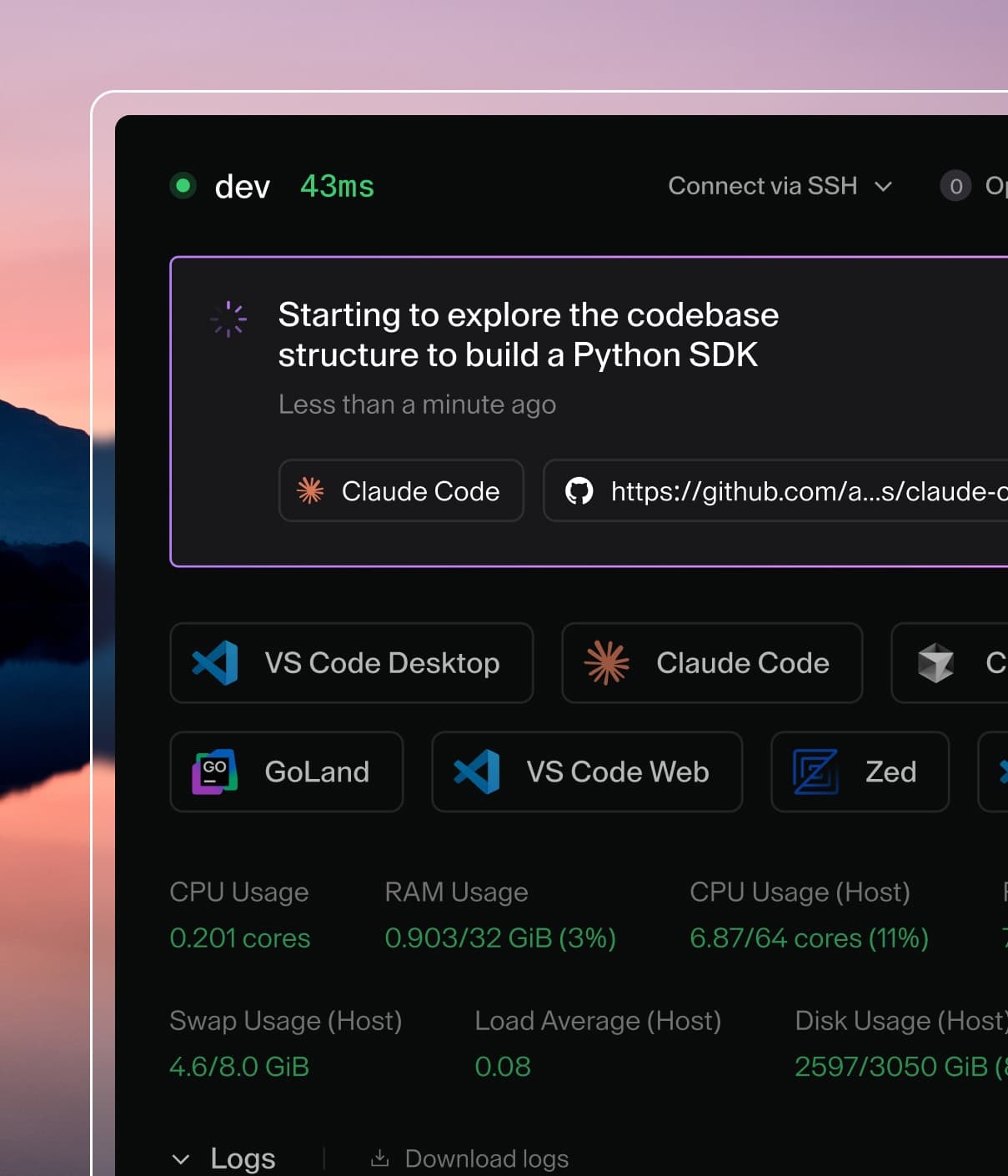
Coder powers secure, scalable development across key industries — automotive, finance, government, and technology — enabling faster builds, tighter compliance, and seamless AI adoption in enterprise-grade cloud environments.
Coder's network topology has three types of nodes: workspaces, coder servers,
and users.
The coder server must have an inbound address reachable by users and workspaces,
but otherwise, all topologies just work with Coder.
When possible, we establish direct connections between users and workspaces.
Direct connections are as fast as connecting to the workspace outside of Coder.
When NAT traversal fails, connections are relayed through the coder server. All
user-workspace connections are end-to-end encrypted.
In order for clients and workspaces to be able to connect:
Note
We strongly recommend that clients connect to Coder and their
workspaces over a good quality, broadband network connection. The following
are minimum requirements:
better than 400ms round-trip latency to the Coder server and to their
workspace
better than 0.5% random packet loss
All clients and agents must be able to establish a connection to the Coder
server (CODER_ACCESS_URL) over HTTP/HTTPS.
Any reverse proxy or ingress between the Coder control plane and
clients/agents must support WebSockets.
In order for clients to be able to establish direct connections:
Note
Direct connections via the web browser are not supported. To improve
latency for browser-based applications running inside Coder workspaces in
regions far from the Coder control plane, consider deploying one or more
workspace proxies.
The client is connecting using the CLI (e.g. coder ssh or
coder port-forward). Note that the
VSCode extension
and JetBrains Plugin, and
ssh coder.<workspace> all utilize the
CLI to establish a workspace connection.
Either the client or workspace agent are able to discover a reachable
ip:port of their counterpart. If the agent and client are able to
communicate with each other using their locally assigned IP addresses, then a
direct connection can be established immediately. Otherwise, the client and
agent will contact
the configured STUN servers
to try and determine which ip:port can be used to communicate with their
counterpart. See STUN and NAT for more details on how this
process works.
All outbound UDP traffic must be allowed for both the client and the agent on
all ports to each others' respective networks.
To establish a direct connection, both agent and client use STUN. This
involves sending UDP packets outbound on udp/3478 to the configured
STUN server.
If either the agent or the client are unable to send and receive UDP packets
to a STUN server, then direct connections will not be possible.
Both agents and clients will then establish a
WireGuard️ tunnel and send UDP traffic on
ephemeral (high) ports. If a firewall between the client and the agent
blocks this UDP traffic, direct connections will not be possible.
coder server
Workspaces connect to the coder server via the server's external address, set
via ACCESS_URL. There must not be a
NAT between workspaces and coder server.
Users connect to the coder server's dashboard and API through its ACCESS_URL
as well. There must not be a NAT between users and the coder server.
Template admins can overwrite the site-wide access URL at the template level by
leveraging the url argument when
defining the Coder provider:
This is useful when debugging connectivity issues between the workspace agent
and the Coder server.
Web Apps
The coder servers relays dashboard-initiated connections between the user and
the workspace. Web terminal <-> workspace connections are an exception and may
be direct.
In general, port forwarded web apps are faster than
dashboard-accessed web apps.
🌎 Geo-distribution
Direct connections
Direct connections are a straight line between the user and workspace, so there
is no special geo-distribution configuration. To speed up direct connections,
move the user and workspace closer together.
Establishing a direct connection can be an involved process because both the
client and workspace agent will likely be behind at least one level of NAT,
meaning that we need to use STUN to learn the IP address and port under which
the client and agent can both contact each other. See STUN and NAT
for more information on how this process works.
By default, your Coder server also runs a built-in DERP relay which can be used
for both public and Air-gapped deployments.
However, Tailscale maintains a global fleet of DERP relays intended for their product, and has allowed Coder to access and use them.
You can launch coder server with Tailscale's DERPs like so:
coder server --derp-config-url https://controlplane.tailscale.com/derpmap/default
Custom Relays
If you want lower latency than what Tailscale offers or want additional DERP
relays for air-gapped deployments, you may run custom DERP servers. Refer to
Tailscale's documentation
to learn how to set them up.
After you have custom DERP servers, you can launch Coder with them like so:
The dashboard (and web apps opened through the dashboard) are served from the
coder server, so they can only be geo-distributed with High Availability mode in
our Premium Edition. Reach out to Sales to learn
more.
Browser-only connections
Note
Browser-only connections is a Premium feature.
Learn more.
Some Coder deployments require that all access is through the browser to comply
with security policies. In these cases, pass the --browser-only flag to
coder server or set CODER_BROWSER_ONLY=true.
With browser-only connections, developers can only connect to their workspaces
via the web terminal and
web IDEs.
Workspace Proxies
Note
Workspace proxies are a Premium feature.
Learn more.
Workspace proxies are a Coder Premium feature that allows you to provide
low-latency browser experiences for geo-distributed teams.
Coder measures and reports several types of latency, providing insights into the performance of your deployment. Understanding these metrics can help you diagnose issues and optimize the user experience.
There are three main types of latency metrics for your Coder deployment:
Dashboard-to-server latency:
The Coder UI measures round-trip time to the Coder server or workspace proxy using built-in browser timing capabilities.
This appears in the user interface next to your username, showing how responsive the dashboard is.
Workspace connection latency:
The latency shown on the workspace dashboard measures the round-trip time between the workspace agent and its DERP relay server.
This metric is displayed in milliseconds on the workspace dashboard and specifically shows the agent-to-relay latency, not direct P2P connections.
To estimate the total end-to-end latency experienced by a user, add the dashboard-to-server latency to this agent-to-relay latency.
Database latency:
For administrators, Coder monitors and reports database query performance in the health dashboard.
How latency is classified
Latency measurements are color-coded in the dashboard:
Green (<150ms): Good performance.
Yellow (150-300ms): Moderate latency that might affect user experience.
Red (>300ms): High latency that will noticeably affect user experience.
View latency information
Dashboard: The global latency indicator appears in the top navigation bar.
Workspace list: Each workspace shows its connection latency.
Health dashboard: Administrators can view advanced metrics including database latency.
CLI: Use coder ping <workspace> to measure and analyze latency from the command line.
Factors that affect latency
Geographic distance: Physical distance between users, Coder server, and workspaces.
Network connectivity: Quality of internet connections and routing.
Infrastructure: Cloud provider regions and network optimization.
P2P connectivity: Whether direct connections can be established or relays are needed.
How to optimize latency
To improve latency and user experience:
Deploy workspace proxies: Place proxies in regions closer to users, connecting back to your single Coder server deployment.
Use P2P connections: Ensure network configurations permit direct connections.
Strategic placement: Deploy your Coder server in a region where most users work.
Network configuration: Optimize routing between users and workspaces.
Check firewall rules: Ensure they don't block necessary Coder connections.
By default, Coder will access some external network endpoints in order to download dependencies and send usage data. However, all of these features can be disabled. Learn how to configure Coder for air-gapped environments.