Coder powers secure, scalable development across key industries — automotive, finance, government, and technology — enabling faster builds, tighter compliance, and seamless AI adoption in enterprise-grade cloud environments.
Coder supports external authentication via OAuth2.0. This allows enabling any OAuth provider as well as integrations with Git providers,
such as GitHub, GitLab, and Bitbucket.
External authentication can also be used to integrate with external services
like JFrog Artifactory and others.
To add an external authentication provider, you'll need to create an OAuth
application. The following providers have been tested and work with Coder:
If you have experience with a provider that is not listed here, please
file an issue
Configuration
Set environment variables
After you create an OAuth application, set environment variables to configure the Coder server to use it:
CODER_EXTERNAL_AUTH_0_ID="<USER_DEFINED_ID>"
CODER_EXTERNAL_AUTH_0_TYPE=<github|gitlab|azure-devops|bitbucket-cloud|bitbucket-server|etc>
CODER_EXTERNAL_AUTH_0_CLIENT_ID=<OAuth app client ID>
CODER_EXTERNAL_AUTH_0_CLIENT_SECRET=<OAuth app client secret>

# Optionally, configure a custom display name and icon:
CODER_EXTERNAL_AUTH_0_DISPLAY_NAME="Google Calendar"
CODER_EXTERNAL_AUTH_0_DISPLAY_ICON="https://mycustomicon.com/google.svg"
The CODER_EXTERNAL_AUTH_0_ID environment variable is used as an identifier for the authentication provider.
This variable is used as part of the callback URL path that you must configure in your OAuth provider settings.
If the value in your callback URL doesn't match the CODER_EXTERNAL_AUTH_0_ID value, authentication will fail with redirect URI is not valid.
Set it with a value that helps you identify the provider.
For example, if you use CODER_EXTERNAL_AUTH_0_ID="primary-github" for your GitHub provider,
configure your callback URL as https://example.com/external-auth/primary-github/callback.
Add an authentication button to the workspace template
Add the following code to any template to add a button to the workspace setup page which will allow you to authenticate with your provider:
data "coder_external_auth" "<github|gitlab|azure-devops|bitbucket-cloud|bitbucket-server|other>" {
    id = "<USER_DEFINED_ID>"
}

# GitHub Example (CODER_EXTERNAL_AUTH_0_ID="primary-github")
# makes a GitHub authentication token available at data.coder_external_auth.github.access_token
data "coder_external_auth" "github" {
   id = "primary-github"
}
Inside your Terraform code, you now have access to authentication variables.
Reference the documentation for your chosen provider for more information on how to supply it with a token.
Workspace CLI
Use external-auth in the Coder CLI to access a token within the workspace:
Coder provides automatic Git authentication for workspaces through SSH authentication and Git-provider specific env variables.
When performing Git operations, Coder first attempts to use external auth provider tokens if available.
If no tokens are available, it defaults to SSH authentication.
OAuth (external auth)
For Git providers configured with external authentication, Coder can use OAuth tokens for Git operations over HTTPS.
When using SSH URLs (like [email protected]:organization/repo.git), Coder uses SSH keys as described in the SSH Authentication section instead.
For Git operations over HTTPS, Coder automatically uses the appropriate external auth provider
token based on the repository URL.
This works through Git's GIT_ASKPASS mechanism, which Coder configures in each workspace.
To use OAuth tokens for Git authentication over HTTPS:
Complete the OAuth authentication flow (Login with GitHub, Login with GitLab).
Use HTTPS URLs when interacting with repositories (https://github.com/organization/repo.git).
Coder automatically handles authentication. You can perform your Git operations as you normally would.
Behind the scenes, Coder:
Stores your OAuth token securely in its database
Sets up GIT_ASKPASS at /tmp/coder.<random-string>/coder in your workspaces
Retrieves and injects the appropriate token when Git operations require authentication
To manually access these tokens within a workspace:
Coder automatically generates an SSH key pair for each user that can be used for Git operations.
When you use SSH URLs for Git repositories, for example, [email protected]:organization/repo.git, Coder checks for and uses an existing SSH key.
If one is not available, it uses the Coder-generated one.
The coder gitssh command wraps the standard ssh command and injects the SSH key during Git operations.
This works automatically when you:
Clone a repository using SSH URLs
Pull/push changes to remote repositories
Use any Git command that requires SSH authentication
PKCE (Proof Key for Code Exchange) is an OAuth 2.0
security extension that prevents authorization code interception attacks. Coder supports PKCE when
acting as an OAuth client to external identity providers.
Coder will usually assume PKCE support is available with "S256" as the code challenge method. Manual
configuration is available to override any default behavior.
# Enable PKCE with S256 (recommended when supported)
CODER_EXTERNAL_AUTH_0_PKCE_METHODS="S256"

# Disable PKCE entirely
CODER_EXTERNAL_AUTH_0_PKCE_METHODS="none"
Git-provider specific env variables
Azure DevOps
Azure DevOps requires the following environment variables:
CODER_EXTERNAL_AUTH_0_ID="primary-azure-devops"
CODER_EXTERNAL_AUTH_0_TYPE=azure-devops
CODER_EXTERNAL_AUTH_0_CLIENT_ID=xxxxxx
# Ensure this value is your "Client Secret", not "App Secret"
CODER_EXTERNAL_AUTH_0_CLIENT_SECRET=xxxxxxx
CODER_EXTERNAL_AUTH_0_AUTH_URL="https://app.vssps.visualstudio.com/oauth2/authorize"
CODER_EXTERNAL_AUTH_0_TOKEN_URL="https://app.vssps.visualstudio.com/oauth2/token"
Azure DevOps (via Entra ID)
Azure DevOps (via Entra ID) requires the following environment variables:
When configuring your Bitbucket OAuth application, set the redirect URI to
https://example.com/external-auth/primary-bitbucket-server/callback.
This callback path includes the value of CODER_EXTERNAL_AUTH_0_ID.
Gitea
CODER_EXTERNAL_AUTH_0_ID="gitea"
CODER_EXTERNAL_AUTH_0_TYPE=gitea
CODER_EXTERNAL_AUTH_0_CLIENT_ID=xxxxxxx
CODER_EXTERNAL_AUTH_0_CLIENT_SECRET=xxxxxxx
# If self managed, set the Auth URL to your Gitea instance
CODER_EXTERNAL_AUTH_0_AUTH_URL="https://gitea.com/login/oauth/authorize"
The redirect URI for Gitea should be
https://coder.example.com/external-auth/gitea/callback.
GitHub
Use this section as a reference for environment variables to customize your setup
or to integrate with an existing GitHub authentication.
When configuring your GitHub OAuth application, set the
authorization callback URL
as https://example.com/external-auth/primary-github/callback, where
primary-github matches your CODER_EXTERNAL_AUTH_0_ID value.
GitHub Enterprise
GitHub Enterprise requires the following environment variables:
When configuring your GitHub Enterprise OAuth application, set the
authorization callback URL
as https://example.com/external-auth/primary-github/callback, where
primary-github matches your CODER_EXTERNAL_AUTH_0_ID value.
GitLab self-managed
GitLab self-managed requires the following environment variables:
CODER_EXTERNAL_AUTH_0_ID="primary-gitlab"
CODER_EXTERNAL_AUTH_0_TYPE=gitlab
# This value is the "Application ID"
CODER_EXTERNAL_AUTH_0_CLIENT_ID=xxxxxx
CODER_EXTERNAL_AUTH_0_CLIENT_SECRET=xxxxxxx
CODER_EXTERNAL_AUTH_0_VALIDATE_URL="https://gitlab.example.com/oauth/token/info"
CODER_EXTERNAL_AUTH_0_AUTH_URL="https://gitlab.example.com/oauth/authorize"
CODER_EXTERNAL_AUTH_0_TOKEN_URL="https://gitlab.example.com/oauth/token"
CODER_EXTERNAL_AUTH_0_REVOKE_URL="https://gitlab.example.com/oauth/revoke"
CODER_EXTERNAL_AUTH_0_REGEX=gitlab\.example\.com
When configuring your GitLab OAuth application,
set the redirect URI to https://example.com/external-auth/primary-gitlab/callback.
Note that the redirect URI must include the value of CODER_EXTERNAL_AUTH_0_ID (in this example, primary-gitlab).
JFrog Artifactory
Visit the JFrog Artifactory guide for instructions on how to set up for JFrog Artifactory.
Self-managed Git providers
Custom authentication and token URLs should be used for self-managed Git
provider deployments.
Set the authorization callback URL to
https://coder.example.com/external-auth/primary-github/callback, where primary-github
is the value you set for CODER_EXTERNAL_AUTH_0_ID.
Deactivate Webhooks.
Enable fine-grained access to specific repositories or a subset of
permissions for security.
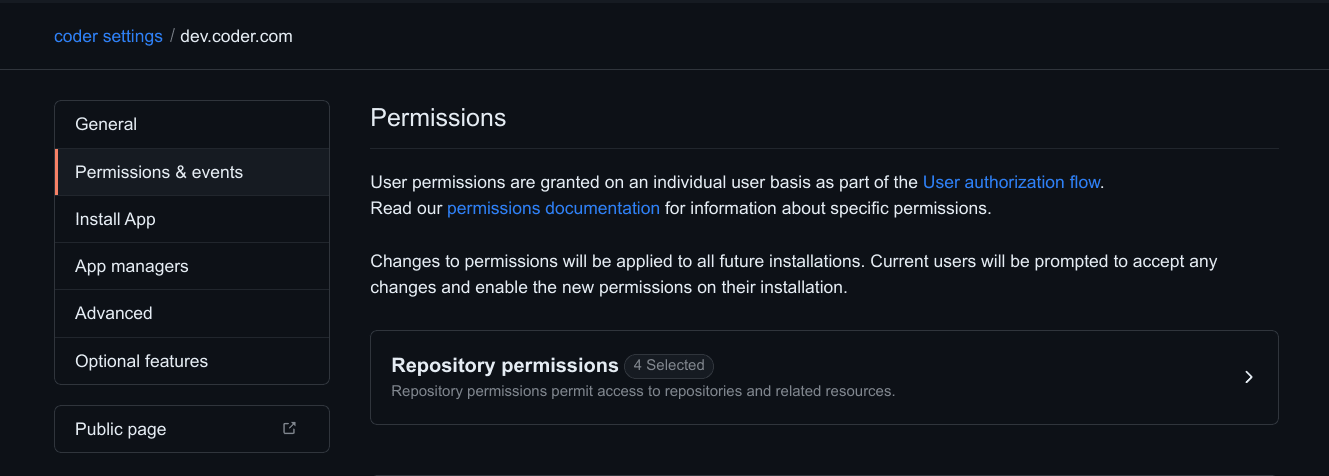
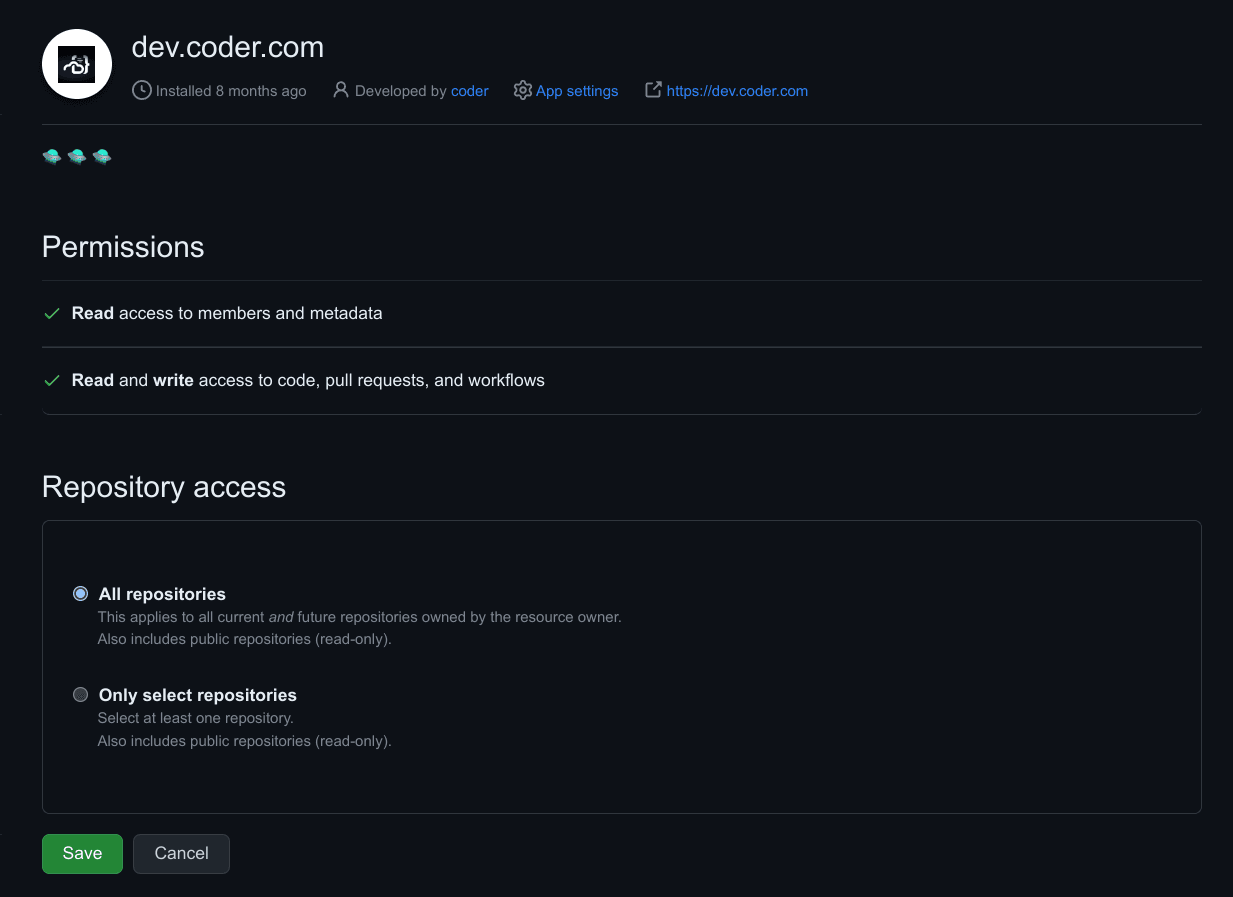
Adjust the GitHub app permissions. You can use more or fewer permissions than
are listed here, this example allows users to clone
repositories:
Name
Permission
Description
Contents
Read & Write
Grants access to code and commit statuses.
Pull requests
Read & Write
Grants access to create and update pull requests.
Workflows
Read & Write
Grants access to update files in .github/workflows/.
Metadata
Read-only
Grants access to metadata written by GitHub Apps.
Members
Read-only
Grants access to organization members and teams.
Install the App for your organization. You may select a subset of
repositories to grant access to.
Make the app installable by other users. In the app's Advanced
tab, select Make this GitHub App public.
Without this, anyone outside the app's owning account or owning
organization gets a GitHub 404 when they select Link GitHub in
Coder. Each user must also install the app on their own account
before linking. To surface an Install GitHub App link in the
Coder UI, set the following environment variable: