Coder powers secure, scalable development across key industries — automotive, finance, government, and technology — enabling faster builds, tighter compliance, and seamless AI adoption in enterprise-grade cloud environments.
Coder is open-minded about how you get your secrets into your workspaces. For
more information about how to use secrets and other security tips, visit our
guide to
security best practices.
Use this guide to configure how templates make secrets available to Coder
workspaces. To authenticate workspace provisioners with Coder, see the
provisioners documentation.
For secret values that developers manage themselves, see
User secrets.
Before you begin
Your first attempt to use secrets with Coder should be your local method. You
can do everything you can locally and more with your Coder workspace, so
whatever workflow and tools you already use to manage secrets may be brought
over.
Often, this workflow is simply:
Give your users their secrets in advance
Your users write them to a persistent file after they've built their
workspace
Template parameters are a
dangerous way to accept secrets. We show parameters in cleartext around the
product. Assume anyone with view access to a workspace can also see its
parameters.
SSH Keys
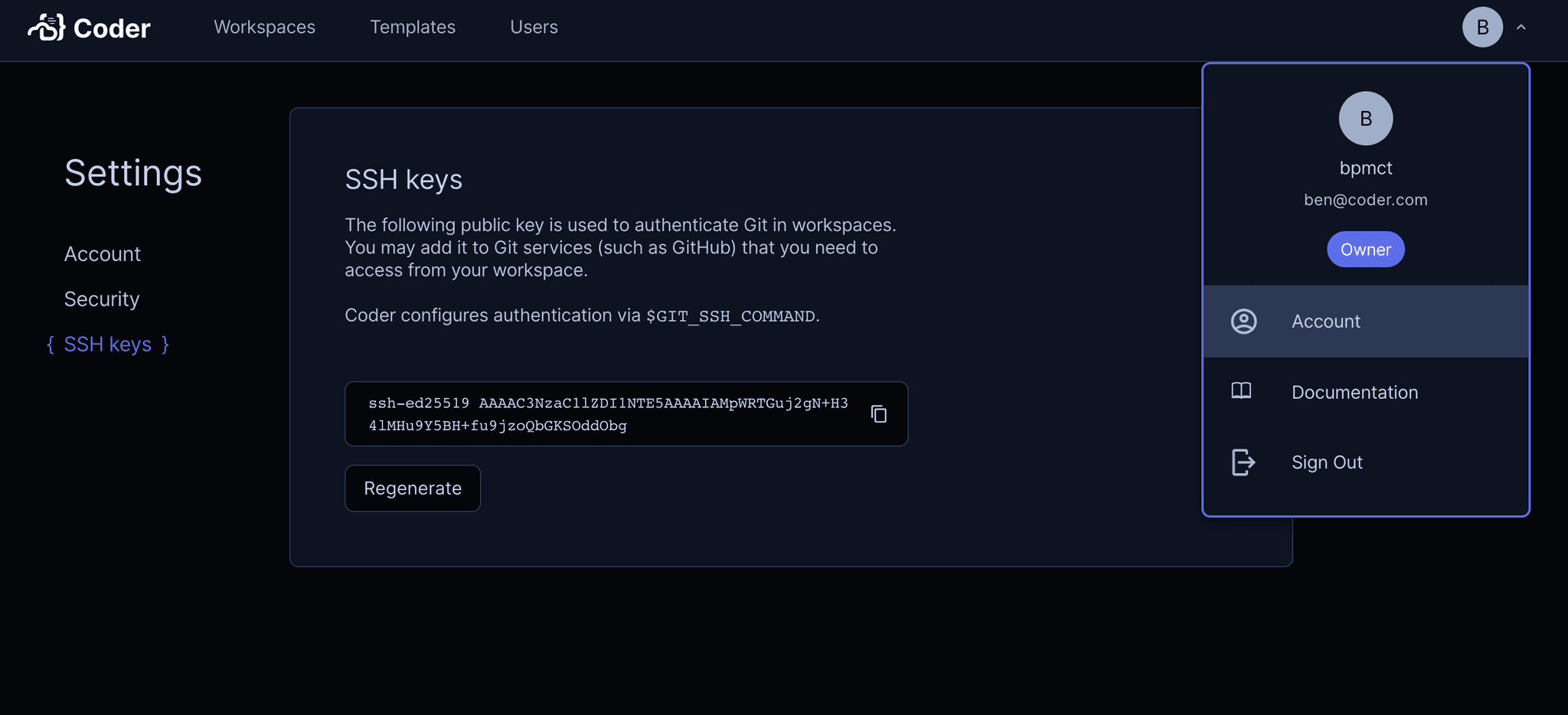
Coder generates SSH key pairs for each user. This can be used as an
authentication mechanism for git providers or other tools. Within workspaces,
git will attempt to use this key within workspaces via the $GIT_SSH_COMMAND
environment variable.
Users can view their public key in their account settings:
Note
SSH keys are never stored in Coder workspaces, and are fetched only when
SSH is invoked. The keys are held in-memory and never written to disk.
User secrets
User secrets are developer-managed values that Coder injects at workspace start.
If a user secret targets the same environment variable name or file path as a
template-provided variable or file, Coder injects the user secret into that
workspace. A secret can be disabled, in which case it is stored but not injected
until it is re-enabled. User secret values are covered by
Database Encryption when it is enabled. See the
User secrets guide.
Dynamic Secrets
Dynamic secrets are attached to the workspace lifecycle and automatically
injected into the workspace. With a little bit of up front template work, they
make life simpler for both the end user and the security team.
Dynamic secrets can be implemented in your template code like so:
resource "twilio_iam_api_key" "api_key" {
  account_sid   = "ACXXXXXXXXXXXXXXXXXXXXXXXXXXXXXXXX"
  friendly_name = "Test API Key"
}

resource "coder_agent" "main" {
  # ...
  env = {
    # Let users access the secret via $TWILIO_API_SECRET
    TWILIO_API_SECRET = "${twilio_iam_api_key.api_key.secret}"
  }
}
A catch-all variation of this approach is dynamically provisioning a cloud
service account (e.g
GCP)
for each workspace and then making the relevant secrets available via the
cloud's secret management system.
Displaying Secrets
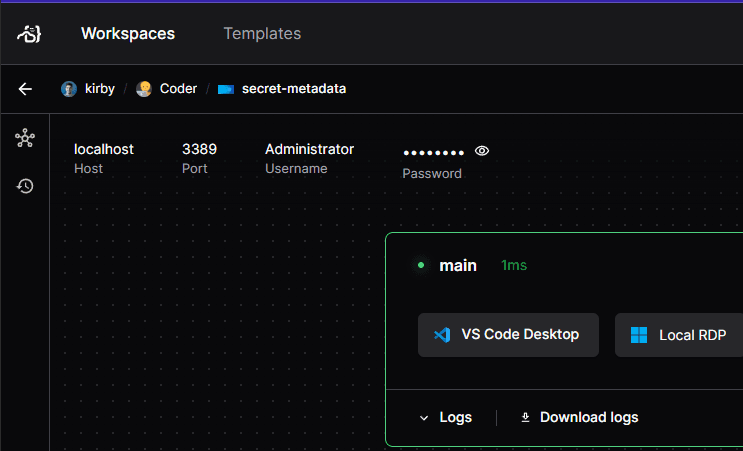
While you can inject secrets into the workspace via environment variables, you
can also show them in the Workspace UI with
coder_metadata.
For more advanced secrets management, you can use a secrets management tool to
store and retrieve secrets in your workspace. For example, you can use
HashiCorp Vault to inject secrets into your
workspace.
Refer to our HashiCorp Vault Integration guide for
more information on how to integrate HashiCorp Vault with Coder.