Coder powers secure, scalable development across key industries — automotive, finance, government, and technology — enabling faster builds, tighter compliance, and seamless AI adoption in enterprise-grade cloud environments.
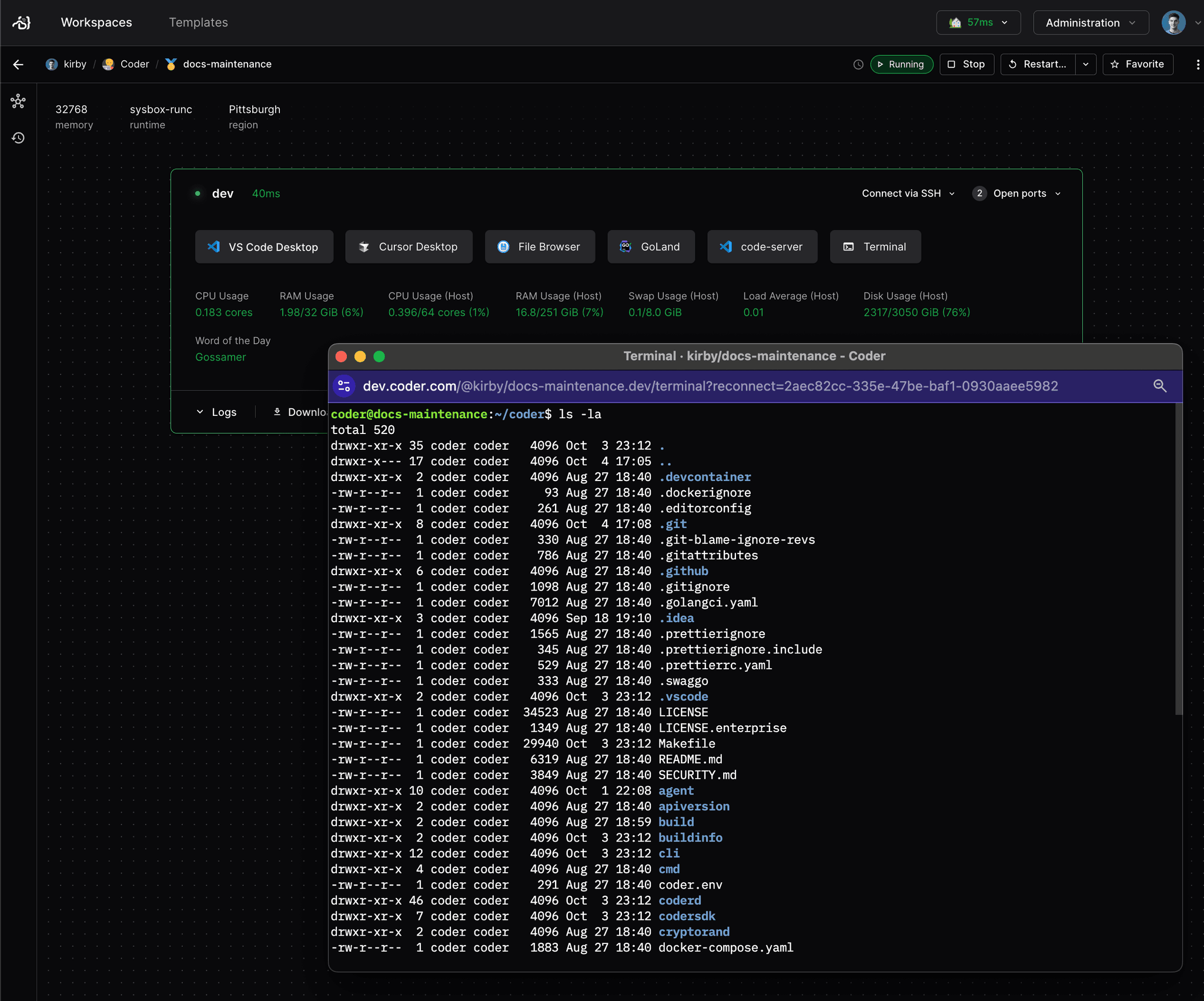
The Web Terminal is a browser-based terminal interface that provides instant
access to your workspace's shell environment directly from the Coder dashboard.
It's automatically enabled for all workspaces and requires no additional
configuration.
Overview
The Web Terminal leverages xterm.js, an industry-standard
terminal emulator, combined with WebSocket technology to provide a responsive
and feature-rich terminal experience in your browser.
Key Features
Instant Access: Click the terminal icon in your workspace to open a shell
session
Persistent Sessions: Sessions are maintained using reconnection tokens,
allowing you to resume your terminal even after page refreshes or network
interruptions
Full Unicode Support: Displays international characters and emojis
correctly
Clickable Links: Automatically detects and makes URLs clickable
Copy/Paste Support: Select text to automatically copy it to your clipboard
Multiple Rendering Options: Choose between different rendering engines for
optimal performance
Accessing the Terminal
From the Dashboard
Navigate to your workspace in the Coder dashboard
Click the Terminal button or icon
The terminal will open in a new browser tab or window
The terminal automatically connects to your workspace agent using an optimized
WebSocket connection.
Direct URL Access
You can also bookmark or share direct terminal URLs:
When a ?command= parameter is present, a confirmation dialog is shown before
the command executes. The user must click Run command to proceed or
Cancel to close the terminal window. This prevents external links from
silently executing arbitrary commands in a workspace.
Template-configured apps that use the command attribute in
coder_app
are trusted and bypass the confirmation dialog. These apps use the ?app=
parameter internally, which resolves the command from the agent's app list.
Container Selection
For workspaces with multiple Docker containers, specify which container to
connect to:
This displays the current latency to your selected workspace proxy in the
bottom-right corner.
Configuration File Support
The Web Terminal uses xterm.js under the hood, which is configured
programmatically rather than through a configuration file. However, you can
customize various aspects:
User-Side Customization
End-users can customize:
Font family via Settings → Appearance
Shell environment via dotfiles or shell rc files
TERM variable is automatically set to xterm-256color
Shell Configuration
The terminal respects your shell's configuration files:
# ~/.bashrc or ~/.zshrc
export PS1="\u@\h:\w\$ "  # Custom prompt
alias ll="ls -lah"         # Custom aliases

# Set terminal colors
export CTERM=xterm-256color
Troubleshooting
Connection Issues
If the terminal fails to connect:
Check workspace status: Ensure your workspace is running
Verify agent health: Look for agent connection warnings
Network issues: Check if WebSockets are blocked by your firewall/proxy
Browser console: Open DevTools to see WebSocket error messages
Display Issues
If characters or colors appear incorrect:
Unicode support: Ensure your shell locale is set correctly (locale -a)
Terminal type: The terminal sets TERM=xterm-256color automatically
Color schemes: Some applications may not render correctly in dark mode
Font rendering: Try switching terminal fonts in your appearance settings