Coder powers secure, scalable development across key industries — automotive, finance, government, and technology — enabling faster builds, tighter compliance, and seamless AI adoption in enterprise-grade cloud environments.
IdP (Identity provider) sync allows you to use OpenID Connect (OIDC) to
synchronize Coder groups, roles, and organizations based on claims from your IdP.
Prerequisites
Confirm that OIDC provider sends claims
To confirm that your OIDC provider is sending claims, log in with OIDC and visit
the following URL with an Owner account:
If your OpenID Connect provider supports group claims, you can configure Coder
to synchronize groups in your auth provider to groups within Coder. To enable
group sync, ensure that the groups claim is being sent by your OpenID
provider. You might need to request an additional
scope or additional configuration
on the OpenID provider side.
If group sync is enabled, the user's groups will be controlled by the OIDC
provider. This means manual group additions/removals will be overwritten on the
next user login.
For deployments with multiple organizations, configure
group sync for each organization.
Fetch the corresponding group IDs using the following endpoint:
https://[coder.example.com]/api/v2/groups
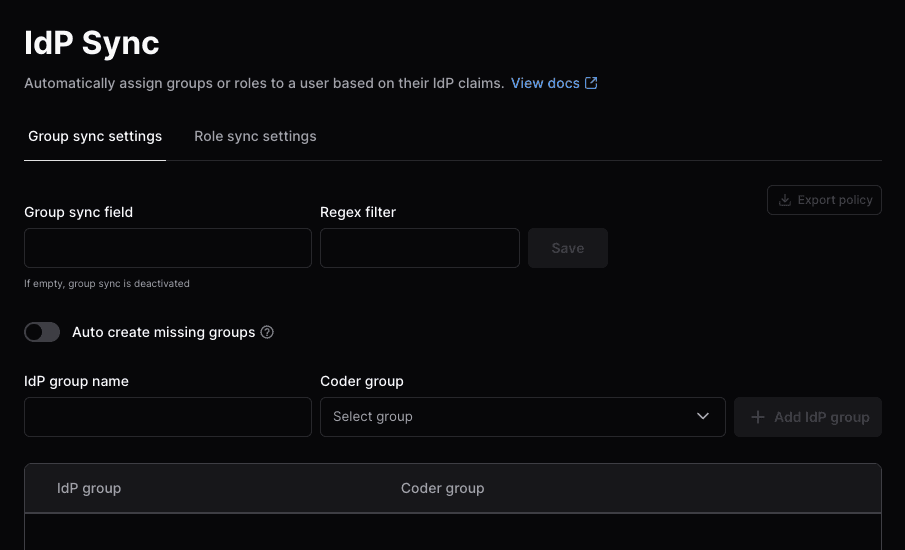
As an Owner or Organization Admin, go to Admin settings, select
Organizations, then IdP Sync:
Enter the Group sync field and an optional Regex filter, then select
Save.
Select Auto create missing groups to automatically create groups
returned by the OIDC provider if they do not exist in Coder.
Enter the IdP group name and Coder group, then Add IdP group.
Group allowlist
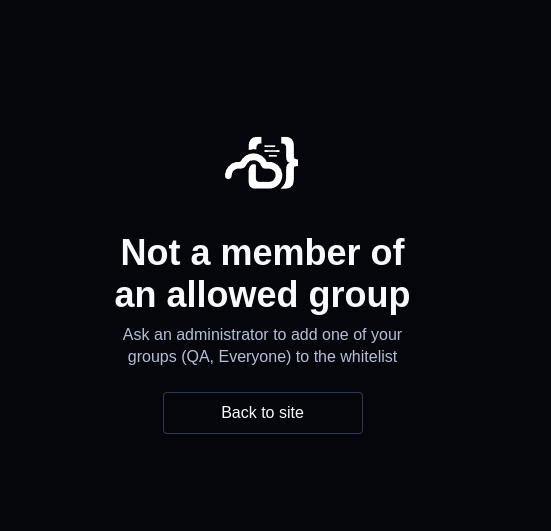
You can limit which groups from your identity provider can log in to Coder with
CODER_OIDC_ALLOWED_GROUPS.
Users who are not in a matching group will see the following error:
Role Sync
If your OpenID Connect provider supports roles claims, you can configure Coder
to synchronize roles in your auth provider to roles within Coder.
For deployments with multiple organizations, configure
role sync at the organization level.
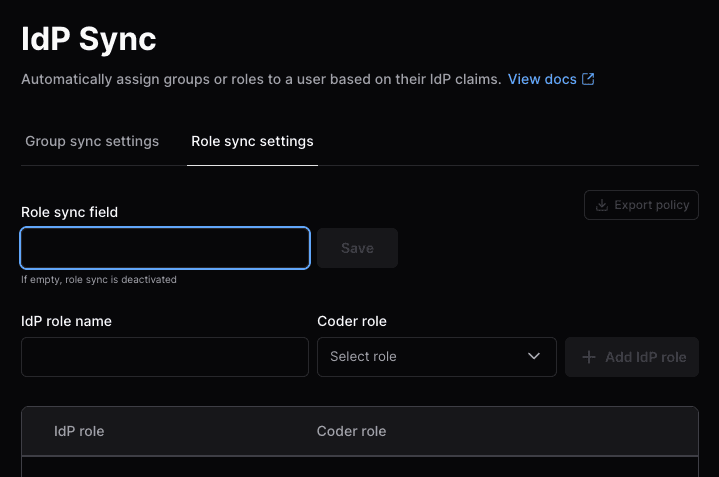
As an Owner or Organization Admin, go to Admin settings, select
Organizations, then IdP Sync.
Select the Role sync settings tab:
Enter the Role sync field, then select Save.
Enter the IdP role name and Coder role, then Add IdP role.
To add a new custom role, select Roles from the sidebar, then
Create custom role.
If your OpenID Connect provider supports groups/role claims, you can configure
Coder to synchronize claims in your auth provider to organizations within Coder.
Viewing and editing the organization settings requires deployment admin
permissions (UserAdmin or Owner).
Organization sync works across all organizations. On user login, the sync will
add and remove the user from organizations based on their IdP claims. After the
sync, the user's state should match that of the IdP.
You can initiate an organization sync through the Coder dashboard or CLI:
Fetch the corresponding organization IDs using the following endpoint:
https://[coder.example.com]/api/v2/organizations
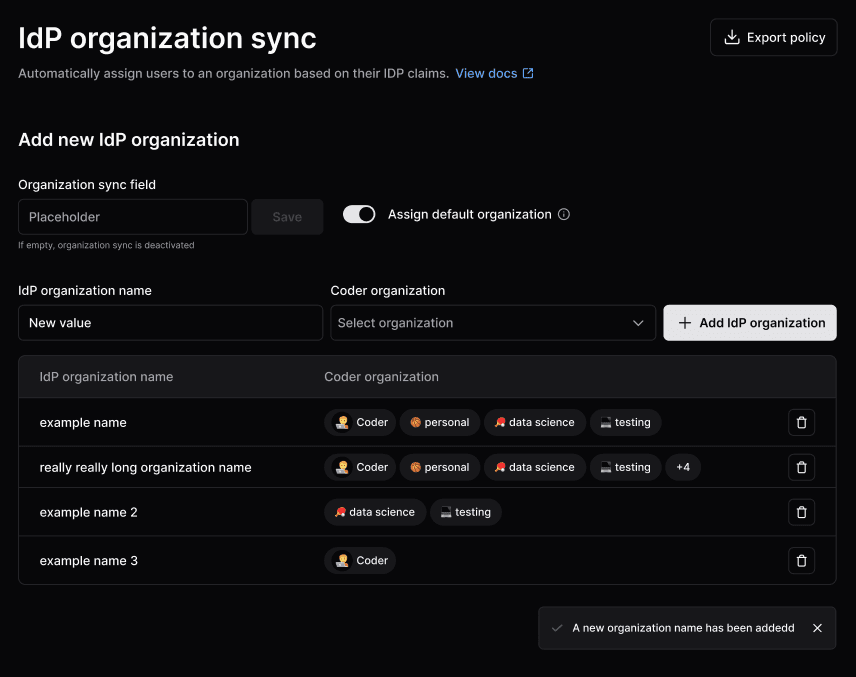
As a Coder organization user admin or site-wide user admin, go to
Admin settings > Deployment and select IdP organization sync.
In the Organization sync field text box, enter the organization claim,
then select Save.
Users are automatically added to the default organization.
Do not disable Assign Default Organization. If you disable the default
organization, the system will remove users who are already assigned to it.
Enter an IdP organization name and Coder organization(s), then select Add
IdP organization:
Troubleshooting group/role/organization sync
Some common issues when enabling group, role, or organization sync.
General guidelines
If you are running into issues with a sync:
View your Coder server logs and enable
verbose mode.
To reduce noise, you can filter for only logs related to group/role sync:
Restart the server after changing these configuration values.
Attempt to log in, preferably with a user who has the Owner role.
The logs for a successful sync look like this (human-readable):
[debu]  coderd.userauth: got oidc claims  request_id=49e86507-6842-4b0b-94d4-f245e62e49f3  source=id_token  claim_fields="[aio aud email exp groups iat idp iss name nbf oid preferred_username rh sub tid uti ver]"  blank=[]

[debu]  coderd.userauth: got oidc claims  request_id=49e86507-6842-4b0b-94d4-f245e62e49f3  source=userinfo  claim_fields="[email family_name given_name name picture sub]"  blank=[]

[debu]  coderd.userauth: got oidc claims  request_id=49e86507-6842-4b0b-94d4-f245e62e49f3  source=merged  claim_fields="[aio aud email exp family_name given_name groups iat idp iss name nbf oid picture preferred_username rh sub tid uti ver]"  blank=[]

[debu]  coderd: groups returned in oidc claims  request_id=49e86507-6842-4b0b-94d4-f245e62e49f3  [email protected]  username=ben  len=3  groups="[c8048e91-f5c3-47e5-9693-834de84034ad 66ad2cc3-a42f-4574-a281-40d1922e5b65 70b48175-107b-4ad8-b405-4d888a1c466f]"
To view the full claim, the Owner role can visit this endpoint on their Coder
deployment after logging in:
If you want Coder to create groups that do not exist, you can set the following
environment variable.
If you enable this, your OIDC provider might be sending over many unnecessary
groups. Use filtering options on the OIDC provider to limit the groups sent over
to prevent creating excess groups.
# as an environment variable
CODER_OIDC_GROUP_AUTO_CREATE=true
# as a flag
--oidc-group-auto-create=true
A basic regex filtering option on the Coder side is available. This is applied
after the group mapping (CODER_OIDC_GROUP_MAPPING), meaning if the group
is remapped, the remapped value is tested in the regex. This is useful if you
want to filter out groups that do not match a certain pattern. For example, if
you want to only allow groups that start with my-group- to be created, you can
set the following environment variable.
# as an environment variable
CODER_OIDC_GROUP_REGEX_FILTER="^my-group-.*$"
# as a flag
--oidc-group-regex-filter="^my-group-.*$"
Invalid Scope
If you see an error like the following, you may have an invalid scope.
The application '<oidc_application>' asked for scope 'groups' that doesn't exist on the resource...
This can happen because the identity provider has a different name for the
scope. For example, Azure AD uses GroupMember.Read.All instead of groups.
You can find the correct scope name in the IdP's documentation. Some IdPs allow
configuring the name of this scope.
The solution is to update the value of CODER_OIDC_SCOPES to the correct value
for the identity provider.
No group claim in the got oidc claims log
Steps to troubleshoot.
Ensure the user is a part of a group in the IdP. If the user has 0 groups, no
groups claim will be sent.
Check if another claim appears to be the correct claim with a different name.
A common name is memberOf instead of groups. If this is present, update
CODER_OIDC_GROUP_FIELD=memberOf.
Make sure the number of groups being sent is under the limit of the IdP. Some
IdPs will return an error, while others will just omit the groups claim. A
common solution is to create a filter on the identity provider that returns
less than the limit for your IdP.