Coder powers secure, scalable development across key industries — automotive, finance, government, and technology — enabling faster builds, tighter compliance, and seamless AI adoption in enterprise-grade cloud environments.
Coder's AI agent interacts with workspaces over the same
connection path as a developer's IDE, web terminal, and SSH session already
use. There is no sidecar process and no new network paths. If your developers
can already connect to their workspaces, the agent can too.
Architecture at a glance
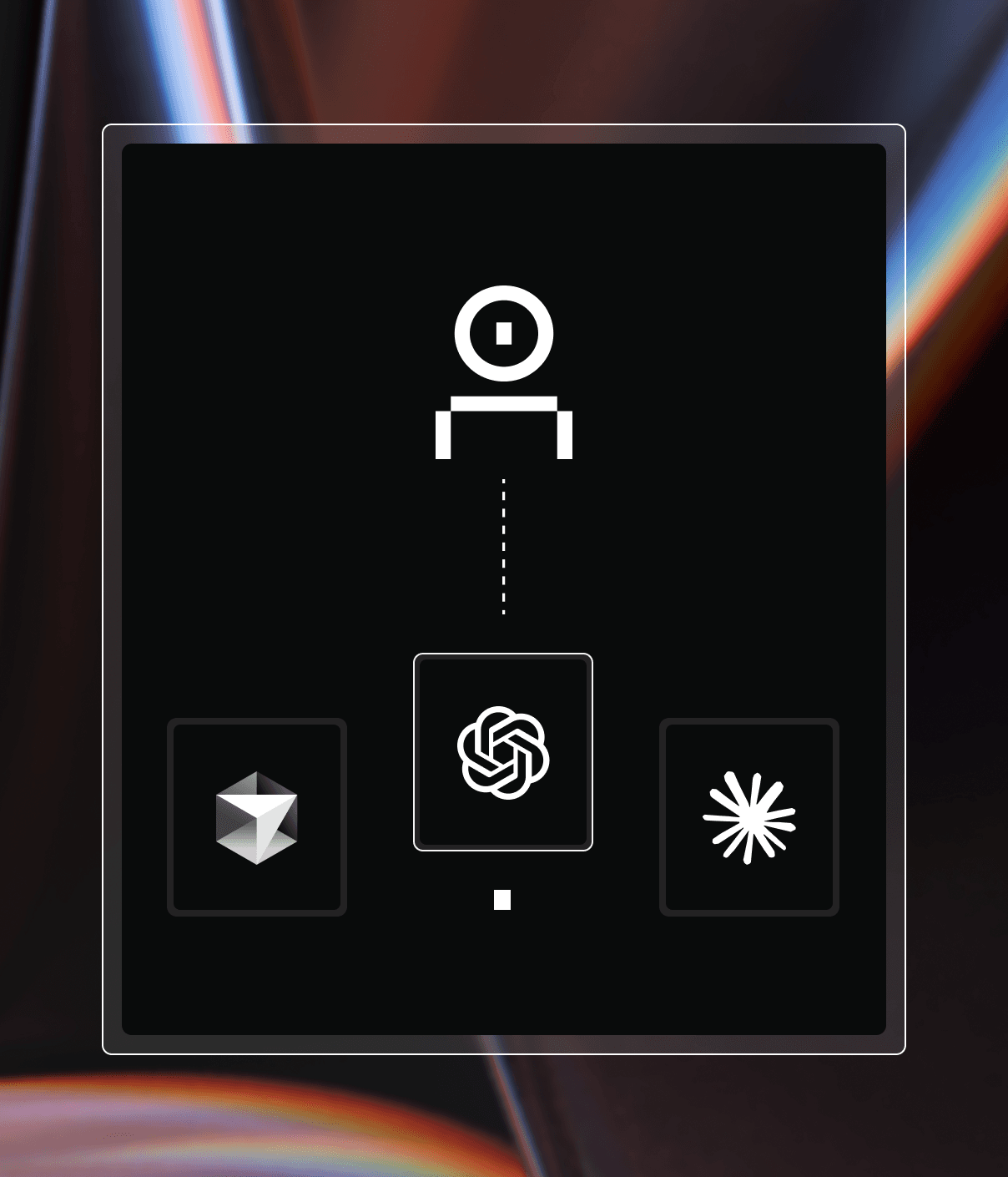
Three components are involved in every agent interaction:
The control plane runs the agent loop. It receives prompts, streams them
to the LLM provider, interprets tool calls, and dispatches them to
workspaces.
The LLM provider (Anthropic, OpenAI, Google, Azure, AWS Bedrock, or any
OpenAI-compatible endpoint) performs model inference. It never communicates
with the workspace directly.
The workspace is standard compute infrastructure. It runs shell commands,
reads and writes files, and executes processes — exactly what occurs when a
developer connects via their IDE.
The same connection your IDE uses
This is the key architectural insight: the agent reaches into a workspace
over the same Tailnet tunnel that a developer's tools already use.
When a developer opens a web terminal in the Coder dashboard, connects via
VS Code Remote, or runs coder ssh, the traffic follows this path:
The client connects to the control plane.
The control plane routes the connection through its internal Tailnet node.
The connection reaches the workspace daemon over a DERP relay or
direct peer-to-peer link.
The workspace daemon handles the request — spawning a shell,
forwarding a port, or serving a file.
When the agent executes a tool call — reading a file, running a command,
writing code — it follows the same tunnel:
The agent loop in the control plane issues a tool call.
The control plane routes the call through its internal Tailnet node.
The call reaches the workspace daemon over the same DERP relay or
peer-to-peer link.
The workspace daemon handles the request via its HTTP API — reading a file,
starting a process, or writing content.
The underlying tunnel is identical. IDE connections use SSH, web terminals use
a WebSocket protocol, and the agent uses the workspace daemon's HTTP API — but
all three traverse the same Tailnet connection and rely on the same security
boundary. No additional ports or network paths are introduced.
No inbound ports
The workspace daemon always dials out to the control plane — never
the reverse. The control plane then uses that established tunnel to reach back
in. This means:
The workspace needs no inbound ports or exposed services.
You can block all inbound traffic to the workspace.
The only required outbound connection from the workspace is to the control
plane itself.
This is unchanged from how workspaces already operate in Coder. Enabling
Coder Agents does not change your workspace network requirements.
The agent loop
When a user submits a prompt, the control plane processes it as a background
job:
The prompt is saved to the database and the chat is marked pending.
The control plane picks up the chat and marks it running.
The control plane streams the conversation to the configured LLM provider.
The model responds with text, reasoning, or tool calls.
If the response includes tool calls, the control plane executes them
(connecting to the workspace as needed) and returns the results to the model.
Steps 3–5 repeat until the model produces a final response with no further
tool calls.
The chat is marked waiting for the next user message.
This loop runs inside the control plane process. There is no separate service
to deploy — it is part of the same binary that serves the dashboard and API.
Context compaction
As conversations grow, the agent automatically summarizes older context to stay
within the model's context window. When token usage exceeds a threshold, the
agent generates a compressed summary and inserts it as a new message. Earlier
messages remain in the database and are still visible to users, but are excluded
from the model's context window. This happens transparently and keeps
long-running sessions productive.
You can also trigger a compaction on demand by sending /compact while the
agent is idle. Manual compaction runs the same summarization regardless of
current token usage and is labeled as manual in the conversation.
Message queuing
Users can send follow-up messages while the agent is actively working. Messages
are queued in the database and delivered when the agent completes its current
turn — the full sequence of steps until the model stops calling tools. There is
no need to wait for a response before providing additional context or
redirecting the agent.
Tool execution
Tools are how the agent takes action. Each tool call from the LLM translates to
a concrete operation — either inside a workspace or within the control plane
itself.
The agent is restricted to the built-in tool set defined in this section,
plus any additional tools from workspace skills and MCP servers. Skills
provide structured instructions the agent loads on demand
(see Extending Agents). MCP tools come from
admin-configured external servers
(see MCP Servers) and from workspace
.mcp.json files. The agent has no direct access to the Coder API beyond
what these tools expose and cannot execute arbitrary operations against the
control plane.
Workspace connection lifecycle
The connection to a workspace is lazy. It is not established when a chat
starts — only when something needs to reach the workspace. This is typically
triggered by the first tool call that requires workspace access. Once
established, the connection is cached and reused for the duration of that chat
session.
Chats that don't need workspace access (answering questions, planning an
approach, discussing architecture) never provision or connect to a workspace.
Workspace tools
These tools execute inside the workspace via the workspace daemon's HTTP API.
They traverse the same Tailnet tunnel used by web terminals and IDE connections.
Tool
What it does
read_file
Reads file contents with line-number pagination.
write_file
Writes content to a file.
edit_files
Performs atomic search-and-replace edits across one or more files.
execute
Runs a shell command, waiting for completion up to a timeout.
process_output
Retrieves output from a tracked process.
process_list
Lists all tracked processes in the workspace.
process_signal
Sends a signal (SIGTERM or SIGKILL) to a tracked process.
attach_file
Attach a workspace file to the current chat so the user can download it directly from the conversation. Use this when the user should receive an artifact such as a screenshot, log, patch, or document. Pass an absolute file path. The file must already exist in the workspace.
Windows workspace shell requirement
Coder Agents run workspace commands through a POSIX-compatible shell (sh).
Windows workspaces must provide sh on PATH, for example from
Git for Windows (Git Bash), MSYS2, or WSL.
PowerShell alone cannot run the execute tool. After installing a
shell, restart the workspace to pick up the updated PATH.
Platform tools
These tools run entirely within the control plane. They do not require a
workspace connection. Platform and orchestration tools are only available to
root chats — sub-agents spawned by spawn_agent do not have access to them
and cannot create workspaces or spawn further sub-agents.
Tool
What it does
list_templates
Browses available workspace templates, sorted by popularity.
read_template
Gets template details and configurable parameters.
create_workspace
Creates a workspace from a template and waits for it to be ready.
start_workspace
Starts the chat's workspace if it is currently stopped. Idempotent if already running.
propose_plan
Presents a Markdown plan file from the workspace for user review before implementation.
ask_user_question
Asks the user structured clarification questions during plan mode.
propose_plan and ask_user_question are only exposed while plan mode is
active. In that mode, write_file and edit_files are restricted to the
chat-specific plan file, while execute and process_output remain available
for exploration such as cloning repositories, searching code, and running
inspection commands. Root plan-mode chats may also receive administrator-approved
external MCP tools. Workspace MCP tools remain unavailable in plan mode, and
plan-mode sub-agents still do not receive any MCP tools. Dynamic,
provider-native, and computer-use tools are not available.
Orchestration tools
These tools manage sub-agents — child chats that work on independent tasks in
parallel.
Tool
What it does
spawn_agent (type=general or explore)
Delegates a task to a sub-agent with its own context window. Optionally accepts model_config_id and reasoning_effort to run the child on a specific enabled model instead of the configured default.
list_subagent_models
Lists the enabled model configurations the agent can pass to spawn_agent as model_config_id.
wait_agent
Waits for a sub-agent to finish and collects its result.
message_agent
Sends a follow-up message to a running sub-agent.
interrupt_agent
Halts a sub-agent's current turn; it transitions to waiting or running if there are queued messages.
spawn_agent (type=computer_use)
Spawns a sub-agent with desktop interaction capabilities (screenshot, mouse, keyboard). Requires an administrator-configured computer-use provider (Anthropic or OpenAI) and the virtual desktop experiment to be enabled.
list_agents
Lists spawned child agents, most recently active first.
Provider tools
These tools are executed server-side by the LLM provider, not by the control
plane or workspace. They are conditionally available based on the model
configuration set by an administrator.
Tool
What it does
web_search
Searches the internet for up-to-date information. Available when web search is enabled for the configured Anthropic, OpenAI, or Google provider.
Workspace extension tools
These tools are conditionally available based on the workspace contents.
Tool
What it does
read_skill
Reads the instructions for a workspace skill by name. Available when the workspace has skills discovered in .agents/skills/.
read_skill_file
Reads a supporting file from a skill's directory.
What runs where
Understanding the split between the control plane and the workspace is central
to the security model.
Responsibility
Where it runs
Details
Agent loop
Control plane
Prompt processing, tool dispatch, step iteration.
LLM inference
LLM provider
The control plane streams requests to the external provider.
Chat state
Control plane
All messages, token usage, and status stored in the database.
Every action is tied to the user who submitted the prompt.
Model/prompt config
Control plane
Administrators configure providers, models, and system prompts centrally.
File read/write
Workspace
The workspace file system is the source of truth for code.
Shell execution
Workspace
Commands run in the workspace's environment with its packages and tools.
Git operations
Workspace
Commits, pushes, and branch management happen inside the workspace.
Build and test
Workspace
Compilation, test suites, and dev servers run on workspace compute.
The workspace has zero AI awareness. There are no LLM API keys, no agent
processes, and no AI-specific software installed. If you inspect a workspace
created by the agent, it looks identical to one a developer created
manually.
Chat state and persistence
All chat data is stored in the control plane database, not in the workspace.
Chat metadata — status, owner, associated workspace, timestamps, and
parent/child relationships for sub-agents.
Messages — every message (user, assistant, tool calls, tool results) is
stored as a separate record with role, content, and token usage.
Compressed context — when the agent compacts the conversation, summaries
are stored with a compression flag so the original context budget is
preserved.
Queued messages — follow-up messages sent while the agent is working are
held in a queue and delivered in order.
Because state lives in the database:
Chat history survives workspace stops, rebuilds, and deletions.
An administrator can inspect any chat for audit or debugging.
The agent can resume work by targeting a new workspace and continuing from the
last git branch or checkpoint.
Security posture
The control plane architecture provides built-in security properties for AI
coding workflows. These are structural guarantees, not configuration options —
they hold by default for every agent session.
No API keys in workspaces
LLM provider credentials exist only in the control plane. The workspace never
sees them. There is nothing for a developer, a compromised dependency, or a
rogue process to exfiltrate.
Workspaces can be fully network-isolated
Because the workspace does not need to reach any LLM provider, you can restrict
its network access to only:
The control plane (required for the workspace daemon to function).
Your git provider (for push/pull operations).
Everything else can be blocked. The AI functionality comes from the control
plane, not from the workspace's network.
Tip
For sensitive environments, create dedicated templates for agent workloads
with stricter egress rules than your standard developer templates. Because
the AI comes from the control plane, these templates do not need any
outbound access to LLM providers.
Centralized enforcement
Administrators control which models are available, the system prompt, and tool
configuration from the control plane. Developers can select from the set of
admin-enabled models when starting or continuing a chat, but cannot add their
own providers or override system prompts or tool permissions. When an
administrator removes a model or modifies the system prompt, the change applies
to all agent sessions immediately.
User identity on every action
Every action the agent takes — PRs opened, code committed, commands executed —
is tied to the user who submitted the prompt. There is no shared bot account or
anonymous identity. If a developer submits a prompt that results in a pull
request, that pull request is attributed to them via the git authentication
already configured in your Coder deployment.
Permission boundaries
The agent operates with the exact same permissions as the user who submitted
the prompt. If a user cannot access a template, workspace, or API endpoint
through the Coder dashboard or CLI, the agent cannot access it either. There
is no privilege escalation.
This extends to workspace isolation: the agent can only interact with
workspaces owned by the user who started the chat. It cannot read files,
execute commands, or connect to workspaces belonging to other users.
Template visibility follows the same rule. When the agent lists available
templates, it sees only the templates the user is authorized to access.
The agent cannot provision a workspace from a template the user does not
have permission to use.
Scaling and resource impact
The control plane overhead for Coder Agents is minimal. The heavy computation
happens elsewhere:
LLM inference runs on the external provider's infrastructure.
File I/O, builds, and tests run on workspace compute.
The control plane primarily proxies streaming responses and dispatches
tool calls over existing network connections.