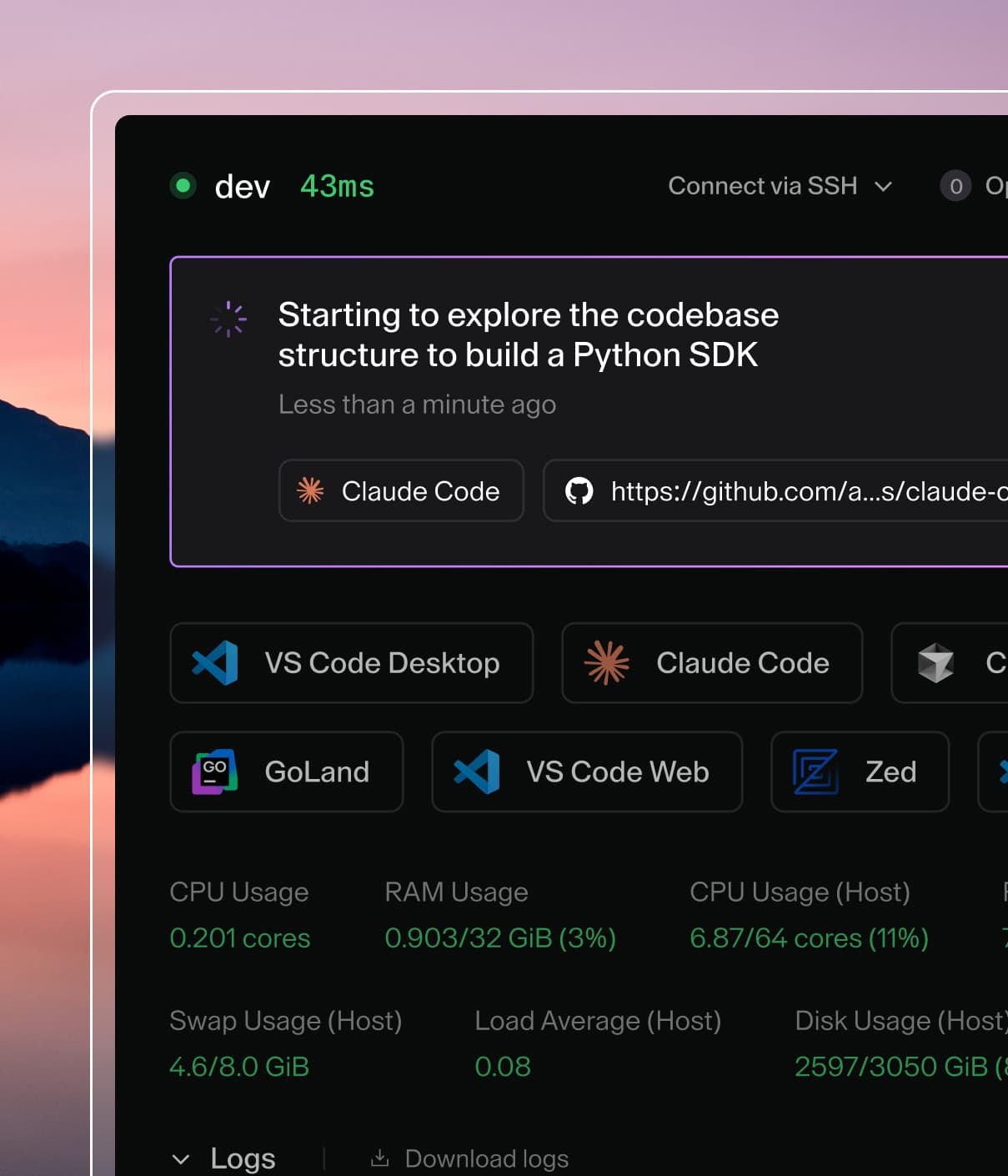
Coder powers secure, scalable development across key industries — automotive, finance, government, and technology — enabling faster builds, tighter compliance, and seamless AI adoption in enterprise-grade cloud environments.
This guide walks platform teams and administrators through setting up Coder
Agents, preparing your deployment, and running your first Coder Agent.
Prerequisites
Before you begin, confirm the following:
Coder deployment running the latest release.
LLM provider credentials — an API key for at least one
supported provider (Anthropic, OpenAI, Google, Azure OpenAI,
AWS Bedrock, OpenAI Compatible, OpenRouter, or Vercel AI Gateway).
Network access from the control plane to your LLM provider. Workspaces
do not need LLM access — only the control plane does.
Admin access to the Coder deployment for configuring providers.
Access to configure models in each organization where you configure models.
The Organization Admin role and the Owner role include this access.
A custom role with model configuration access also works.
Organization membership for each user who uses Coder Agents.
Every organization member can use Coder Agents by default.
To restrict access, see Control who can use Coder Agents.
Users also need read access to at least one model in the organization.
New models are shared with the whole organization by default.
See Manage model permissions.
Step 1: Configure an LLM provider and model
Important
Deployment administrators configure providers and deployment settings.
Users with model configuration access in an organization configure that organization's models.
Coder enables the edit controls for the organization that you select.
Coder shows the deployment settings only to deployment administrators.
Users with model access can view the relevant Models and Coder Agents pages.
Users with MCP server access can open the MCP servers page.
To configure Coder Agents:
Navigate to Admin settings > AI and select Providers.
Add or update a provider with its credentials and upstream endpoint, then
save it.
Navigate to Admin settings > AI > Models.
Select the correct organization.
Coder shows the organization picker when you can access more than 1 organization.
Select Add model and configure at least one model with its identifier, display name, and context limit.
Coder makes the first model of an organization the default model.
To change the default later, open a model and select Set as Coder Agents default model, or pick a model in the Default model row under Admin settings > AI > Coder Agents > Organization settings.
Each organization has its own model list and its own default model.
Repeat the model steps in every organization that uses Coder Agents.
Refer to Organization scope for the settings that stay deployment-wide.
Detailed instructions for each provider and model option are in the
Models documentation.
Tip
Start with a single frontier model to validate your setup before adding
additional providers.
Step 2: Start your first Coder Agent
Go to the Agents page in the Coder dashboard.
Select a model from the dropdown (your default will be pre-selected).
Type a prompt and send it.
The agent processes the prompt in the control plane.
When the conversation and available tools are sufficient, it works without provisioning a workspace.
If missing tools, skills, MCP integrations, or context block progress, the agent selects a template and provisions a workspace to continue.
It also provisions a workspace for tasks that need file access, command execution, or code changes.
Control who can use Coder Agents
Organization members can use Coder Agents by default.
Access comes from the Coder Agents User (agents-access) organization role, which each organization grants to members through its default member roles.
Members who don't hold the role directly lose Coder Agents access when you remove Coder Agents User from the default roles.
Role sync assigns roles at sign-in and doesn't store default roles, so members who get the role through role sync regain access at their next sign-in, and mapping the role in advance doesn't shorten the gap.
To limit Coder Agents to a subset of members in an organization (requires a Premium license):
Remove Coder Agents User from the organization's default roles.
In the dashboard, go to Admin settings > Organizations > Roles > Default Roles.
From the CLI, run coder organizations edit --org <organization> --default-org-member-roles organization-workspace-access, keeping any other default roles in the list.
Without role sync, assign Coder Agents User from Admin settings > Organizations > Members.
Keep the following behavior in mind:
Removing a user from the mapped IdP group or role removes their Coder Agents access at their next sign-in.
Owners and Organization Admins can always use Coder Agents, whatever the default roles are.
Service accounts don't inherit agents-access from the default roles.
Assign the role to a service account directly if it needs Coder Agents.
Members without the role can't use Coder Agents or open chats they created earlier.
Their chats are kept and become available again when they regain the role.
A chat shared with them stays readable.
Model permissions still apply: users also need read access to at least one model.
Optimize your templates
The agent selects templates based on their name, description, and README.
It does not read Terraform. Clear, specific descriptions are the most important
factor in whether the agent picks the right template.
Update your template descriptions to include:
The language, framework, or stack the template targets.
Which repository or service it is for, if applicable.
What type of work it supports (backend, frontend, data pipeline, etc.).
When 128 characters is not enough, put the most important routing context near
the top of the template's
README.md.
The chat agent's template listing includes a bounded README excerpt (roughly the
first 1,000 characters), and template detail includes the README (up to roughly
8,000 characters). Both are reduced to plain text: frontmatter is stripped,
link text is kept while link URLs are dropped, images and badges are dropped
entirely, and code blocks and tables are preserved as text.
Good examples:
Description
Why it works
Python backend services for the payments repo. Includes Poetry, Python 3.12, and PostgreSQL
Specific language, repo, and toolchain
React frontend development for the customer portal. Node 20, pnpm, Storybook pre-installed
Clear stack, named project, key tools listed
General-purpose Go development environment with Go 1.23, Docker, and common CLI tools
Broad but descriptive
Descriptions to avoid:
Description
Problem
Team A template v2
No information about what the template is for
Dev environment
Too generic to distinguish from other templates
Default
Tells the agent nothing
See Template Optimization for
the full guide, including dedicated agent templates, network boundaries,
credential scoping, and pre-installing dependencies.
Things to know before you start
Plan for change between releases
Coder Agents is generally available.
However, APIs, behavior, and configuration may change between releases.
As always, you should review release notes and the changelog before upgrading, so changes do not affect production.
Use HTTPS for push notifications
Coder Agents use browser push notifications to alert you when a task
completes or needs attention. Most browsers require a secure (HTTPS)
origin for the Push API
to work. If your access URL uses plain HTTP,
push notifications may not function.
This does not affect agents themselves — only the browser notification
delivery. If you terminate TLS at a reverse proxy, ensure the
access URL is configured with an https:// scheme.
Set a deployment-wide system prompt
Administrators can set a system prompt that applies to all Coder Agents across the
deployment. Use this to encode organizational conventions:
Coding standards and style guidelines.
Commit message formats.
Branch naming conventions.
Required review processes before merging.
Any guardrails specific to your environment.
Configure the system prompt from Admin settings > AI > Coder Agents > Instructions
or via the API at PUT /api/v2/chats/config/system-prompt.
See Platform Controls for details.
Understand the security model
The agent runs in the control plane, not inside workspaces. This means:
No LLM API keys in workspaces. Credentials stay in the control plane.
No agent software in workspaces. No supply chain risk from
third-party agent tools.
User identity is always attached. Every action is tied to the user
who submitted the prompt — no shared bot accounts.
No privilege escalation. The agent has exactly the same permissions
as the prompting user.
Agent workspaces inherit the same network access as any manually created
workspace. If your templates don't restrict egress, the agent has full
internet access from the workspace. Consider
creating dedicated agent templates
with tighter network policies.
Plan for LLM costs
Every conversation turn sends tokens to your LLM provider. Long-running tasks,
sub-agent delegation, and complex multi-step work can consume significant
token volume. Consider:
Starting with a single model to establish a cost baseline.
Monitoring provider dashboards for usage trends as adoption grows.
Plan for concurrency limits
Community licenses run up to 5 agents at once.
Additional agents queue and start automatically when capacity frees.
A Premium license with Agent Hours does not impose a concurrency limit unless the Agent Hours hard limit is reached.
If the Agent Hours allocation is exhausted without a configured hard limit, Coder warns about usage but does not impose a concurrency limit.
When the Agent Hours hard limit is reached, additional agents queue under the concurrency limit.
Refer to Concurrent agents for details.
Pilot with a small group
Identify 3–5 developers and a few concrete use cases for the initial rollout.
Good starting points:
Low-risk, high-visibility tasks — generating unit tests, writing inline
documentation, small refactors.
Set expectations for how the team reviews agent output.
Developers should still review all agent-produced code before merging.
The agent is a force multiplier, not a replacement for developer judgment.
Use the API for programmatic automation
The Chats API enables programmatic access to Coder Agents.
This is useful for building automations such as:
Triggering Coder Agents from CI/CD pipelines when builds fail.
Creating Coder Agents from GitHub webhooks on new issues or PRs.
Building internal tools or dashboards on top of the API.
Scripting batch operations across repositories.
Quick example — create a Coder Agent via the API:
curl -X POST https://coder.example.com/api/v2/chats \
  -H "Coder-Session-Token: $CODER_SESSION_TOKEN" \
  -H "Content-Type: application/json" \
  -d '{
    "content": [
      {"type": "text", "text": "Fix the failing tests in the auth service"}
    ]
  }'
Stream updates in real time by connecting to the WebSocket endpoint:
GET /api/v2/chats/{chat}/stream
For service-to-service automation, use
API keys
rather than developer session tokens. Keep automation credentials
narrowly scoped.
Link to a new chat with a prompt
To send users to a new chat with a message already written, link to /agents with a prompt query parameter.
URL-encode the message (for example, with encodeURIComponent in JavaScript):
The link fills in the message box only.
Coder doesn't send the message: the user reviews it, can edit it, and selects Send.
Because any website can create such a link, a warning in the message box asks the user to take care before sending.
The warning disappears once the user edits the message.
If the user isn't signed in, Coder keeps the message through sign-in.
Don't put secrets in these links.
URLs end up in browser history and server logs.
Add workspace context with AGENTS.md
Create an AGENTS.md file in the home directory (~/.coder/AGENTS.md) or
the workspace agent's working directory to provide persistent context to the
agent. This file is automatically read and included in the system prompt
for every conversation with a Coder Agent that uses that workspace.
Use it for:
Repository-specific build and test instructions.
Important architectural decisions or constraints.
Links to relevant documentation or runbooks.
Any context that helps the agent work effectively in that codebase.
Consider prebuilt workspaces for faster startup
Workspace provisioning is the main source of latency when the agent starts a
task. If your templates take more than a minute to provision, consider
configuring
prebuilt workspaces
to maintain a pool of ready-to-use workspaces. The agent gets assigned an
already-running workspace instead of provisioning from scratch.
Provide feedback
Report bugs and feature requests as GitHub issues.
For deployment-specific problems, such as provider configuration or performance in your environment, use your usual Coder support channel.
Good reports include:
What you tried: the prompt, the template, and the model.
What happened: the agent's behavior, any errors, and unexpected results.
What you expected: the outcome you were looking for.
Context: screenshots, chat_id values, or links to the Agents page help
the team investigate quickly.