Coder powers secure, scalable development across key industries — automotive, finance, government, and technology — enabling faster builds, tighter compliance, and seamless AI adoption in enterprise-grade cloud environments.
Occasionally, you may run into scenarios where a workspace is created, but the
agent is either not connected or the
startup script
has failed or timed out.
Agent connection issues
If the agent is not connected, it means the agent or
init script
has failed on the resource.
$ coder ssh myworkspace
⢄⡱ Waiting for connection from [agent]...
While troubleshooting steps vary by resource, here are some general best
practices:
Ensure the resource has curl installed (alternatively, wget or busybox)
Ensure the resource can curl your Coder
access URL
Manually connect to the resource and check the agent logs (e.g.,
kubectl exec, docker exec or AWS console)
The Coder agent logs are typically stored in /tmp/coder-agent.log
The Coder agent startup script logs are typically stored in
/tmp/coder-startup-script.log
The Coder agent shutdown script logs are typically stored in
/tmp/coder-shutdown-script.log
This can also happen if the websockets are not being forwarded correctly when
running Coder behind a reverse proxy.
Read our reverse-proxy docs
Startup script issues
Depending on the contents of the
startup script,
and whether or not the
startup script behavior
is set to blocking or non-blocking, you may notice issues related to the startup
script. In this section we will cover common scenarios and how to resolve them.
Unable to access workspace, startup script is still running
If you're trying to access your workspace and are unable to because the
startup script
is still running, it means the
startup script behavior
option is set to blocking or you have enabled the --wait=yes option (for e.g.
coder ssh or coder config-ssh). In such an event, you can always access the
workspace by using the web terminal, or via SSH using the --wait=no option. If
the startup script is running longer than it should, or never completing, you
can try to debug the startup script to resolve
the issue. Alternatively, you can try to force the startup script to exit by
terminating processes started by it or terminating the startup script itself (on
Linux, ps and kill are useful tools).
For tips on how to write a startup script that doesn't run forever, see the
startup_script
section. For more ways to override the startup script behavior, see the
startup_script_behavior
section.
Template authors can also set the
startup script behavior
option to non-blocking, which will allow users to access the workspace while the
startup script is still running. Note that the workspace must be updated after
changing this option.
Your workspace may be incomplete
If you see a warning that your workspace may be incomplete, it means you should
be aware that programs, files, or settings may be missing from your workspace.
This can happen if the
startup script
is still running or has exited with a non-zero status (see
startup script error). No action is
necessary, but you may want to
start a new shell session
after it has completed or check the
startup script logs to see if there are any
issues.
Session was started before the startup script finished
The web terminal may show this message if it was started before the
startup script
finished, but the startup script has since finished. This message can safely be
dismissed, however, be aware that your preferred shell or dotfiles may not yet
be activated for this shell session. You can either start a new session or
source your dotfiles manually. Note that starting a new session means that
commands running in the terminal will be terminated and you may lose unsaved
work.
Examples for activating your preferred shell or sourcing your dotfiles:
exec zsh -l
source ~/.bashrc
Startup script exited with an error
When the
startup script
exits with an error, it means the last command run by the script failed. When
set -e is used, this means that any failing command will immediately exit the
script and the remaining commands will not be executed. This also means that
your workspace may be incomplete. If you
see this error, you can check the
startup script logs to figure out what the
issue is.
Common causes for startup script errors:
A missing command or file
A command that fails due to missing permissions
Network issues (e.g., unable to reach a server)
Debugging the startup script
The simplest way to debug the
startup script
is to open the workspace in the Coder dashboard and click "Show startup log" (if
not already visible). This will show all the output from the script. Another
option is to view the log file inside the workspace (usually
/tmp/coder-startup-script.log). If the logs don't indicate what's going on or
going wrong, you can increase verbosity by adding set -x to the top of the
startup script (note that this will show all commands run and may output
sensitive information). Alternatively, you can add echo statements to show
what's going on.
Here's a short example of an informative startup script:
echo "Running startup script..."
echo "Run: long-running-command"
/path/to/long-running-command
status=$?
echo "Done: long-running-command, exit status: ${status}"
if [ $status -ne 0 ]; then
  echo "Startup script failed, exiting..."
  exit $status
fi
Note
We don't use set -x here because we're manually echoing the
commands. This protects against sensitive information being shown in the log.
This script tells us what command is being run and what the exit status is. If
the exit status is non-zero, it means the command failed and we exit the script.
Since we are manually checking the exit status here, we don't need set -e at
the top of the script to exit on error.
Note
If you aren't seeing any logs, check that the dir directive points
to a valid directory in the file system.
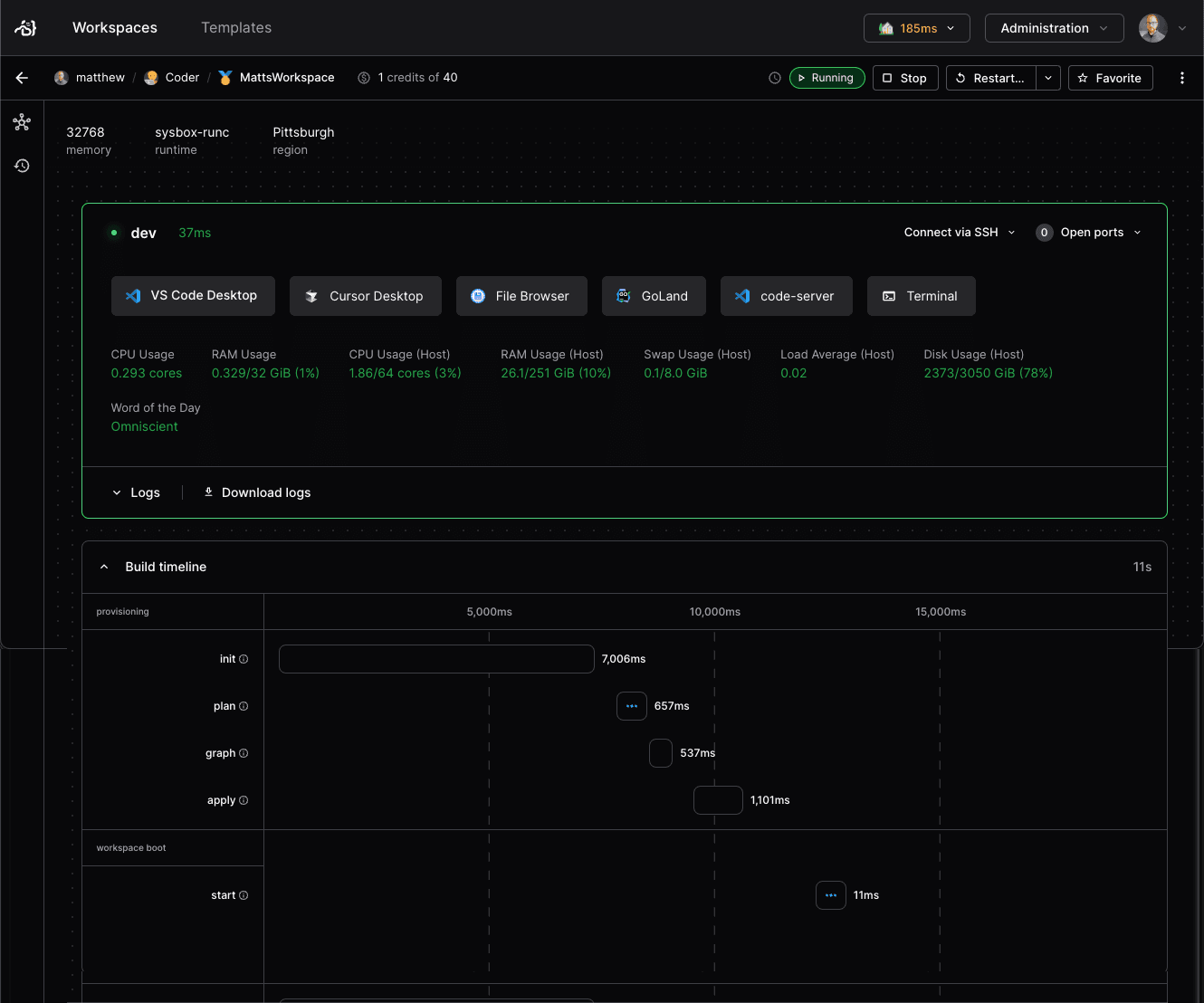
Slow workspace startup times
If your workspaces are taking longer to start than expected, or longer than
desired, you can diagnose which steps have the highest impact in the workspace
build timings UI (available in v2.17 and beyond). Admins can can
programmatically pull startup times for individual workspace builds using our
build timings API endpoint.
If a Docker-based template fails to provision with an error like Cannot connect to the Docker daemon at unix:///var/run/docker.sock, the Coder host cannot reach the Docker socket.
Confirm that Docker is installed and running on the host.
If you run Docker through rootless Docker, Colima, Podman, or a similar tool, the daemon may expose its socket at a non-default path, so set DOCKER_HOST to point at it.
Refer to Cannot connect to the Docker daemon for the full steps.
Docker Workspaces on Raspberry Pi OS
Unable to query ContainerMemory
When you query ContainerMemory and encounter the error:
open /sys/fs/cgroup/memory.max: no such file or directory
This error mostly affects Raspberry Pi OS, but might also affect older Debian-based systems as well.
Add cgroup_memory and cgroup_enable to cmdline.txt:
Confirm the list of existing cgroup controllers doesn't include memory:
$ cat /sys/fs/cgroup/cgroup.controllers
cpuset cpu io pids

$ cat /sys/fs/cgroup/cgroup.subtree_control
cpuset cpu io pids
Add cgroup entries to cmdline.txt in /boot/firmware (or /boot/ on older Pi OS releases):
cgroup_memory=1 cgroup_enable=memory
You can use sed to add it to the file for you:
sudo sed -i '$s/$/ cgroup_memory=1 cgroup_enable=memory/' /boot/firmware/cmdline.txt
Reboot:
sudo reboot
Confirm that the list of cgroup controllers now includes memory:
$ cat /sys/fs/cgroup/cgroup.controllers
cpuset cpu io memory pids

$ cat /sys/fs/cgroup/cgroup.subtree_control
cpuset cpu io memory pids
Read more about cgroup controllers in The Linux Kernel documentation.