Coder powers secure, scalable development across key industries — automotive, finance, government, and technology — enabling faster builds, tighter compliance, and seamless AI adoption in enterprise-grade cloud environments.
If you want to create a template without writing Terraform, use the
template builder
instead. The builder guides you through selecting base infrastructure and
adding modules through a visual interface.
A template is a common configuration that you use to deploy workspaces.
This tutorial teaches you how to create a template that provisions a workspace
as a Docker container with Ubuntu.
Before you start
You'll need a computer or cloud computing instance with both
Docker and Coder
installed on it.
What's in a template
The main part of a Coder template is a Terraformtf
file. A Coder template often has other files to configure the other resources
that the template needs. In this tour you'll also create a Dockerfile.
Coder can provision all Terraform modules, resources, and properties. The Coder
server essentially runs a terraform apply every time a workspace is created,
started, or stopped.
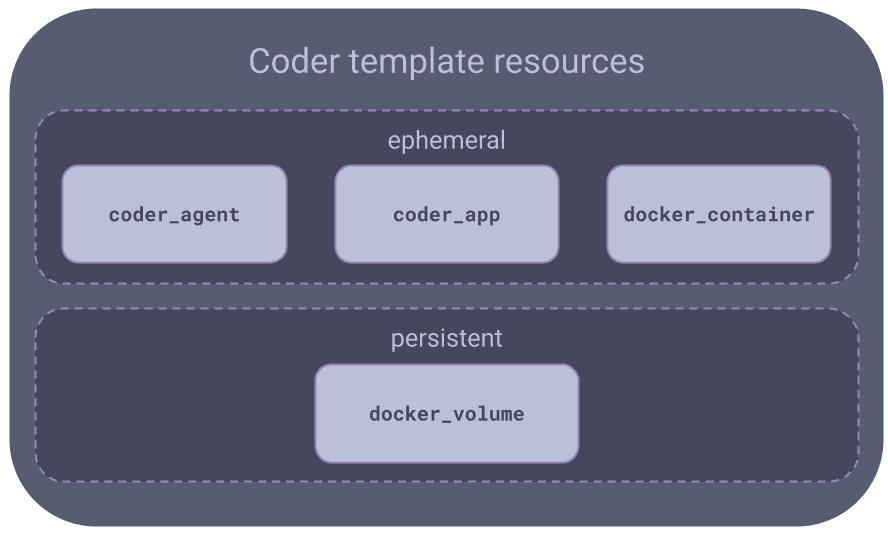
Here's a simplified diagram that shows the main parts of the template we'll
create:
1. Create template files
On your local computer, create a directory for your template and create the
Dockerfile. You will upload the files to your Coder instance later.
mkdir -p template-tour/build && cd $_
Enter content into a Dockerfile that starts with the
official Ubuntu image. In your editor, enter
and save the following text in Dockerfile then exit the editor:
Notice that the provider blocks for coder and docker are empty. In a more
practical template, you would add arguments to these blocks to configure the
providers, if needed.
The
coder_workspace
data source provides details about the state of a workspace, such as its name,
owner, and so on. The data source also lets us know when a workspace is being
started or stopped. We'll use this information in later steps to:
Set some environment variables based on the workspace owner.
Manage ephemeral and persistent storage.
3. coder_agent
All templates need to create and run a
Coder agent.
This lets developers connect to their workspaces. The coder_agent resource
runs inside the compute aspect of your workspace, typically a VM or container.
In our case, it will run in Docker.
You do not need to have any open ports on the compute aspect, but the agent
needs curl access to the Coder server.
Add this snippet after the last closing } in main.tf to create the agent:
Because Docker is running locally in the Coder server, there is no need to
authenticate coder_agent. But if your coder_agent is running on a remote
host, your template will need
authentication credentials.
This template's agent also runs a startup script, sets environment variables,
and provides metadata.
We use the data source from coder_workspace to set the environment
variables based on the workspace's owner. This way, the owner can make git
commits immediately without any manual configuration.
Your template can use metadata to show information to the workspace owner
Coder displays this metadata in the Coder dashboard.
Our template has metadata blocks for CPU and RAM usage.
4. coder_app
A
coder_app
resource lets a developer use an app from the workspace's Coder dashboard.
This is commonly used for
web IDEs such as
code-server, RStudio, and JupyterLab.
We installed code-server in the startup_script argument. To add code-server to
the workspace, make it available in the workspace with a coder_app resource.
See web IDEs for more examples:
Managing the lifecycle of template resources is important. We want to make sure
that workspaces use computing, storage, and other services efficiently.
We want our workspace's home directory to persist after the workspace is stopped
so that a developer can continue their work when they start the workspace again.
We do this in 2 parts:
Our docker_volume resource uses the lifecycle block with the
ignore_changes = all argument to prevent accidental deletions.
To prevent Terraform from destroying persistent Docker volumes in case of a
workspace name change, we use an immutable parameter, like
data.coder_workspace.me.id.
Later, we use the Terraform
count
meta-argument to make sure that our Docker container is ephemeral.
resource "docker_volume" "home_volume" {
  name = "coder-${data.coder_workspace.me.id}-home"
  # Protect the volume from being deleted due to changes in attributes.
  lifecycle {
    ignore_changes = all
  }
}
To set up our Docker container, our template has a docker_image resource that
uses build/Dockerfile, which we created earlier:
resource "docker_image" "main" {
  name = "coder-${data.coder_workspace.me.id}"
  build {
    context = "./build"
    build_args = {
      USER = local.username
    }
  }
  triggers = {
    dir_sha1 = sha1(join("", [for f in fileset(path.module, "build/*") : filesha1(f)]))
  }
}
Our docker_container resource uses coder_workspacestart_count to start
and stop the Docker container:
resource "docker_container" "workspace" {
  count = data.coder_workspace.me.start_count
  image = docker_image.main.name
  # Uses lower() to avoid Docker restriction on container names.
  name = "coder-${data.coder_workspace_owner.me.name}-${lower(data.coder_workspace.me.name)}"
  # Hostname makes the shell more user friendly: coder@my-workspace:~$
  hostname = data.coder_workspace.me.name
  # Use the docker gateway if the access URL is 127.0.0.1
  entrypoint = ["sh", "-c", replace(coder_agent.main.init_script, "/localhost|127\\.0\\.0\\.1/", "host.docker.internal")]
  env = [
    "CODER_AGENT_TOKEN=${coder_agent.main.token}",
  ]
  host {
    host = "host.docker.internal"
    ip   = "host-gateway"
  }
  volumes {
    container_path = "/home/${local.username}"
    volume_name    = docker_volume.home_volume.name
    read_only      = false
  }
}
7. Create the template in Coder
Save main.tf and exit the editor.
Now that we've created the files for our template, we can add them to our Coder
deployment.
We can do this with the Coder CLI or the Coder dashboard. In this example, we'll
use the Coder CLI.
Log in to your Coder deployment from the CLI. This is where you need the URL
for your deployment:
$ coder login https://coder.example.com
Attempting to authenticate with config URL: 'https://coder.example.com'
Open the following in your browser:

    https://coder.example.com/cli-auth

> Paste your token here:
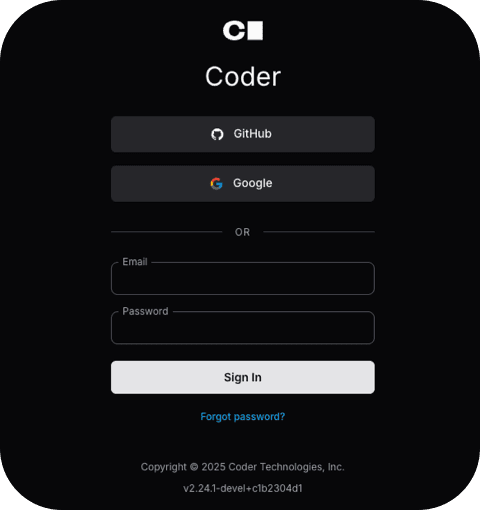
In your web browser, enter your credentials:
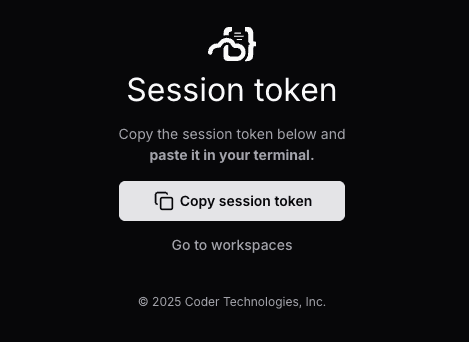
Copy the session token to the clipboard:
Paste it into the CLI:
> Welcome to Coder, marc! You're authenticated.
$
Add the template files to Coder
Add your template files to your Coder deployment. You can upload the template
through the CLI, or through the Coder dashboard:
Run coder templates push from the directory with your template files:
The Coder CLI tool gives progress information then prompts you to confirm:
> Confirm create? (yes/no) yes

The template-tour template has been created! Developers can provision a workspace with this template using:

coder create --template="template-tour" [workspace name]
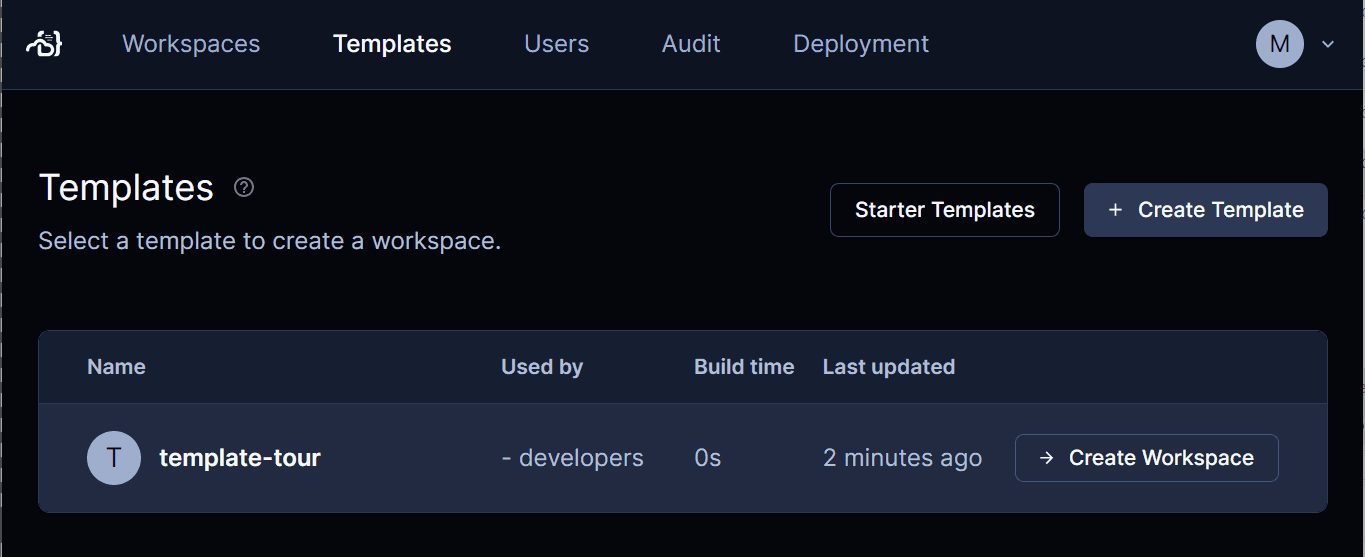
In your web browser, log in to your Coder dashboard, select Templates.
Once the upload completes, select Templates from the top to deploy it to
a new workspace.