Coder powers secure, scalable development across key industries — automotive, finance, government, and technology — enabling faster builds, tighter compliance, and seamless AI adoption in enterprise-grade cloud environments.
In networks that restrict access to the internet, you will need to leverage the
JetBrains Client Installer to download and save the IDE clients locally. Please
see the
JetBrains documentation for more information.
This page is an example that the Coder team used as a proof-of-concept (POC) of the JetBrains Gateway Offline Mode solution.
We used Ubuntu on a virtual machine to test the steps.
If you have a suggestion or encounter an issue, please
file a GitHub issue.
1. Deploy the server and install the Client Downloader
Install the JetBrains Client Downloader binary. Note that the server must be a Linux-based distribution:
wget -O jetbrains-clients-downloader-linux-x86_64.tar.gz \
  'https://data.services.jetbrains.com/products/download?code=JCD&platform=linux_x86-64' && \
tar -xzvf jetbrains-clients-downloader-linux-x86_64.tar.gz
2. Install backends and clients
JetBrains Gateway requires both a backend to be installed on the remote host
(your Coder workspace) and a client to be installed on your local machine. You
can host both on the server in this example.
You will need to run a web server in order to serve requests to the backend and
client files. We installed nginx and setup an FQDN and routed all requests to
/. See below:
Then, configure your DNS entry to point to the IP address of the server. For the
purposes of the POC, we did not configure TLS, although that is a supported
option.
4. Add Client Files
You will need to add the following files on your local machine in order for
Gateway to pull the backend and client from the server.
$ cat productsInfoUrl # a path to products.json that was generated by the backend's downloader (it could be http://, https://, or file://)

https://internal.site/backends/<PRODUCT_CODE>/products.json

$ cat clientDownloadUrl # a path for clients that you got from the clients' downloader (it could be http://, https://, or file://)

https://internal.site/clients/

$ cat jreDownloadUrl # a path for JBR that you got from the clients' downloader (it could be http://, https://, or file://)

https://internal.site/jre/

$ cat pgpPublicKeyUrl # a URL to the KEYS file that was downloaded with the clients builds.

https://internal.site/KEYS
The location of these files will depend upon your local operating system:
With the server now configured, you can now configure your local machine to use
Gateway. Here is the documentation to
setup SSH config via the Coder CLI.
On the Gateway side, follow our guide here until step 16.
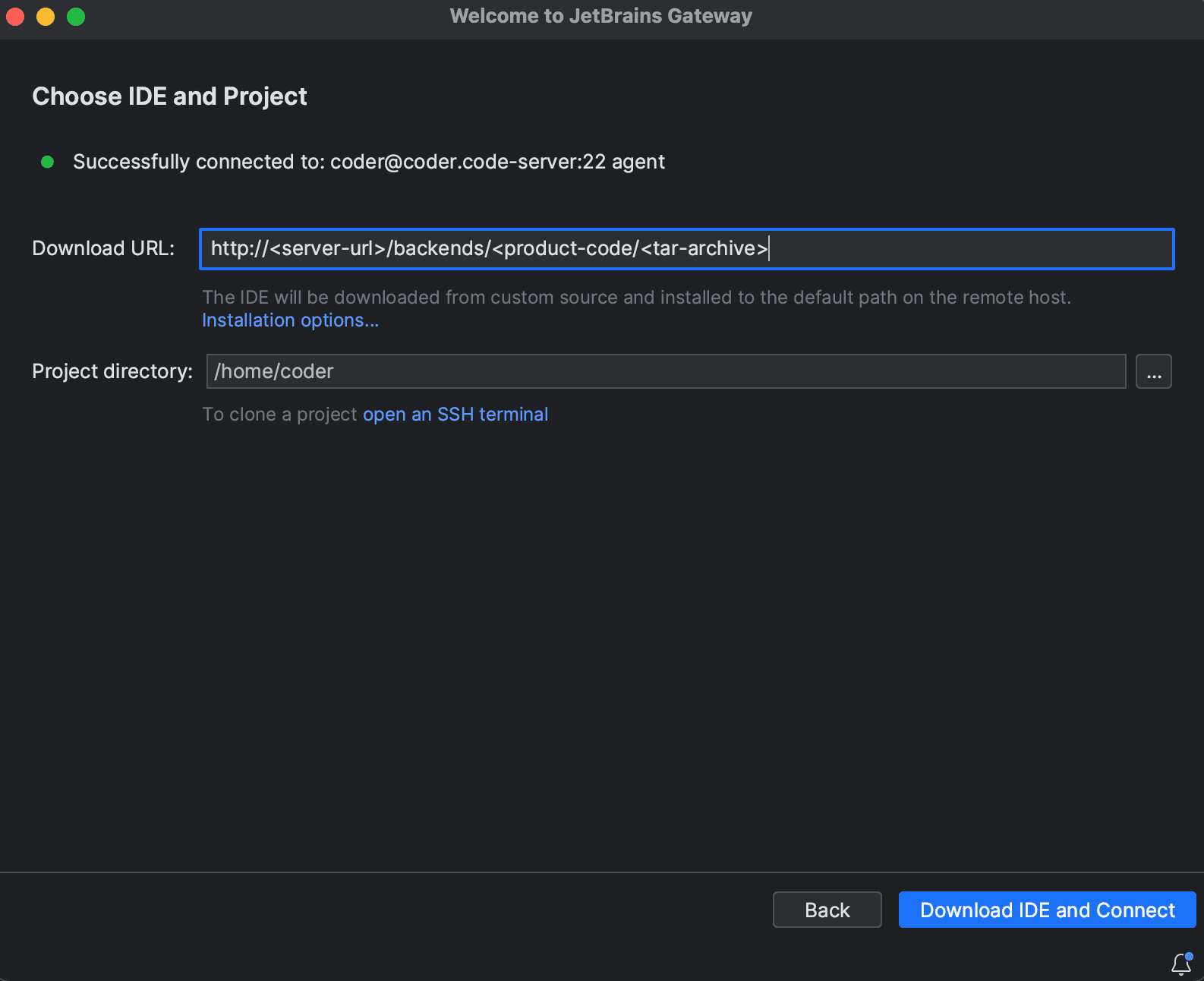
Instead of downloading from jetbrains.com, we will point Gateway to our server
endpoint. Select Installation options... and select Use download link. Note
that the URL must explicitly reference the archive file:
Click Download IDE and Connect. Gateway should now download the backend and
clients from the server into your remote workspace and local machine,
respectively.