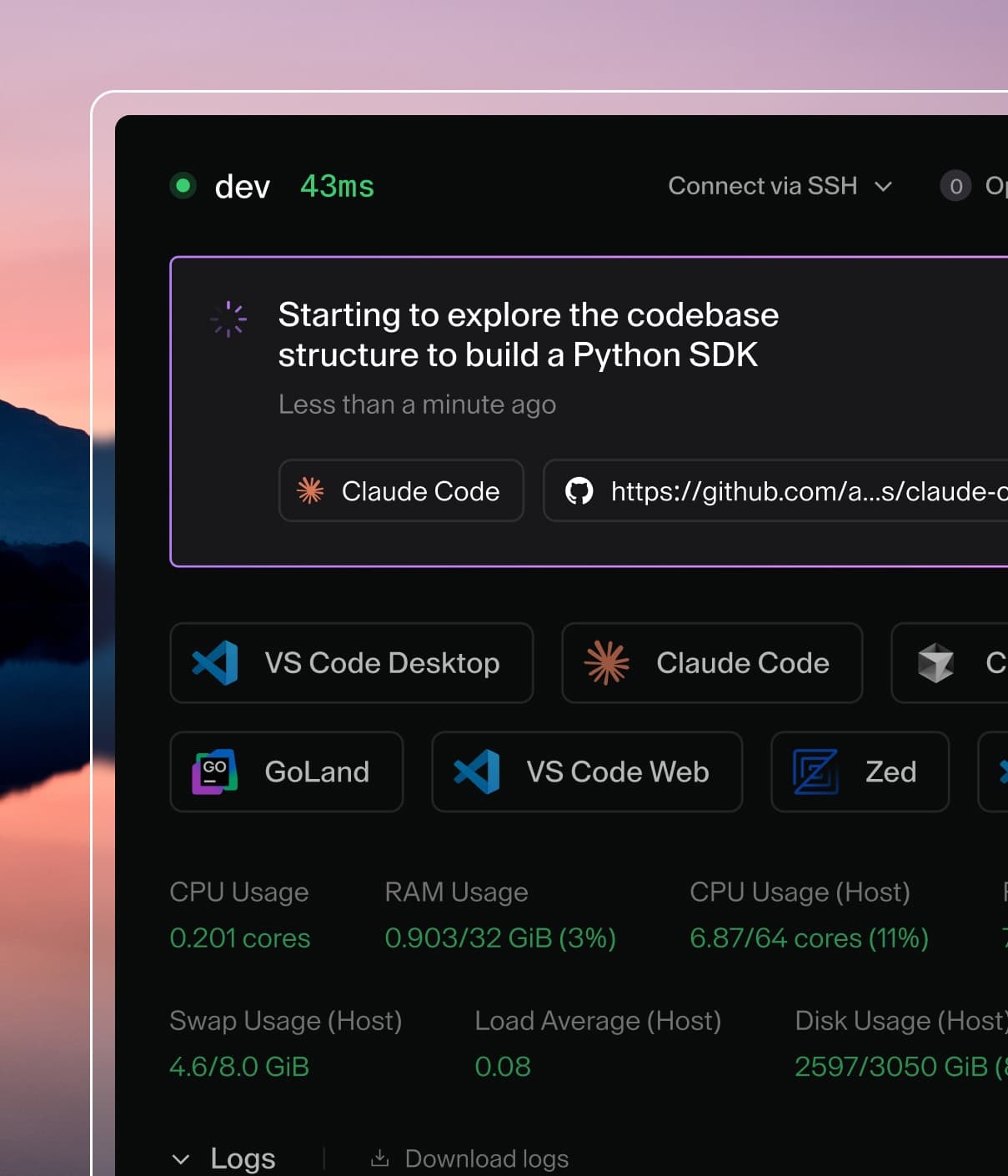
Coder powers secure, scalable development across key industries — automotive, finance, government, and technology — enabling faster builds, tighter compliance, and seamless AI adoption in enterprise-grade cloud environments.
This guide walks through setting up a long-lived workspace that is owned by a
service account and shared with a rotating set of users. Because no single
person owns the workspace, it persists across team changes and every user
authenticates as themselves.
This pattern is useful for any scenario where a workspace outlives the people
who use it:
On-call rotations — Engineers share a workspace pre-loaded with runbooks,
dashboards, and monitoring tools. Access rotates with the shift schedule.
Shared staging or QA — A team workspace hosts a persistent staging
environment. Testers and reviewers are added and removed as sprints change.
Pair programming — A service-account-owned workspace gives two or more
developers a shared environment without either one owning (and accidentally
deleting) it.
Contractor onboarding — An external team gets scoped access to a workspace
for the duration of an engagement, then access is revoked.
The steps below use an on-call SRE workspace as a running example, but the
same commands apply to any of the scenarios above. Substitute the usernames,
group names, and template to match your use case.
Prerequisites
A running Coder deployment (v2.32+) with workspace sharing enabled. Sharing
is on by default for OSS; Premium deployments may require
admin configuration.
OIDC authentication configured so
shared users log in with their corporate SSO identity. Configure
refresh tokens to prevent
session timeouts during long work sessions.
A wildcard access URL configured
(e.g. *.coder.example.com) so that shared users can access workspace apps
without a 404.
(Recommended) IdP Group Sync
configured if your identity provider manages group membership for the teams
that will share the workspace.
1. Create a service account
Create a dedicated service account that will own the shared workspace. Service
accounts are non-human accounts intended for automation and shared ownership.
Because no individual user owns the workspace, there are no personal
credentials to expose and the shared environment is not affected when any user
leaves the team or the organization.
# On-call example — substitute a name that fits your use case
coder users create \
  --username oncall-sre \
  --service-account
2. Generate an API token for the service account
Generate a long-lived API token so you can create and manage workspaces on
behalf of the service account:
Store this token securely (e.g. in a secrets manager like Vault or AWS Secrets
Manager).
Important
Never distribute this token to end users. The token is for workspace
administration only. Shared users authenticate as themselves and reach the
workspace through sharing.
3. Create the workspace
Authenticate as the service account and create the workspace:
Design a dedicated template for the workspace with the tools your team
needs pre-installed (e.g. monitoring dashboards for on-call, test runners
for QA). Set subdomain = true on workspace apps so that shared users can
access web-based tools without a 404. See
Accessing workspace apps in shared workspaces.
4. Share the workspace
Use coder sharing share to grant access to users who need the workspace:
coder sharing share oncall-sre/oncall-workspace --user alice
This gives alice the default use role, which allows connection via SSH and
workspace apps, starting and stopping the workspace, and viewing logs and stats.
To grant admin permissions (which includes all use permissions as well as renaming, updating, and inviting
others to join with the use role):
Groups can be synced from your identity provider using
IdP Sync. If your IdP already
manages team membership, sharing with a group is the simplest approach.
5. Rotate access
When team membership changes, remove outgoing users and add incoming ones:
# Remove outgoing user
coder sharing remove oncall-sre/oncall-workspace --user alice

# Add incoming user
coder sharing share oncall-sre/oncall-workspace --user carol
Important
The workspace must be restarted for user removal to take effect.
Verify current sharing status at any time:
coder sharing status oncall-sre/oncall-workspace
6. Automate access changes (optional)
For use cases with frequent rotation (such as on-call shifts), you can integrate
the share/remove commands into external tooling like PagerDuty, Opsgenie, or a
cron job.
Rotation script
#!/bin/bash
# rotate-access.sh
# Usage: ./rotate-access.sh <outgoing-user> <incoming-user>

WORKSPACE="oncall-sre/oncall-workspace"
OUTGOING="$1"
INCOMING="$2"

if [ -n "$OUTGOING" ]; then
  echo "Removing access for $OUTGOING..."
  coder sharing remove "$WORKSPACE" --user "$OUTGOING"
fi

echo "Granting access to $INCOMING..."
coder sharing share "$WORKSPACE" --user "$INCOMING"

echo "Restarting workspace to apply changes..."
coder restart "$WORKSPACE" --yes

echo "Current sharing status:"
coder sharing status "$WORKSPACE"
Group-based rotation with IdP Sync
If your identity provider manages group membership (e.g. an sre-oncall group
in Okta or Azure AD), you can skip manual share/remove commands entirely:
Configure Group Sync to
synchronize the group from your IdP to Coder.
When your IdP rotates group membership, Coder group membership updates on
next login. All current members have access; removed members lose access
after a workspace restart.
Finding shared workspaces
Shared users can find workspaces shared with them:
# List all shared workspaces you can access, including your own
coder list --search shared:true

# List workspaces shared with you
coder list --search shared_with_user:me

# List workspaces shared with a specific user
coder list --search shared_with_user:alice

# List workspaces shared with a specific group
coder list --search shared_with_group:sre-oncall
Troubleshooting
Shared user sees 404 on workspace apps
Workspace apps using path-based routing block non-owners by default. Configure a
wildcard access URL and set
subdomain = true on the workspace app in your template.
Removed user still has access
Access removal requires a workspace restart. Run
coder restart <workspace> after removing a user or group.
Group sync not updating membership
Group membership changes in your IdP are not reflected until the user logs out
and back in. Group sync runs at login time, not on a polling schedule. Check the
Coder server logs with
CODER_LOG_FILTER=".*userauth.*|.*groups returned.*" for details. See
Troubleshooting group sync
for more information.